2 Easy Ways to Copy and Share LinkedIn Profile Link

0
LinkedIn is a social media platform that specialises in forming professional connections and finding new jobs. Your LinkedIn profile holds all the vital information – from your work history to your educational qualifications. Forwarding your LinkedIn profile to a contact makes it very accessible for them to go through your work and contact you for further dialogue. In this article, we bring you 2 easy ways to copy and share your LinkedIn profile link with other people. Read Also: Best 3 Ways to Change the Speed of Video on Android and iPhone

Copy and Share your LinkedIn Profile Link

Step 1: Open LinkedIn on your device’s web browser. Step 2: Go to your LinkedIn profile. Step 2: Go to your LinkedIn profile. Step 3: Copy the URL under the Public Profile and URL section on the right. Step 3: Copy the URL under the Public Profile and URL section on the right. Step 4: Paste the URL from the clipboard to share it with someone.

Copy and Share your LinkedIn Profile Link from the web browser

Step 1: Open LinkedIn on your device’s web browser. Step 2: Go to your LinkedIn profile. Step 3: Click on the web browser’s address bar and press Ctrl + C. Your profile URL will be copied to the clipboard. Step 3: Click on the web browser’s address bar and press Ctrl + C. Your profile URL will be copied to the clipboard. Step 4: Paste the URL from the clipboard to share it with someone.

Frequently Asked Questions (FAQs)

How do I copy my LinkedIn profile URL?

Open your LinkedIn profile on a web browser and check out the Public Profile and URL section on the right. This is where you will find your profile URL. Copy this address to share it with others.

How do I change my LinkedIn profile URL?

To change your LinkedIn profile URL, click the pencil icon on the Public Profile and URL section. On the following page, hit the pencil icon in the Edit your custom URL section.

How do I find my LinkedIn profile URL?

Open your LinkedIn profile in a web browser, then click the address bar to locate the profile link. Read Also: iQoo Z7 Pro 5G with 64-megapixel Samsung GW3 primary sensor launched in India

Conclusion

These are the 2 ways you can copy and share your LinkedIn profile link with others. If you want a customised link to your profile, simply hit the pencil icon next to the Public Profile and URL section. This will redirect you to a new page where you can set a new URL for your profile. If you found this article helpful, let us know in the comments! For the latest gadget and tech news, and gadget reviews, follow us on Twitter, Facebook and Instagram. For newest tech & gadget videos subscribe to our YouTube Channel. You can also stay up to date using the Gadget Bridge Android App. You can find the latest car and bike news here.

BGMI redeem codes for 2 September 2023, claim and receive rewards and benefits

After being banned for nearly ten months, Battleground Mobile India, aka BGMI, is officially available again in India. BGMI fans are looking for ways to improve their game experience and one such method is the usage of redemption codes, which offers a variety of rewards and advantages using BGMI redeem codes players can gain access to new skins, outfits, loot crates, weapons and free UC and diamonds. As mentioned earlier, these codes give users the chance to earn unique rewards and gain extra benefits while playing the game. This includes GUN SKINS (M4, AKM, M416, AWM, M24, UZI, KAR98K), free character voucher, Andy, Carlo, Sara, Victor character for free, free Anna Character on completing the mission and UC or Royal Pass Discount. So here we have gathered a list of the most recent BGMI redeem codes as of 2 September 2023. Also, redeem these codes asap as these are only valid for a limited duration.

BGMI Redeem Codes for 2 September 2023

updating soon…

How to get free Redeem Codes for BGMI on 2 September 2023?

  • Launch BGMI on your device.
  • Then select the Redeem Code option from the main menu.
  • Next, click on the Redeem code tab.
  • A new window will open, requesting the redemption code.
  • Now enter your BGMI code.
  • Confirm and click on the “Redeem” tab.
  • If your redeem code is valid then you will get a message confirming that your rewards were successfully redeemed.
(Note that these codes are case-sensitive, so be sure to type them correctly to prevent any errors.) For the latest gadget and tech news, and gadget reviews, follow us on TwitterFacebook and Instagram. For newest tech & gadget videos subscribe to our YouTube Channel. You can also stay up to date using the Gadget Bridge Android App. You can find the latest car and bike news here.

Garena Free Fire Redeem Codes Today 2 September 2023: Here is how to claim them

Garena Free Fire is a battle royale game with regular awards and tournaments to keep players interested. If you play Garena Free Fire, you should be aware of the redeem codes that are released on a daily basis. However, because the battle royale game is banned in India, players from other countries can use the Free Fire Redeem codes daily. If you’re unfamiliar with the Garena Free Fire redeem codes or don’t know how to get them, we’ve put together a step-by-step guide to help you redeem them. Check out Garena Free Fire Redeem Codes for 2 September 2023. The Free Fire redeem codes are a great way to get free stuff. These are 12-digit codes that contain alphabets and numbers, as well as an expiration date and time. Because the Garena FF redeem codes cannot be used more than once, you should hurry to the redemption page to claim your free reward before someone else does. To get a free reward, all you have to do is go to reward.ff.garena.com/en, which is the official redemption page. Also, keep an eye on this space for daily updates on Garena Free Fire redemption codes and rewards.

Garena Free Fire Redeem Codes Today 2 September 2023

  • FEICJGW9NKYT
  • KEYVGQC3CT8Q
  • FVRTNJ45IT8U
  • F4BHK6LYOU9I
  • F767T1BE456Y
  • FFCMCPSJ99S3
  • BR43FMAPYEZZ
  • XZJZE25WEFJJ
  • FF7MJ31CXKRG
  • FFPO8BS5JW2D
  • PJNF5CQBAJLK
  • F7AC2YXE6RF2
  • FHLOYFDHE34G
  • XGW4FNK7ATON
  • 67IBBMSL7AK8G
  • V427K98RUCHZ
  • MCPW2D1U3XA3
  • FFAC2YXE6RF2
  • HNC95435FAGJ
  • 6KWMFJVMQQYG
  • FFCMCPSUYUY7E
  • MCPW3D28VZD6
  • EYH2W3XK8UPG
  • FAGTFQRDE1XCF
  • FFCMCPSBN9CU
  • NPYFATT3HGSQ
  • FFCMCPSGC9XZ
  • MCPW2D2WKWF2
  • ZZZ76NT3PDSH
  • FFCMCPSEN5MX

How to Get Free Fire Redeem Codes for Garena on 2 September 2023?

  • Visit the Garena Free Fire game’s official website at reward.ff.garena.com.
  • Use your Facebook, Google, VK, Apple ID, Huawei ID, or Twitter account to log in.
  • You’ll be taken to a valid redemption code (s)
  • Copy and paste the 12-digit redemption code into the text box.
  • On the screen, a dialogue box will appear.
  • ‘Ok’ should be selected.
For the latest gadget and tech news, and gadget reviews, follow us on TwitterFacebook and Instagram. For newest tech & gadget videos subscribe to our YouTube Channel. You can also stay up to date using the Gadget Bridge Android App. You can find the latest car and bike news here.

3 Ways to Add the Messages App Icon Back to Home Screen

0
Most Android smartphones have an app drawer along with a home screen. The home screen is where you place all the important app shortcuts for easy access. Meanwhile, the app drawer is where you’ll find all the apps installed on your phone. On iPhone, the app drawer is known as the App Library and can be accessed by swiping left on the last home screen. On most smartphones, the Dialer and Messages app are the common fixtures on the home screen. Sometimes, users remove them by accident and can’t figure out how to get them back. In this article, we bring you 3 quick ways to add the Messages app icon back to the home screen on your iPhone and Android phone. Read Also: 4 Reasons Why You Should Buy CZUR Fancy S Pro

Add the Messages App Icon to the Home Screen on Android

Step 1: Unlock your Android smartphone and swipe up to access the app drawer. Step 2: Press and hold the Messages app icon. Step 3: Move the Messages app towards the top until you exit the app drawer and land on the home screen. Step 3: Move the Messages app towards the top until you exit the app drawer and land on the home screen. Step 4: Drop the Messages app icon in the desired place. Step 4: Drop the Messages app icon in the desired place.

Add the Messages App Icon to the Home Screen using the shortcut menu

Step 1: Unlock your Android smartphone and swipe up to access the app drawer. Step 2: Long press the Messages app icon. Step 2: Long press the Messages app icon. Step 3: Select Add to Home in the Shortcut menu. Step 3: Select Add to Home in the Shortcut menu.

Add the Messages App Icon to the Home Screen on iOS/iPhone

iphone-13-pro-review Step 1: Unlock your iPhone and swipe left until you reach the App Library. Step 2: Locate the Messages app in the Socials folder or simply search for it using the search tab at the top. Step 3: Press and hold the Messages app icon. Step 4: Move the icon towards the top of the screen until you exit the App Library and land on the home screen. Step 5: Release the app icon. It will show up on the home screen.

Frequently Asked Questions (FAQs)

How do I add the Messages app icon to the home screen on my Android phone?

Go to the app drawer, press & hold the messages app icon, then drag it to the top of the screen until you land on the home screen. Release the app in the desired spot.

How do I add the Messages app icon to the home screen on my iPhone?

Go to the App Library, press & hold the messages app, then move it towards the top of the screen and release it once you hit the main screen.

How do I change the home screen layout of my Android phone?

Go to Settings>Home Screen, then use the home screen grid to change its layout. Read Also: How to Sign Out of Amazon on All Devices?

Conclusion 

This is how you can add the Messages app icon to your iPhone or Android phone’s home screen. Android offers a lot more customisation options than iOS. Some Android skins let you ditch the app drawer altogether and just have one home screen for your device. You can also choose different grid layouts for your home screen. Go to Settings>Home Screen to explore more. For the latest gadget and tech news, and gadget reviews, follow us on Twitter, Facebook and Instagram. For newest tech & gadget videos subscribe to our YouTube Channel. You can also stay up to date using the Gadget Bridge Android App. You can find the latest car and bike news here.

Google Pixel 8 and Pixel 8 Pro get listed on the FCC certification website, ahead of October 4 launch

The Mountain View, California-based tech giant Google has revealed the precise date of the formal release of its Pixel 8 range of premium smartphones. The Pixel 8 and Pixel 8 Pro variants are anticipated to be part of the series. For the past few weeks, various rumours have circulated regarding the phone’s key features and other information. The Pixel 8 and Pixel 8 Pro are said to have been listed on the FCC certification website weeks before their release. After Apple revealed the launch date for its iPhone 15 series Google has now officially confirmed the Pixel 8 series’ launch date. The launch date of October 4 has been announced via X . With a base and a Pro model, the Pixel 8 Series is planned to succeed the Pixel 7 series when it launches on October 4. The event, which is said to be being hosted by the corporation, would begin that day at 10 AM local time in New York. Also Read: Android 14-based OxygenOS 14 confirmed to be released globally on this date: Details The Pixel 8 and Pixel 8 Pro, weeks before their release, apparently went to the FCC certification website. According to the listing, the devices’ FCC listing indicates that there may be five different varieties available when they go on sale. GKWS6, G9BQD, GZPF0, GPJ41, and G1MNW are stated as model numbers for the Pixel 8, while G1MNW is reportedly the model number for the Pixel 8 Pro. Furthermore, it’s expected that the Pixel 8 and Pixel 8 Pro will support Bluetooth, Wi-Fi 6E, and both Sub6 and mmWave 5G connectivity. The Pixel 8 Pro’s colour options and rear design were recently discovered on Google’s promo page for Google Subscriptions & Services. Porcelain White has been used as a colour scheme to tease the smartphone. It’s anticipated to have a single pill-shaped camera island (similar to its predecessors) with a triple back camera system. In addition to this, the existence of a further sensor that sits adjacent to the LED flash has also been suggested. Additionally, it has been speculated that Google’s camera app on the Pixel 8 Series will get a new user interface. The upcoming series is likely to feature AI-powered cameras. In some areas, the Google Pixel 8 series is expected to launch as an eSIM-only smartphone. The leaked renderings claimed that the left side’s SIM card slots were absent. For the latest gadget and tech news, and gadget reviews, follow us on TwitterFacebook and Instagram. For newest tech & gadget videos subscribe to our YouTube Channel. You can also stay up to date using the Gadget Bridge Android App. You can find the latest car and bike news here.

How to set a battery charging limit on your Android phone?

0
Your phone’s battery is prone to a lot of wear and tear. While you cannot stop it from eventually degrading over time, you can maximize its longevity by taking a few measures. One of the easiest things you can do is not charge your phone beyond 80%. If you’re used to charging your phone overnight, this can be a tricky task to accomplish. In this article, we show you how to set a battery charging limit on your Android phone. Read Also: 4 Reasons Why You Should Buy CZUR Fancy S Pro

Set a Battery Charging Limit on Android

Step 1: Go to Settings and select Battery and device care. Step 1: Go to Settings and select Battery and device care. Step 2: Select Battery. Step 2: Select Battery. How to set a battery charging limit on your Android phone? Step 3: Tap on More Battery Settings. Step 3: Tap on More Battery Settings. How to set a battery charging limit on your Android phone? Step 4: Switch on the toggle bar for Protect battery.

Set the battery charging limit using a third-party app

Some Android smartphone manufacturers may not have the feature to set a battery charging limit. In this case, use a third-party app like AccuBattery to set a charging alarm. Step 1: Install the AccuBattery app on your phone. Step 2: Launch the app and switch to the Charging tab. Step 2: Launch the app and switch to the Charging tab. How to set a battery charging limit on your Android phone? Step 3: Drag the bubble around the charge indicator to set the upper limit. Step 3: Drag the bubble around the charge indicator to set the upper limit. How to set a battery charging limit on your Android phone? Step 4: AccuBattery will remind you to unplug the charger when your phone hits the charge limit.

Frequently Asked Questions (FAQs)

How do I set a battery charging limit on my Android phone?

Go to Settings>Battery and device care>Battery>More Battery Settings and switch on the toggle bar for Protect Battery.

How do I set a charging alarm on my Android phone?

Install the AccuBattery app, switch to the charging tab, and drag the buddle around the charge indicator to set the alarm at a specific charge level. Once your phone’s battery hits that level, your device will ring an alarm to remind you to unplug your charger.

How long should I charge my phone to maximise its battery health?

To maximize your phone’s battery health, you should plug it in to charge when it hits 20% and plug out the charger when the battery level reaches 80%. Read Also: How to Sign Out of Amazon on All Devices?

Conclusion

This is how you can set a battery charging limit on your Android smartphone. To maximise your phone’s battery health, turn on optimised charging. This ensures that your phone does not overcharge if you keep it plugged into the charger overnight. Once optimised charging is turned on, your phone trickle charges the battery once it hits 80%. Over a period of time, your phone recognises your waking-up pattern and only boosts your phone to 100% when you’re about to wake up from sleep. Check out this article to learn how to calibrate your Android phone’s battery. For the latest gadget and tech news, and gadget reviews, follow us on Twitter, Facebook and Instagram. For newest tech & gadget videos subscribe to our YouTube Channel. You can also stay up to date using the Gadget Bridge Android App. You can find the latest car and bike news here.

Android 14-based OxygenOS 14 confirmed to be released globally on this date: Details

The precise date for the release of OxygenOS 14, the newest operating system from the Chinese smartphone manufacturer OnePlus, has been officially revealed. The company has announced that it will be live worldwide on September 25. According to the company, OxygenOS 14 will be one of the first operating systems based on Android 14 to be released and will include a number of interesting new features aimed at enhancing user experiences. Kinder Liu, President and COO of OnePlus said, “OnePlus has been committed to delivering a fast, smooth and steady OxygenOS to our users. Powered by OnePlus’ latest innovations, OxygenOS 14 will be the most intelligent and intuitive software product in OnePlus’ history.” Also Read: Apple Event: September 12 confirmed for the introduction of the iPhone 15 Series According to OnePlus OxygenOS 14 will bring users an elevated fast and smooth experience powered by innovative algorithms. OnePlus is integrating OxygenOS 14 with its brand-new, exclusive performance platform, the Trinity Engine. The Trinity Engine unlocks the full potential of OnePlus smartphones by attaining more hardware and software synergy, addressing industry-wide problems in pursuing higher power consumption efficiency, better multitasking capacity, and a more durable quick and smooth experience. The engine is said to be equipped with six cutting-edge technologies, including HyperBoost, HyperTouch, ROM Vitalization, CPU Vitalization, and HyperRendering. Combining these technologies ensures a flexible, quick, and fluid experience in situations like multitasking, intense mobile gaming, and extended use. Also Read: iQoo Z7 Pro 5G with 64-megapixel Samsung GW3 primary sensor launched in India Prior to the general release, OnePlus had launched an Android 14-based OxygenOS 14 Closed Beta Testing (CBT) initiative for the OnePlus Nord 3 5G owners in India. 500 users can participate in the CBT programme. The users will be able to uncover and submit OS faults to OnePlus so that any serious problems will be resolved before the product is released to the general market. Users who are interested can sign up for the program to get a sneak peek at OnePlus’ next custom skin and offer comments and ideas on how to make the software experience better. OnePlus Nord 3 5G (Review) was launched in India in July. Under the hood, there is a Snapdragon 7+ Gen 2 SoC.  For the latest gadget and tech news, and gadget reviews, follow us on TwitterFacebook and Instagram. For newest tech & gadget videos subscribe to our YouTube Channel. You can also stay up to date using the Gadget Bridge Android App. You can find the latest car and bike news here.

Best 3 Ways to Change the Speed of Video on Android and iPhone

0
Changing the video speed is one of the most basic video-editing skills that every smartphone user should know. If you want to make your video more presentable, you should know how to set it to the ideal tempo. Your smartphone is easily able to accomplish this task without needing any third-party app. In this article, we bring you the 3 best ways to change the speed of a video on Android and iOS/iPhone. Read Also: Top 3 Ways to Stop Instagram From Posting to Facebook

Use the native editor to change the speed of video on Android

Step 1: Select the video you want to edit. Step 2: Tap the pencil icon on the bottom menu. Step 2: Tap the pencil icon on the bottom menu. Best 3 Ways to Change the Speed of Video on Android and iPhone Step 3: Scroll through the editing options and select Speed. Step 3: Scroll through the editing options and select Speed. Best 3 Ways to Change the Speed of Video on Android and iPhone Step 4: Use the slider to change the speed of the video. Step 4: Use the slider to change the speed of the video. Best 3 Ways to Change the Speed of Video on Android and iPhone Step 5: Hit the tick icon at the bottom right corner of the screen. Step 6: Hit Save at the bottom right corner of the screen. Step 5: Hit the tick icon at the bottom right corner of the screen. Best 3 Ways to Change the Speed of Video on Android and iPhone

Use the native editor to change the speed of video on an iPhone

iPhone 13 now available for as low as Rs 21,499 on Flipkart: Details Inside Step 1: Launch the Photos app and select the video. Step 2: Tap the Edit option at the top right corner of the screen. Step 3: The speed bar is positioned right below the video seeker. Step 4: Bring the bars closer to speed up the video and separate them further to slow it down. Step 5: Hit Done at the bottom right corner of the screen.

Use a third-party app

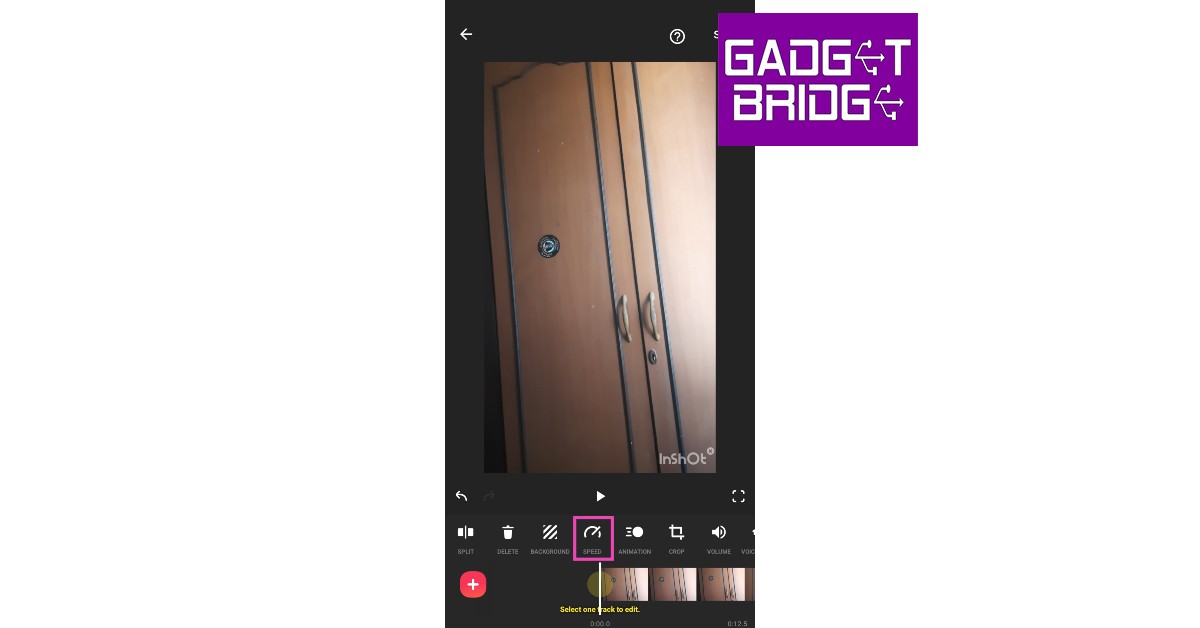
Step 1: Install the Video Editor & Maker – InShot app from the Google Play Store. Step 2: Tap on Video from the Create new section and load the video from your phone’s gallery. Step 2: Tap on ‘Video’ from the ‘Create new’ section and upload the video from your phone’s gallery. Step 3: Select Speed from the toolbar. Step 3: Select ‘Speed’ from the toolbar. Step 4: Select the playback speed. You can speed up the video or convert it entirely into slow motion. Step 4: Select the playback speed. You can speed up the video or convert it entirely into slow motion. Step 5: Tap on Curve to speed up or slow down different parts of the video. Tap the play button to preview. Step 5: Tap on ‘Curve’ to convert different parts of the video into slow motion. Tap the play button to preview. Step 6: Select Save.

Frequently Asked Questions (FAQs)

How do I change the speed of a video on Android?

Select the video and go to Edit>Speed. Choose a playback speed from the list of options.

How do I change the speed of a video on an iPhone?

Select the video and hit the Edit option at the top. Use the speed bar under the video seeker to change the speed of the video.

What are some good video editing apps for Android and iOS?

InShot, VITA, and iMovie are some of the best video editing apps for Android and iOS. Read Also: Oppo Find N3 Flip featuring a 3.26-inch cover display launched

Conclusion

This is how you can change the speed of a video on Android and iPhone/iOS. When it comes to basic editing like changing the playback speed, your phone’s native editor is well-equipped to handle the task. For more advanced editing tasks, you will need to install a third-party video editor like InShot, Vita, or iMovie. Here is our list of the top 10 video editing apps for iPhone and iPad. Android users can check out this list to find the top 10 video editors for their platform. For the latest gadget and tech news, and gadget reviews, follow us on Twitter, Facebook and Instagram. For newest tech & gadget videos subscribe to our YouTube Channel. You can also stay up to date using the Gadget Bridge Android App. You can find the latest car and bike news here.

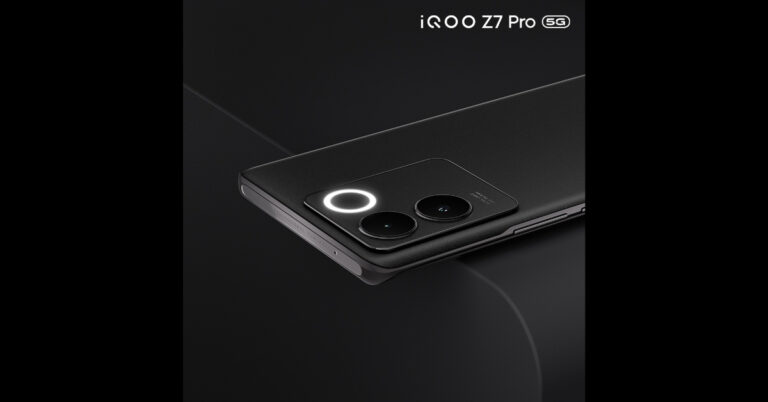
iQoo Z7 Pro 5G with 64-megapixel Samsung GW3 primary sensor launched in India

iQoo has officially announced the launch of its new smartphones in India. iQoo Z7 Pro 5G is the latest addition to the company’s Z-Series lineup. The device is powered by an octa-core MediaTek Dimensity 7200 SoC. It comes with a dual camera setup that includes a 64-megapixel sensor. There is a 120Hz AMOLED display and a 4,500mAh battery with 44W wired Flash Charge support.

iQoo Z7 Pro 5G price in India, sale details

iQoo Z7 Pro 5G has been launched in India with a starting price of Rs 23,999 for the base 8GB RAM with 128 GB storage option. On the other hand, the cost of the 8GB RAM with 256GB storage option is set at Rs 24,999. However, additional bank offers of up to Rs 2,000 bring the price down to Rs 21,999 and Rs 22,999, respectively. Also Read: Boat Smart Ring with heart and menstrual monitoring launched in India As per the company, the effective price is for a limited time with launch offers, so users can purchase the device early to avail the best price. The iQOO Z7 Pro will be available for purchase on Amazon.in and iQOO e-store from September 5 at noon. The phone will be offered in two colour options- Blue Lagoon and Graphite Matte. iQoo Z7 Pro 5G price in India, sale details

iQoo Z7 Pro 5G specifications

iQoo Z7 Pro 5G features a 6.78-inch full-HD+ AMOLED display with 2400 x 1080 pixels of resolution. The screen supports a 120Hz refresh rate and has a touch sampling rate of 300Hz. The device has an aspect ratio of 20:9 and comes with a peak brightness level of 1300 nits. The device runs on FuntouchOS 13 with Android 13. Under the hood, there is an octa-core 4nm MediaTek Dimensity 7200 SoC with Mali-G610 MC4 GPU. It comes with 8GB of LPDDR4X RAM and up to 256GB of UFS 2.2 storage. iQoo Z7 Pro 5G sports a dual rear camera setup that includes a 64-megapixel Samsung GW3 primary sensor and a 2-megapixel depth sensor. It also features a ring LED light. It also features a 16-megapixel front-facing sensor for taking selfies and video calling. Also Read: Apple Event: September 12 confirmed for the introduction of the iPhone 15 Series iQoo Z7 Pro 5G has an in-display fingerprint sensor, a gyroscope, an e-compass, a proximity sensor, an ambient light sensor, and an accelerometer. In addition to this has connectivity for 5G, 4G VoLTE, Wi-Fi 6, Bluetooth 5.3, GPS, and USB Type-C. It has an IP52 rating for water and dust resistance. The 4,600mAh battery in the iQoo Z7 Pro supports 66W wired fast charging. For the latest gadget and tech news, and gadget reviews, follow us on TwitterFacebook and Instagram. For newest tech & gadget videos subscribe to our YouTube Channel. You can also stay up to date using the Gadget Bridge Android App. You can find the latest car and bike news here.

BGMI redeem codes for 1 September 2023, claim and receive rewards and benefits

After being banned for nearly ten months, Battleground Mobile India, aka BGMI, is officially available again in India. BGMI fans are looking for ways to improve their game experience and one such method is the usage of redemption codes, which offers a variety of rewards and advantages using BGMI redeem codes players can gain access to new skins, outfits, loot crates, weapons and free UC and diamonds. As mentioned earlier, these codes give users the chance to earn unique rewards and gain extra benefits while playing the game. This includes GUN SKINS (M4, AKM, M416, AWM, M24, UZI, KAR98K), free character voucher, Andy, Carlo, Sara, Victor character for free, free Anna Character on completing the mission and UC or Royal Pass Discount. So here we have gathered a list of the most recent BGMI redeem codes as of 1 September 2023. Also, redeem these codes asap as these are only valid for a limited duration.

BGMI Redeem Codes for 1 September 2023

updating soon…

How to get free Redeem Codes for BGMI on 1 September 2023?

  • Launch BGMI on your device.
  • Then select the Redeem Code option from the main menu.
  • Next, click on the Redeem code tab.
  • A new window will open, requesting the redemption code.
  • Now enter your BGMI code.
  • Confirm and click on the “Redeem” tab.
  • If your redeem code is valid then you will get a message confirming that your rewards were successfully redeemed.
(Note that these codes are case-sensitive, so be sure to type them correctly to prevent any errors.) For the latest gadget and tech news, and gadget reviews, follow us on TwitterFacebook and Instagram. For newest tech & gadget videos subscribe to our YouTube Channel. You can also stay up to date using the Gadget Bridge Android App. You can find the latest car and bike news here.