




Formatting a Word document can get tricky when there’s a blank page in the middle that refuses to go anywhere. You should know how to get rid of the unwanted pages to maintain a smooth and easy reading experience. Blank pages can disrupt the flow and often cause confusion. If you don’t know how to remove them from your document, we’re here to help. Here are 3 ways you can delete any page in Microsoft Word.
Read Also: Slap Battles Codes (December 2025)
In This Article
Here’s what causes random blank pages to appear in your document
- Hidden formatting: Page breaks, section breaks, and paragraph marks.
- Tables and images: Inserting objects like a table or an image in a document can set off the formatting. Microsoft Word may add a blank page to accommodate the table/image. Resizing the object can help in this situation.
- Deleted content: Sometimes, Microsoft Word retains a page even though the content in it has been deleted. This is quite rare, but it can happen.
Delete a page manually
Step 1: Launch Microsoft Word and go to the page you wish to delete.
Step 2: Press Ctrl + G (Option + ⌘ + G on Mac) on your keyboard.
Step 3: Type \page in the Enter page number text box. Hit Enter.
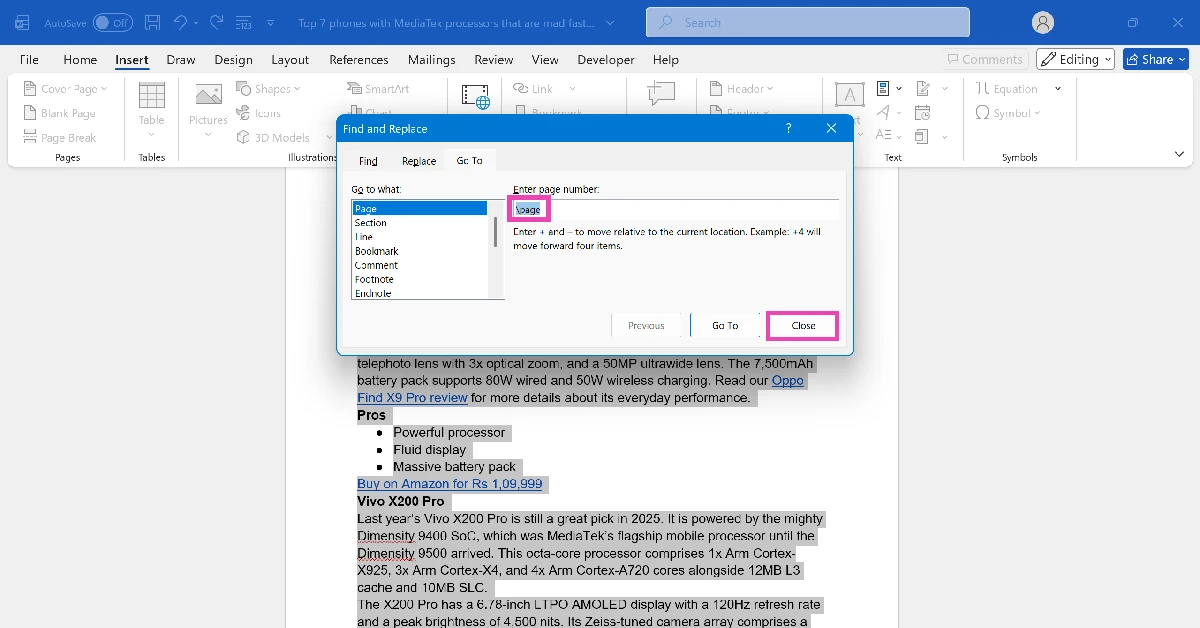
Step 4: Click on Close.
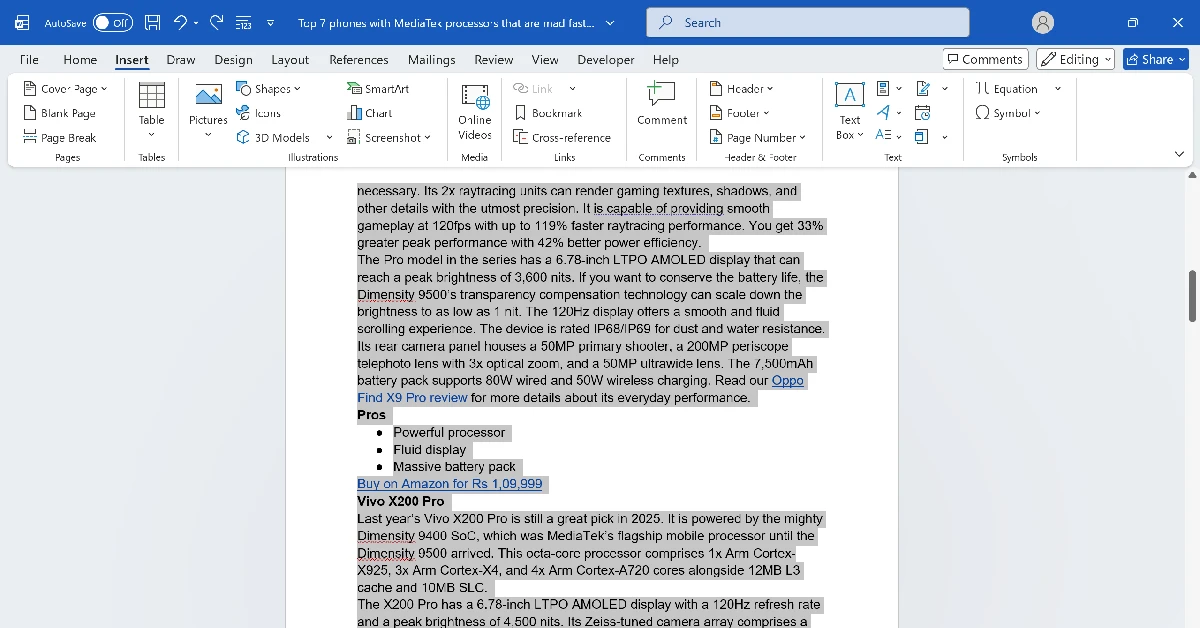
Step 5: Hit the Delete key on your keyboard.
Delete a blank page
Step 1: Launch Microsoft Word and open the document.
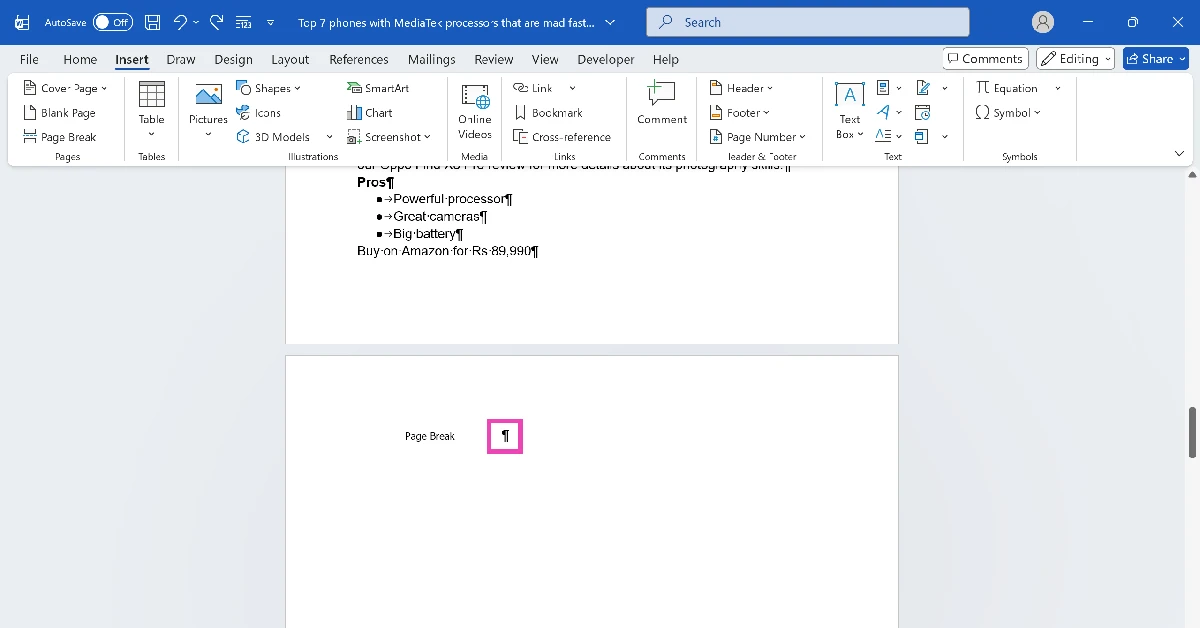
Step 2: Press Ctrl + Shift + 8 (⌘ + 8 on Mac) on your keyboard.
Step 3: Spot the page break marker (¶) on the blank page and click on it.
Step 4: Go to the font box and change the font size to 01.
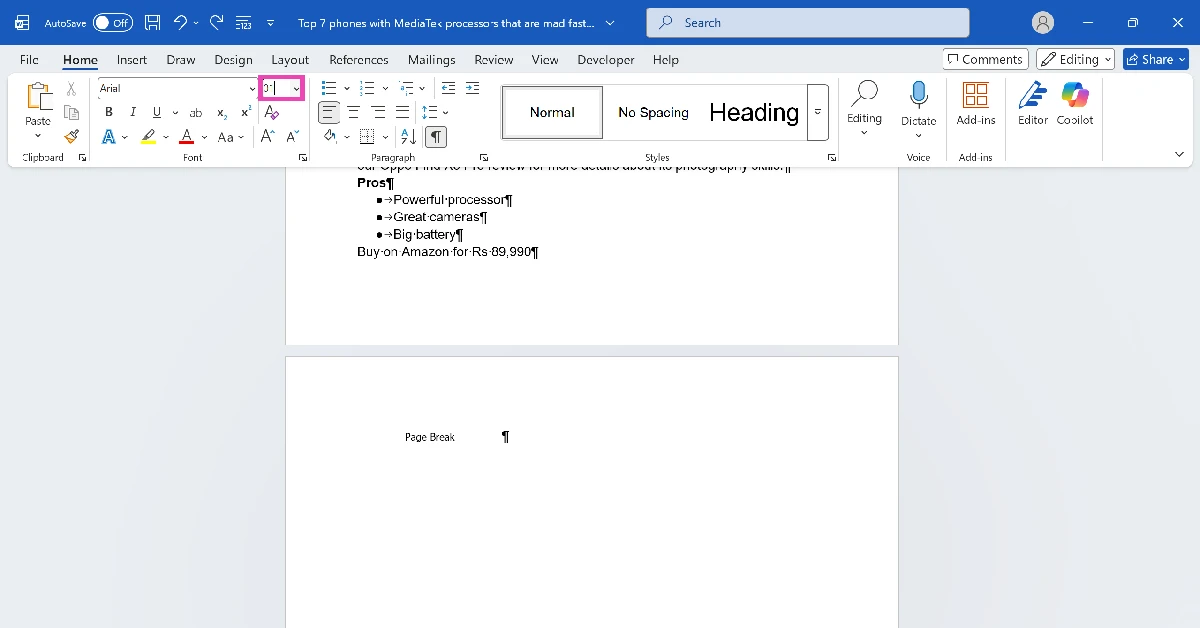
Step 5: Hit Enter.
Step 6: Use the keyboard shortcut in Step 2 to hide the page break markers.
Use the Navigation pane
Step 1: Launch Microsoft Word and open a document.
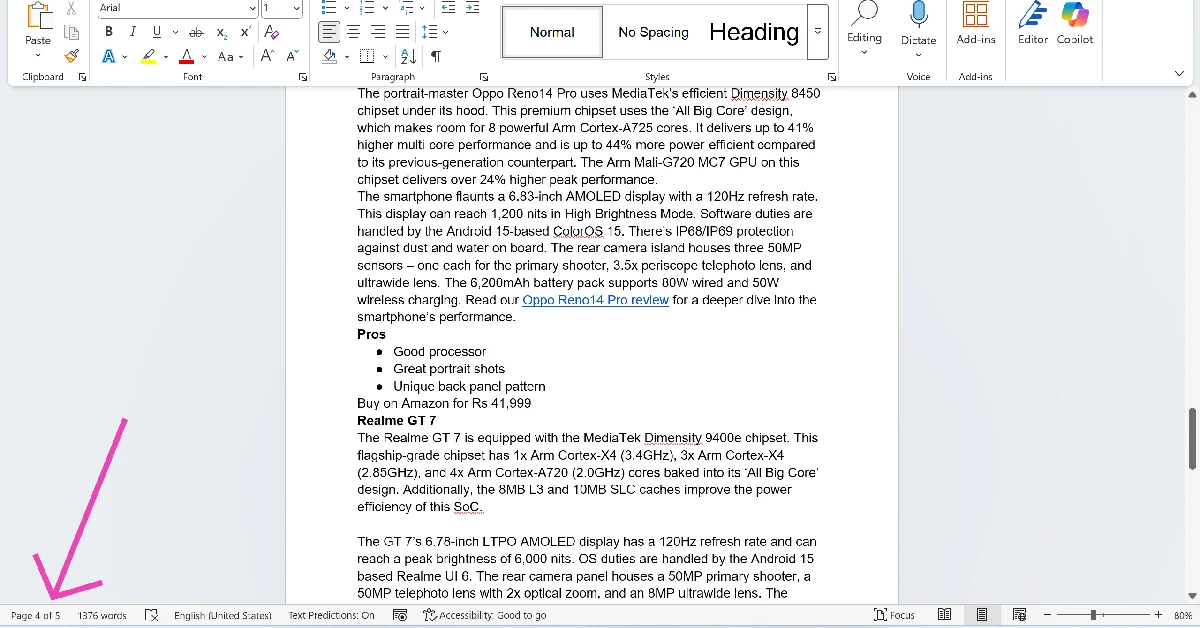
Step 2: Click the Page counter in the bottom left corner of the screen. This will reveal the navigation pane.
Step 3: Click the page you wish to delete in the navigation pane.
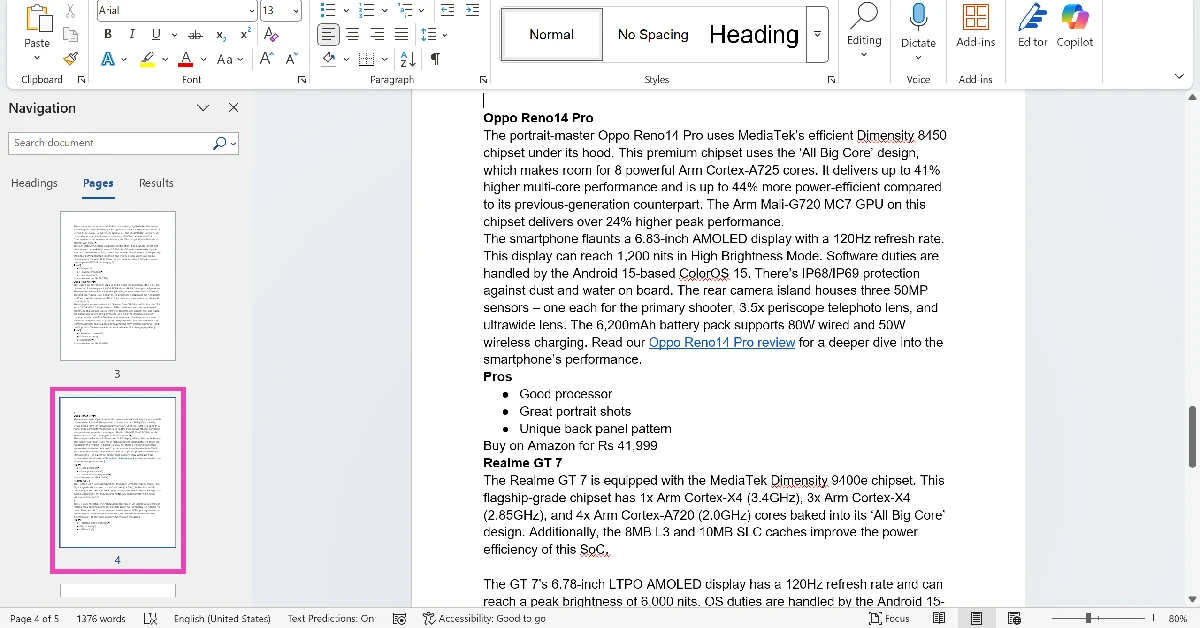
Step 4: Hit the Delete button on your keyboard.
Frequently Asked Questions (FAQs)
How do I delete a page in a Word Document?
Go to the page you wish to delete, press Ctrl+G on your keyboard, type \page in the text box, and hit ‘Enter’. Once the page is selected, close the dialogue box and hit the ‘Delete’ button on your keyboard.
How do I delete a blank page in Microsoft Word?
Go to the blank page in the document and press Ctrl+Shift+8. This will reveal the page breakers in the document. Click the page breaker in the blank page and change its font to 01. The page will be deleted.
What is the quickest way to delete a page in Word?
Click the page counter in the bottom left corner of the screen, select a page in the navigation pane and hit the delete button on your keyboard.
Can I delete a page while converting a text document to a PDF?
Yes, you can delete a page while converting a text doc to a PDF. Most PDF converters offer the option to edit a file before converting it. In the editing window, hit the cross icon on the pages you wish to delete.
How do I insert a blank page in a Word document?
Move the cursor to the spot where you wish to insert the blank page. Switch to the ‘Insert’ tab at the top of the screen and select ‘Blank page’.
Read Also: Here is how you can buy a Samsung Galaxy S25 Ultra at Rs 69,999
Final Thoughts
If you accidentally deleted the wrong page, press Ctrl + Z to quickly undo your mistake and bring the page back. While you’re here, check out how you can create a word cloud in Microsoft Word. Got any questions? Let us know in the comments!


