


Adobe is at the forefront of AI integration. It recently updated Acrobat with new AI tools that let you turn your documents into podcasts and presentations. These tools come in handy when you want to pitch an idea to a partner or a client. Instead of mailing them a daunting PDF, you can send them a short 5-minute podcast discussing the key ideas. Here’s how you can turn PDF documents into podcasts using Adobe Acrobat.
Read Also: Thomson 32-inch QLED smart TVs with JIO Tele OS launched in India
In This Article
Before you begin
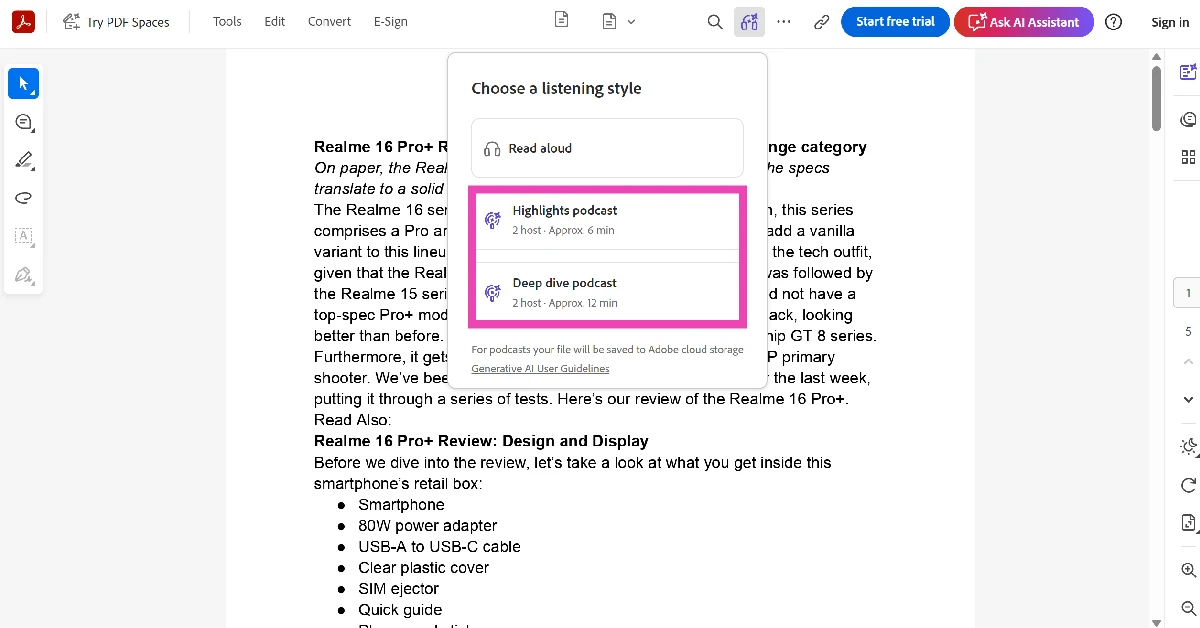
Adobe Acrobat offers 2 listening styles for AI-generated podcasts.
- Highlights: For a focused summary. 2 hosts. Typically between 4 and 6 minutes.
- Deep Dive: For detailed exploration. 2 hosts. Can go over 15 minutes.
It goes without saying that the quality of the AI-generated podcast depends on how good your source material is. Here are a few tips to keep in mind while framing your document.
- Make sure the document is well-detailed. Use stats and figures wherever possible.
- Do not make the document long and redundant. Clear and concise is the way to go.
- It helps if the document is paragraphed. Use paragraphs to separate different themes, motifs, and chapters.
- If you don’t want a conversational podcast, you can choose the ‘Read Aloud’ option for text-to-speech.
Turn your PDF into a podcast
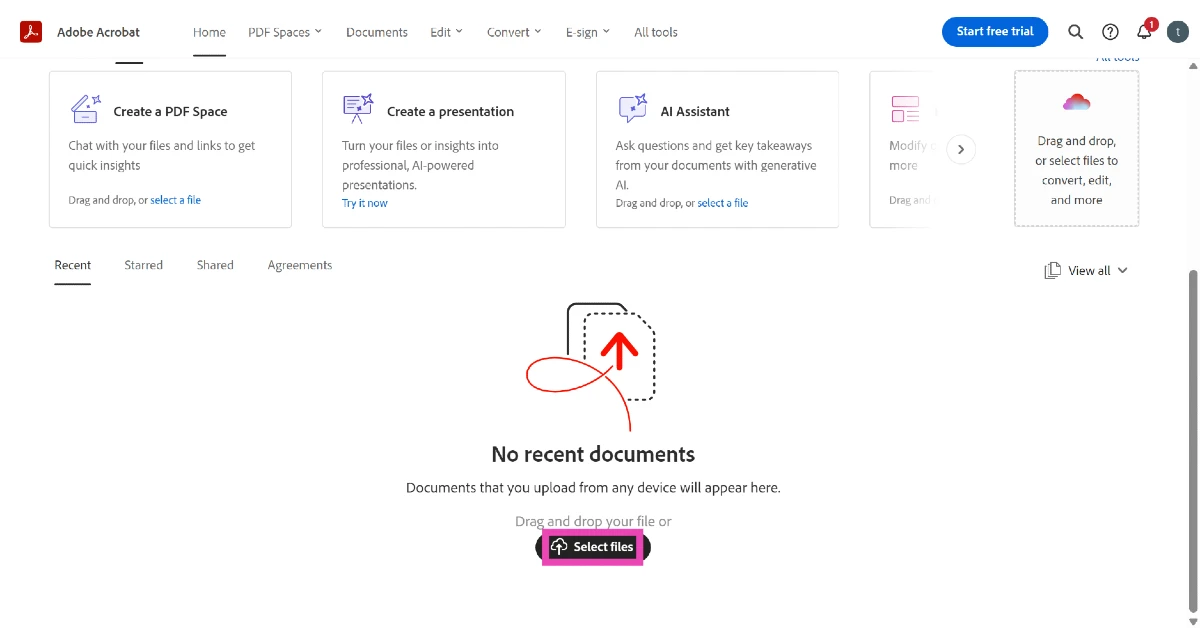
- Go to Adobe Acrobat on the web and sign in to your account.
- Upload your PDF.

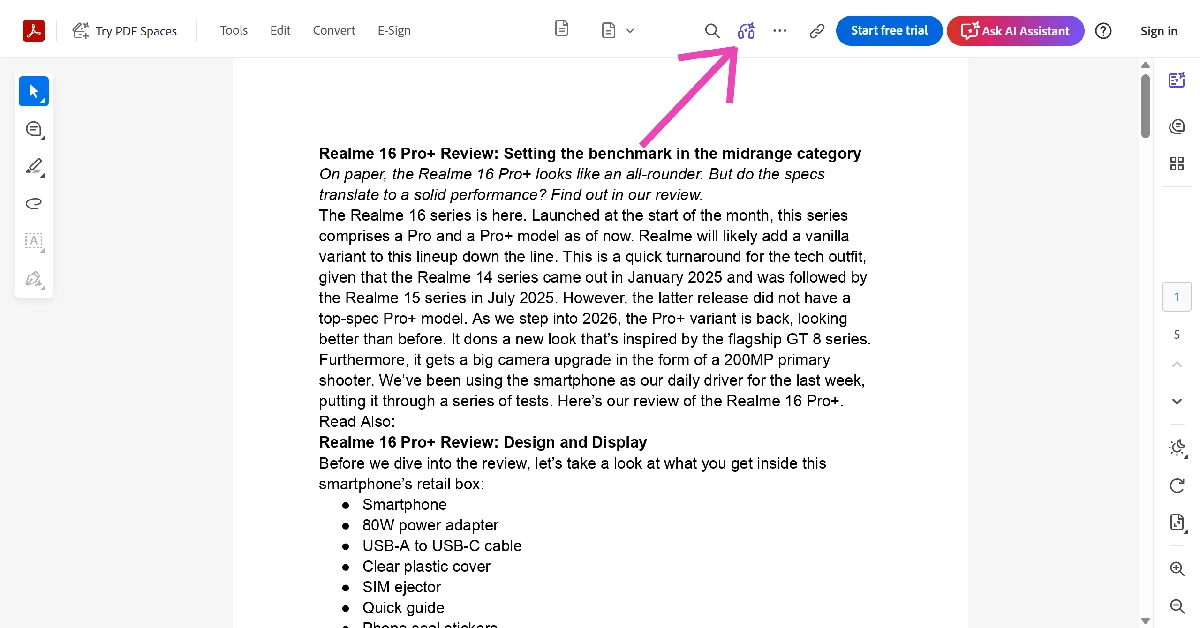
- The document will load on a new page. Hit the headphones icon in the top menu.
- Choose a listening style from the dropdown menu.
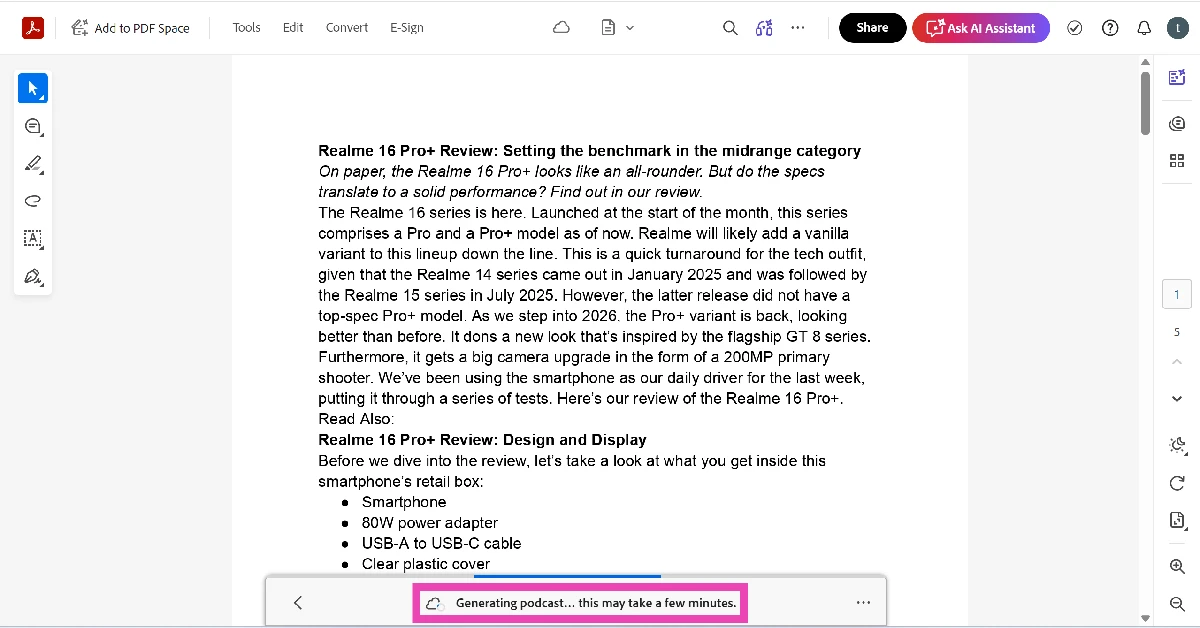
- Adobe will start generating your podcast. This will take a few minutes.
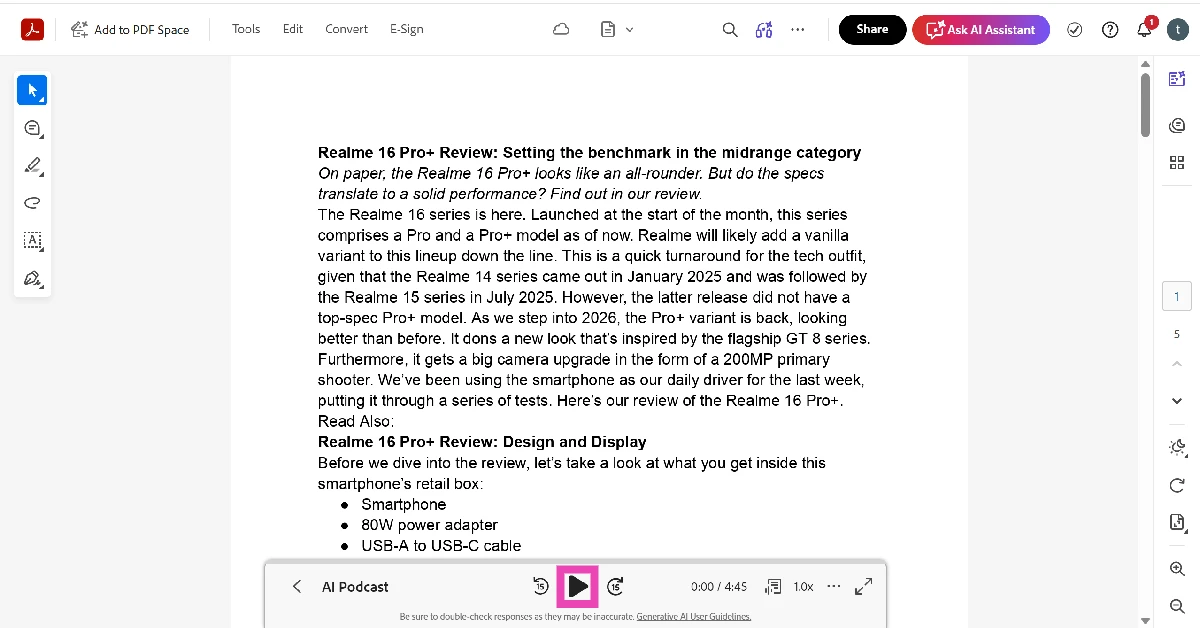
- Once the podcast has been generated, hit the play icon at the bottom of the screen.
- You can skip ahead or go back by 15 seconds, change the playback speed, and view the transcript using the options given in the panel at the bottom of the screen.
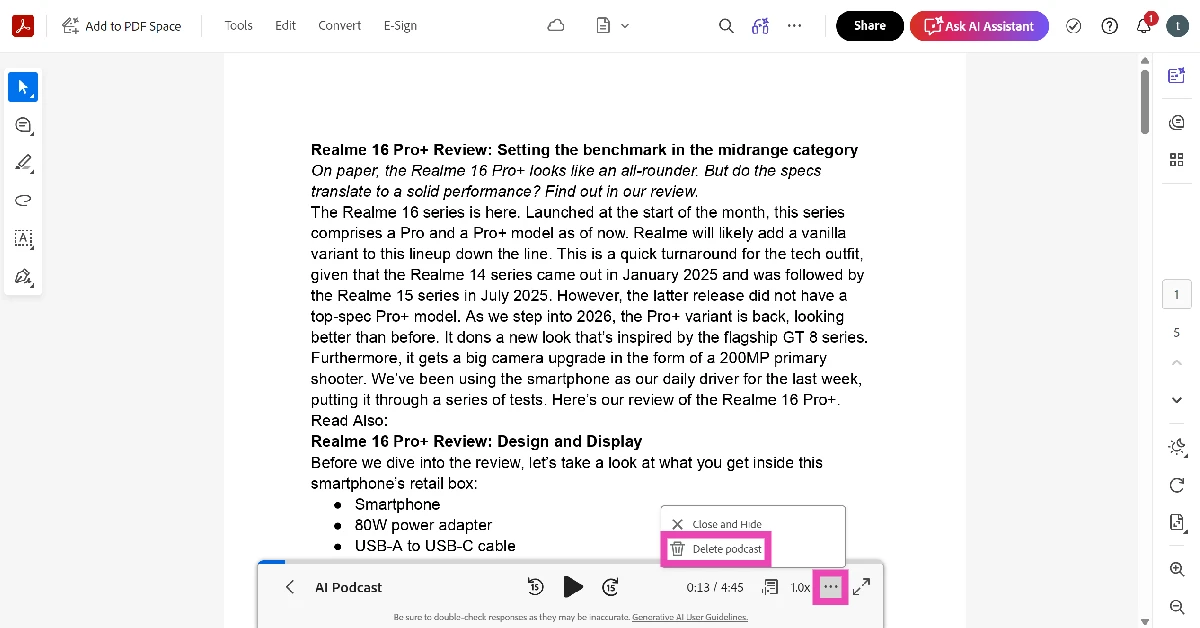
- To delete the podcast, hit the ellipses and select Delete podcast.
Frequently Asked Questions (FAQs)
Can I turn my documents into podcasts using Adobe?
Adobe Acrobat’s AI suite lets you turn your documents into podcasts. You can use it to create a presentation as well. The process takes only a couple of minutes.
How do I turn my PDF document into a podcast using Adobe?
Sign in to Adobe Acrobat’s web portal, upload your PDF, hit the headphones icon at the top of the screen, and choose a listening style. Your podcast will be generated in a couple of minutes.
How do I convert a Word file to PDF using Adobe?
Go to Adobe Acrobat’s webpage and select ‘Word to PDF’ from the ‘Convert’ section. Select a file from your device’s storage or import one from Google Drive or Microsoft OneDrive. Once the file has been uploaded, it will be converted to a PDF.
What are some of the best tools to generate AI podcasts?
Adobe Acrobat, NotebookLM, Wondercraft, and ElevenLabs are some of our favourite AI tools to generate podcasts.
Can ChatGPT generate podcasts?
ChatGPT can brainstorm podcast ideas, create scripts, and assemble episodes, but it needs a third-party partner (like Wondercraft) to generate the audio for the podcast.
Read Also: Samsung to soon launch AI-powered Bespoke WindFree air conditioners in India
Final Thoughts
If you’re not happy with the results produced by Adobe Acrobat, we recommend trying Audio Overview in Google Gemini. It does a great job of analysing the source material and producing a seamless conversational flow. If you have any questions, let us know in the comments!


