


Safety features like end-to-end encryption, IP protection in calls, and call filtering make it one of the most secure instant messengers around for the average person. However, in the past, journalists and public figures have fallen prey to sophisticated cyber attacks on the platform. To handle this situation, Meta has added a lockdown-style feature that triggers the most restrictive settings to clamp down on any cyber intrusion. Here’s how you can enable ‘Strict account settings’ on WhatsApp.
Read Also: Google’s ‘Photo to Video’ tool now accepts user prompts: Here’s how to use it
In This Article
What happens when you enable Strict account settings?
Strict account settings are intended for the niche of users who are often the target of sophisticated cyber attacks. This category includes journalists, politicians, activists, and other public figures. This feature is a bit of an overkill for the average user and may even prove to be a bit too restrictive. Here’s what happens when you turn it on.
Account security
- Two-step verification is turned on.
- Security notifications are turned on and locked.
- Users with chat backups enabled are encouraged to encrypt them.
Messaging and media
- Attachments and media files from users who aren’t in your contacts are blocked.
- Link previews are disabled to protect your IP address.
- Blocks high volumes of unknown messages.
Calls
- Calls from unknown numbers are silenced.
- Your IP address is hidden during calls.
Profile and presence
- Your Last Seen, Online status, Profile photo, About details, and profile links are only visible to contacts or a selected group of people.
Groups
- Only your contacts or a pre-selected group of people can add you to groups.
Enable Strict account settings on WhatsApp
- Launch WhatsApp Messenger on your phone.
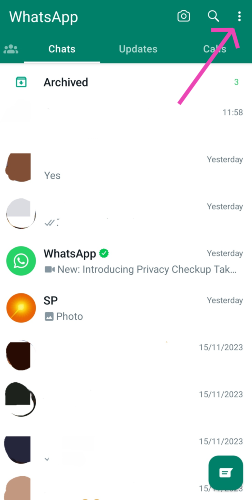
- Hit the ellipses in the top right corner of the screen.

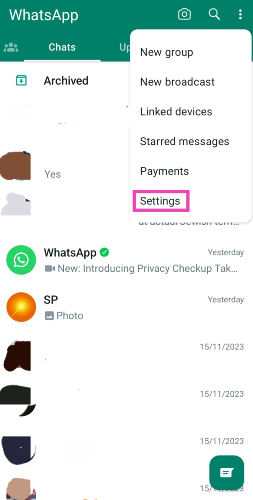
- Go to Settings.

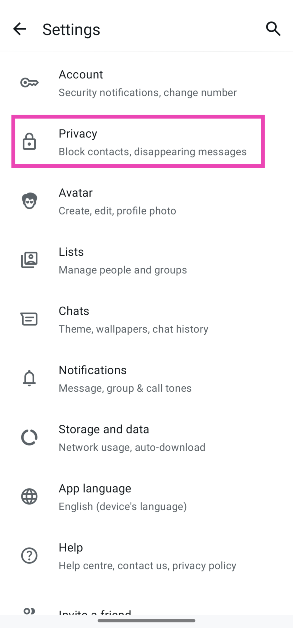
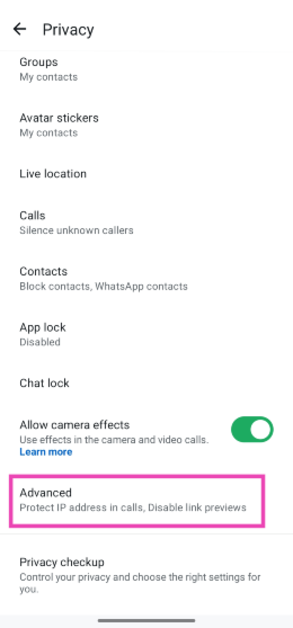
- Scroll down and tap on Privacy.

- Select Advanced.
- Scroll and tap on Strict account settings.
- Hit Next.
- Scroll down and hit Turn on.
Frequently Asked Questions (FAQs)
Should I enable Strict account settings on WhatsApp?
Strict account settings are intended for users who are more likely to be the victims of a targeted cyber attack. If you don’t fall in this category, you can browse individual privacy features and decide which ones suit you the most.
How do I enable Strict account settings on WhatsApp?
Go to Settings>Privacy>Advanced>Strict account settings and select ‘Turn on’.
Why am I not able to view the Strict account settings on my device?
This feature is being rolled out in a phased manner. It may take some time to reach your device. Make sure WhatsApp is updated to the latest version in order to receive it.
How do I back up my WhatsApp chats?
Go to WhatsApp>Profile>Chats>Chat backup, select a Google account, and hit ‘Back up’.
How do I encrypt my WhatsApp backup with a passkey?
Go to WhatsApp>Profile>Chats>Chat backup>End-to-end encrypted backup and select ‘Passkey’.
Read Also: Logitech MX Master 4 Review: Is Logitech’s newest flagship mouse worth upgrading?
Final Thoughts
This feature can only be enabled on your primary device. Once it is enabled, you can view all of the security restrictions by going to Settings>Privacy>Advanced>Strict account settings and tapping on ‘View locked settings’.


