


YouTube’s automatic dubbing tool allows creators to expand their reach by making their content accessible to a whole new linguistic audience. Tucked away in YouTube Studio, this feature lets you preview the dubs before you publish them on your profile. The dubbed videos reach users with the relevant languages in the ‘preferred’ section in their profiles. Users get the option to switch between the audio tracks. Here’s how you can enable automatic dubbing for the videos on your YouTube channel.
Read Also: Five Nights TD 2 (FNTD 2) Codes (February 2026)
In This Article
Eligibility criteria for automatic dubbing
Your video needs to meet the following criteria for automatic dubbing.
- Length: The video should not exceed 60 minutes.
- Content: The language in the video should be supported by the video. Additionally, the spoken word should not make up a small part of the video.
- Pacing: If the speech is too fast, it won’t translate coherently.
- Content ID: Copyrighted content will not be automatically dubbed.
Enable automatic dubbing on your YouTube channel
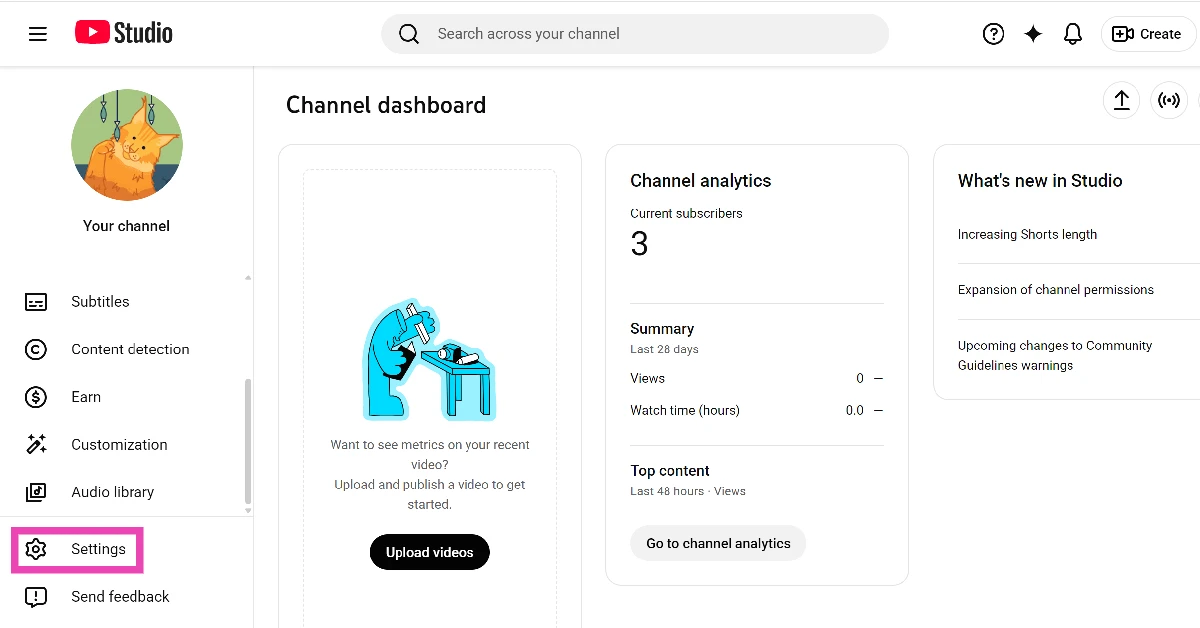
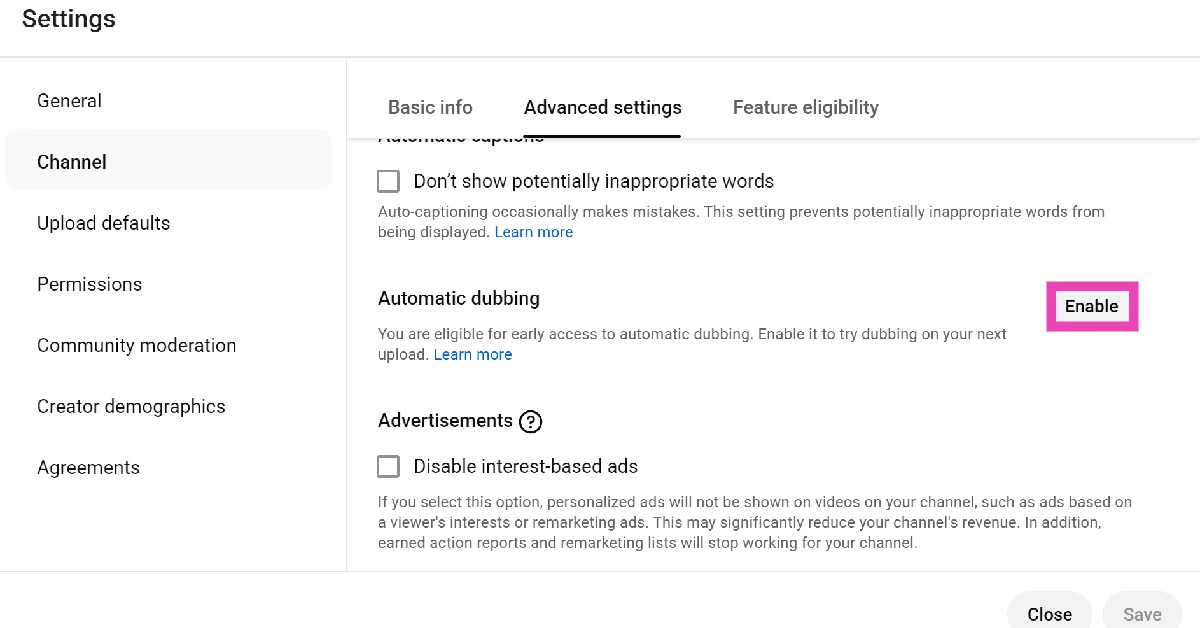
- Go to YouTube Studio on your PC or laptop. Sign in to your account.
- Select Settings from the side panel.

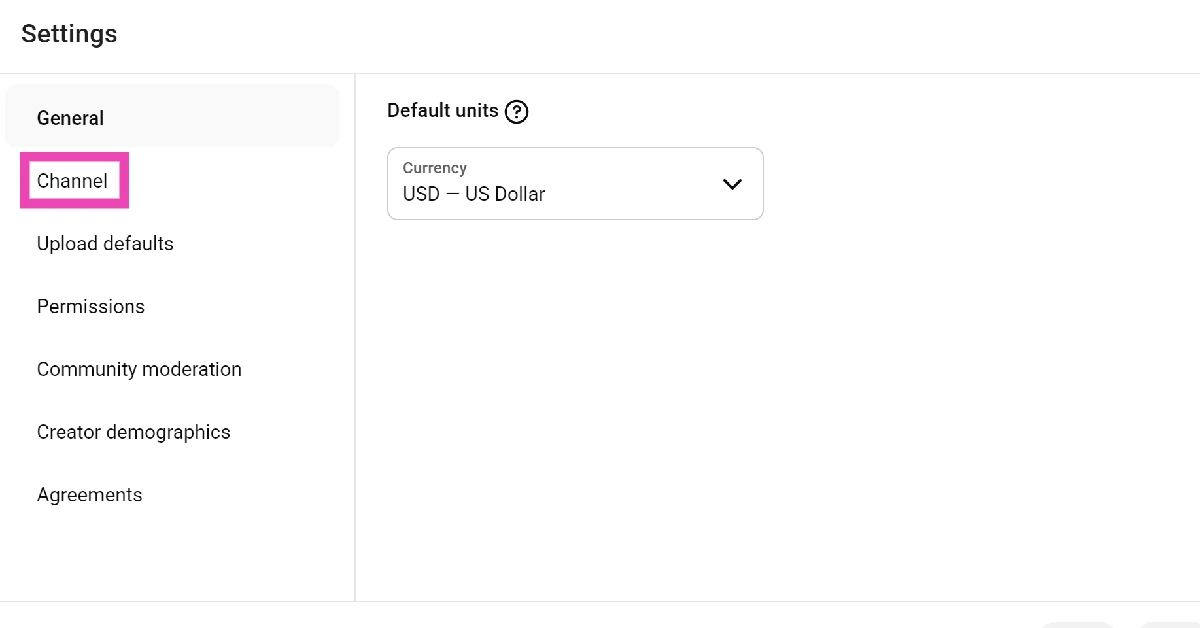
- Click on Channel.
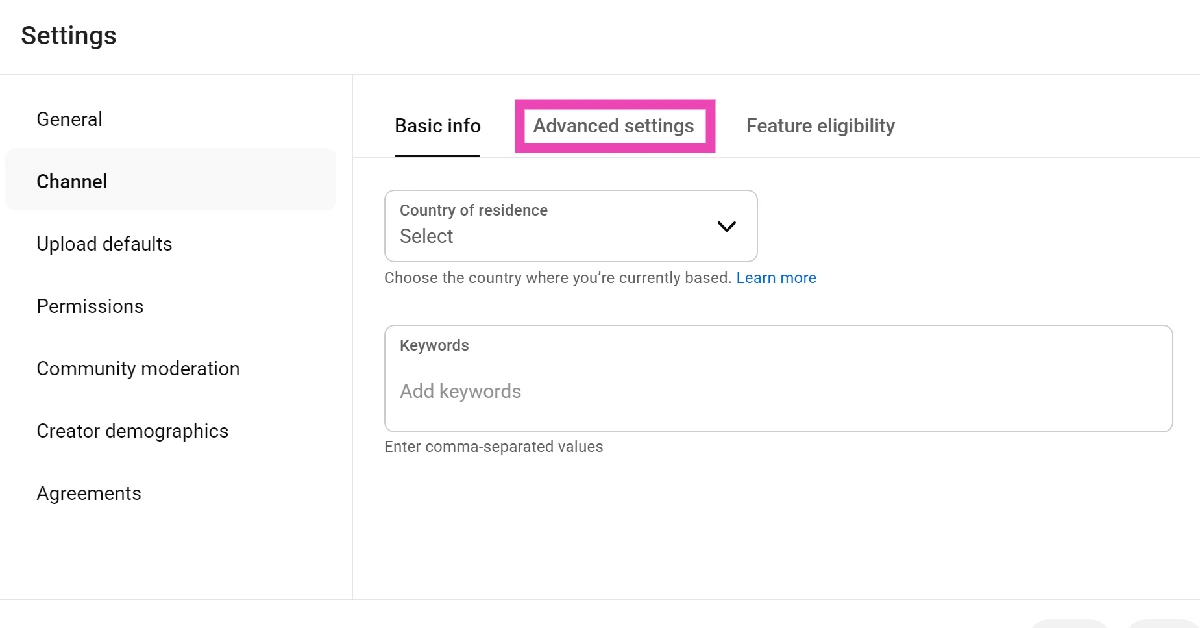
- Switch to the Advanced settings tab.
- Scroll down and hit Enable next to Automatic dubbing.
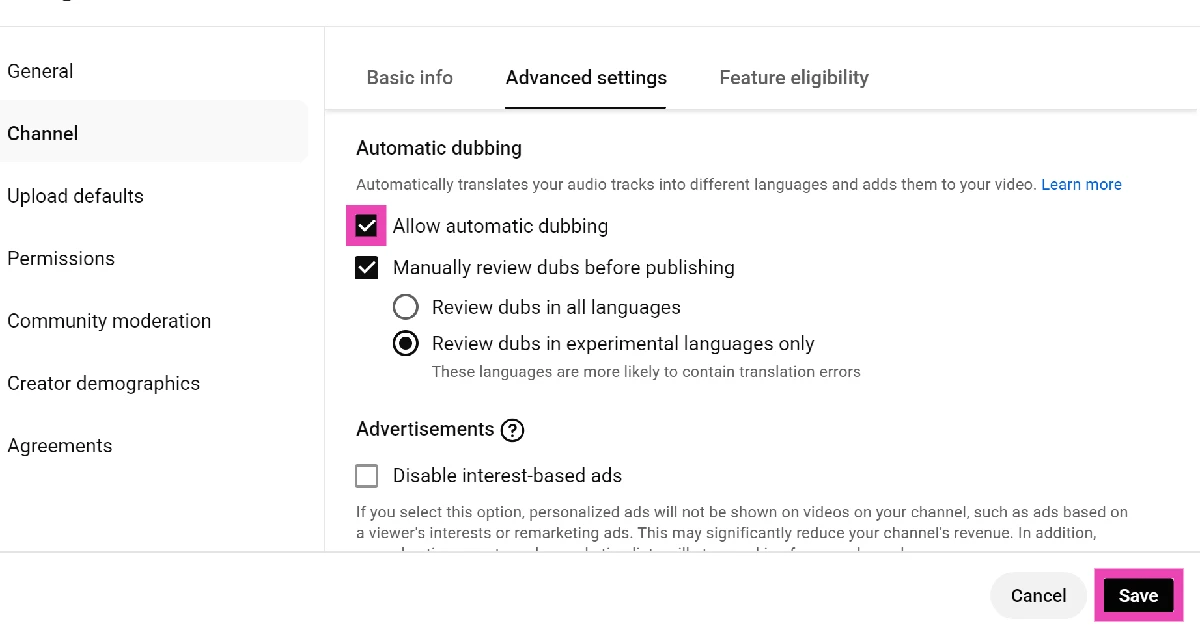
- Tick the checkbox next to Allow automatic dubbing.
- Choose whether you want to manually review dubs before publishing them.
- Hit Save.
Preview, Publish, Unpublish, and Delete dubs
- Go to YouTube Studio and sign in to your account.
- Select Content from the sidebar.
- Click on Languages.
- In the Language column, click on your preferred language.
- Select the language in the Preview menu.
- Hit Play to preview the dubs.
- Go back to the Languages section and click the downward arrow in the Audio column.
- Choose one of the following options: Publish, Unpublish, Delete.
Frequently Asked Questions (FAQs)
How do I enable audio dubbing for my YouTube videos?
Go to YouTube Studio>Settings>Channel>Advanced settings and hit ‘Enable’ next to automatic dubbing. Confirm the setting by hitting ‘Save’.
How do I dub my YouTube videos into another language?
Go to YouTube Studio>Content> Languages, select Language and choose your preferred dub language. Preview the results and hit Publish.
How do I dub a YouTube video that I’m watching into another language?
Hit the settings icon in the video player, go to ‘Audio track’, and select your preferred language.
How do I set a preferred language on my YouTube profile?
Go to YouTube>Profile>Settings>Languages>Preferred languages, choose the languages, and hit ‘Confirm’.
Why am I not able to dub the videos on YouTube?
If you’re unable to dub YouTube videos into another language, it could be because the feature has not been rolled out in your region yet.
Read Also: Top 10 smartphones under Rs 50,000 (February 2026)
Final Thoughts
YouTube is still working on this feature to get rid of quirks like mispronunciations, mistranslations, background noise transparency, and mismatched voices and accents. These issues will be addressed over a period of time. Once you enable this feature, YouTube may also apply it to your previous videos after some time.


