


Apple’s devices are known for their state-of-the-art security features. But what if standard security measures don’t suffice in your use case? The ‘Lockdown Mode’ on iPhone and Mac answers this question. Intended for a specific category of users who are more susceptible to cyber attacks, this feature kicks up the protective measures to safeguard the device against sophisticated digital threats. Apple says that since this feature has been introduced, there have been no reports of a ‘successful mercenary spyware attack against a Lockdown Mode-enabled Apple device’. Let’s take a look at how you can enable Lockdown Mode on your iPhone and Mac.
Read Also: Weak Legacy 2 Codes (March 2026)
In This Article
What is Lockdown Mode?
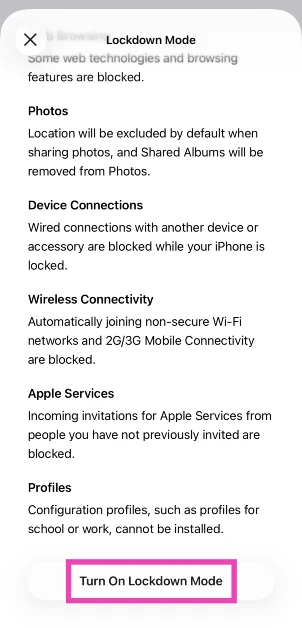
In its essence, Lockdown Mode is a collection of high-end security features and safeguards that protect the most vulnerable areas of your device. For regular users, these measures are a bit of overkill. However, for journalists, activists, political leaders, and other public-facing figures, enabling this feature is highly recommended. Here’s how Lockdown Mode protects your device.
Messages
- Blocks most attachments.
- Links and link previews are disabled.
Web browsing
- Certain complex web technologies are blocked, leading to websites loading slowly.
- Some web fonts and images may not be displayed.
FaceTime
- Incoming FaceTime calls are blocked unless you have called the person in the last 30 days.
- SharePlay and Live Photos are unavailable.
Apple Services
- Game Centre is disabled.
- Incoming invitations for Apple services are blocked unless you have previously invited the user.
Photos
- Location is excluded while sharing photos.
- Shared Albums are removed from the Photos app.
- New Shared Album invitations are blocked.
Connections and Network
- Your device needs to be unlocked in order to connect with an accessory.
- Your device won’t automatically join a non-secure WiFi network.
- 2G and 3G mobile support is turned off.
Connection Profiles
- Configuration profiles can’t be installed.
- Devie can’t be enrolled in Mobile Device Management or device supervision.
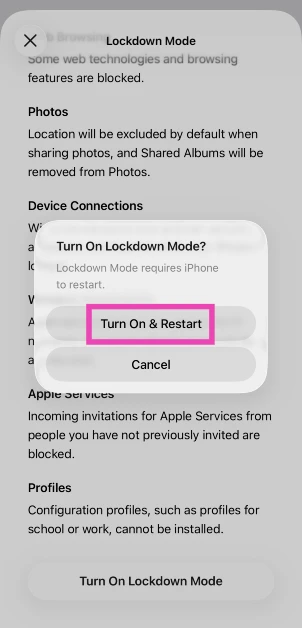
Enable Lockdown Mode on iPhone
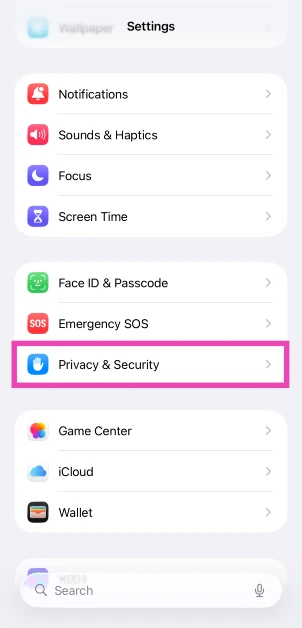
- Go to Settings.
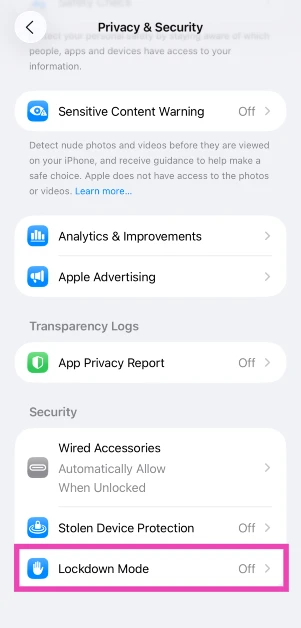
- Tap on Privacy & Security.

- Scroll down and select Lockdown Mode in the Security section.

- Tap on Turn On Lockdown Mode.
- Hit Turn On & Restart.
Enable Lockdown Mode on Mac
- Go to System Settings.
- Switch to the Privacy & Security tab in the sidebar.
- Scroll down to the Security section and click on Lockdown Mode.
- Click on Turn On Lockdown Mode.
- Hit Turn on & Restart.
Frequently Asked Questions (FAQs)
Can I exclude a website from Lockdown Mode?
You can exclude a website from Lockdown Mode by opening it in Safari, tapping the menu button, followed by the ellipses, and turning off the toggle switch next to Lockdown Mode.
How do I exclude an app from Lockdown Mode?
Go to Settings>Privacy & Security>Lockdown Mode>Configure Web Browsing, and turn off the app you wish to exclude.
Does Android have a Lockdown Mode?
Android 16 does have a Lockdown Mode, but it goes by ‘Advanced Protection’. You can enable it by going to Settings>Security and privacy>Advanced Protection and turning on the toggle switch next to ‘Device protection’.
How do I enable Lockdown Mode on my Mac?
Go to System Settings>Privacy & Security>Lockdown Mode and click ‘Turn On Lockdown Mode’.
How do I disable Lockdown Mode?
Go to Settings>Security & Privacy>Lockdown Mode and turn off its toggle switch.
Read Also: Nothing Phone (4a) Review: Smart design, smarter performance
Final Thoughts
Your iPhone and Mac need to be running iOS 16 and macOS Sonoma (or above) in order to use this feature. If you’re an Android user, you should check out Advanced Protection for a similar set of security features. Got any questions? Let us know in the comments!


