



While most screen mirroring apps do a good job of casting your phone’s display on a bigger screen, not many of them let you control your phone from another device. If you mirror your phone on a TV, you cannot use the remote controller to navigate through different apps. You still have to rely on your phone for that. PCs, on the other hand, offer more control options. Previously, we talked about how you can control your phone using a Windows PC. Now, let’s take a look at how you can mirror and control your Android phone from an Ubuntu (Linux) desktop.
Read Also: Top 7 Ways to Take a Screenshot on Mac, Windows, iPhone, & Android
In This Article
Here’s how you can mirror and control your Android phone from an Ubuntu (Linux) PC
Step 1: Download Scrpy for Linux from Github.
Next, you need to enable USB debugging on your Android phone. Here’s how.
Step 2: Go to Settings and select About Phone.

Step 3: Select ‘Software Information’.

Step 4: Tap on ‘Build Number’ 7 times to enter Developer Mode.

Step 5: Go back to Settings, scroll all the way down, and select ‘Developer options’.

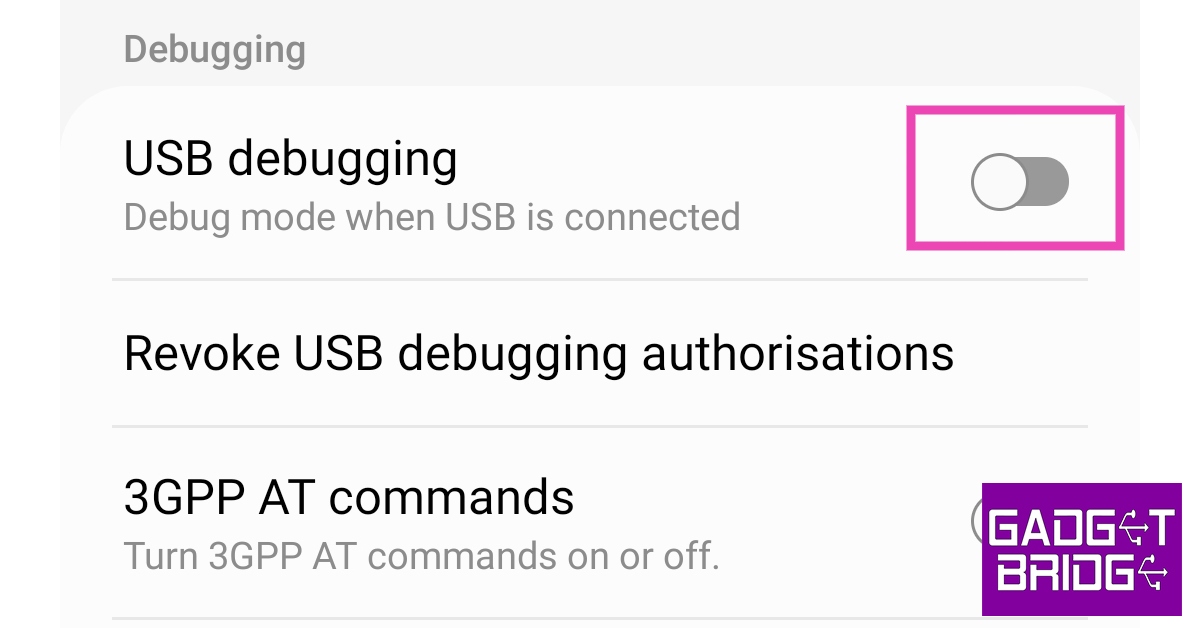
Step 6: Scroll down to the Debugging section and turn the toggle bar on for ‘USB debugging’.
Step 7: Connect your Android phone to the Ubuntu desktop using a USB cable.
Step 8: Launch Terminal using Ctrl + Alt + T key combination.
Step 9: Type scrcpy and hit Enter.
Step 10: Your Android phone will ask you to allow USB debugging. Select ‘OK’.
Your Android phone’s display will be mirrored on your Ubuntu PC and can be controlled from there.
Frequently Asked Questions (FAQs)
How do I mirror my Android phone’s display on Ubuntu?
You can mirror your phone’s display on an Ubuntu PC using the Scrcpy tool.
How to control an Android phone from Ubuntu?
The Scrcpy tool for Ubuntu lets you mirror and control your Android phone from your Ubuntu PC.
Does Ubuntu have Miracast?
Yes, Ubuntu supports Miracast wireless displays.
Read Also: How to change the username of your Threads account?
Conclusion
This is how you can mirror and control your Android phone from an Ubuntu (Linux) PC. Once you’re able to view your smartphone’s display on your PC, you can use the keyboard and mouse to control it. This is a great way to play Android games on your PC without using an Android emulator.
For the latest gadget and tech news, and gadget reviews, follow us on Twitter, Facebook and Instagram. For newest tech & gadget videos subscribe to our YouTube Channel. You can also stay up to date using the Gadget Bridge Android App. You can find the latest car and bike news here.


 desktop. Read more to find out.)