


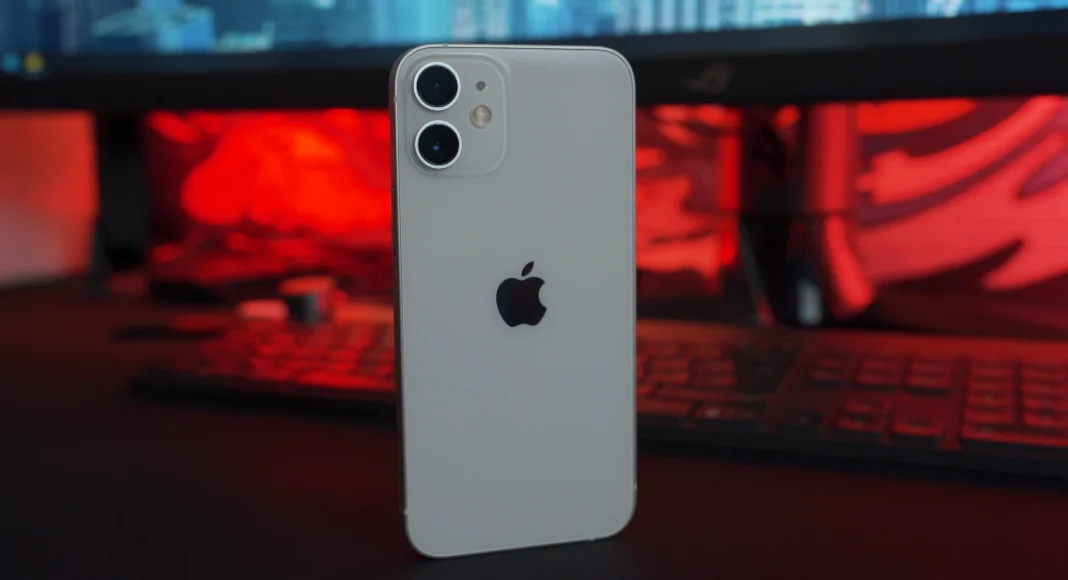
Your iPhone supports LED flash notifications for important alerts like incoming calls and messages. This is a pretty standard feature that has been around for a long time, but many people may not be aware of it. If you don’t like a loud sound profile on your iPhone, these flash notifications may just be what you’re looking for. So, let’s a quick look at the top 2 ways to enable them on your device.
Read Also: Top 4 Ways to Add Videos or Photos to Any Location on Google Maps
In This Article
Why do you need LED Flash Notifications on your iPhone?
LED flash alerts for important notifications are primarily designed for people with hearing disabilities. Every time you receive a call or an important text, the camera flash on the iPhone’s back panel goes off to alert the user of the incoming notification. As you can already tell, this only works as intended if your iPhone is lying face down. Unlike its Android counterparts, iOS does not support edge notifications on the display yet.
Apart from people with hearing disabilities, flash alerts can also come in quite handy for people who keep their devices in Silent Mode at all times. If your iPhone is in your peripheral vision, you will never miss an important alert when the flash notifications are turned on. If you’re about to attend an important meeting, even the vibrational alerts can be quite distracting. In this scenario, a flash of light from your iPhone is enough to remind you of an incoming call.
Turn on LED Flash Notifications from Settings
Step 1: Go to Settings.
Step 2: Tap on Accessibility.
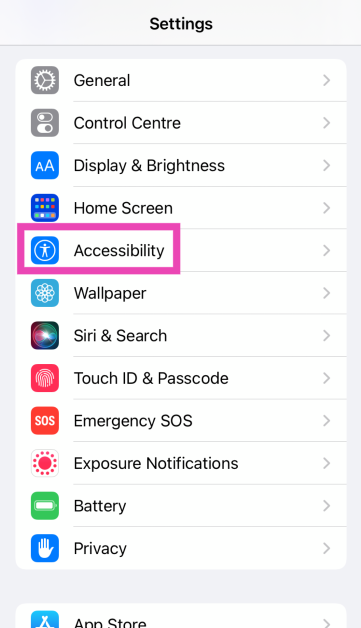
Step 3: Select Audio/Visual.
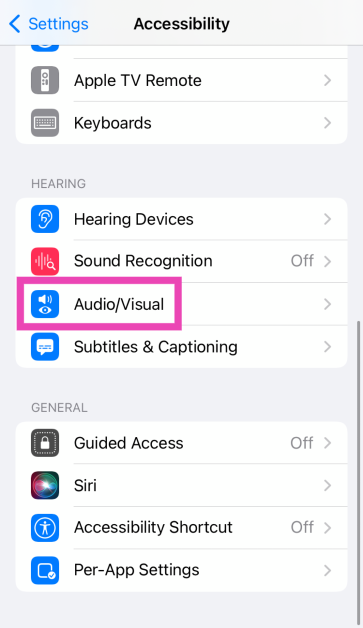
Step 4: Scroll down and tap on LED Flash for Alerts.
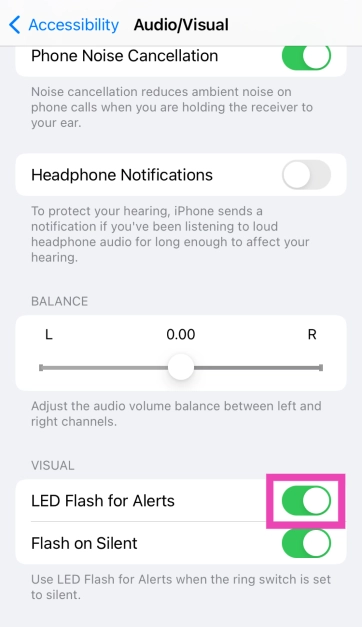
Step 5: Turn on the toggle switch for LED Flash for Alerts. If you don’t want to receive LED notifications when your iPhone is in Silent Mode, turn off the toggle switch for Flash in Silent Mode.
Read Also: Poco M6 5G Review: Does it move the needle in the budget category?
Create a Shortcut for LED Flash Notifications
Some users may not want the LED flash notifications switched on at all times. To make the process more convenient, you can add a custom toggle button to the home screen using Shortcuts. Here’s how.
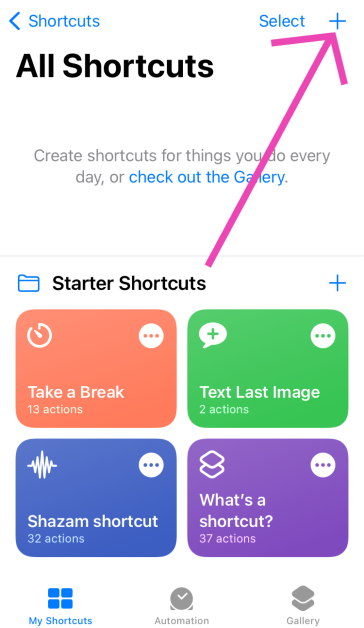
Step 1: Launch the Shortcuts app on your iPhone and hit the plus icon at the top right corner of the screen to create a new shortcut. Give it an appropriate name.
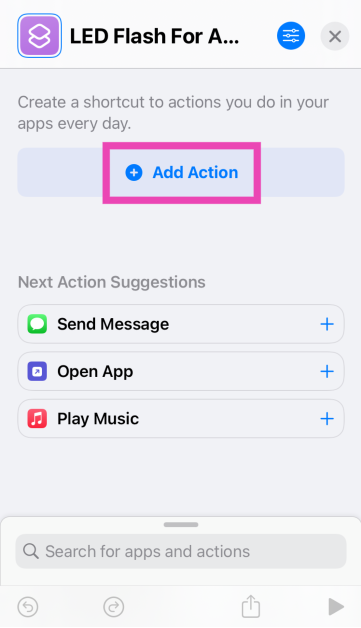
Step 2: Tap on Add Actions and search for Set LED Flash. Add it.
Step 3: Tap on Turn and select Toggle.

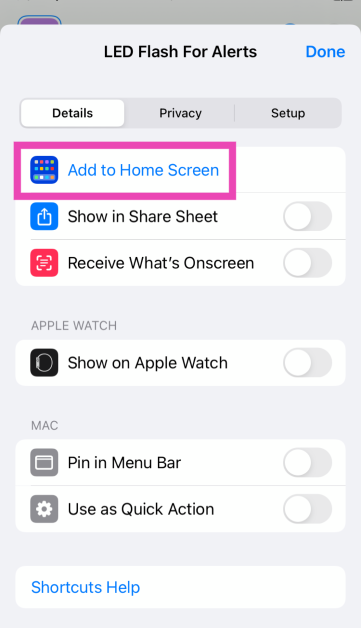
Step 4: Hit the Menu icon at the top right corner of the screen and select Add to Home Screen.
Frequently Asked Questions (FAQs)
Do the LED flash notifications on the iPhone work when it is on Silent Mode?
You can turn on LED flash notifications when your iPhone is in Silent Mode by going to Settings>Accessibilty>Audio/Visual>LED Flash for Alerts and turning on the toggle switch for Flash in Silent Mode.
Can I set up a toggle switch for LED flash notifications on my iPhone’s home screen?
You can use the Shortcuts app to create a toggle button for LED flash notifications on your iPhone’s home screen. Add the action to ‘Set LED Flash’ and change the ‘Turn’ setting to ‘Toggle’. Now, hit the menu icon and add it to the home screen.
Does iOS support edge notifications?
No, the current iteration of iOS does not support edge light notifications, unlike its Android counterparts.
Read Also: Xiaomi unveiled SU7, the company’s first sedan-style electric vehicle (EV)
Conclusion
These are the 2 quick ways to turn on LED flash notifications on an iPhone 15, 14, or 13. Android users have the added advantage of using a third-party app for LED flash alerts. These apps offer a range of customisation options, including different patterns for different kinds of notifications. iOS does not support any third-party apps for flash alerts yet. If you found this article helpful, let us know in the comments!


