


Google Play Store offers safe and secure app downloads for Android, but it may not always have the app you’re looking for. While its app library is exhaustive, some apps are not allowed on the platform due to copyright issues. In situations like these, users often turn to third-party marketplaces, a process called ‘sideloading’. Sideloading apps is always risky, as independent marketplaces do not have as stringent regulatory policies as the Play Store. To ensure user safety, sideloading is disabled by default on the newer crop of Samsung phones. If you’re certain about the legitimacy of the app, here’s how you can enable sideloading on your new Samsung phone.
Read Also: How to add text to your Instagram posts
In This Article
What is the Auto Blocker?
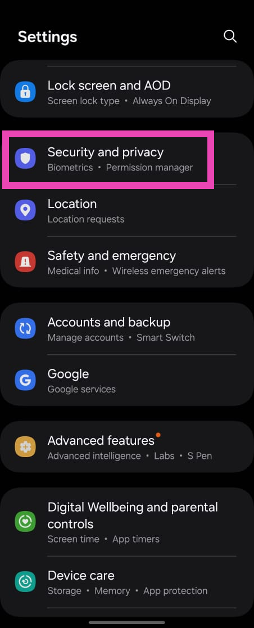
As the name suggests, Auto Blocker is a filter tool that automatically blocks the installation of apps that were downloaded from third-party sources. You can download the APK files from third-party marketplaces of your choice, but tapping on the downloaded file to install it on your phone triggers the Auto Blocker. Previously, this tool wasn’t turned on by default. You had to navigate to Settings>Security and privacy to activate it.
While Auto Blocker may have added an extra hurdle, it is a welcome feature on One UI 6.1.1. Unsuspecting users are often made to download apps on their devices after they click on an installation link disguised as an ad. Using the ad as a facade, malicious entities often push malware on devices through their apps. Auto Blocker ensures that no third-party apps are installed on your phone without your consent.
Disable Auto Blocker
Step 1: Go to Settings and tap on Security and privacy.
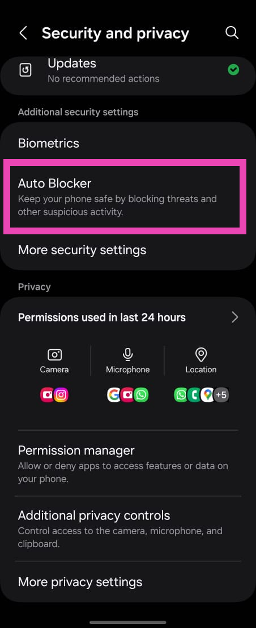
Step 2: Select Auto Blocker.
Step 3: Turn off its toggle switch.
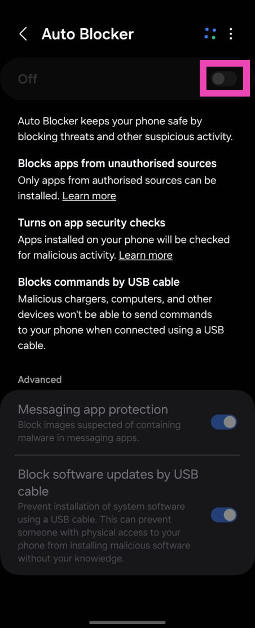
Step 4: Authenticate your identity to confirm the action.
Allow app installation from your preferred web browser
Step 1: Go to Settings and tap on Privacy and security.
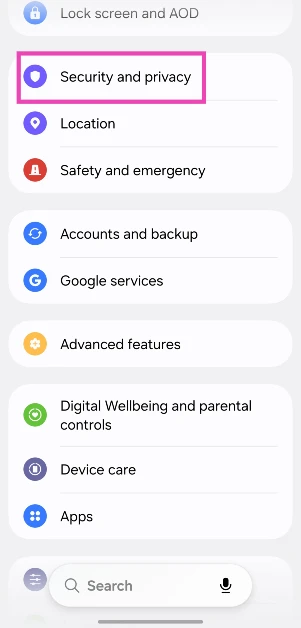
Step 2: Tap on More security settings.
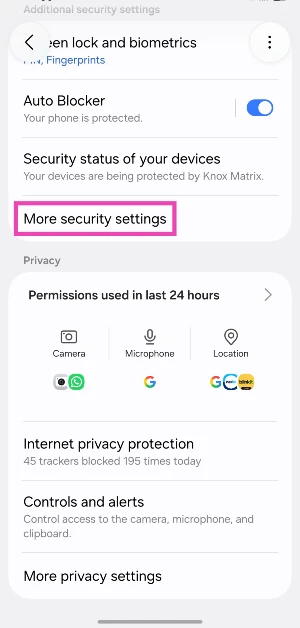
Step 3: Select Install unknown apps.
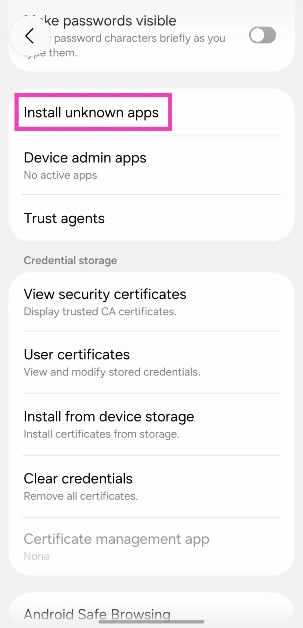
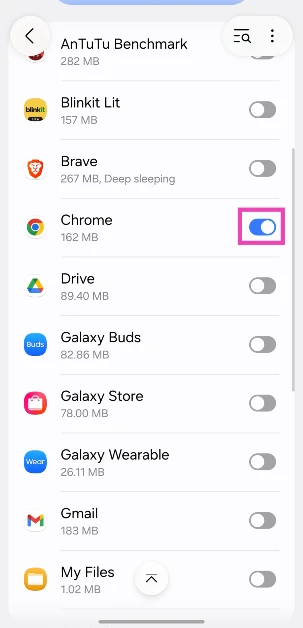
Step 4: Turn on the toggle switch next to your preferred web browser.
Frequently Asked Questions (FAQs)
Is there any alternative to sideloading apps?
If you don’t want to sideload an app from an untrusted source, you can use your OEM’s verified app marketplace to download it. Samsung phones have the Galaxy Store, Xiaomi has GetApps, and Vivo and iQOO have the V-Appstore. These marketplaces are a great alternative to the Google Play Store.
Which are some trusted third-party app marketplaces?
APKMirror, APKPure, F-Droid, Cydia, Aptoide, and Uptodown are some of the most trusted third-party app marketplaces for Android.
Why is my Samsung phone not sideloading apps?
One UI 6.1.1 automatically blocks the user from installing apps from third-party sources. To get around this issue, go to Settings>Security and privacy>Auto Blocker and turn off its toggle switch.
Read Also: Nothing Phone (2a) Plus CPU and GPU details revealed ahead of upcoming event
Conclusion
This is how you can disable Auto Blocker and enable sideloading on your new Samsung phone. As a general rule of thumb, be careful while installing apps from third-party sources. Check out this article for our list of the best third-party app marketplaces around. of the


