


Text groups are a great way of staying in touch with your friends and planning group activities. However, dormant groups can be a source of annoyance to users who like their inboxes to be clean. Luckily, it is easier to leave a group text chat on Android compared to an iPhone. You should know that once you leave a group, you will lose all the messages in the group. Here are 2 ways to exit a group text chat on Android.
Read Also: iPhone camera blinking or flickering? Try these 6 fixes (2024)
In This Article
Alternatives to leaving a group chat
Most users do not have an issue with leaving group chats that are no longer active. Leaving an active group is a different thing altogether. Since there is no way to discreetly leave a group chat on Android, most users may not want to attract any undue attention by exiting the group. Some may find it disrespectful to leave a group without saying anything.
A great alternative to leaving a group chat is muting it. This ensures that you do not receive constant notifications for every message that gets sent to the group. You can mute a group by tapping its title, selecting ‘Notifications’ and turning off the toggle switch. Another way to evade the spam is by archiving the chat in Google Messages so you don’t see it at the top of your inbox every time you open the app.
Leave a group text chat on Android from the inbox
Step 1: Launch Google Messages on your Android phone.
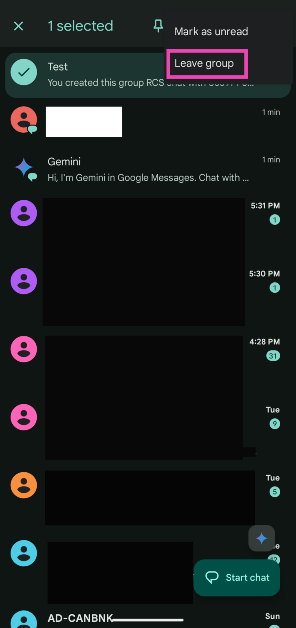
Step 2: Long-press the group chat in the inbox.
Step 3: Hit the ellipses at the top right corner of the screen.
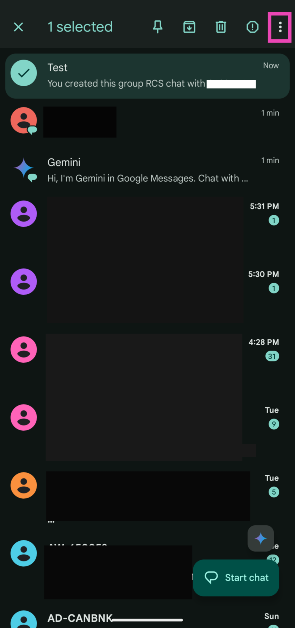
Step 4: Tap on Leave.
Leave a group text chat on Android from the group menu
Step 1: Launch Google Messages on your Android phone.
Step 2: Open the group chat.
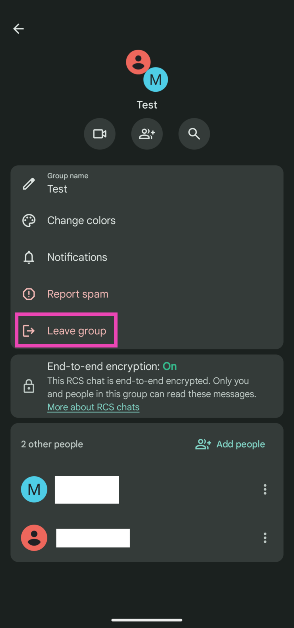
Step 3: Tap the group name at the top of the screen.
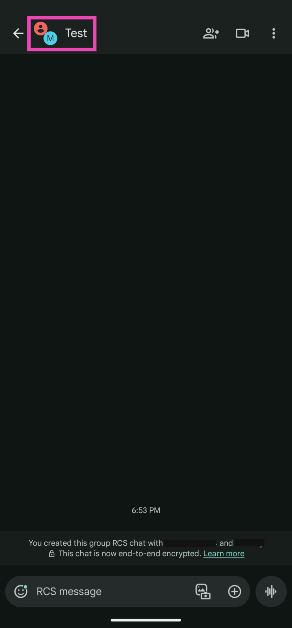
Step 4: Select Leave group.
Bonus Tip: Leave a WhatsApp group chat
Step 1: Launch WhatsApp Messenger on your phone.
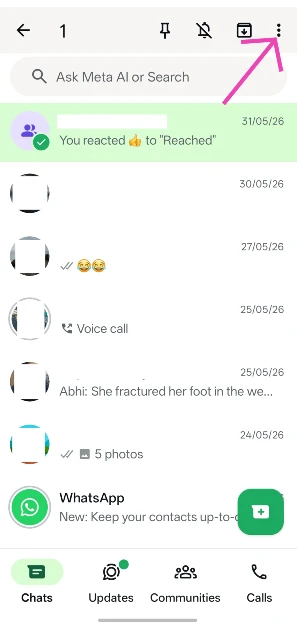
Step 2: Long-press the group you want to leave.
Step 3: Hit the ellipses in the top right corner of the screen.
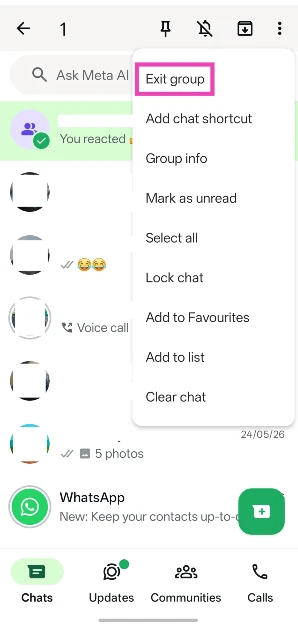
Step 4: Tap on Exit group.
Frequently Asked Questions (FAQs)
How do I leave a group text chat on my Android phone?
Open the group chat, tap the title, and hit ‘Leave group’. Alternatively, you can long-press the group chat in the inbox, hit the ellipses, and select ‘Leave’.
How do I leave a group chat on an iPhone?
Open the Messages app, select the chat, tap on the header, scroll down and select ‘Leave this Conversation’.
How do I leave a group chat on WhatsApp?
Open the WhatsApp group, tap the group title, scroll down to the bottom of the page, and hit ‘Exit group’.
Does WhatsApp notify group members when you leave a group?
WhatsApp displays a message that you left the group when you exit it.
Read Also: Samsung unveils ‘Fab Grab Fest’ offers in India with up to 53% off on smartphones and more
Conclusion
These are the 2 ways you can leave a group text chat on your Android phone. If you want to create a group text on Android, hit the ‘Start Option’ in Google Messages, select ‘Create Group’, tap the circle next to the contacts you want in the group, and hit the arrow icon at the bottom of the screen. If you have any questions, let us know in the comments!


