


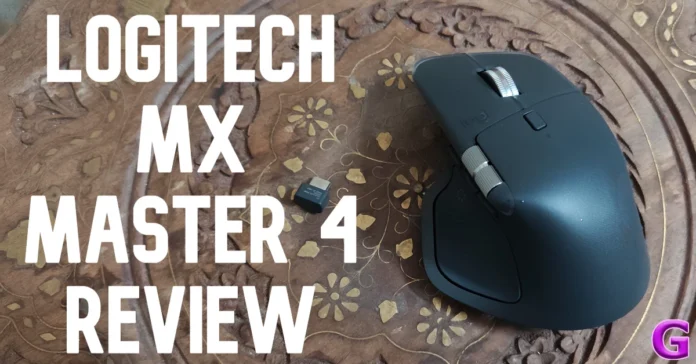
Over the years, Logitech MX Master has solidified itself as the ultimate productivity mouse. When the fourth iteration in the series launched last year, we were left wondering how the brand could improve on an already near-perfect accessory. The mouse landed on our desk earlier this month, instantly spurring us to investigate what Logitech had in store for us. We’ve been using it for the last week to decide whether it’s worth the Rs 16,000 pricetag. If you’re thinking of upgrading from the MX Master 3 or MX Master 3S, you might want to read our Logitech MX Master 4 review.
Read Also: Samsung Galaxy Z Flip7 Olympic Edition launched ahead of Milano Cortina 2026
In This Article
Logitech MX Master 4 Review: Design
Before we talk about the design and form factor of this mouse, let’s take a look at what you get inside its retail box:
- Mouse
- USB-C Bolt receiver
- User documentation
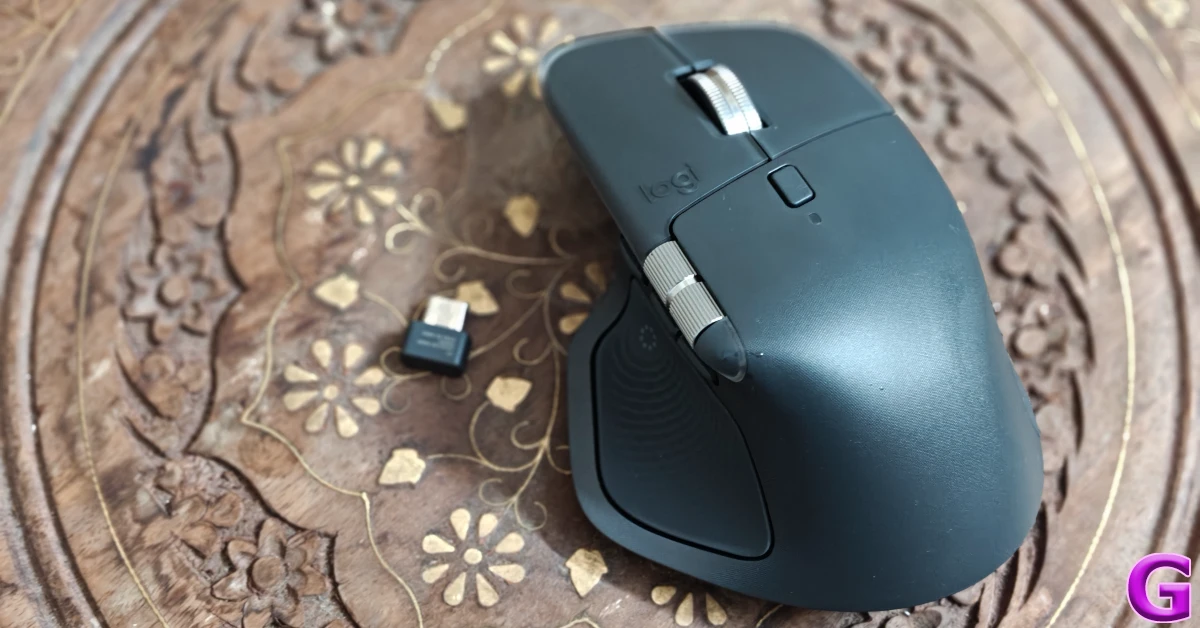
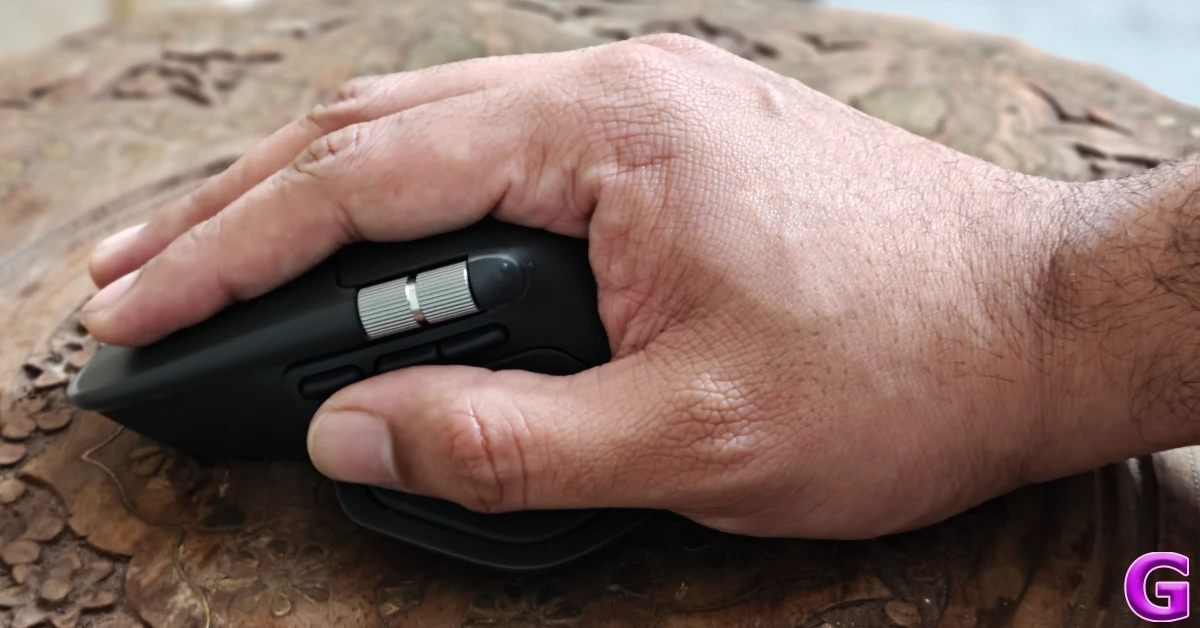
The MX Master 4 carries forward the familiar ergonomic design of the MX Master 3S (our review here). The mouse is still very much meant for right-handed use (lefties will have to wait some more for Logitech to consider adding a left-handed variant), with a thumb rest on the left-hand side. The hollow ledge accommodating the horizontal scroll wheel is gone – it is now aligned with the edge of the left-click button. We like this change as it gives the mouse a cleaner look. The gesture button now has its own key, ahead of the forward/back buttons. This has been done to accommodate the new Action Ring button on the thumb rest (we’ll talk more about it later).
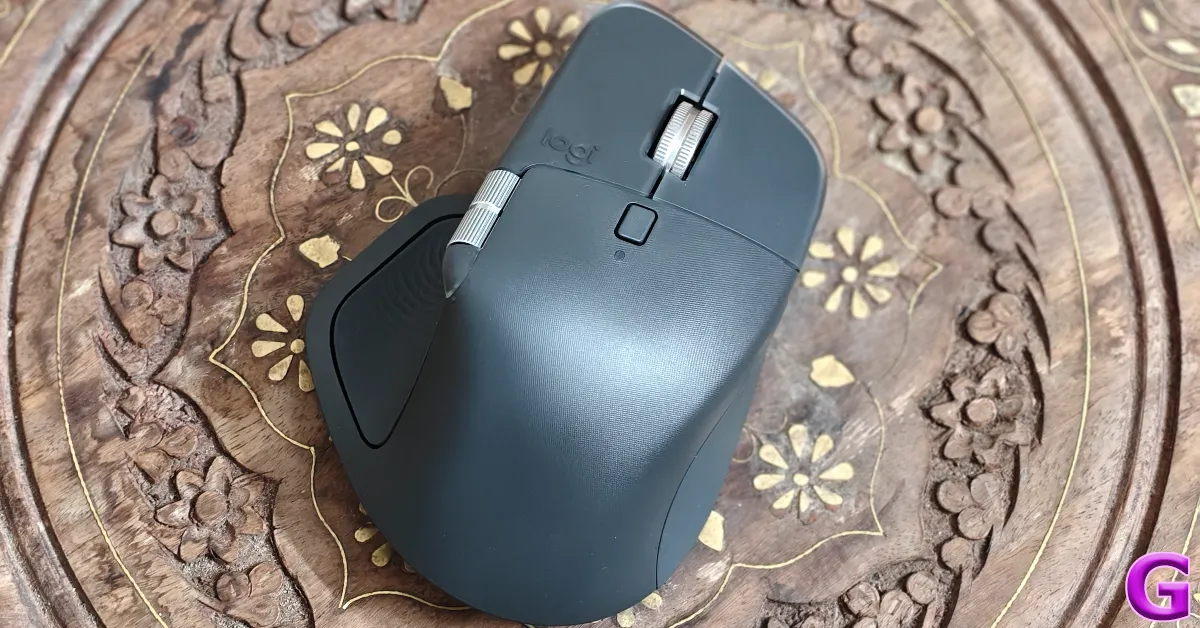
Closer inspection of the mouse reveals a slightly flatter top panel compared to the MX Master 3S. The edgier design does not come at the cost of ergonomics – this is still one of the most comfortable mice around. However, it does give the mouse a cleaner look. The vertical MagSpeed scroll wheel is placed between the left and right click buttons, no longer bifurcating the two. The button to switch this wheel between Hyper-fast and Ratchet modes has been retained as well.
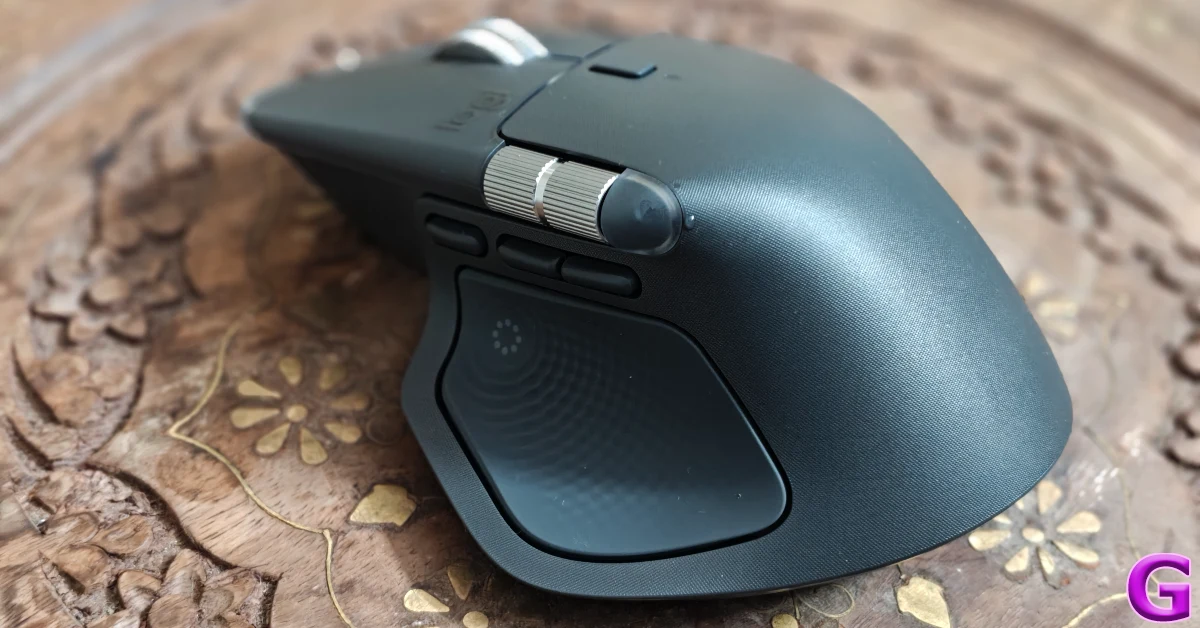
Logitech is very mindful of the sustainability of the materials used in this mouse. The graphite plastics on the body use 54% recycled materials, while the pale gray plastics comprise 48% recycled materials. The battery pack uses 100% recycled cobalt, and the aluminium thumbwheel was made with renewable energy rather than fossil fuels. Logitech has also listened to user complaints about the rubber texture fading over extended use. On the MX Master 4, the rubber finish is limited to the thumb rest and the right panel for a better grip. The rest of the plastic shell rocks a matte finish.
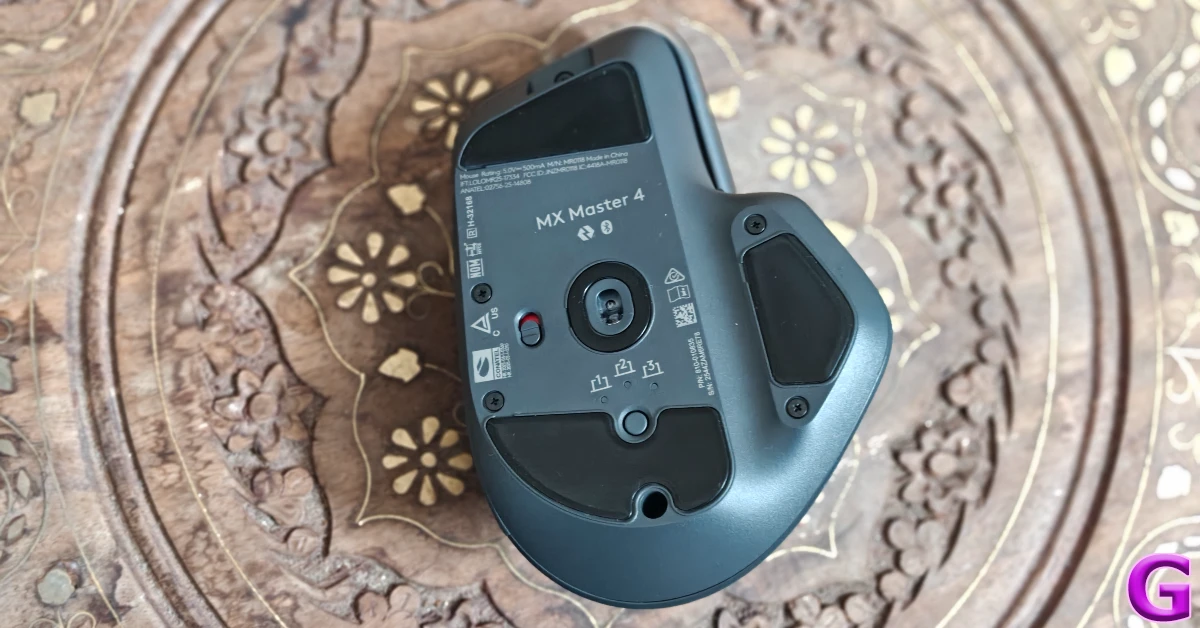
The bottom panel houses the power switch and the device switching key. The PTFE feet are located on the top, bottom, and right sides of this panel. The area around the sensor is covered by a compact PTFE ring as well, making it easy to glide the mouse around on any kind of surface. When it comes to comfort and ergonomics, the MX Master 4 is in a league of its own. You can breeze past the workday without feeling any fatigue in your wrist or arm. Weighing 150g, it isn’t the lightest productivity mouse around, but its quick movements ensure that you don’t need to move it around a lot.
Logitech MX Master 4 Review: Performance
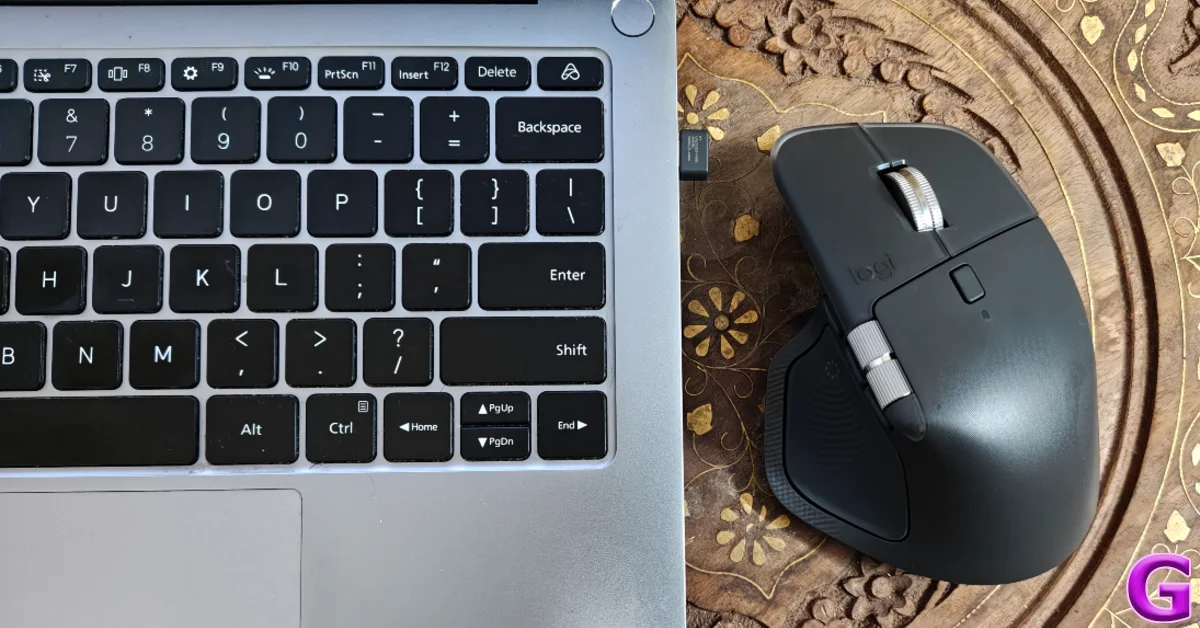
Pairing the Logitech MX Master 4 is as easy as it gets. Plug in the USB-C Bolt receiver on your device, flick the power switch at the bottom of the mouse, and you’re good to go. The new USB-C receiver allows the mouse to establish a stronger wireless connection with smartphones and tablets. Previous generations of the MX Master series came with a USB-A wireless receiver, which could only be used on PCs and laptops, unless you had an OTG adapter for mobile devices. If you’d rather keep the USB-C port free, you can pair the mouse over a Bluetooth connection. There’s multi-connection support for up to 3 devices.
The 8,000 DPI sensor from the MX Master 3S has been retained on the MX Master 4. You can set its resolution between 200 and 8,000 DPI in increments of 50 DPI. This high-end sensor allows the mouse to track on the most challenging of surfaces. We used it on glass tables, wooden benches, foam mattresses, plastic patio furniture, and cloth-draped dining tables without coming across any lag or hiccup. Once you switch to this mouse, you will find little use for your mousepad.
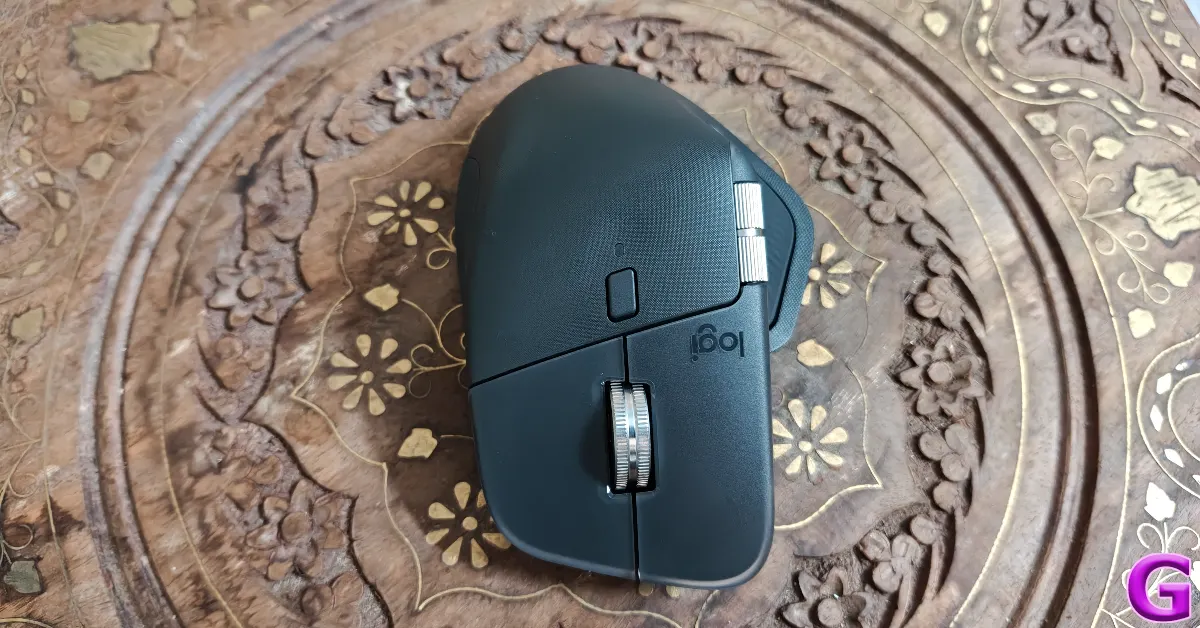
The clicks on the MX Master 4 are 90% quieter compared to the MX Master 3. The sound made by the left and right click buttons is barely noticeable outside the boundaries of the desk. Needless to say, you don’t have to worry about the noise spilling over to your co-workers’ desks. The vertical MagSpeed scroll wheel is smooth as ever, letting you breeze past 1,000 lines in one second in Hyper-fast mode. Even with the Ratchet mode turned on, you can scroll past hundreds of spreadsheet rows with just one flick. The horizontal scroll wheel comes in handy while editing videos. It lets you browse through frames without depending on annoying clicks.
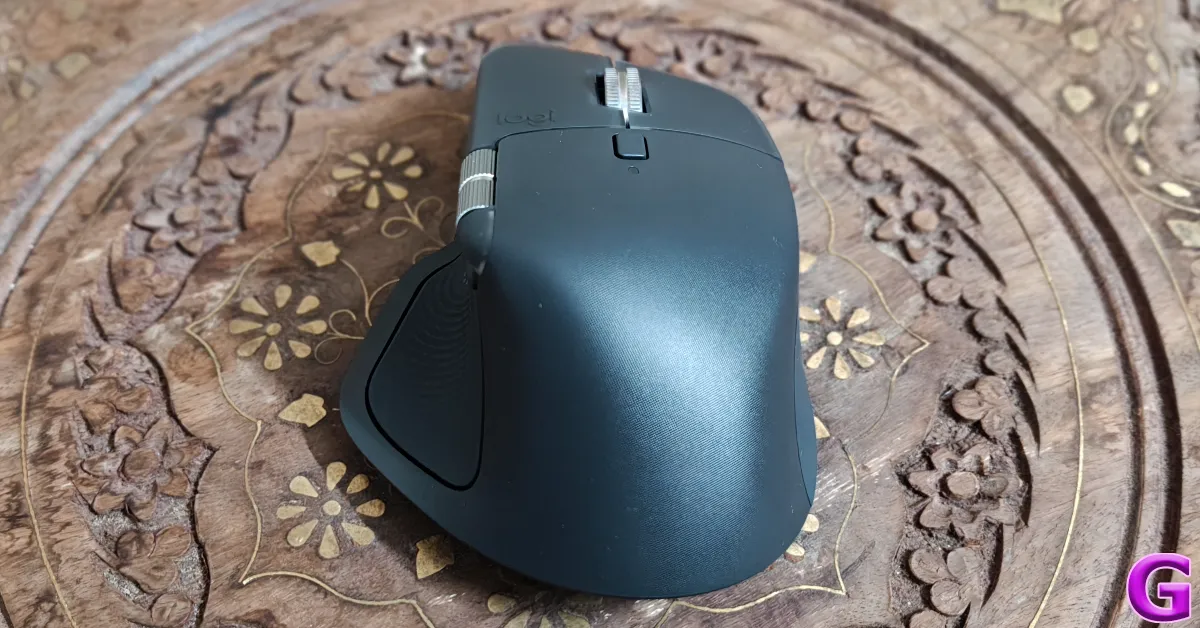
Logitech has equipped its newest MX Master offering with haptic feedback support. While it isn’t a game-changing feature, it certainly takes things up a notch. The vibrational feedback you get on scrolls and clicks is quite satisfying. Certain third-party apps like Photoshop, Lightroom, and Zoom make clever use of the haptic motor, providing feedback for notifications, drag and drop actions, slider adjustments, and more. The haptic motor chips away at the battery life. You can turn off the feedback entirely if you want to extend the mileage.
Pressing the new Actions Ring overlays a menu of quick actions on the screen. Placing the cursor on an option springs it into action. Some options give way to more options, just like the context menu on Windows. The good thing about this menu is that it is completely customisable. We highly recommend spending some time on the Options+ app to figure out what works for you. Once you’ve landed on the right set of tools, you will greatly cut down on unnecessary movements.
The MX Master 4 is equipped with a bigger 650mAh battery pack. This is one of the reasons why the mouse is heavier than its previous-generation counterpart. Logitech claims that it can last up to 70 days on a full charge, the same as the MX Master 3S. Since we used this mouse for a week, we couldn’t judge the veracity of this claim. However, going by previous tests, there is no reason to doubt Logitech’s numbers.
Read Also: How to generate AI images using Copilot on Windows 11
Verdict
So, the question remains – should you upgrade to the Logitech MX Master 4? If you’re a productivity freak, absolutely! While the MX Master 3 and 3S still hold up pretty well, the new iteration in the series charms with its chiselled look, satisfying haptic feedback, and the highly efficient Action Ring button. The latter two factors are the difference makers if you’re thinking of switching to this mouse. Actions Ring summons a wide range of tools and functions with just a single click, saving unnecessary mouse movements. If you spend several hours on video and photo editing, you can use this feature to optimise your workflow.
Buy on Amazon for Rs 12,995 (discounted price)
Regular Price: Rs 15,995
Pros
- Ergonomic design
- Quieter clicks
- Haptic feedback
- Actions Ring
Cons
- Not designed for left-handed use
- Bit pricey


