


Ever since Instagram added activity bubbles to its interface, users have been complaining about the icons covering up vital information in Reels and posts. While these bubbles can be dragged around the screen, they do throw a wrench in the seamless scrolling experience. The good news is that Instagram has finally added the option to disable them for good. Here are the 2 ways to hide activity bubbles on Instagram.
Read Also: Samsung rolling out AirDrop support for the Galaxy S26 Series: Availability Details
In This Article
Before you begin
The new ‘hide’ option for activity bubbles restores the viewing experience on Instagram to its previous, distraction-free form. While the bubbles may be gone from your regular feed, you can still view them in the Friends tab. If this feels like a more permanent measure, you can choose to hide bubbles from specific users by muting them. Another way of getting rid of a bubble is by dragging it to the bottom of the screen.
Instagram is rolling out the hide option in a phased manner. If you can’t view it on your device, it means it hasn’t been rolled out for your profile yet. Make sure the Instagram app is updated to its latest version to use this feature.
Hide activity bubbles from the Reels tab
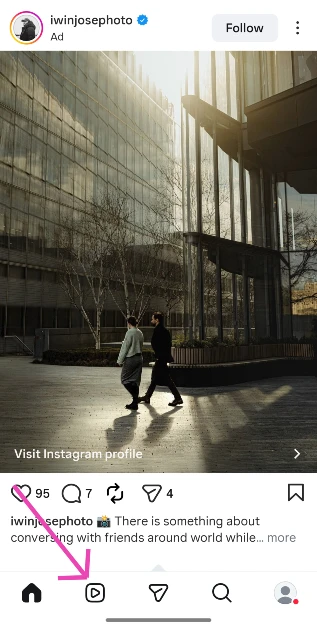
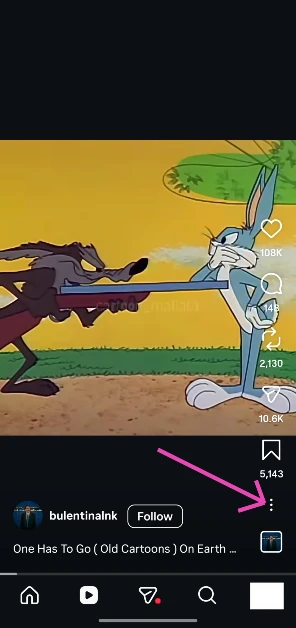
- Launch the Instagram app on your phone and switch to the Reels tab.

- Hit the ellipses icon in the bottom right corner of the screen.

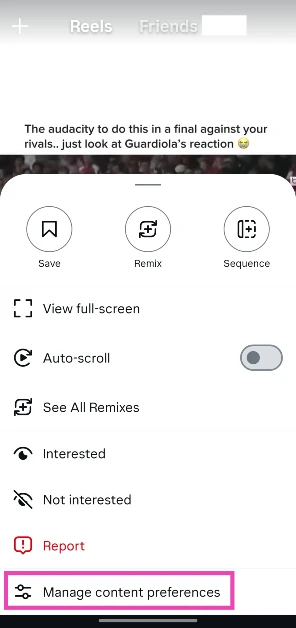
- Tap on Manage content preferences.
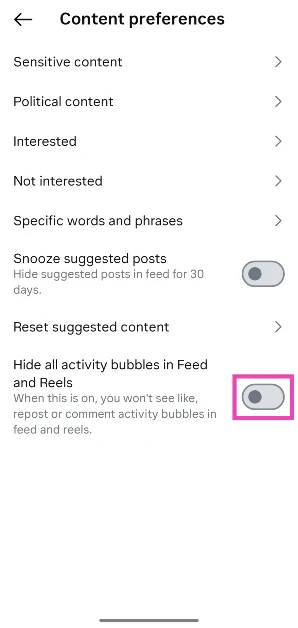
- Turn on the toggle switch next to Hide all activity bubbles in Feed and Reels.

Hide activity bubbles from Settings
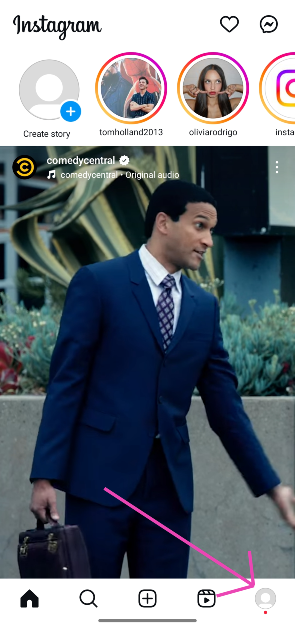
- Launch the Instagram app on your phone and go to your profile.

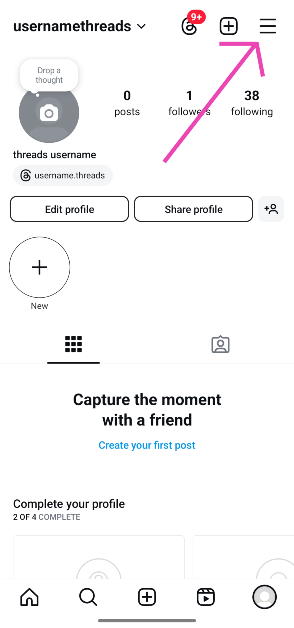
- Hit the hamburger menu in the top right corner of the screen.

- Scroll down and tap on Content preferences.
- Turn on the toggle switch next to Hide all activity bubbles in Feed and Reels.

Frequently Asked Questions (FAQs)
Is there a way to hide the activity bubbles on Instagram?
To hide the like and comment bubbles, switch to the Reels tab, tap the ellipses, select ‘Manage content preferences’, and turn on the toggle switch next to ‘Hide all activity bubbles in Feed and Reels’. Alternatively, go to Settings> Content preferences and turn off the toggle switch.
How do I hide my activity bubbles from appearing in the ‘Friends’ tab?
Go to Profile>Settings and activity>Activity in Friends tab and select ‘No one’.
How do I view all the Reels and posts I’ve liked on Instagram?
Go to Profile>Settings and activity>Your activity>Likes to view all of your liked posts and reels.
How do I auto-scroll Instagram Reels?
Go to the Reels tab on Instagram, hit the ellipses, and turn on the toggle switch next to Auto-scroll.
How do I access my watch history on Instagram?
Go to your profile, hit the menu icon, and navigate to Your activity>Watch history to see your recently viewed Reels.
Read Also: Samsung Galaxy S25 Ultra price in India revised
Final Thoughts
Instagram gives you the option to hide the activity bubbles of specific users. When you see their bubble pop up on your feed, long-press it and select ‘Mute’. If you have any questions, let us know in the comments!


