



One of the tradeoffs of getting a Chromebook is settling for a limited storage capacity. While 128GB is considered the standard storage for a Chromebook, you can also find devices with up to 512GB of internal storage. However, this can fall short for users with a vast media library. If buying an external hard drive for additional storage is out of the question, app deleting on a Chromebook can free up vital storage space. Here are 8 ways to delete or uninstall Android and Linux apps on a Chromebook.
Read Also: Infinix Note 50x 5G+ Review: The complete package under Rs 15,000?
In This Article
Before you begin
Your Chromebook supports 2 kinds of apps – Android and Linux. Both sets of apps can be easily uninstalled from the launcher. However, if you want to delete multiple apps from the device, you will need to resort to other measures. Like Android smartphones, Chromebooks also let you uninstall multiple apps from the Play Store. The process of app deletion is identical between the two devices.
If you want to delete an app package, you can use the Linux Terminal and Android Debug Bridge to carry out that task. The process is similar to using ADB on a PC. The Linux Terminal also comes in handy when you want to delete apps installed via Flatpak.
Delete Chromebook apps from the launcher
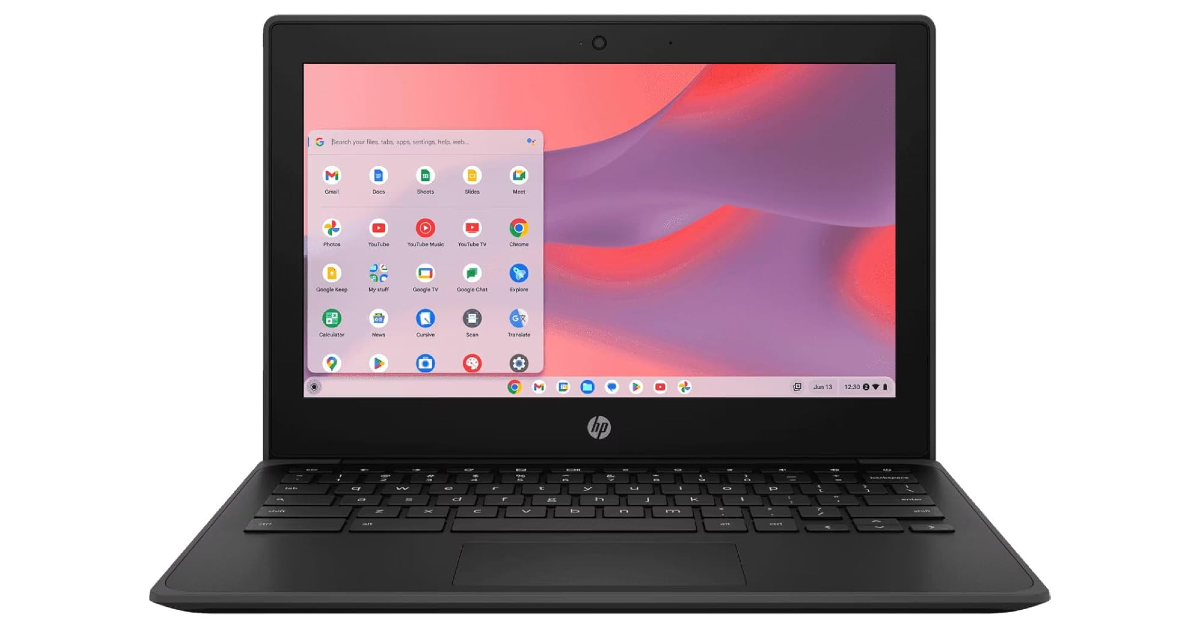
Step 1: Click the launcher icon in the bottom-left corner of the screen. Alternatively, press the launcher key on the keyboard.
Step 2: Right-click the app you want to uninstall.
Step 3: Click on Uninstall.
Step 4: Confirm your decision in the pop-up box.
Delete Chromebook apps from device settings

Step 1: Go to Chromebook settings and select Apps from the sidebar.
Step 2: Click on Manage apps.
Step 3: Select the app you want to uninstall.
Step 4: Hit Uninstall next to the name of the app.
Step 5: Confirm your decision in the pop-up box.
Uninstall Chromebook apps from Android settings

Step 1: Go to Chromebook settings and select Apps from the sidebar.
Step 2: Click on Manage Google Play preferences.
Step 3: Select Android Settings.
Step 4: Go to Apps and select the app you wish to uninstall.
Step 5: Hit Uninstall.
Uninstall multiple Chromebook apps from the Google Play Store

Step 1: Launch the Google Play Store on your Chromebook.
Step 2: Click your profile icon in the top-right corner of the screen and select Manage apps & device.
Step 3: Switch to the Manage tab.
Step 4: Hit the checkboxes next to the apps you wish to uninstall.
Step 5: Hit the bin icon in the top-right corner of the screen.
Delete Chromebook apps using Linux Terminal
Step 1: Go to Chromebook settings and select About ChromeOS from the sidebar.
Step 2: Click on Linux development environment.
Step 3: Select Develop Android apps.
Step 4: Turn on the toggle switch. Launch the Linux Terminal.
Step 5: Enter the following command:
adb devices
Step 6: Hit Allow in the USB debugging box.
Step 7: Enter the following command:
adb shell ‘pm list packages’ | sed ‘s/.*://g’
Step 8: Copy the package name of the app you wish to uninstall.
Step 9: Enter the following command:
pm uninstall [type package name here]
Uninstall Linux apps on your Chromebook using Terminal

Step 1: Launch the Linux Terminal and enter the following command:
sudo apt purge [enter app name here]
Step 2: Use this command to remove an app package:
sudo apt autoremove
Step 2: Enter the following command to uninstall Flatpak apps:
flatpak remove [enter app name here]
Uninstall Linux apps using the launcher

This method only applies to apps installed using the DEB or APT package manager.
Step 1: Go to the launcher and open the Linux apps folder.
Step 2: Right-click the app you wish to remove from the device.
Step 3: Hit Uninstall.
Uninstall an extension on your Chromebook

Step 1: Launch Google Chrome on your Chromebook and hit the Extensions icon next to the address bar.
Step 2: Click on Manage extensions.
Step 3: Go to an extension and hit Remove.
Frequently Asked Questions (FAQs)
How do I delete an app on my Chromebook?
Go to the app launcher, right-click an app, and click on ‘Uninstall’ to remove it from your device.
How do I delete multiple apps on my Chromebook?
Launch the Play Store, click the profile icon, go to Manage apps and devices>Manage, select the apps you wish to uninstall, and click the bin icon.
How do I uninstall an app package on my Chromebook?
Launch Linux Terminal on your Chromebook, enter ‘adb devices’, and allow USB debugging. Then, enter ‘adb shell ‘pm list packages’ | sed ‘s/.*://g’ and copy the name of the app package you wish to remove. Finally, enter ‘pm uninstall [app package name]’.
How do I update my Chromebook?
Go to Settings>About ChromeOS and hit the Update button to update your Chromebook to its latest OS version.
How do I factory reset or Powerwash my Chromebook?
Go to Settings>Advanced>Reset settings>Reset>Restart to Powerwash your Chromebook.
Read Also: Vivo rolling out new AI features with FunTouch OS 15 update
Final Thoughts
This is how you can uninstall or delete Android and Linux apps on your Chromebook. While you’re here, check out how you can mirror your phone’s display on your Chromebook. If you have any questions, let us know in the comments!


