


Nothing feels more annoying than coming across a bright white page while browsing your phone in Dark Mode. While most third-party apps have adapted to the modern norms and added dark themes to their appearance settings, some developers are still too stubborn (or lazy!) to do so. Android’s latest QPR2 update solves this issue by enforcing the dark theme on third-party apps that do not support it natively. Here’s how you can enable Expanded Dark Mode on your Android phone.
Read Also: How to create a Taste Match playlist with your friends on YouTube Music
In This Article
Before you begin
As mentioned above, this feature is being rolled out on the latest Android 16 QPR2 (Quarterly Performance Release) update. As of now, it is only available on eligible Pixel smartphones. Google may roll it out for the wider Android market down the line. Right now, the eligible list of devices includes Pixel 6 and above smartphones.
While enforcing dark mode on stubborn apps (like Amazon) can yield favourable results, things may not always work out perfectly. You may notice that some pieces of text are no longer visible on an app after it is forced to adhere to a dark theme. While a native theme would’ve taken care of this issue, there is not much the system-wide dark mode can do to fix it. Appearance issues aside, app-wide glitches are also not uncommon after making this switch. If these issues are impeding your enjoyment of the app, you can always switch back to Standard Dark Mode from system settings.
Enable Expanded Dark Mode on Android
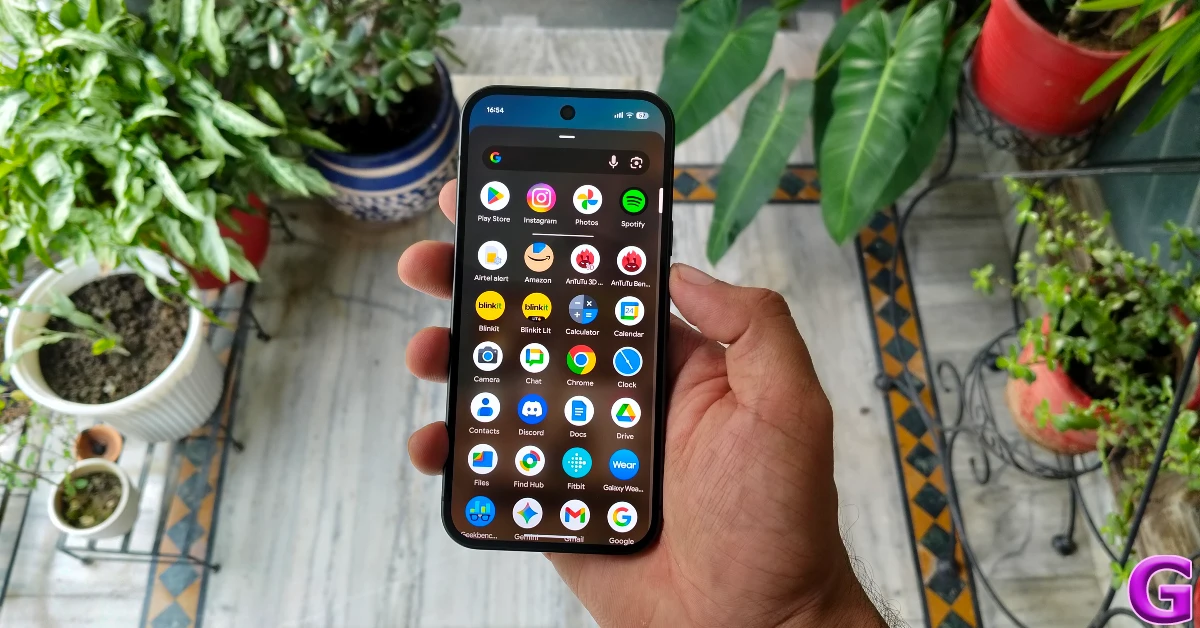
Step 1: Go to Settings.
Step 2: Tap on Display and touch.
Step 3: Scroll down and select Dark theme. Make sure its toggle switch is turned on.
Step 4: Select Expanded.
Frequently Asked Questions (FAQs)
What is Expanded Dark Mode?
‘Expanded’ is a new Dark Mode setting on Android that forces apps without a dark mode to adhere to a dark theme.
How do I enable Expanded Dark Mode on my Android phone?
Go to Settings>Display and touch>Dark theme and select ‘Expanded’.
Why can’t I see Expanded Dark Mode on my phone?
As of now, this feature is being rolled out on Pixel smartphones as a part of the Android QPR2 update. It remains to be seen whether it will be made available on other Android phones.
Why am I not seeing text in Dark Mode?
Certain apps don’t have native support for dark mode. If you impose a dark theme on them, their text may blend in with the dark surroundings. Revert to a light theme for the app in order to view the text.
How do I enable Dark Mode in Facebook?
Launch the Facebook app, tap your profile picture in the top right corner of the screen, select Settings & privacy>Dark mode and select ‘On’.
Read Also: SpongeBob Tower Defence Codes (December 2025)
Final Thoughts
As mentioned earlier, this feature is currently available on Pixel 6 and above smartphones. You need to download the latest Android 16 QPR2 update to get your hands on it. If you have any questions, let us know in the comments!


