


The standalone app for Copilot lets you trigger the AI assistant using a simple “Hey, Copilot” vocal command. This option comes in clutch when you’re occupied with a task and don’t want to go type your prompt in the Copilot app. Your PC picks up your voice command and gets the ball rolling. Here’s how you can enable the “Hey, Copilot” voice command on your Windows 11 PC.
Read Also: OnePlus 15R with 1.5K LTPS AMOLED display and 7,400mAh battery launched in India
In This Article
Enable the “Hey Copilot” voice command
Step 1: Launch the Copilot app on your PC by clicking its icon on the taskbar or pressing Windows + C.
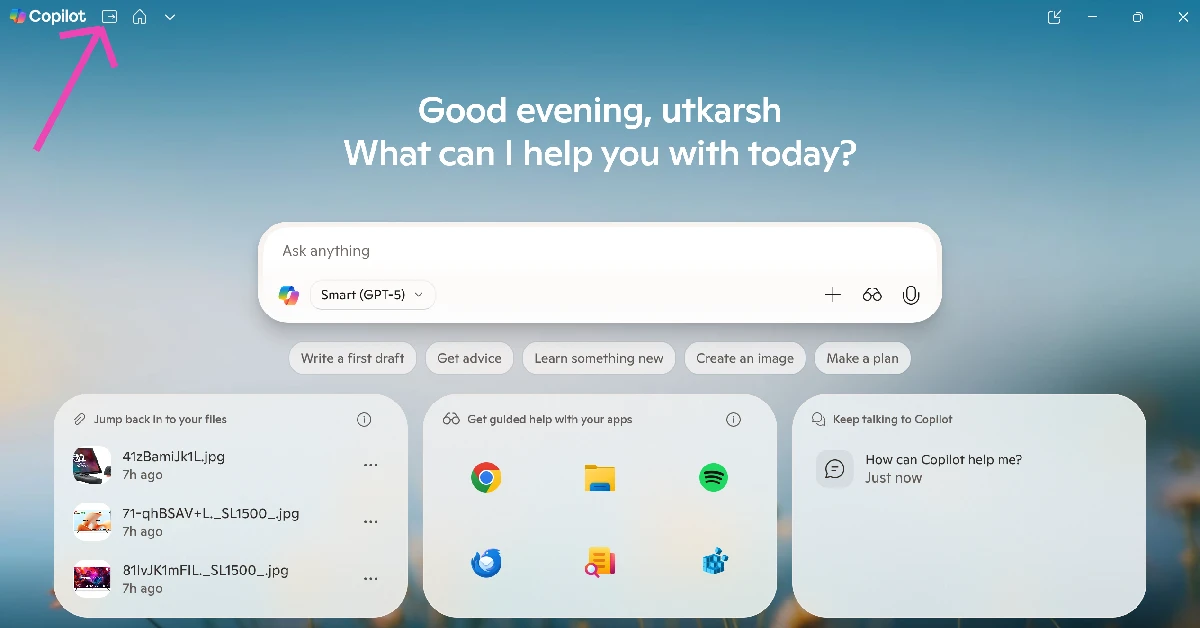
Step 2: Click the Open sidebar icon next to the Copilot header in the top-left corner of the screen.
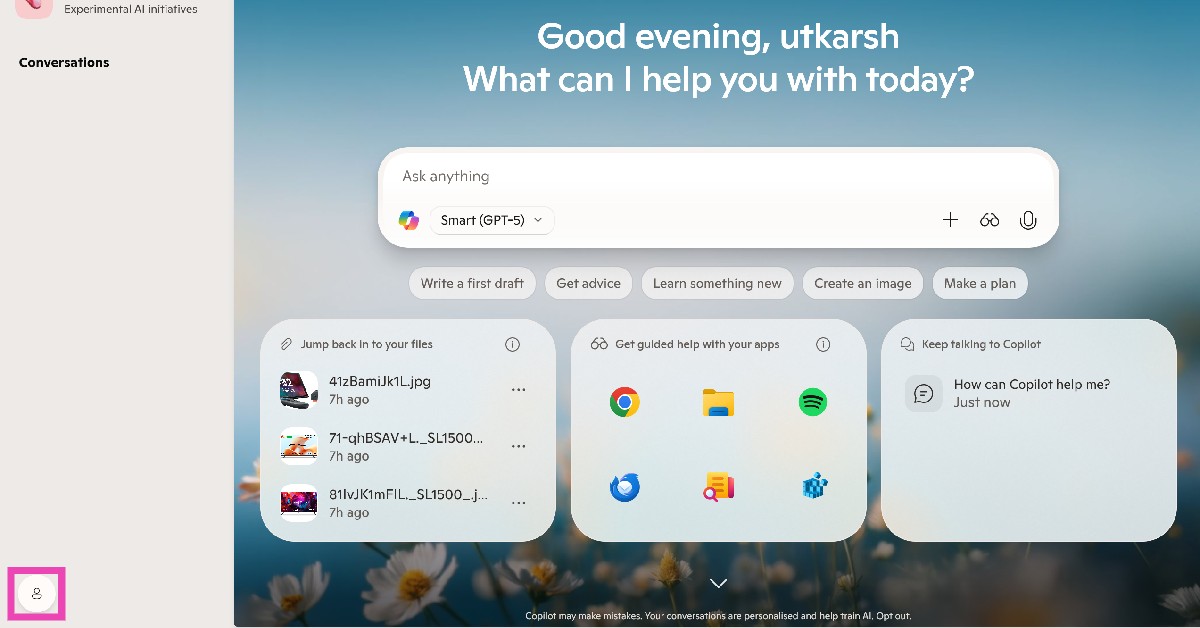
Step 3: Click your profile icon in the bottom right corner of the screen.
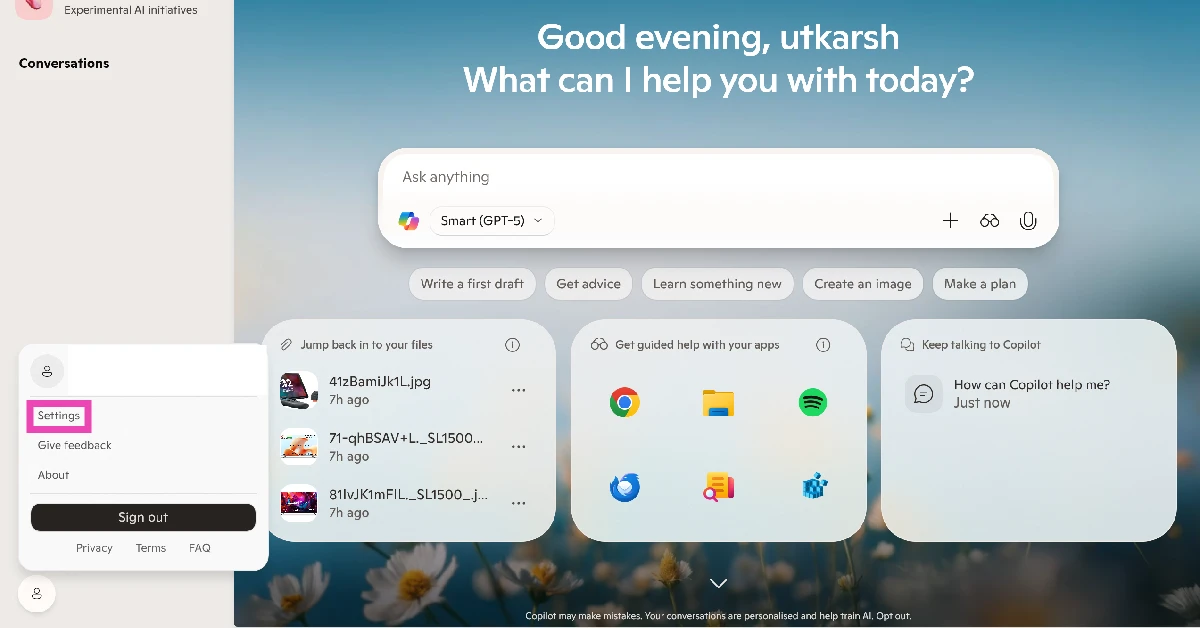
Step 4: Go to Settings.
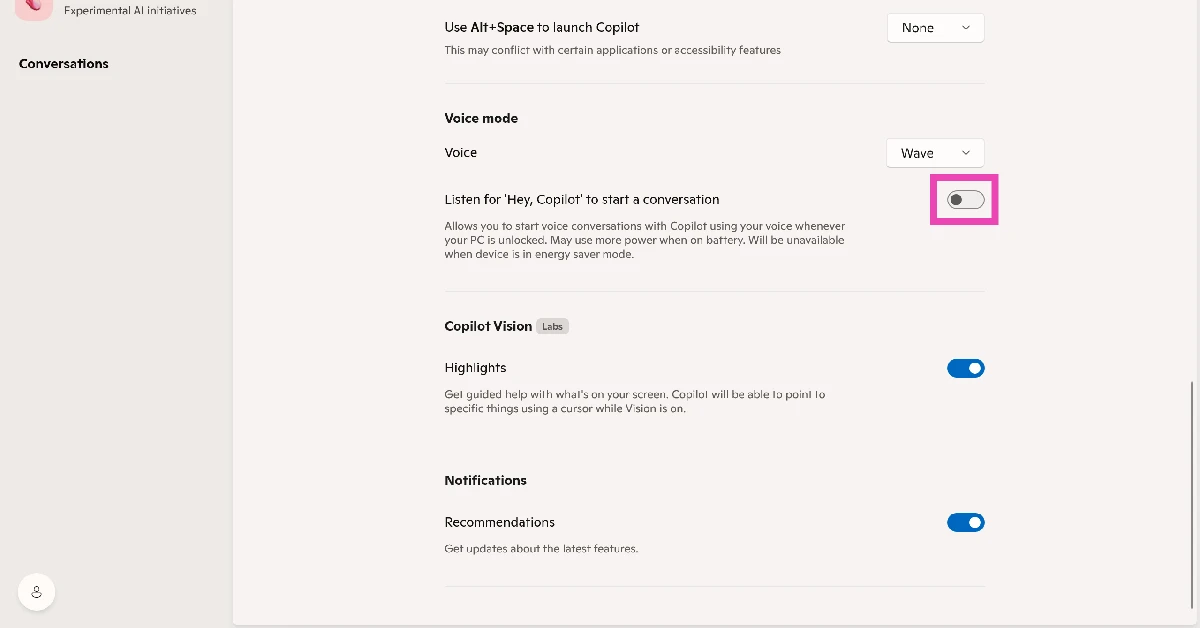
Step 5: Scroll down to the Voice mode section and turn on the toggle switch next to Listen for ‘Hey, Copilot’ to start a conversation.
Can’t get the voice command to work? Try these quick fixes
If your PC is not responding to the “Hey Copilot” voice command, try these quick fixes to rectify the situation.
- Allow Copilot to access your PC’s microphone. Go to Settings>Privacy and security>Microphone and turn on the toggle switch next to ‘Copilot’.
- Make sure your PC is connected to the internet.
- Update the Copilot app.
- Repair the Copilot app by going to Settings>Apps>Installed apps>Copilot>Advanced options>Repair.
- Make sure Windows 11 is updated to the latest version.
- Restart your PC.
Frequently Asked Questions (FAQs)
How do I remove Copilot from my Windows 11 PC?
Go to Settings>Apps>Installed apps, scroll down to Copilot, hit the ellipses, and select ‘Uninstall’.
How do I remove Copilot from the taskbar?
Right-click the Copilot icon on the taskbar and select ‘Unpin from taskbar’.
How do I enable the “Hey Copilot” voice command on my PC?
Launch the Copilot app, open the sidebar, click your profile picture, and go to settings. Scroll down to Voice Mode and turn on the toggle switch next to ‘Listen for ‘Hey, Copilot’ to start a conversation’.
How do I revoke microphone access from Copilot?
Go to Settings>Privacy and security>Microphone and turn off the toggle switch next to ‘Copilot’.
How do I open a document in Copilot?
Launch Copilot, hit the plus icon, click on upload, and select the file you wish to upload. Alternatively, go to the file’s destination on your PC, right-click it, and select ‘Ask Copilot’ in the context menu.
Read Also: OnePlus Pad Go 2 5G enabled tablet with 10,050mAh battery launched in India
Final Thoughts
If you’re not on board with an AI chatbot on your PC yet, you can uninstall Copilot from app settings. If you only wish to remove the ‘Ask Copilot’ option in the right-click context menu, check out this article. If you have any questions, let us know in the comments!


