



Apple’s state-of-the-art Find My network is second to none. If you ever misplace any device registered on your Apple account, you can easily find it using the tracking service. The best part about Find My is its accessibility. You can hop on the web any time to know the whereabouts of your iPhone. If you own an Apple Watch, you can get the location details directly on your list. Here are the 2 ways to find your lost iPhone using your Apple Watch.
Read Also: How to enable vertical tabs in Google Chrome
In This Article
Before you begin
Before we dive into the methods of finding your lost iPhone, it is important to figure out ‘how lost’ it is. If you were out partying and it accidentally slipped out of your pocket, it could be anywhere in the town. While revisiting the places where you spend most of your time helps, you cannot discount the likelihood of losing it while commuting. This is where the Find My network steps in and gives you the exact location of your iPhone.
If you misplaced the iPhone around your house, Find My won’t be of much use because you’re already on location. In this scenario, your Apple Watch connects to your iPhone via Bluetooth and plays a sound through its speaker, helping you track it down. Of course, for this to work, you will need to move around a bit until the two devices have paired.
Find your lost or stolen iPhone using Find My on Apple Watch
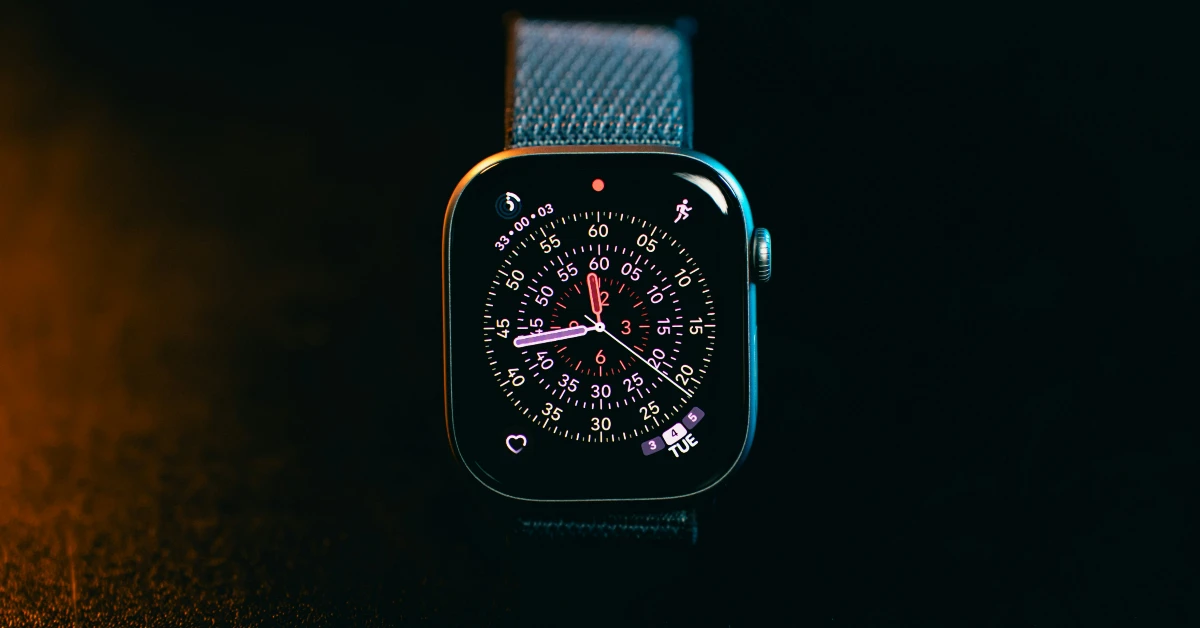
- Press the crown button on your Apple Watch to go to the app drawer.
- Scroll down and tap the Find My icon.
- The app will list all the devices connected to your Find My network via your Apple account. Select your iPhone from the list.
- The location of your iPhone will appear on the next page. Follow the directions to reach it.
- Once you are in the vicinity of your iPhone, tap on Play Sound. Your iPhone will emit a sound, making it easier to find it. Newer Apple Watch (Series 9, Ultra 2, and above) and iPhone (15 and above) models support precise directions that can lead you to your lost device after you’ve arrived at the location on the map.
Find a misplaced iPhone using audio cues
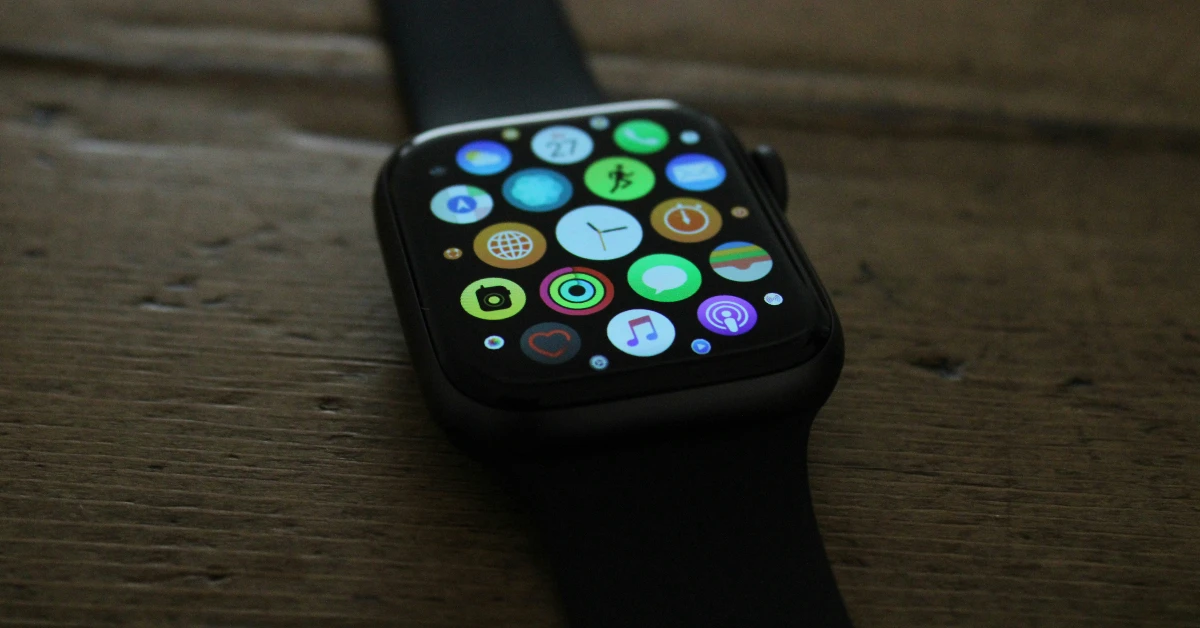
If you can’t figure out where you placed your iPhone, use this method. It does not require the Find My app since the iPhone is in your near vicinity.
- Go to the Control Centre on your Apple Watch.
- Tap the phone tile.
- Your iPhone will connect to the Apple Watch and play a sound. Follow the sound to find the iPhone.
Frequently Asked Questions (FAQs)
Can I use my Apple Watch to find my lost iPhone?
If your iPhone is registered to the Find My network, you can track it using your Apple Watch. Go to the app drawer on your Apple Watch, launch Find My, and select your iPhone. The directions will appear on your device.
I can’t find where I kept my iPhone in my room. How do I track it?
If you lost your iPhone in your near vicinity, you can get it to play a sound that will help you find it. Go to the Control Centre on your Apple Watch and tap the phone tile. Once your iPhone is linked to the smartwatch, it will emit a sound.
How do I find my lost Apple TV remote?
Go to the Control Centre on your iPhone, hit the Remote icon, tap the name of your TV at the top of the page, and move around the room until you see ‘Here’ displayed on the screen.
How do I turn off Wrist Detection on my Apple Watch?
Go to Settings>Passcode and turn off the toggle switch for Wrist Detection. Hit turn off.
How do I reset my Apple Watch’s Passcode?
Launch the Watch app on your iPhone, go to My Watch>General>Reset>Erase Apple Watch Content and Settings, and confirm your selection in the pop-up box. Enter your Apple ID to authenticate the action. Set up the Watch again and restore your backup. You will be able to enter a new passcode.
Read Also: Moozi Social iGaming: How to Play with Friends and Share Rewards
Final Thoughts
If you don’t own an Apple Watch, you can go to http://icloud.com/find to find your lost iPhone. Once you’ve signed into your Apple account, you will be able to track the lost device. If you have any questions, let us know in the comments!


