



The Friends tab in the reels section on Instagram lets you see the content that your friends have liked. Similarly, others can view your liked posts and reels as well. If you don’t want that to happen, Instagram has introduced an option to keep your likes private. Here’s how you can hide your likes on Instagram.
Read Also: Vivo V70 Elite Review: Elite performance across the board
In This Article
Before you begin
Your liked reels can be seen by your followers whom you follow back. If you want to hide your likes from a specific person, simply unfollow them. Apart from likes, the ‘Friends’ section also shows the reels you’ve commented on. Instagram’s privacy option hides your comments, too.
Hiding your likes and comments from the Friends tab does not mean they are completely hidden on the platform. If a post liked by you appears on your friend’s home page, they will be able to see your like. It may not appear as a floating icon, but tapping on the public likes can reveal your profile.
Hide your Instagram likes
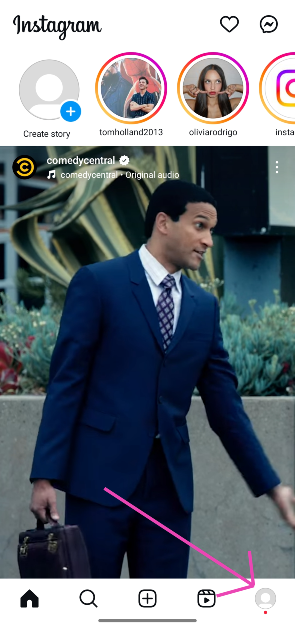
- Launch the Instagram app on your phone.
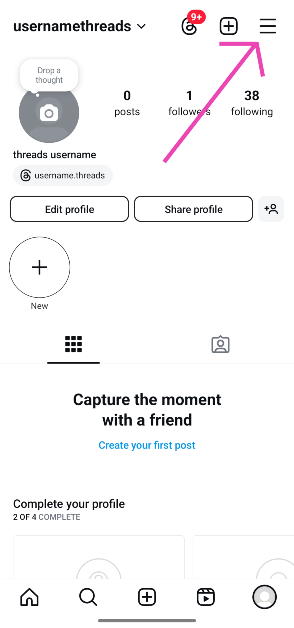
- Go to your profile.

- Hit the hamburger menu in the top right corner of the screen.

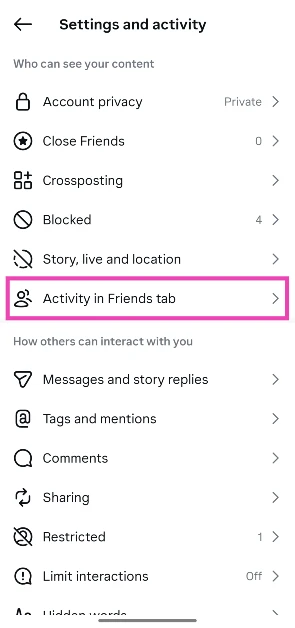
- Tap on Activity in Friends tab in the Who can see your content section.
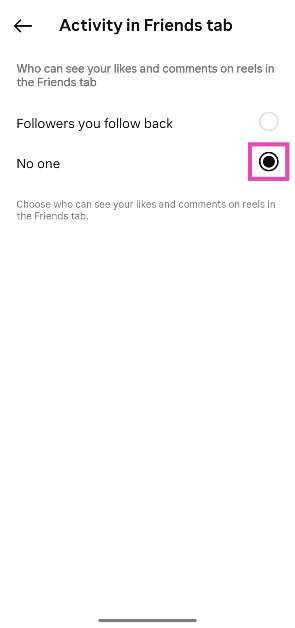
- Select No one under Who can see your likes and comments on reels in Friends tab.
Bonus Tip: Hide like and share counts from posts
- Launch the Instagram app on your phone.
- Go to your profile.
- Hit the hamburger menu in the top right corner of the screen.
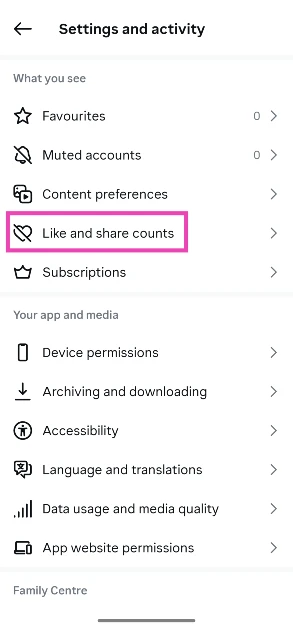
- Scroll down and tap on Like and share counts in the What you see section.

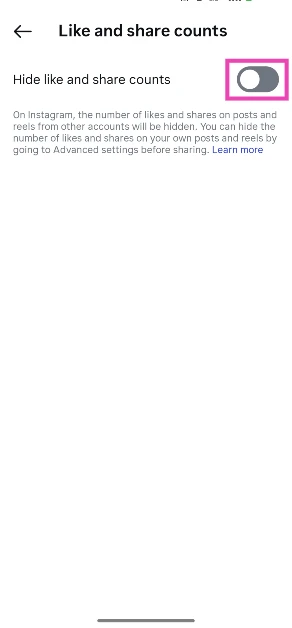
- Turn on the toggle switch next to Hide like and share counts.

Frequently Asked Questions (FAQs)
How do I hide my liked reels on Instagram from others?
Go to Profile>Settings and activity>Activity in Friends tab and select ‘No one’.
How do I view my liked reels on Instagram?
Go to Profile>Settings and activity>Your activity>Likes to view all of your liked posts and reels.
Who can view my likes on Instagram?
Followers whom you follow back can see the reels you’ve liked and commented on in the Friends tab.
Can my friends view the posts I’ve liked on Instagram?
Yes, your liked posts appear on the home page and the Activity tab of your friends’ Instagram feeds.
How do I hide the like and share counts of the posts I see on Instagram?
Go to Profile>Settings and activity>Like and share counts and turn on the toggle switch.
Read Also: Realme P4 Lite open sale begins in India: Price in India, Features
Final Thoughts
It is quite common to accidentally like something on Instagram. If you want to rescind your like but can’t find the post, go to the Your activity section in the Settings page and select ‘Likes’. This is where you will find all the posts and reels you’ve liked on Instagram. If you have any questions, let us know in the comments!


