


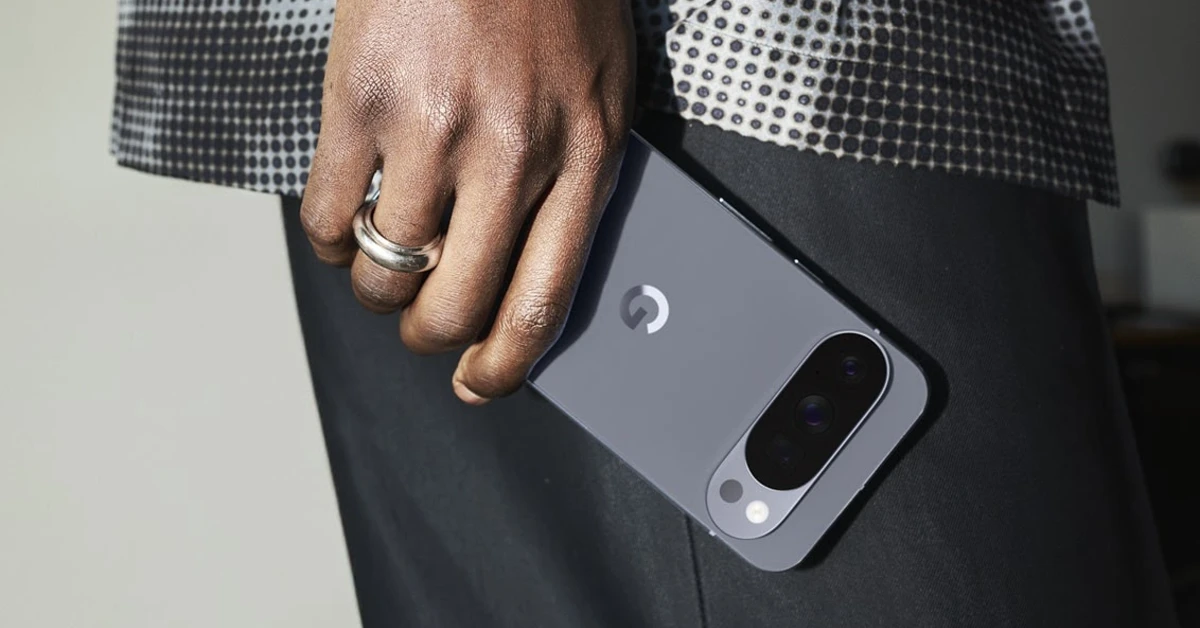
Recording phone calls just got a whole lot easier for Pixel users. The record button is now placed in the Call Assist menu on the native Phone app by Google. When you hang up a call, the recording can be accessed from the call history section in the app. This feature is also available for non-Pixel Android users, but it does not appear in the Call Assist menu on their devices. Instead, it gets its own tile on the call screen. Here is a step-by-step tutorial explaining how you can record calls on your Android phone.
Read Also: Redmi 15C 5G Review: The budget phablet that never dies
In This Article
Here’s what you need to use this feature
- Non-Pixel devices must run Android 9 or up.
- Pixel devices must belong to the Pixel 6 series or up.
- Pixel devices must run Android 14 or up.
- The Phone app (by Google) must be updated to the latest version.
- The call recording feature must be available in your country.
Enable call recording on your Android phone
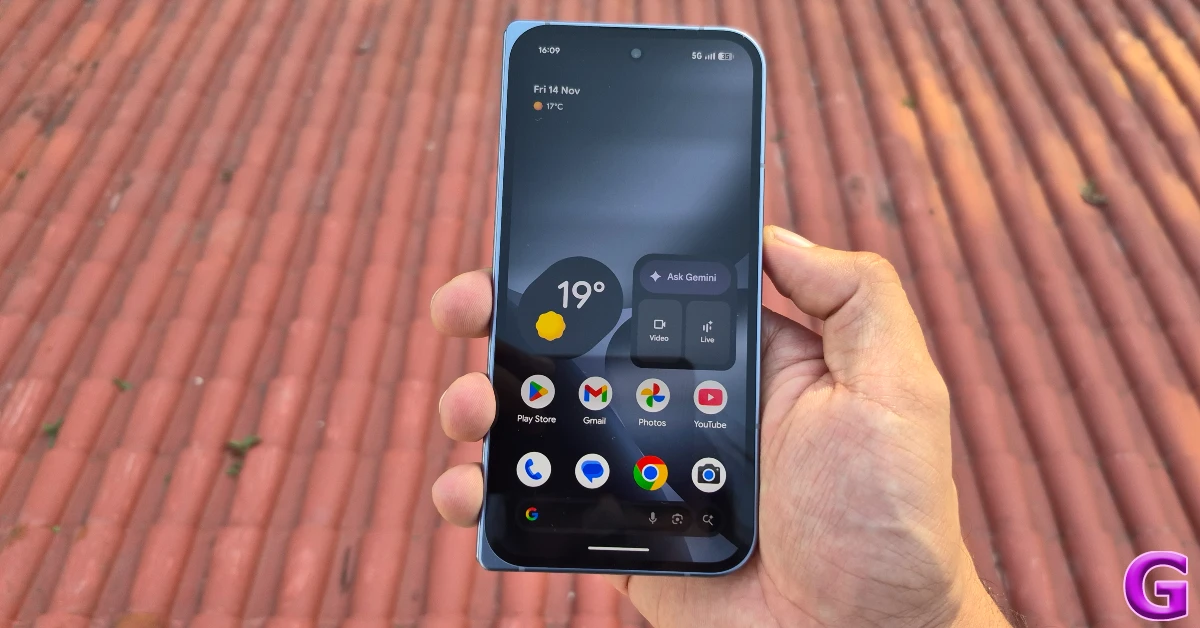
- Launch the Google Phone app on your Android phone.
- Tap the ellipses in the top-right corner of the screen.
- Go to Settings.
- Tap on Call Recording.
- Hit the toggle switch next to Turn on Call Recording. Additionally, you can choose whether you want all calls from unknown numbers or selected contacts to get recorded automatically.
Record calls on your Android phone

- Make or receive a call on your phone.
- If you’re a Pixel user, go to Call Assist>Call Recording. Non-Pixel users can directly tap the Record button on the call screen.
- Hit Record in the pop-up box. An audio clip will play on the call, letting everyone know that the call is being recorded.
- Hit Stop when you want to end the recording.
Find the recorded call on your Android phone

- Launch the Google Phone app on your Android phone.
- Go to the Home tab.
- Go through your call history to find the recording. You can tap on a caller’s name to view your call history with them.
- Hit the play icon to play the recording.
- Hit the bin icon to delete the recording.
Delete all call recordings from your Android phone
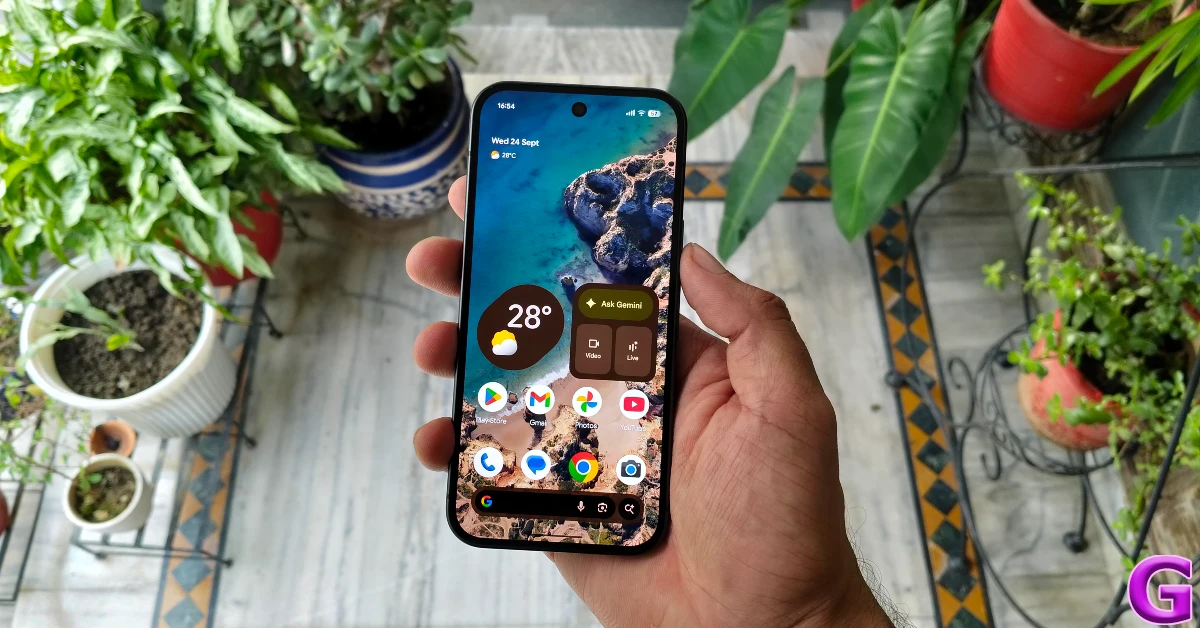
- Launch the Google Phone app and hit the ellipses.
- Go to Settings.
- Tap on Call Recording.
- Select Delete all call recordings now.
- Hit Delete in the pop-up box.
Frequently Asked Questions (FAQs)
How do I enable call recording on Android?
Go to Phone>Settings>Call Recordings and hit the toggle switch next to ‘Turn on Call Recording’.
How do I record a call on my Android phone?
Hit the Record button on the call screen to start recording it. This will play an audio message, letting everyone on the call know that it is being recorded. If you’re a Pixel user, go to Call Assist>Call Recording on the call screen.
Is there a way to block the call recording audio message on Android?
No, the Phone app by Google does not offer the option to mute or block the audio message that lets members know that the call is being recorded.
Why can’t I view the call recording feature on my phone?
The call recording feature for the Phone app is not available for all countries yet. Google is still rolling it out in certain regions.
How do I delete all call recordings on my phone?
Go to Phone>Settings>Call Recording and tap on ‘Delete all call recordings now’.
Read Also: Best of 2025: Top 10 PC accessories of the year
Final Thoughts
The Phone app by Google does not record a call until the person on the other end answers it. When a call is placed on hold, the recording gets paused. Additionally, Google does not allow users to record conference calls yet.


