



People adore capturing their precious moments and creating educational or important travel videos with a digital camera, webcam, drone camera, or smartphone to preserve these memories.
However, users often complain that they can’t play the camera-recorded videos on their Mac or Windows PC. There could be many reasons why your camera-recorded videos won’t play:
- Media Player does not support the recorded video file format.
- Missing codecs.
- Outdated media player.
- Video files are corrupt or damaged due to bad sectors.
- Interruption during transferring or editing a video.
- Virus or malware infection.
In this post, you’ll learn the common camera errors that may lead to MP4 corruption and some of the best ways to repair corrupt MP4 files.
In This Article
Common Camera Errors That Cause MP4 Video Corruption
Camera Error 1: Sudden Power Loss during Recording
Suppose your digital or drone camera abruptly shuts down due to low battery or accidentally turning off the camera during the recording. In that case, it leads to corruption in the video, making it unplayable or inaccessible.
Camera Error 2: Memory Card is Full
Seeing an error message ‘memory card is full’ in the camera while recording will not save the video correctly, making it corrupted.
Camera Error 3: The drone camera video file is corrupted
If the drone camera video is not working, it might get corrupted due to interruptions while transferring, saving, or editing videos. Moreover, if your drone crashes due to a loss of control by the pilot, your video will get corrupted.
Camera Error 4: Camera videos are incompatible with the media player
If your drone/ digital camera-recorded videos are not playing on your PC, it may be because you are playing the video in an incompatible media player with unsupported codecs or video formats.
Camera Error 5: A codec is required to play this file
If your media player doesn’t have the supported codecs required to play your camera-recorded video, it may show errors, such as ‘A codec is required to play this file.
Camera Error 6: SD card storage insufficient. Unable to create video
This error occurs in the drone camera when the microSD card has insufficient memory space or the video recording parameters are not correctly set.
Camera Error 7: My Camera Recorded Video is Flickering
A camera video flickering issue is caused by a malfunctioning camera or SD card, low battery, or bad ambient conditions.
Camera Error 8: My CCTV Camera is Not Recording Anything
If your CCTV camera is not recording anything, it may be due to a lack of storage space on the SD card.
Camera Error 9: My Drone footage is choppy
Your drone footage may be choppy because of incorrect frame rate settings, low-quality SD cards, outdated firmware, or software conflicts.
Camera Error 10: I cannot play MP4 videos on my Android.
There can be many reasons why your MP4 videos are not playing on Android, such as corrupted videos, the media player being outdated, or the SD card being corrupted.
Camera Error 11: DJI SD card error code 10023
The DJI SD card malfunction error code 10023 occurs when an SD card is corrupted or incompatible, outdated firmware is used, or the SD card slot is loose or blocked. This can make videos stored on the card unplayable.
Best Ways to Fix Video Corruption
Here are some of the best and easiest ways you can follow to repair corrupted MP4 videos
Restart Your Video Player or Device
When your camera-recorded MP4 videos are not playing, the most essential step is to exit the existing media player, restart it again, and then try playing the video. If this doesn’t work, close all the applications and restart the device you are playing the video.
Update the Media Player
An outdated media player might be the reason your camera-recorded video is not playing on Windows or Mac. So, update the existing media player to fix this issue.
Use Another Media Player
If your MP4 file is not playing due to a missing codec, try to play the video on any other media player. You can use VLC Media Player, QuickTime Player, Windows Media Player, etc.
Download MP4 Codecs
If your video player does not support the codec used to compress the camera-recorded video file, download the right codec. Always download the required video codecs from their official website. Downloading them from an untrusted source can put your device at risk of viruses or malware.
Convert Video File Format
Often, converting camera-recorded video to another format like MOV or AVI fixes the ‘can’t play recorded video’ issue. Use the VLC Media Player or online video converter tools like Zamzar, VEED.io, CloudConvert, etc., to change the file format of the camera-recorded MP4 videos.
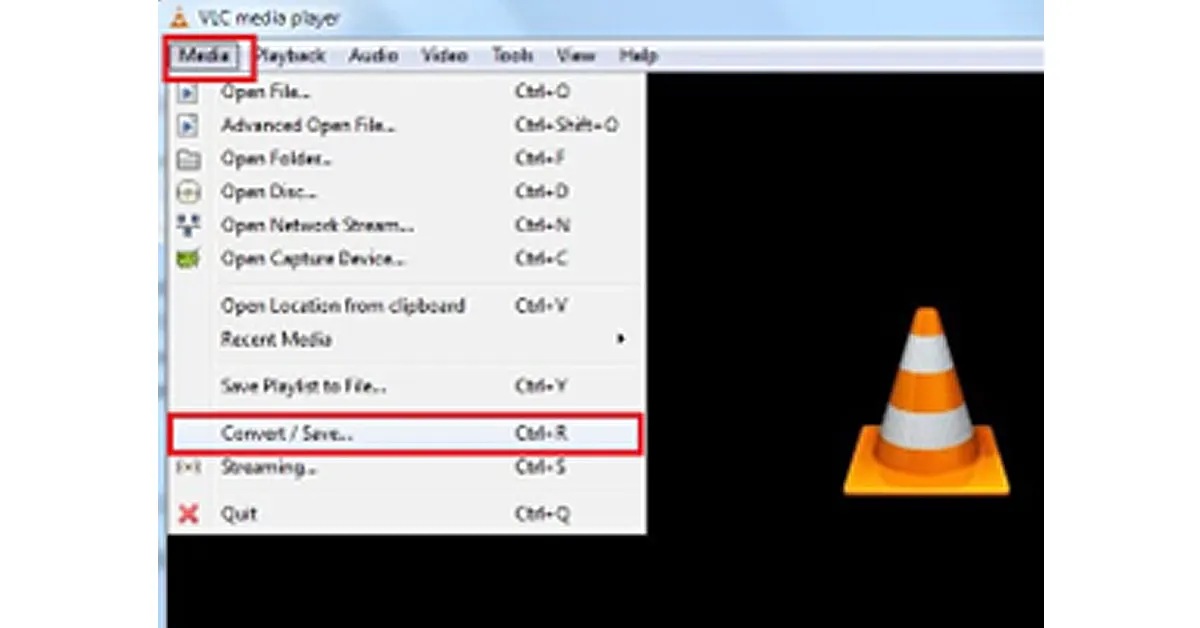
Here’s how to use VLC Media Player to convert the file format of your video:
- Open VLC Media Player and go to the Media
- Select Convert/Save from the drop-down list.
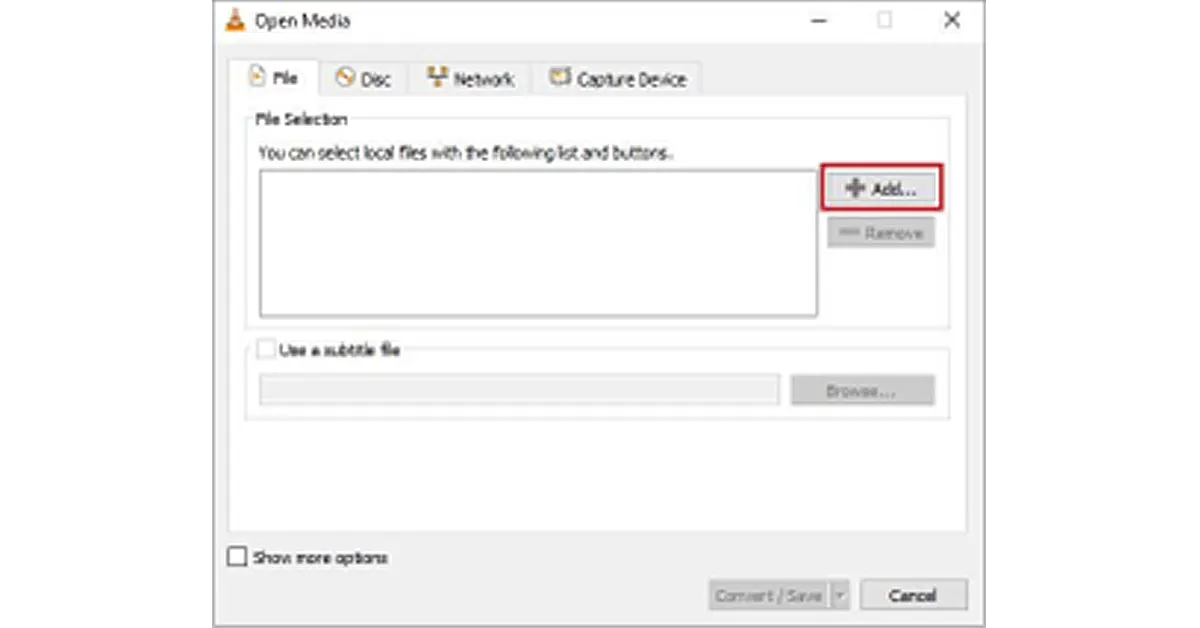
- Click Add to browse and select the video file you want to convert. Click Convert/Save.
- Next, provide the location and file name against the Destination file
- Select the desired input codec from the Profile drop-down list in the Settings option.
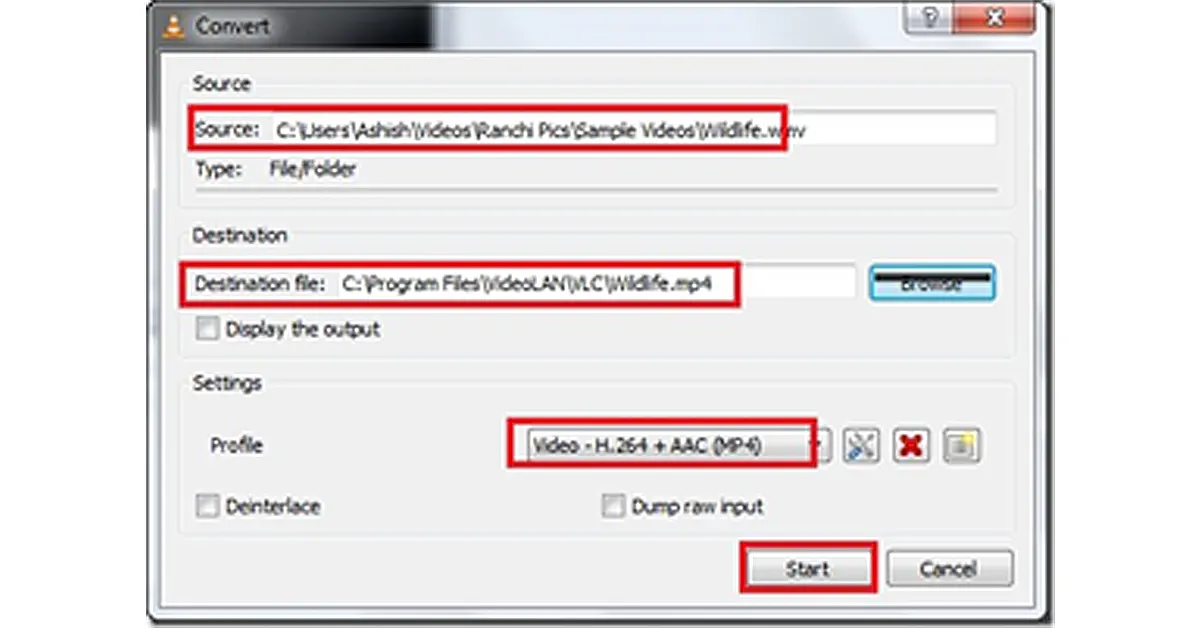
- Click Start to begin the conversion process. Once done, check whether your corrupt video is playing after conversion.
Use Professional Video Repair Software to Fix Corrupted MP4 Videos
If your camera-recorded video file is corrupted for any reason, you need to repair it using professional video repair software like Stellar Repair for Video.
This tool repairs corrupt/ damaged or unplayable videos caused by camera crashes, incomplete file transfers, recording/editing errors, virus attacks, etc. It can simultaneously repair multiple videos in the same or different formats, such as MP4, MKV, AVI, etc.
Steps to Repair Corrupt MP4 Videos
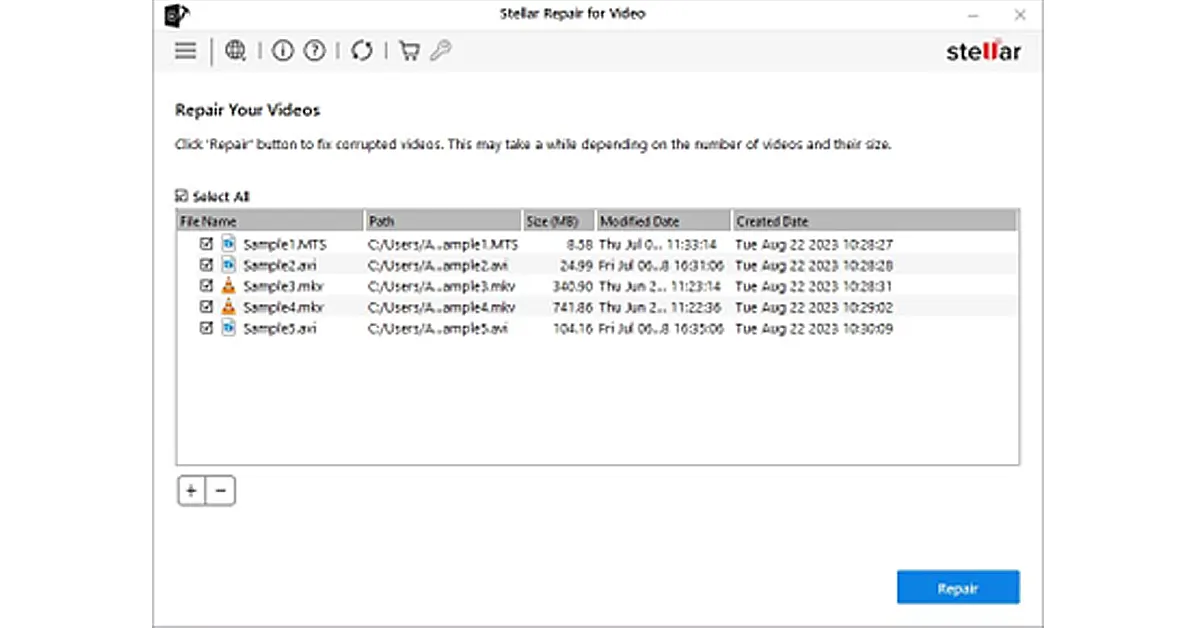
- Download, install, and launch Stellar Repair for Video software on Windows or Mac.
- Click Add File to add corrupted camera videos for Repair.
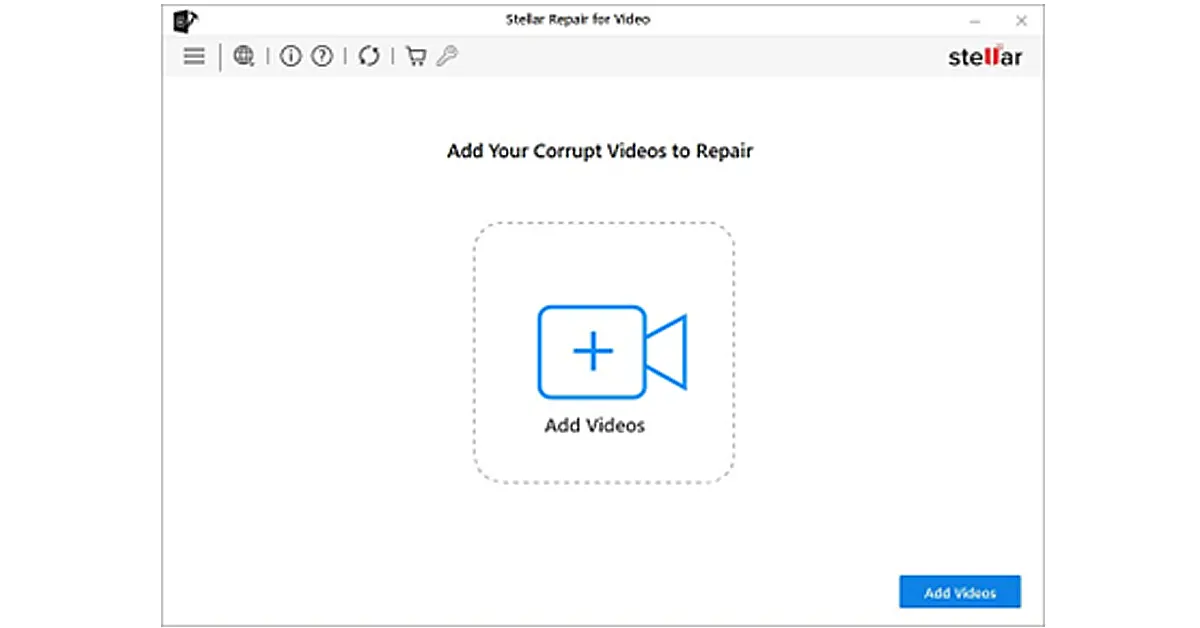
- Next, click Repair to initiate the repair process.

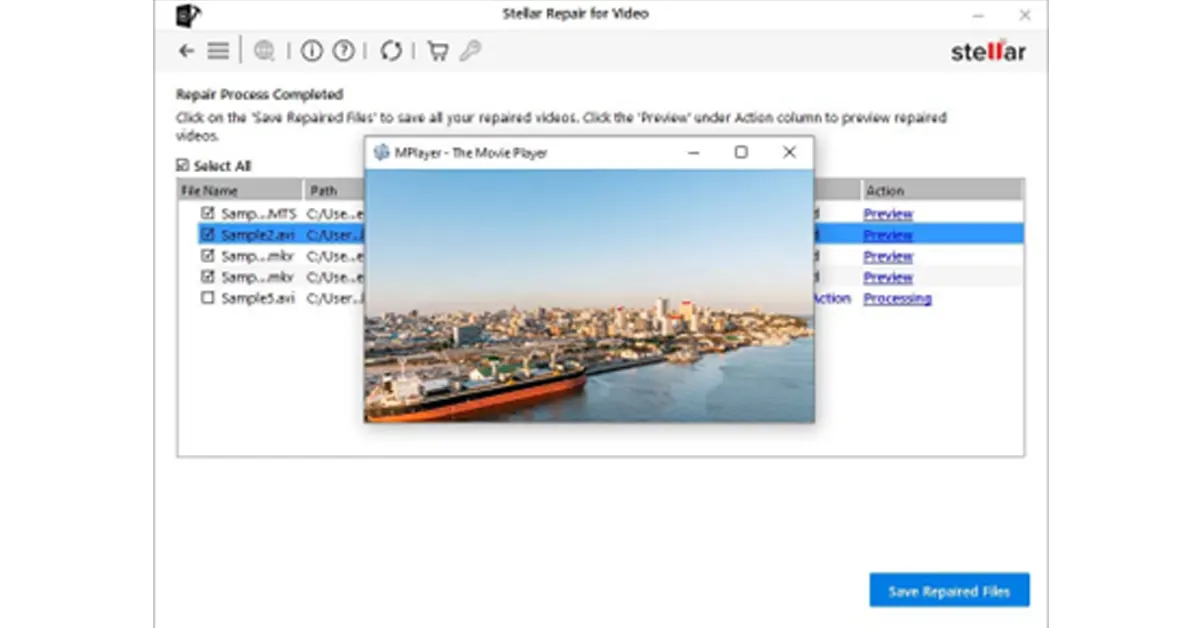
- Once the repair process ends, click Preview to see the repaired MP4 videos. Then click Save Repaired Files to save the videos at the desired location.
Tips to Prevent Video Corruption
- Use only reputed brand SD cards.
- Don’t use the same SD card on multiple cameras or devices.
- Don’t remove the SD card, when the camera is on.
- Stop shooting when your SD card is full.
- Maintain regular backup of your SD card to prevent data loss.
- Stop using the camera’s SD card if you encounter any errors.
- Always format the card before each shoot.
- Avoid shooting when the device’s battery is low.
- Install trusted antivirus on your system.
- Properly transfer video footage between devices.
Final thoughts
Try to play MP4 videos in different media players or change the file format to see if your drone/digital camera recorded videos are playable. However, if your MP4 video is still not playing, it may be corrupt. Use a professional video repair tool such as Stellar Repair for Video to fix the corrupt video. This tool fixes corruption in video frames, indexes, or headers caused by incomplete transfer, sudden system shutdown, etc.
Moreover, remember to create a backup of your camera-recorded MP4 videos before attempting any repair method.


