



For several years, users have requested call and message scheduling tools for WhatsApp. While message scheduling is still limited to WhatsApp Business, regular users can now schedule calls on the instant messenger. This feature is baked into the ‘Calls’ tab. It comes in quite handy while setting up seminars, virtual meetings, and online lectures. Here’s a complete tutorial on how to set it up.
Read Also: How to Open 2 Google Chrome Tabs in Split View
In This Article
Before you begin
When you set up a scheduled event on WhatsApp, you can send the invite to one contact or a pre-existing group. Multiple contacts cannot be a part of an invite. Once an event is set up, you can edit its timing from the ‘Calls’ tab. WhatsApp gives you the option to cancel the event altogether, too.
If you can’t view this feature on your phone, make sure you are using the latest version of WhatsApp. Go to the Play Store, search for WhatsApp, and hit the ‘Update’ button on the app’s page. Since this feature is being rolled out in a phased manner, it may take some time to reach your device. Until then, you can use a third-party app like SKEDit to schedule your calls and messages on the platform.
Schedule a call on WhatsApp
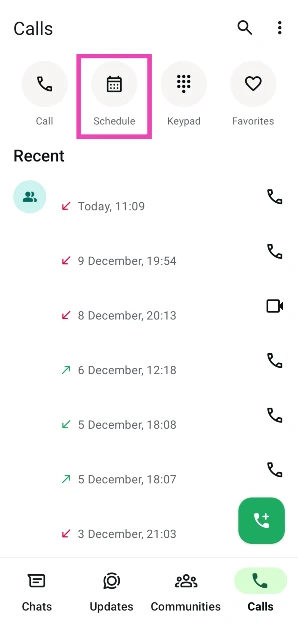
Step 1: Launch the WhatsApp Messenger on your phone and switch to the Calls tab.

Step 2: Hit the Schedule icon.
Step 3: Tap the textbox titled ‘[your name] call’ to change the name of the call.
![Step 3: Tap the textbox titled ‘[your name] call’ to change the name of the call.](https://www.gadgetbridge.com/wp-content/uploads/2025/12/callw3.webp)
Step 4: Hit the ‘call description’ text box to add details about the call. This is optional.
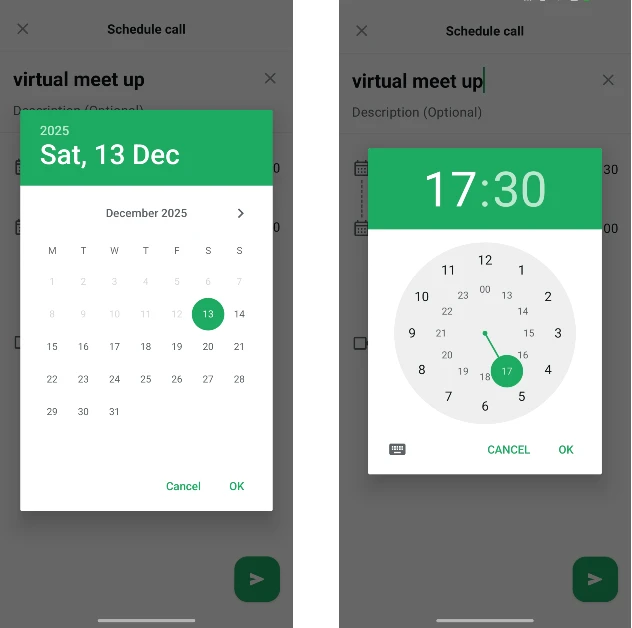
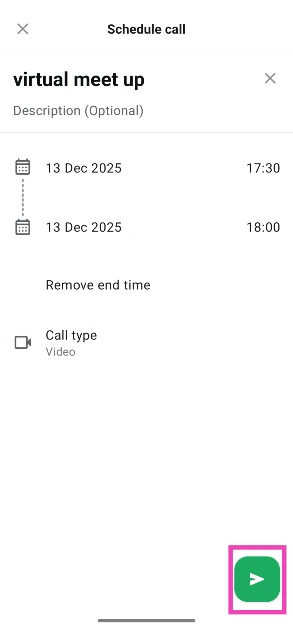
Step 5: Set the date and time for the call by tapping the first calendar entry on the screen and the time next to it.
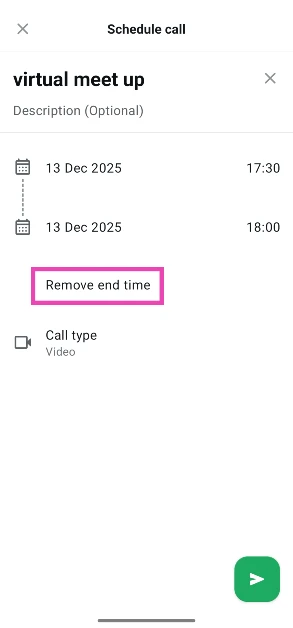
Step 6: You can choose to set up the end time as well. If you don’t have a fixed time limit, tap on Remove end time.
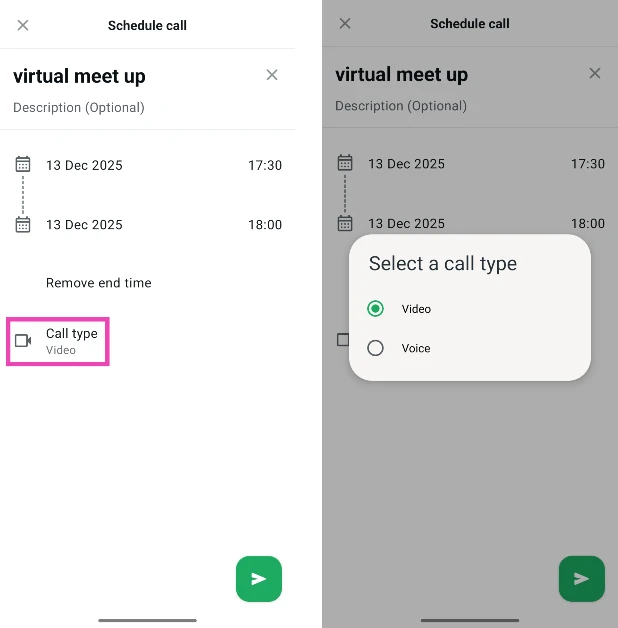
Step 7: Choose whether you want to schedule a video or audio call by tapping Call type.
Step 8: Hit the green icon in the bottom right corner of the screen.
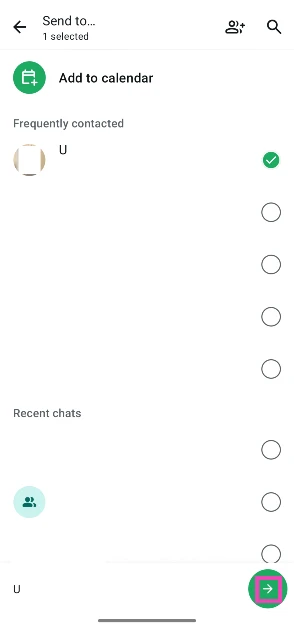
Step 9: Select a call participant from your contact list. You can choose 1 person or an existing WhatsApp group.
Step 10: Hit the arrow icon to send the invite to the contact or group.
Step 11: You can cancel the invite by deleting the message. You can also edit the timing or details of the scheduled call from the Calls tab.
Frequently Asked Questions (FAQs)
Is it possible to schedule a call on WhatsApp?
You can schedule a WhatsApp call by going to the ‘Calls’ tab in the app and hitting the Schedule button. Set the call name, description, and time, and send the invite to the participant.
How do I delete a call invite on WhatsApp?
All call invites can be deleted by deleting the invite message. Alternatively, you can access the invite in the ‘Calls’ tab, tap on ‘Edit invite’ and hit ‘Cancel invite’.
How to see scheduled calls on WhatsApp?
All scheduled calls can be seen and edited in the ‘Calls’ tab.
How do I silence WhatsApp calls from unknown callers?
Go to WhatsApp>Settings>Privacy>Calls and turn on the toggle switch for ‘Silence unknown callers’.
How do I turn off WhatsApp call notifications?
To stop receiving WhatsApp call notifications, go to Settings>Apps>WhatsApp>Manage notifications>Call notifications and turn off the toggle switch next to ‘Allow notifications’.
Read Also: Best of 2025: Top tablets released this year
Final Thoughts
Once you’ve scheduled a call on WhatsApp, you can edit its timing, name, and description by going to the ‘Calls’ tab and selecting the invite. If someone doesn’t answer your call, you can send them voice and video memos. Got any questions? Let us know in the comments!


