


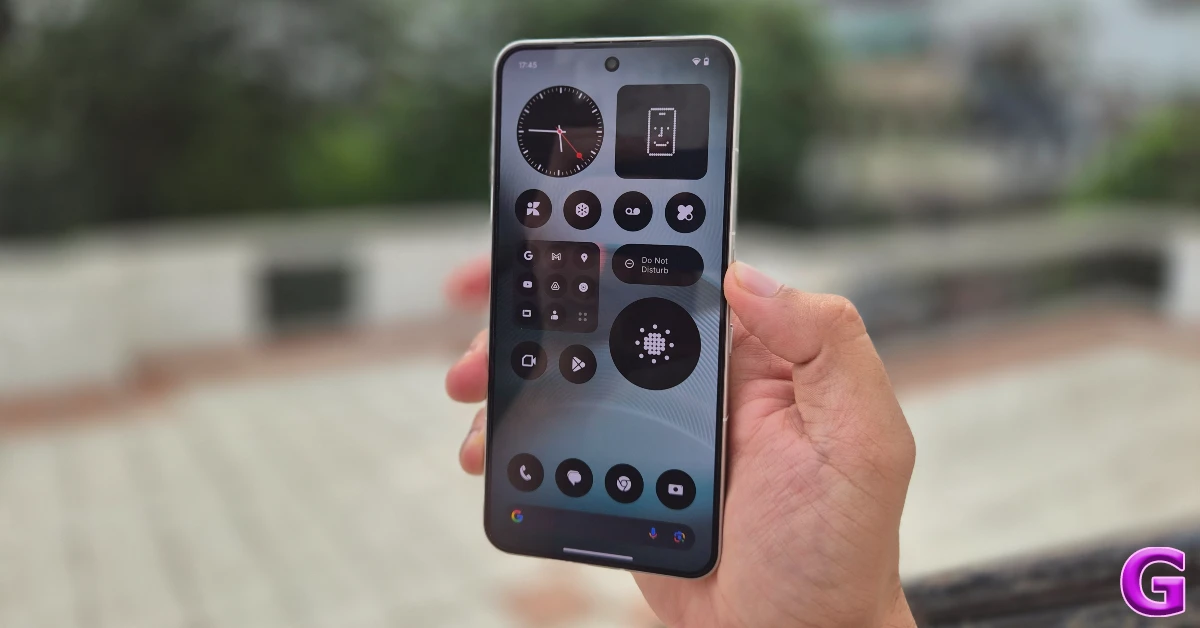
Nothing has one of the best Android skins around. Its slick animations, custom app icons, charming widgets, and smooth optimisation are unmatched. When it comes to AI features, however, Nothing has proceeded with mindfulness. Its ‘Intelligence Toolkit’ currently comprises the Essential Space, a wallpaper generator, and a couple of widgets. The latest Nothing OS 4.1 update adds a handy AI eraser to the brand’s AI suite. Here’s how you can use the AI eraser to remove unwanted objects from the images on your Nothing phone.
Read Also: BenQ RD280UG Programming Monitor with 3:2 aspect ratio nano-matte panel launched in India
In This Article
What’s new on Nothing OS 4.1?
Nothing OS 4.1 update is now live for the Phone (4a) series. It will soon roll out for older Nothing devices. The new OS update brings a fresh set of features and customisations that are worth checking out. Here are some of our favourites.
- AI eraser for the native gallery app.
- Live updates on AOD, lock screen, status bar, notifications, and Glyph interface.
- Relaxation hub with widgets for breathing exercises.
- Essential apps drawer.
- New customisations for the lock screen.
Use AI Eraser on your Nothing phone’s native gallery app
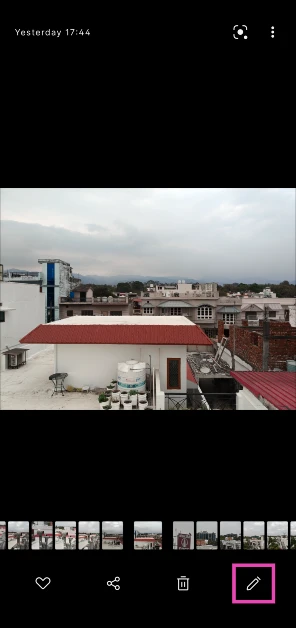
- Launch the native gallery app on your Nothing phone.
- Open the image you wish to edit.
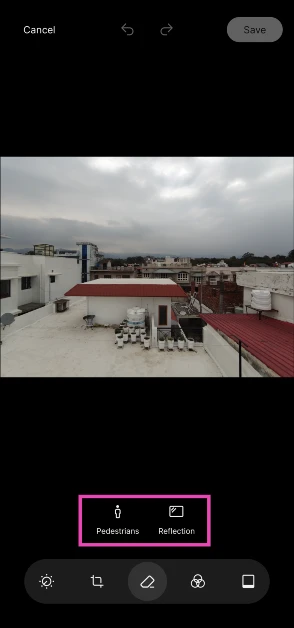
- Hit the pencil icon in the bottom right corner of the screen.

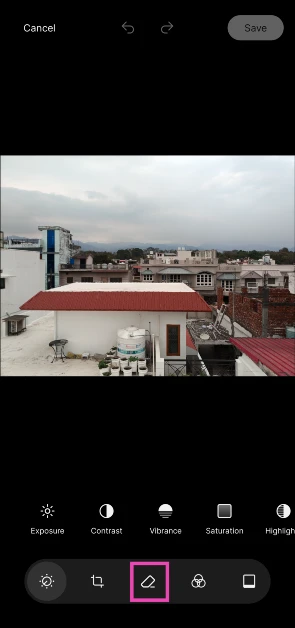
- Tap the eraser icon in the toolbar at the bottom of the screen.

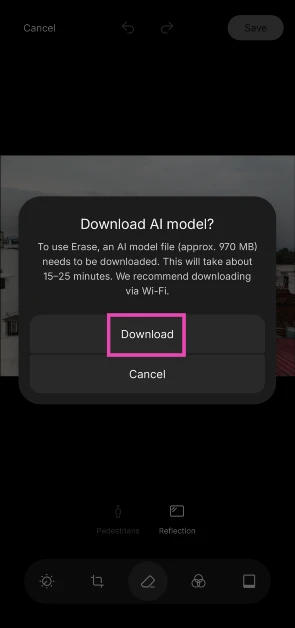
- Download the AI model required to use the eraser tool. This will take 15-20 minutes.
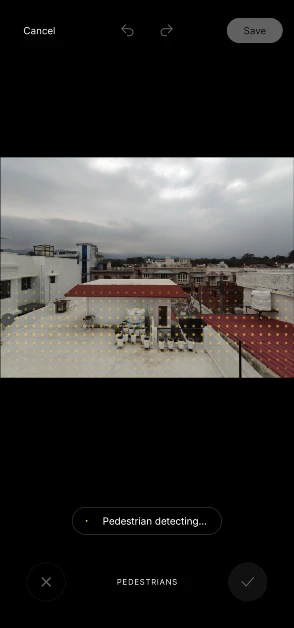
- Choose whether you want to remove reflections or pedestrians from the picture. The AI Eraser does not let you manually select objects yet.

- Once you’ve selected an option, the AI Eraser will scan the image and remove the unwanted items.
Frequently Asked Questions (FAQs)
Do Nothing phones have an object eraser?
The Nothing OS 4.1 update brings an AI eraser tool to the native gallery app.
Can I remove unwanted objects from the images on my Nothing phone?
Nothing’s AI eraser tool lets you remove pedestrians and reflections from your pictures. There is no option to manually select objects yet.
How do I remove reflections and pedestrians from the images on my Nothing phone?
Launch the native gallery app, open an image, and tap the pencil icon followed by the eraser icon. Depending on the image, choose ‘reflections’ or ‘pedestrians’.
Does Nothing use cloud servers for its AI eraser tool?
No, Nothing does not use third-party cloud servers for its AI eraser tool. The AI model is completely on-device.
How do I update the OS of my Nothing phone?
Go to Settings>About phone, tap on Nothing OS, select the OS version, and hit ‘Check for updates’.
Read Also: OpenAI introduced GPT‑5.4 mini and nano for faster high-volume workloads
Final Thoughts
As mentioned earlier, this tool is available with the Nothing OS 4.1 update. It will roll out in previous-generation Nothing phones in the coming months. Until then, you can use Google’s Magic Editor in the Photos app to remove unwanted objects from your pictures.


