


Whether you make funny sketches or commentary videos, drafting an airtight script is always the first part of making a Reel. If you don’t want to memorise the script, you can always take the help of the teleprompter while shooting the video. However, while recording, it is essential that your eyes line up with the camera and don’t stray towards the teleprompter. Instagram’s native editing app has a tool to ensure that this problem never arises while shooting Reels. Here’s how you can use the teleprompter in the Instagram Edits app.
Read Also: NYT Connections (#1034) April 10, 2026: Hints, Clues, and Answers Today
In This Article
Why you should use the Edits app
Instagram’s native video editing app is designed for professional creators and casual users alike. It has everything you need to transform a raw video into a piece of content without ever needing to reach for your laptop. The editing tools are super accessible to the average user. When you’re not editing, you can come up with new ideas and save them in the app. The ‘Ideas’ tab lets you browse templates, audio, stickers, and text styles, and save them for future use. You can also take a look at Reels from other creators for inspiration.
Having said that, Edits is more than just an editing app. After completing a project, you can track its progress in the app. The ‘Insights’ tab gives you a closer look at how your content is doing on Instagram. You can track metrics like views, likes, comments, reposts, shares, and saves. Additionally, you can sort your videos based on reach, views, and comments.
Use the teleprompter in the Edits app
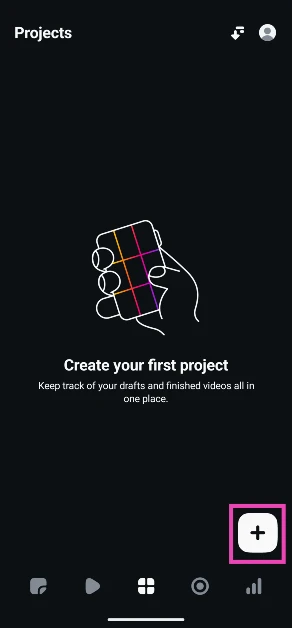
- Launch the Edits app on your phone.
- Hit the plus icon in the bottom right corner of the screen.

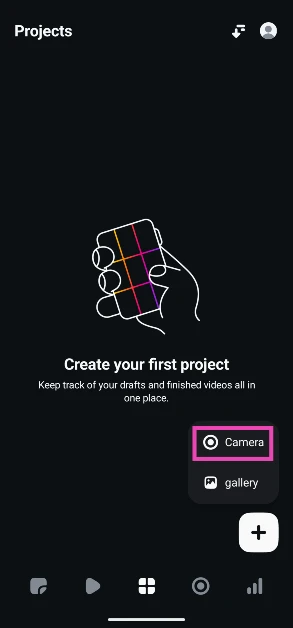
- Select Camera.
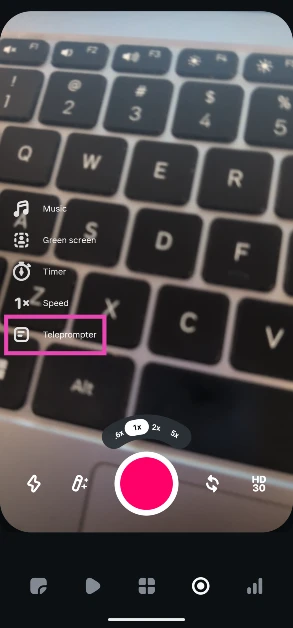
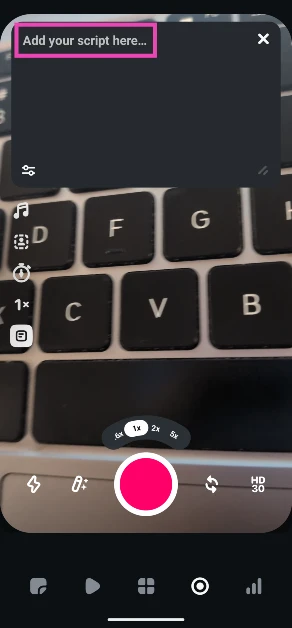
- Tap the teleprompter icon on the left side of the screen.
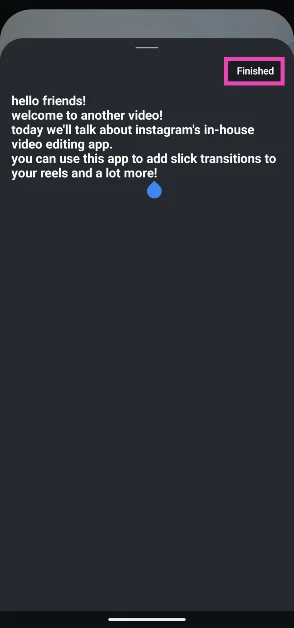
- Tap the text box and paste your script.

- Hit the Finished button when you’re done.

- Tap the filter icon on the text box to adjust the speed and size of the text.
Frequently Asked Questions (FAQs)
What is the Instagram Edits app about?
The Edits app from Instagram is a creation and editing tool geared towards creators and casual users. It lets you keep track of your projects and offers editing tools to bring them to fruition.
Does the Edits app have a teleprompter?
Yes, you can access the teleprompter from the menu on the left side of the screen once you start recording a video using Edits.
How do I change the teleprompter’s text speed on the Edits app?
Tap the filter icon on the teleprompter’s text box and use the sliders to adjust the text speed and size.
Which third-party apps can I use to get a teleprompter on my phone’s screen while recording videos?
CapCut, Floating Notes, and Teleprompter Camera let you use a teleprompter while recording a video.
What are some of the best apps for editing Reels?
Canva, Kapwing, InShot, and CapCut are some of the best apps you can use to edit short videos and Reels.
Read Also: Samsung Galaxy A57 5G and A37 5G sale goes live in India
Final Thoughts
Apart from content creation, you can use Edits to track the views, likes, comments, and other metrics across all of your Reels. If you’re not a fan of the app, you should check whether the native Camera app on your phone offers a teleprompter tool. Got any questions? Let us know in the comments!


