


If you’re very particular about keeping your accounts secured with 2-factor verification, Microsoft Authenticator is one app you must have in your arsenal. This app allows you to go passwordless, giving you the option to approve sign-in requests to different apps, websites, and services. You also get to view the location of the device requesting to sign into your account. Sometimes, this location can be a bit off. Here are the top 5 ways to fix the ‘Microsoft Authenticator is showing the wrong location’ error on your PC.
Read Also: Google Photos now lets you create memes of yourself: Here’s how
In This Article
What’s causing this error?
If you’re trying to sign into an account on your PC, but notice a different location on the Authenticator app, any hesitation in approving the sign-in request is valid. Before we move on to the fixes, let’s take a look at some of the reasons behind the app displaying the wrong location.
- Your PC is connected to a VPN server.
- The location services are turned off.
- Microsoft Authenticator does not have access to your PC’s location.
- Your PC’s date and time settings are incorrect.
- Faulty internet connection.
- Glitchy app or corrupted cache.
Try these common fixes before moving on to the main methods:
- Restart your PC.
- Make sure you are connected to the internet.
- Force close and restart the Microsoft Authenticator app.
- Update the Authenticator app to the latest version
- Update your PC to the latest OS version.
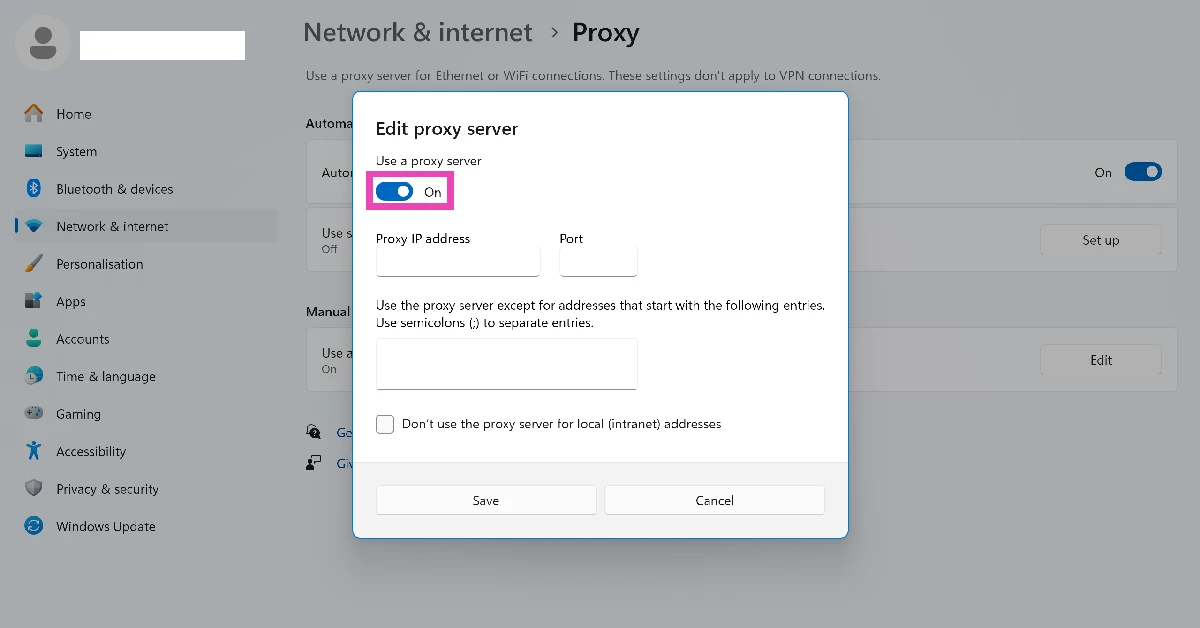
Disable VPN and proxy
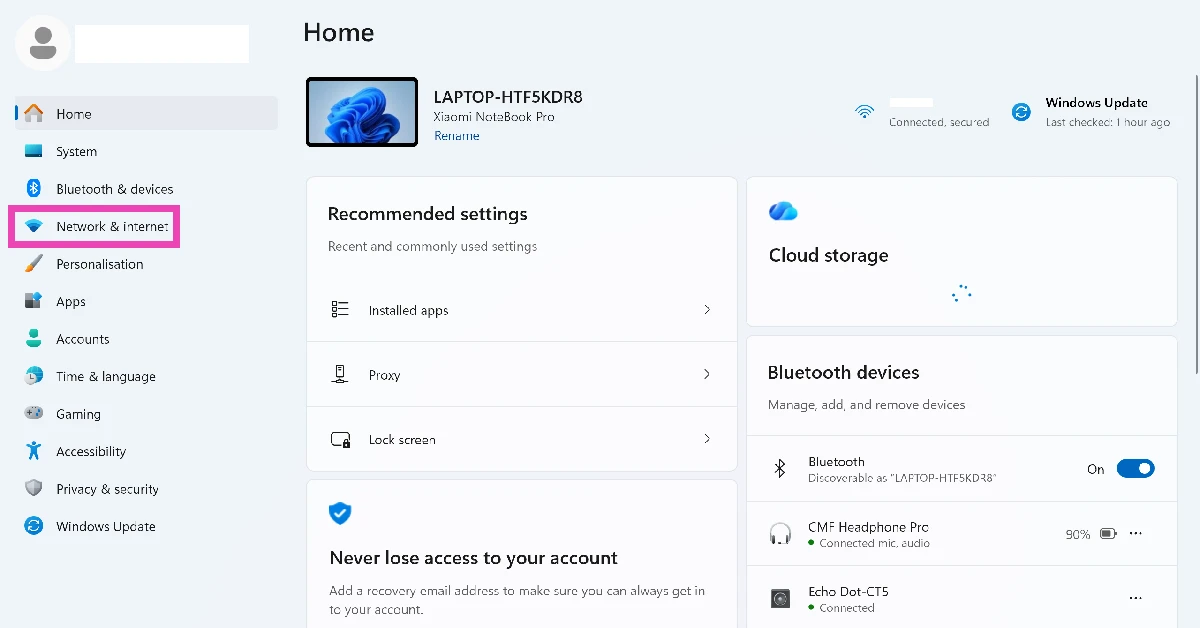
- Go to Settings.
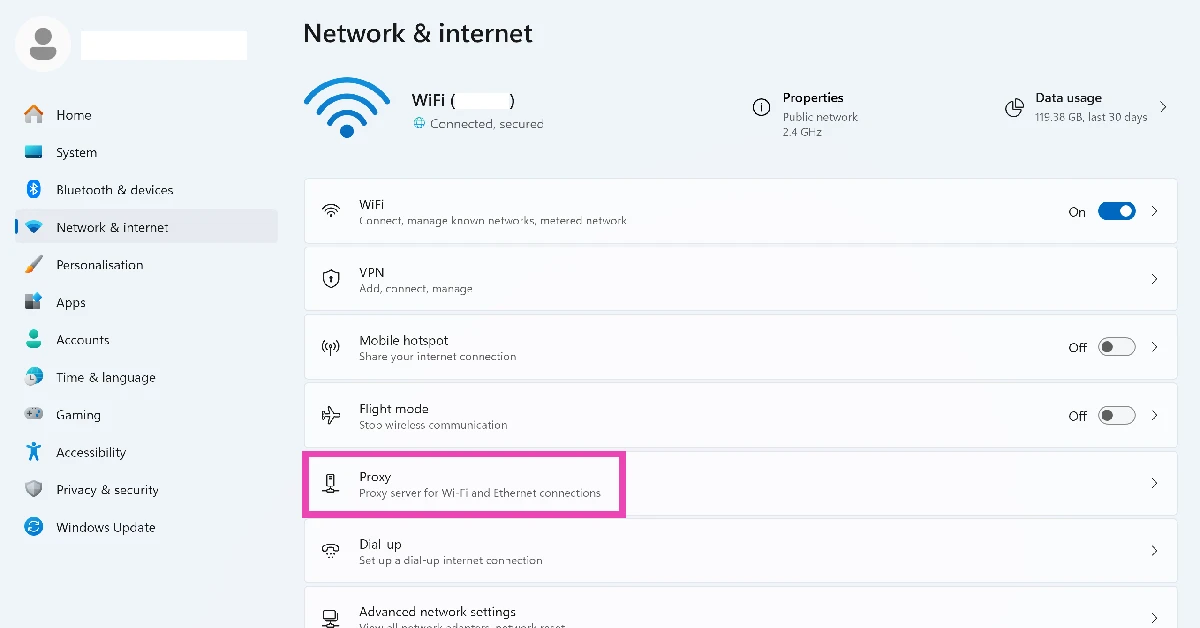
- Select Network & internet from the sidebar.

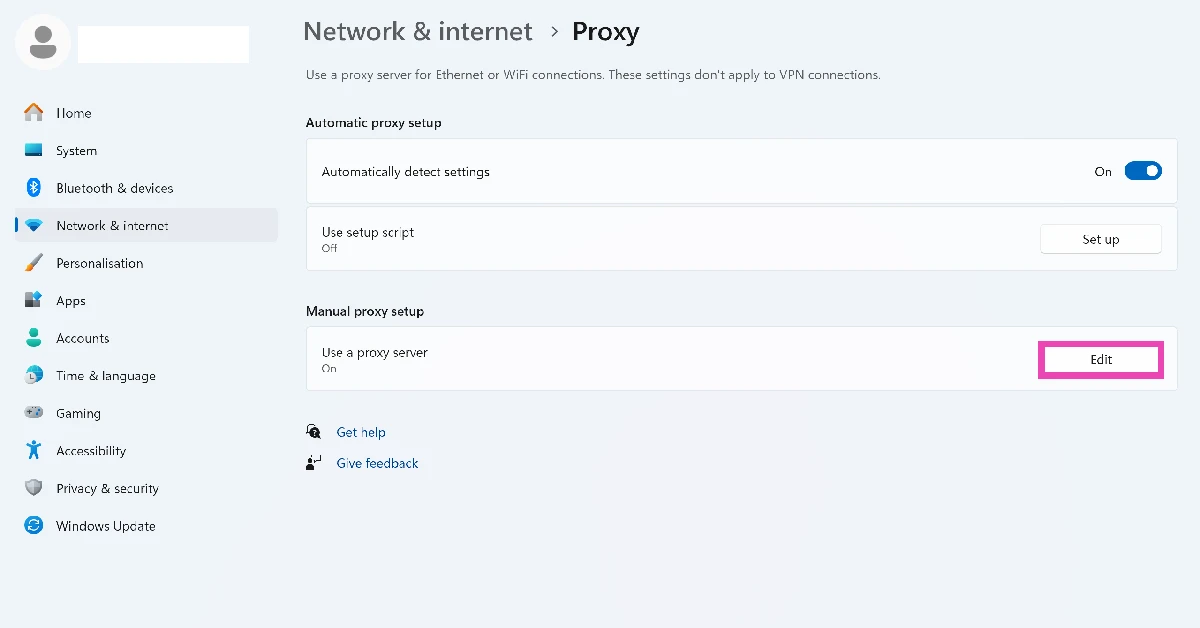
- Click on Proxy.
- Hit Edit next to Use a proxy server.
- Turn off the toggle switch.
Make sure the time zone settings are correct
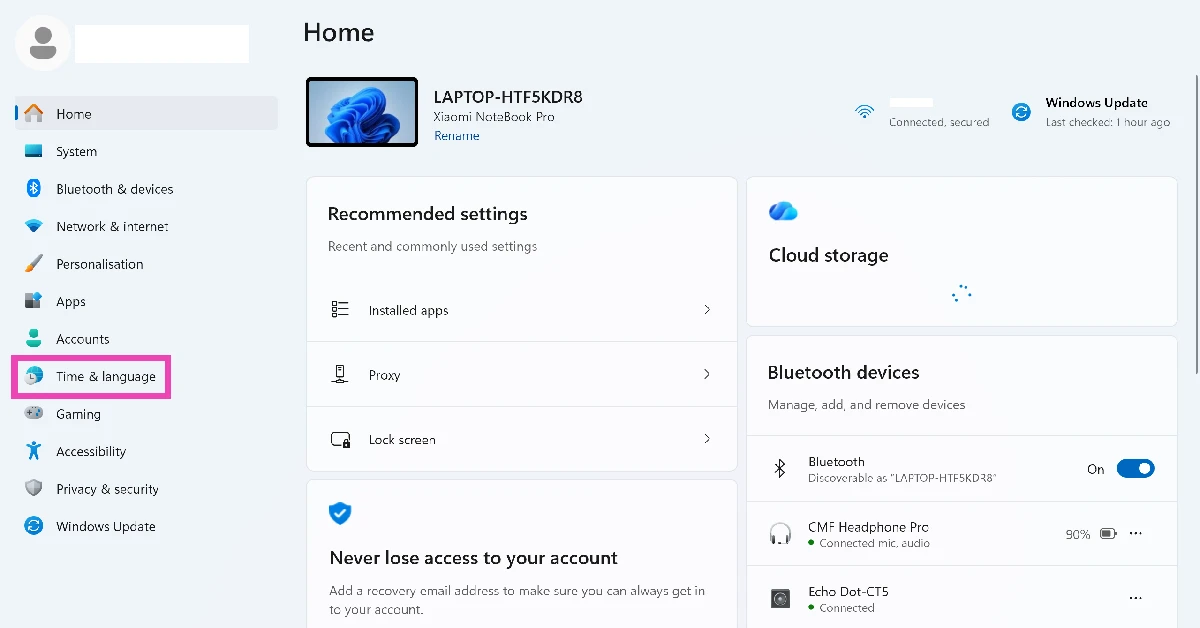
- Go to Settings.
- Select Time & language from the sidebar.
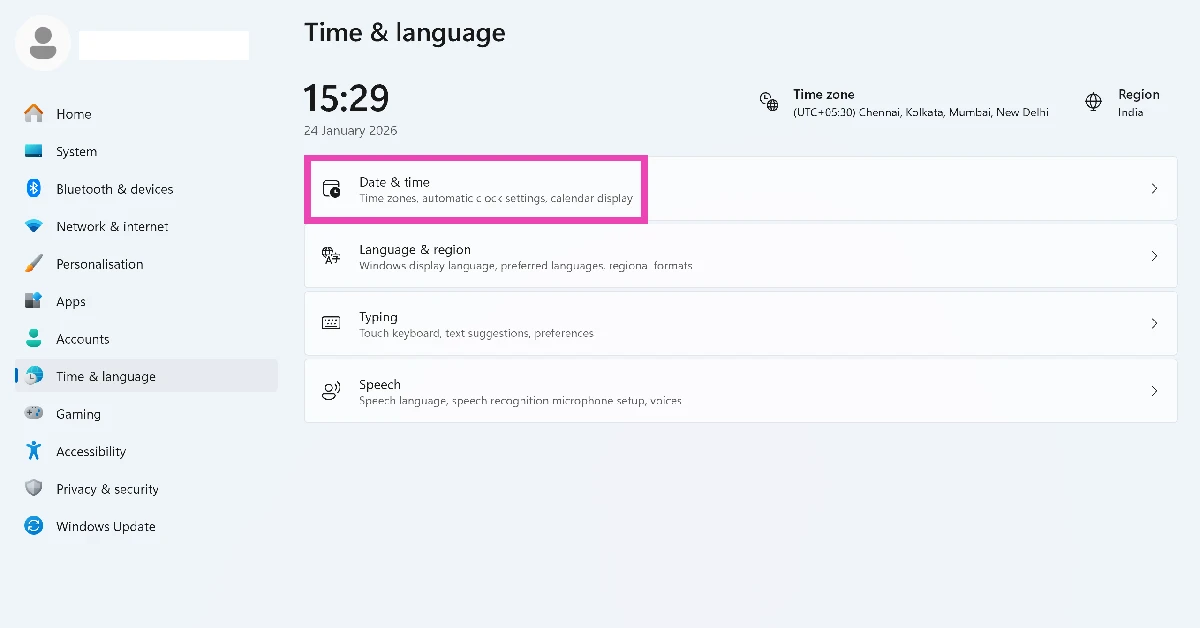
- Click on Date & time.
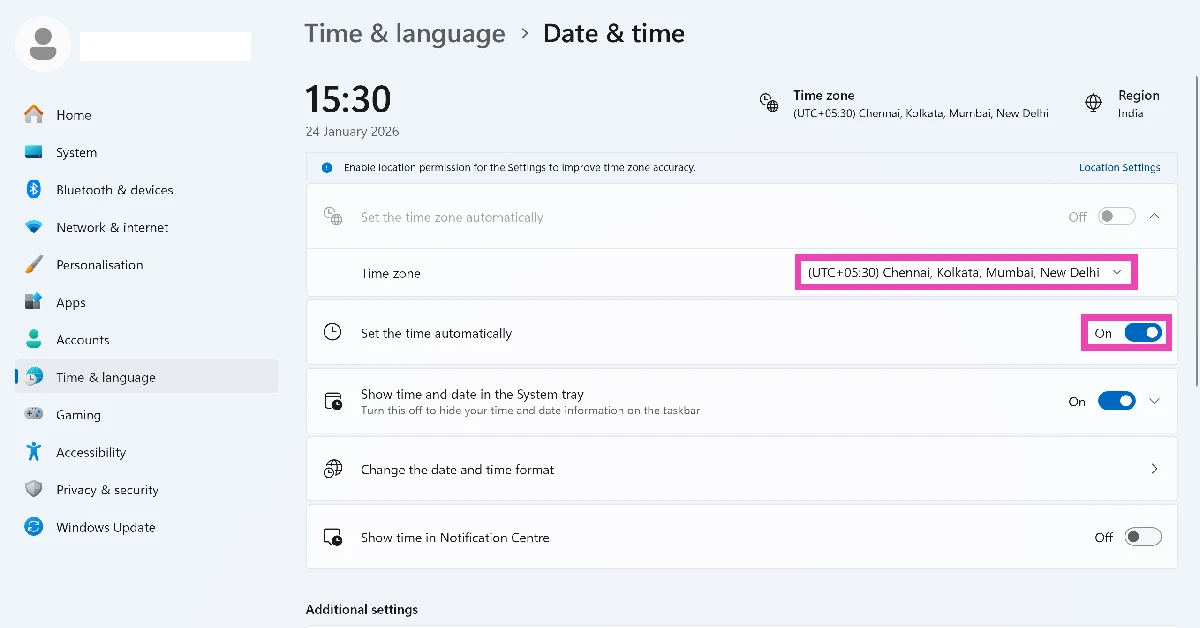
- Click the dropdown menu next to Time zone and select the appropriate option.
- If you don’t want to go the manual route, turn off the toggle switch next to Set the time automatically.
Enable location services
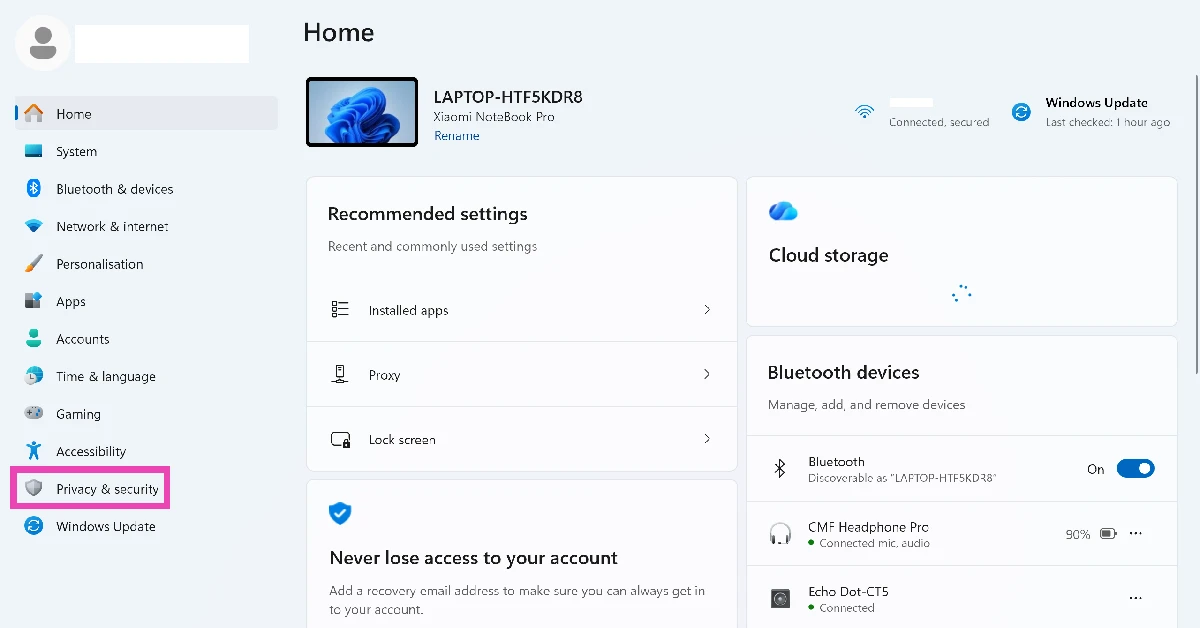
- Go to Settings.
- Select Privacy & security from the sidebar.
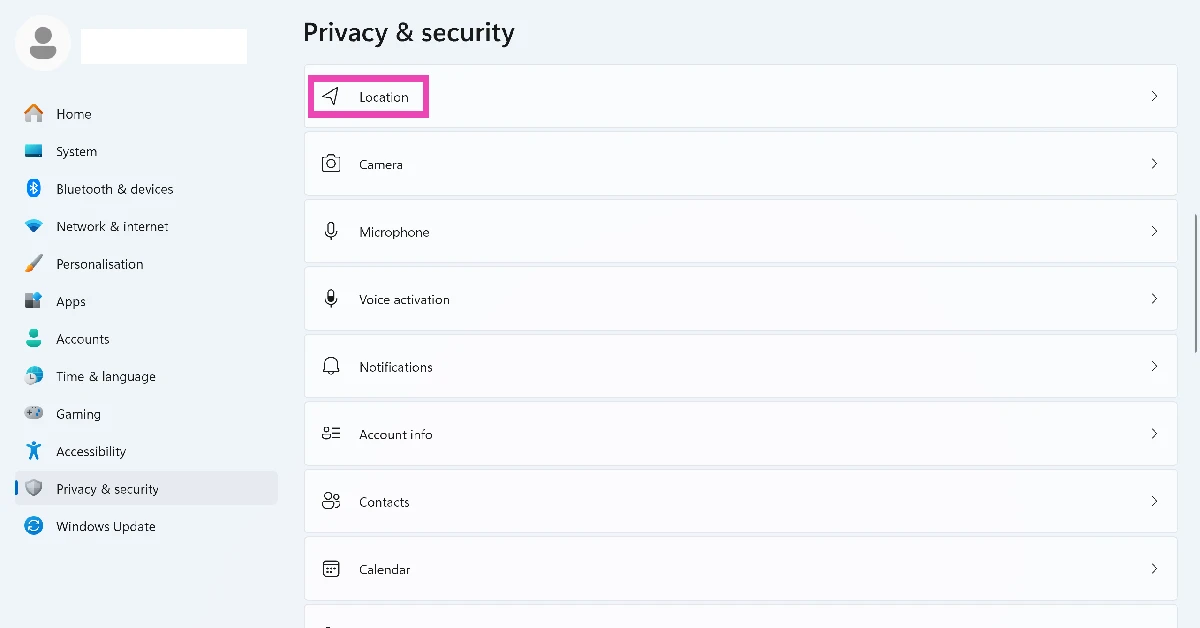
- Click on Location.
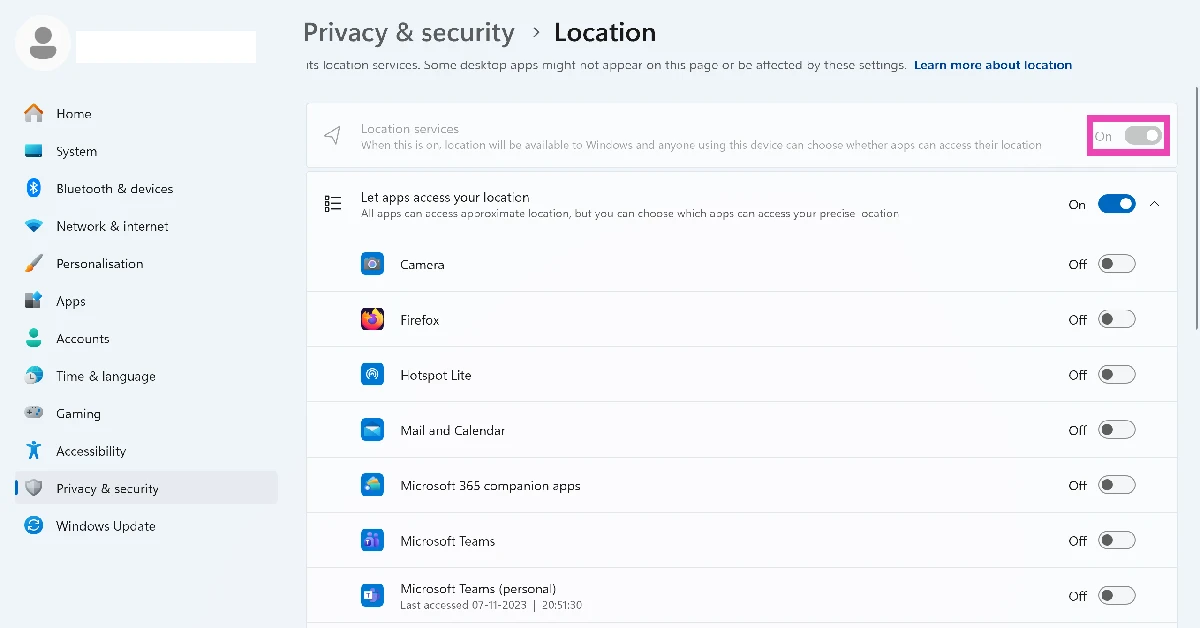
- Make sure the toggle switch next to Location services is turned on.
- Additionally, scroll down and turn on the toggle switch next to Microsoft Authenticator.
Switch your internet connection
A faulty internet connection often throws a location error in Microsoft Authenticator. The easiest way to fix this is by switching to a different WiFi network. If you don’t have access to another network, create a personal hotspot on your smartphone. Connect to the hotspot from your PC and use the mobile data to use the Authenticator app.
Repair the Microsoft Authenticator App
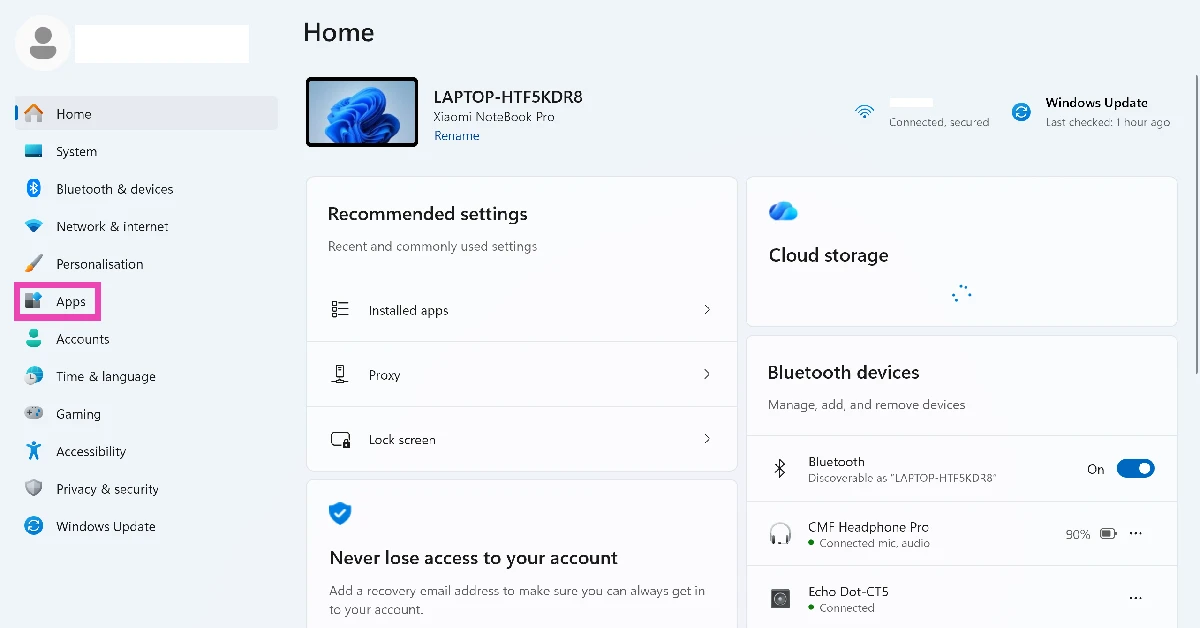
- Go to Settings.
- Select Apps from the sidebar.
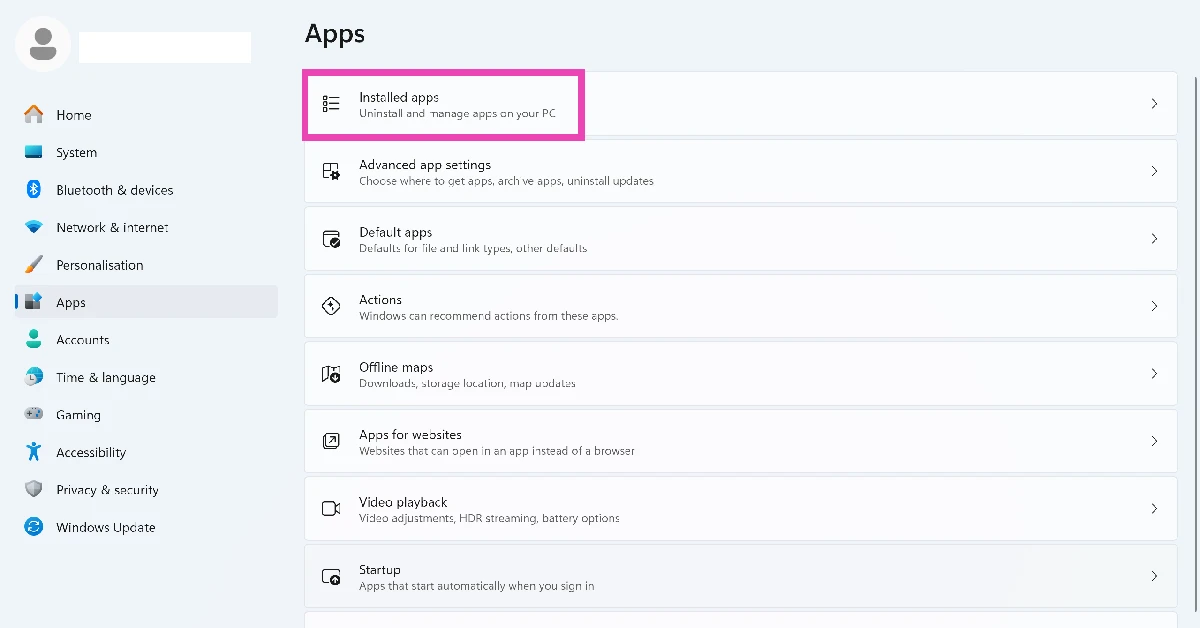
- Select Installed apps.
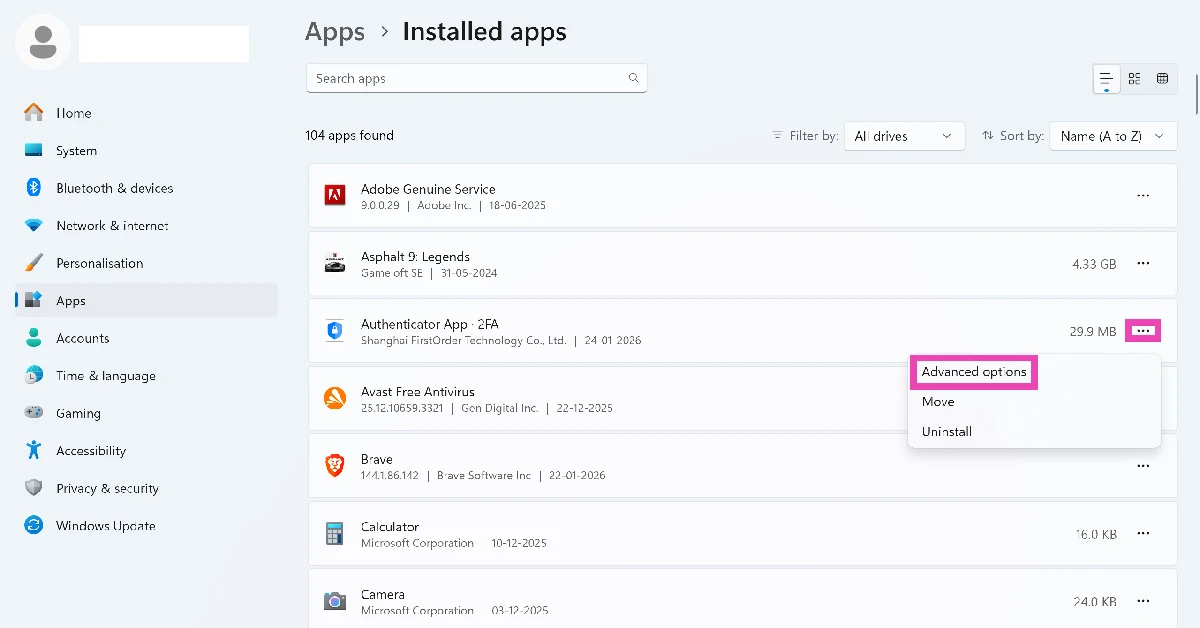
- Click ellipses next to Authenticator.
- Go to Advanced options.
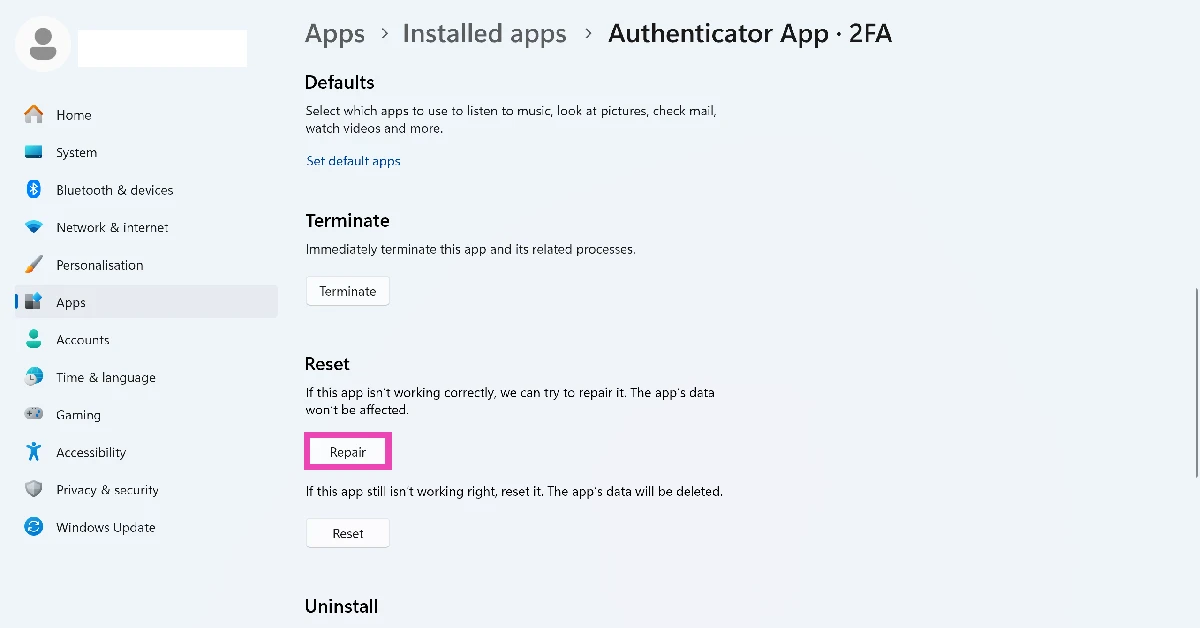
- Hit Repair.
Frequently Asked Questions (FAQs)
How does Microsoft Authenticator determine the location of my device?
The Authenticator app pulls the data from location services, time zone settings, and the internet connection to determine the location of your device.
Why does Microsoft Authenticator need my location?
Some IT admins require you to share your location before accessing certain resources. In this scenario, the Authenticator app verifies your location once every hour.
Why is the Microsoft Authenticator app on my PC showing the wrong location?
The Authenticator app on your PC might show the wrong location if you’re using a VPN or have your time zone set to a different place.
Is there any way to fix the ‘wrong location’ issue on the Microsoft Authenticator app?
Disable your VPN, enable location services, switch to your current time zone, and use a different WiFi network to resolve the ‘wrong location’ error in the Authenticator app.
How do I disable VPN on my PC?
Go to Settings>Network & internet>VPN and turn off the toggle switch.
Read Also: CMF Headphone Pro Review: Another CMF masterclass!
Final Thoughts
If these fixes didn’t work out for you, you might want to restart your PC in Safe Mode to check whether another third-party app is causing this issue. If you have any questions, feel free to ask in the comments!


