


Spotify’s annual music recap is now live for free and premium users. This year, Wrapped’s stats are based on your listening activity from January to mid-November. This year, Spotify has brought back the ‘Top Albums’ category and even added fun stuff like ‘Listening Age’, ‘Clubs’, and ‘Wrapped Party’. Here’s how you can view your Spotify Wrapped 2025.
Read Also: Top 10 premium smartphones in December 2025
In This Article
How to view Spotify Wrapped on mobile
Step 1: Launch the Spotify app on your phone.
Step 2: Tap the Wrapped banner on the screen.
Step 3: If you don’t see the banner, hit the Wrapped button at the top of the home page.
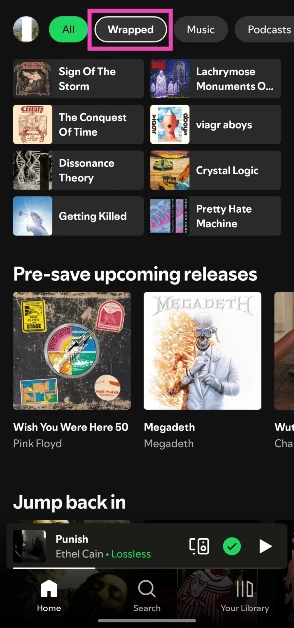
Step 4: Tap on Let’s go to view your Wrapped.

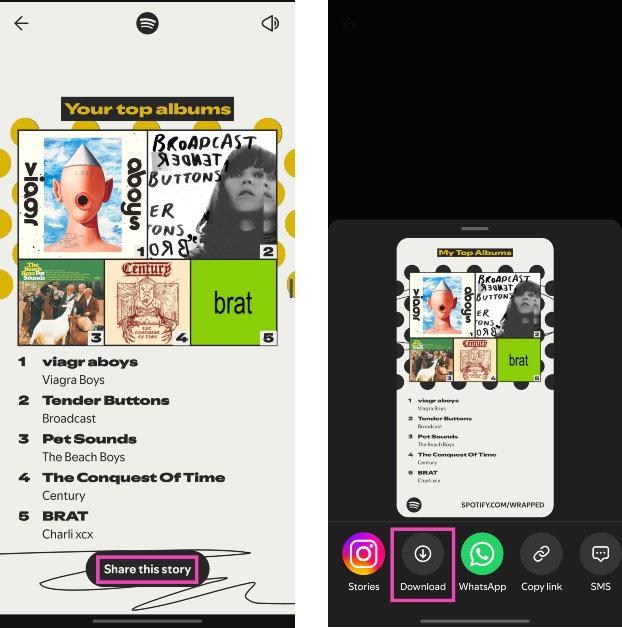
Step 5: To save a slide on your phone, tap on Share this story and hit Download.
Can’t view your Spotify Wrapped yet? Try this trick

If you don’t see the Wrapped banner or button in the Spotify app on your phone, you can access it using your web browser. Here’s how.
Step 1: Make sure the Spotify app on your phone is updated to the latest version.
Step 2: Launch your preferred web browser and go to this link.
Step 3: You will be redirected to the Spotify app on your phone. Your Wrapped will open automatically in the app. Swipe up to browse the slides.
Compare your Wrapped with your friends
Step 1: Launch the Spotify app on your phone.
Step 2: Hit the Wrapped button at the top of the screen.
Step 3: Go to Wrapped Party.

Step 4: Tap on Start new party. If you have a code to an existing party, tap on Join a party with a code and enter it.

Step 5: Tap on Got it.

Step 6: Edit your name and profile picture if you want. Hit Continue.

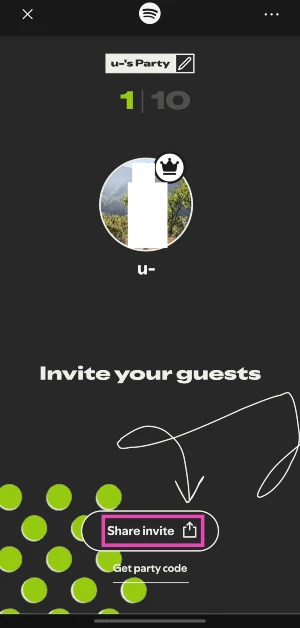
Step 7: Tap on Share invite and share the link with your friends. Alternatively, tap on Get party code and tell your friends to enter it in the ‘Wrapped Party’ section on their devices.
Frequently Asked Questions (FAQs)
Is Spotify Wrapped 2025 out yet?
Spotify Wrapped 2025 is now out. You can view it on the mobile app.
Why am I not able to view my Wrapped?
If you can’t see your Wrapped in the Spotify app, make sure the app is updated to its latest version. If you still can’t view it, go to the Wrapped webpage on your web browser.
Can I view Spotify Wrapped on my desktop?
No, Wrapped is only accessible on the Spotify mobile app.
How do I save a slide from my Spotify Wrapped on my phone?
To save a slide on your phone, tap on ‘Share this story’ and hit ‘Download’. Alternatively, you can take a screenshot of the story.
Read Also: Can Your Smartwatch Handle the Stress of Sicbo Online Live?
Final Thoughts
Alongside your personalised Wrapped, you can also view Spotify’s top global artists and songs. Not a Spotify user? Take a look at your YouTube Music Recap! If you have any questions, let us know in the comments!


