



When it comes to AI integration, Android is well ahead of the curve. Google Pixel smartphones have had the native transcribe feature for voice notes in the voice recorder app for years. This year, Samsung brought a host of AI features to its Galaxy S24 Series. The Galaxy AI can efficiently transcribe your voice notes and summarise them with ease. While Apple Intelligence isn’t on par with its Samsung and Google counterparts just yet, it does offer basic transcription features. You can also use a few third-party apps to carry out the task. Today, we bring you the top 5 free ways to transcribe voice memos on an iPhone.
Read Also: Lenovo Legion 5i, Legion 7i, Legion Pro 5i and Legion Pro 7i AI-powered laptops launched in India
In This Article
Does the iPhone have a native feature to transcribe voice memos?
Apple introduced the option to transcribe voice memos on iOS 18. You can choose to view the live transcription of a memo while it is being recorded or go through old memos in your library and access their transcripts. You can choose to copy any part of the text. Your iPhone also lets you search a text across all voice memos.
For long voice memos (or podcasts and interviews recorded on your iPhone), we would recommend using the Aiko app. Aiko is based on OpenAI’s Whisper model and uses it to transcribe voice memos in over 100 national and regional languages like English, Hindi, Afrikaans, French, Greek, Marathi and more. Other AI tools like TalkNotes can also be used for this task.
View transcription while recording
Step 1: Go to the Voice Memos app on your iPhone and hit the record button.
Step 2: Swipe up on the waveform and hit the quotes icon.
Step 3: The live transcription will appear on the screen.
View the transcript of a recorded voice memo
Step 1: Launch the Voice Memos app on your iPhone.
Step 2: Open a recording.
Step 3: Hit the ellipses.
Step 4: Tap on View Transcript.
Use the Transcribe app
Step 1: Install the Transcribe app from the App Store.
Step 2: Go to the Voice Memos app and find the voice recording that you wish to transcribe.
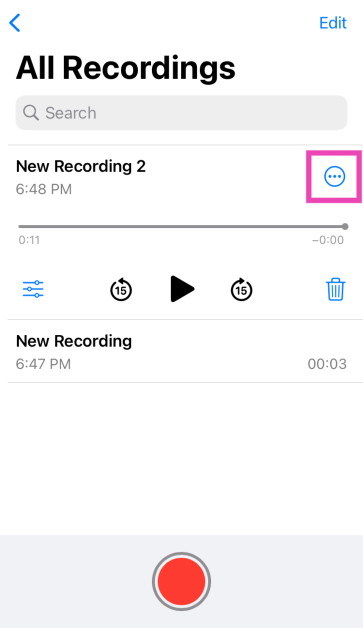
Step 3: Hit the ellipses and select Share.
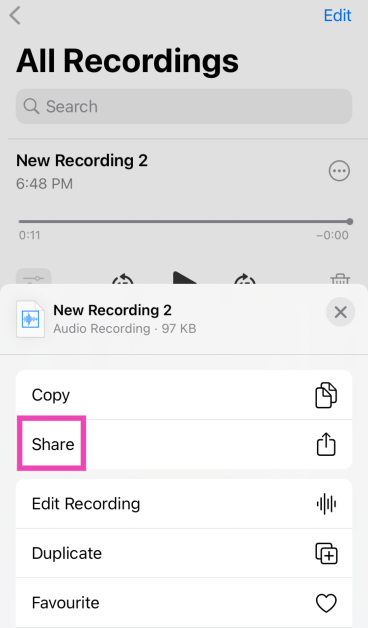
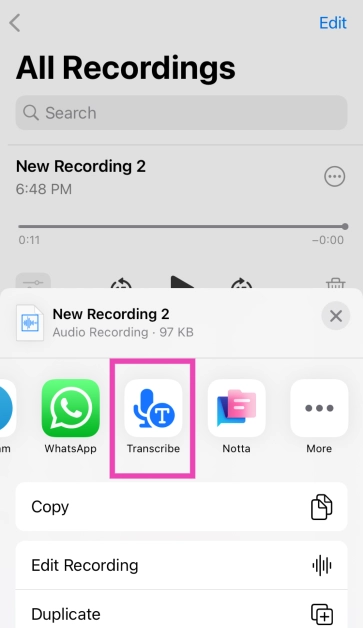
Step 4: From the app list, select Transcribe.
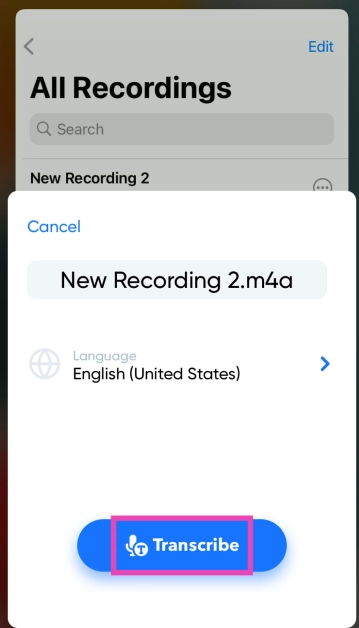
Step 5: Choose your Language and Punctuation mode. Hit Transcribe.
Step 6: Wait until the memo gets transcribed. Once it is done, head over to the Transcribe app to view the text.
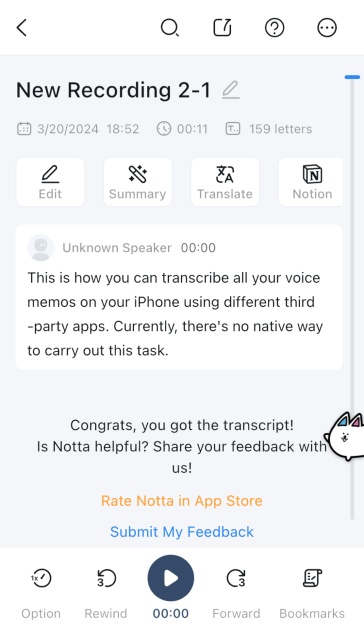
Use the Notta app
Step 1: Install the Notta app from the App Store.
Step 2: Go to the Voice Memos app and find the recording you wish to transcribe.
Step 3: Hit the ellipses next to the recording and select Share.
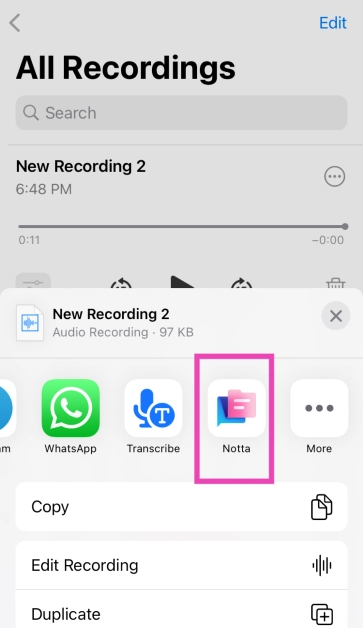
Step 4: Select the Notta app from the list.
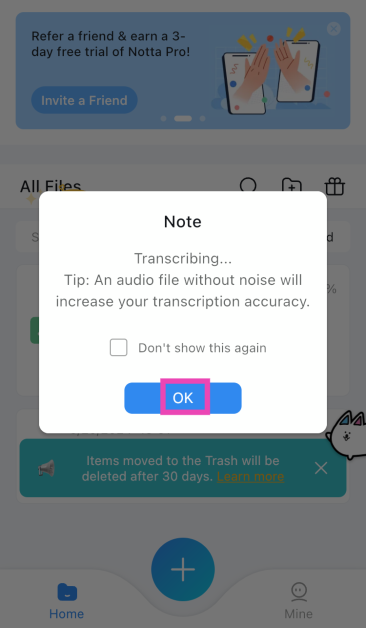
Step 5: Hit OK in the pop-up box.
Step 6: Once the voice memo has been transcribed it will appear as a text file in the Notta app.
Use the Aiko app
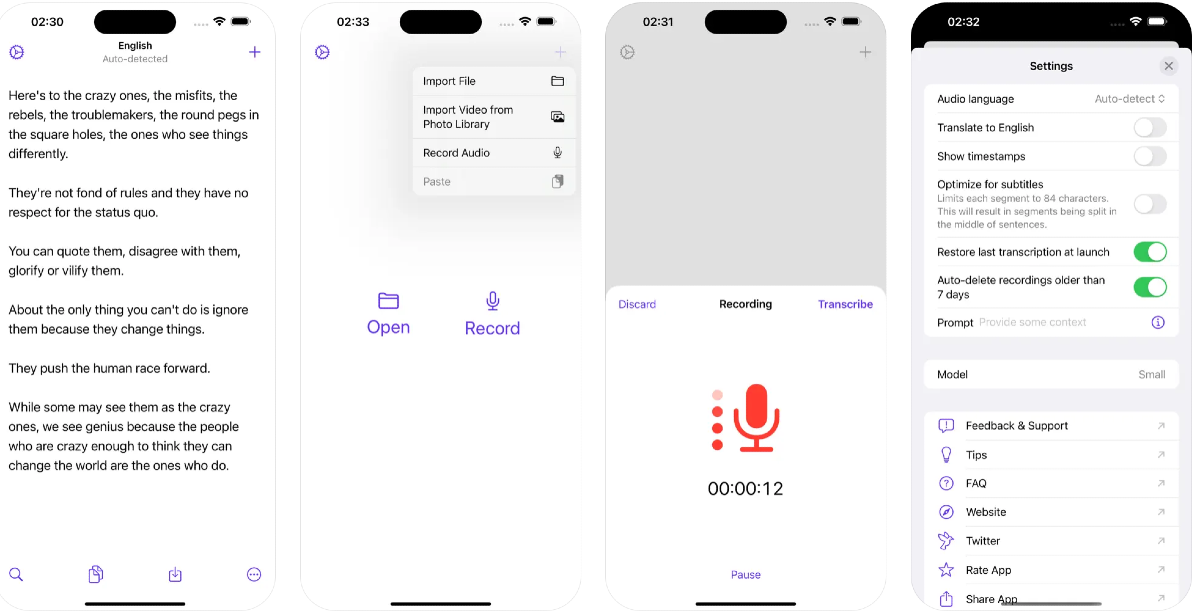
Based on Open AI’s Whisper, Aiko is one of the best apps to transcribe voice notes on your iPhone and Mac. The best part is that the app carries out all the computing on your device. Aiko’s accuracy while transcribing the voice notes is unmatched by any other app. It weeds out the noises that don’t add anything to the memo and presents a clean, clear transcription. You can use this app for voice notes that are multiple hours long. The only requirement is that your iPhone must run iOS 17.2 or later and should be equipped with an A12 Bionic chip or later.
Frequently Asked Questions (FAQs)
Is there a native way to transcribe voice memos on an iPhone?
Yes, you can use the Voice Memos app to natively transcribe your voice notes. This feature is only available on iPhones running iOS 18 and up.
Does Apple use AI to transcribe voice notes?
Yes, Apple uses Apple Intelligence to transcribe voice notes and memos on the iPhone.
How do I transcribe a voice memo on my iPhone?
To view a transcription, simply open the voice note, hit the ellipses, and select ‘View Transcript’.
How do I transcribe the voice notes on my Samsung Galaxy S Series phone?
Once you have downloaded the appropriate language packs, go to the recorder app, select the voice note and hit the ‘Transcribe’ button to view it in text.
What are the device requirements to run the Aiko app on my iPhone?
To run the Aiko app, your iPhone must have iOS 17.2 or later and must be powered by an A12 Bionic chip or later.
Read Also: Sony SRS-XV500 Review: Compact Design, Surprisingly Powerful Sound
Conclusion
These are the top 5 free ways to transcribe voice memos on your iPhone. If you are not set on carrying out the computing on your device itself, you can use an AI web tool for this job. Which method do you prefer? Let us know in the comments!


