



With how abundant smart wearables have become, it is hard to imagine working out without them – especially if you’re a data enthusiast who likes to record every minute metric. Those who spend several hours on cardio find it necessary to track their heart rate throughout the workout. So, what happens when you forget to wear your smartwatch to the gym? The good news is that your smartphone can measure your heart rate with decent accuracy. Here are 3 ways to go about it.
Read Also: OnePlus 15R Review: Performance Juggernaut
In This Article
Before you begin
Your smartphone relies on the same mechanism as the average smart wearable to measure heart rate – monitoring the change in the size of the blood capillaries with every heartbeat, a process known as photoplethysmography. It does this by flashing a pulse of light on the skin. Since blood absorbs flashes of light, the swelling and shrinking of capillaries becomes more apparent.
There are 2 ways to go about this process. Some smartphones use the optical fingerprint sensor (which is essentially a small camera) while others resort to the main rear camera. While taking a reading, it is important to stick to the following guidelines:
- Do not press heavily against the lens/fingerprint scanner.
- Make sure the entirety of the lens/fingerprint scanner is covered.
- Keep your body still.
- Make sure you’re in an area with lots of light.
Measure your heart rate on a Realme phone
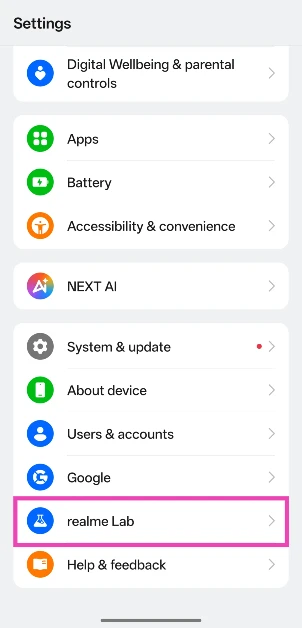
- Go to Settings on your Realme phone.
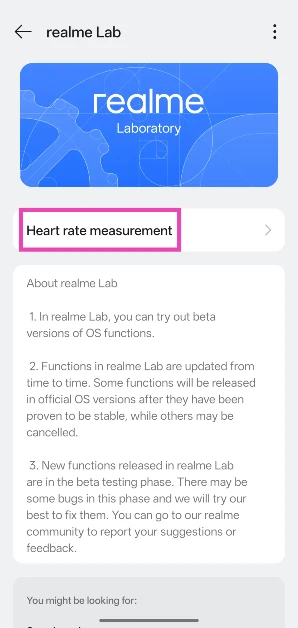
- Scroll down and tap on Realme Lab.

- Select Heart rate measurement.

- Agree to the terms and conditions.
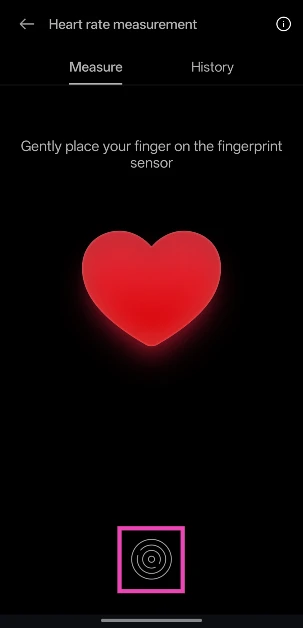
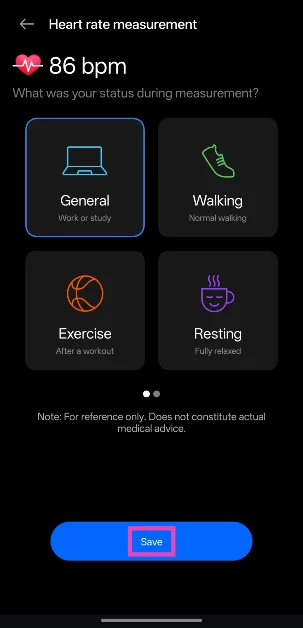
- Place a finger on the optical fingerprint scanner.

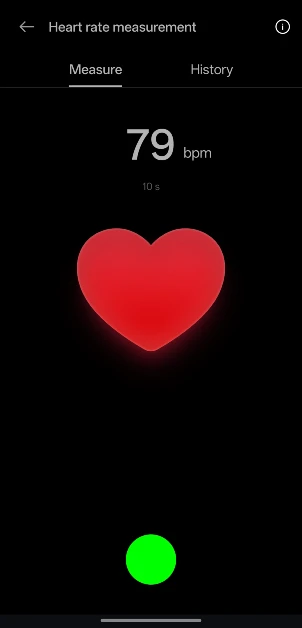
- Wait for the 15-second countdown to end. Keep your body still.
- Your heart rate will be displayed on the screen. Hit Save to record the reading.
Measure your heart rate on any smartphone using Google Fit on Pixel smartphones

- Launch the Google Fit app on your Pixel smartphone.
- Switch to the home tab.
- Scroll to the Heart Rate section and hit the plus icon.
- Gently press your finger on the main camera lens. Wait for a few seconds for the app to take the heart rate measurement.
- Hit Save to record the reading.
Measure your heart rate on any smartphone using a third-party app (Cardiograph)
- Install the Cardiograph app using the Google Play Store.
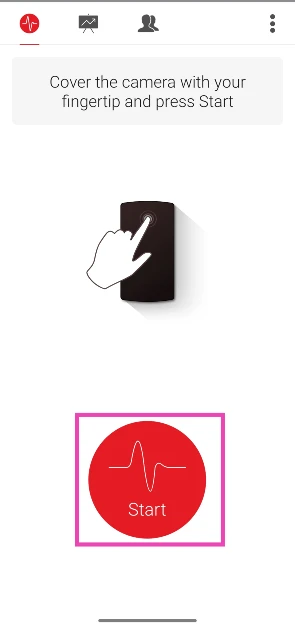
- Launch the app and give it permission to use your phone’s camera.
- Gently press your finger on the main camera and hit Start.

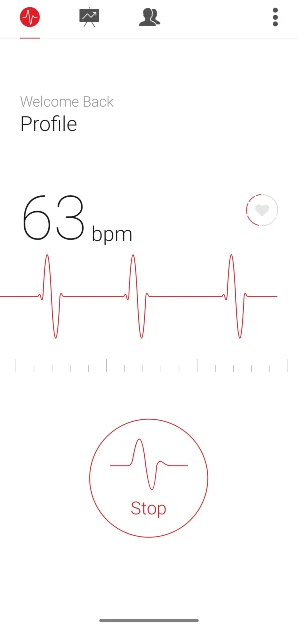
- The app will take a few seconds to calculate your heart rate.
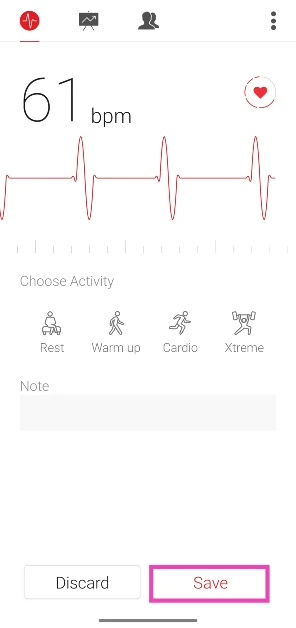
- Once the app is done measuring your heart rate, hit Save to record the reading.

Frequently Asked Questions (FAQs)
Can I measure my heart rate with my phone?
Realme smartphones have a native tool that lets you measure your heart rate. Other smartphones require installing third-party apps like Cardiograph and HR Monitor.
How do smartphones measure heart rate?
Similar to smart wearables, smartphones rely on a process called photoplethysmography to monitor the changes in blood volume just below your skin. This can be done using the optical fingerprint scanner or the camera lens.
How do I measure my heart rate using my phone?
Install the Cardiograph app, launch it, and place your finger on the main camera lens. Hit ‘Start’. Wait for a few seconds for the phone to take the reading.
Are phone heart rate readings accurate?
The heart rate readings taken from an average smartphone can be off by up to 20bpm.
What is the ideal resting heart rate?
A normal resting heart rate is between 60 and 100 bpm.
Read Also: Bee Swarm Simulator Codes (January 2026)
Final Thoughts
It is important to remember that the heart rate readings taken by your phone are not always consistent with medical-grade equipment. This method is fine if you want a ballpark figure, but it shouldn’t be used to base any medical diagnosis.


