


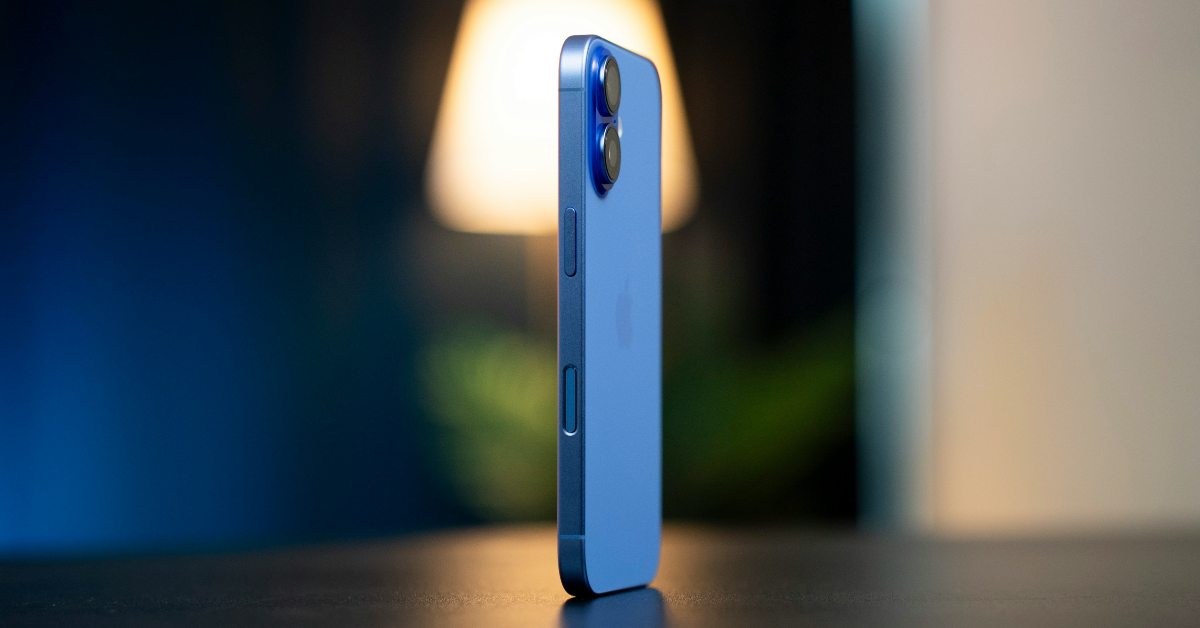
After adding the Action button on the iPhone 15 series, Apple refreshed the iPhone 16 lineup with a new Camera Control button. This capacitive touch button lies on the lower right edge of the device and acts as the shutter button in the Camera app. When your iPhone is idle, this button can be used to launch the Camera app or trigger the camera function in another app. If you press it for a few seconds, you can access the Visual Intelligence feature of your iPhone. If the Camera Control button on your iPhone 16 is not working, use these 10 fixes.
Read Also: How to disable the typing indicators on Android?
In This Article
Why is the Camera Control button not working?
The Camera Control button can stop working due to one of the following reasons.
- Camera Control is disabled
- The button isn’t programmed to launch any app
- Your iPhone requires the screen to be on in order to use Camera Control
- Camera Control can’t access Visual Intelligence because Apple Intelligence is disabled
- Your phone cover is obstructing the button
- Background software issues are causing the button to malfunction
- Hardware issues with the button
Make sure that Camera Control is enabled
Step 1: Go to Settings and select Camera.
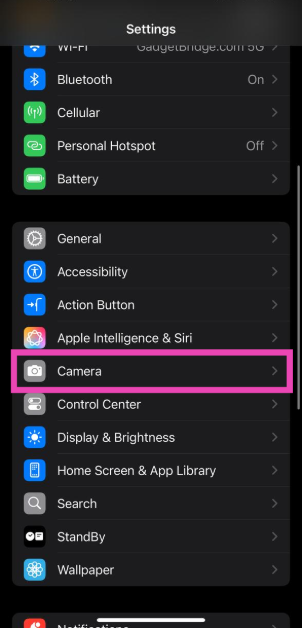
Step 2: Tap on Camera Control.
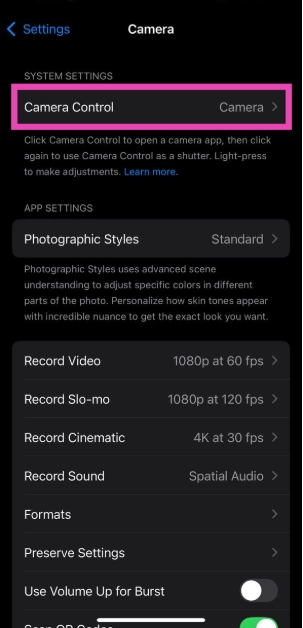
Step 3: Scroll down and tap on Accessibility.
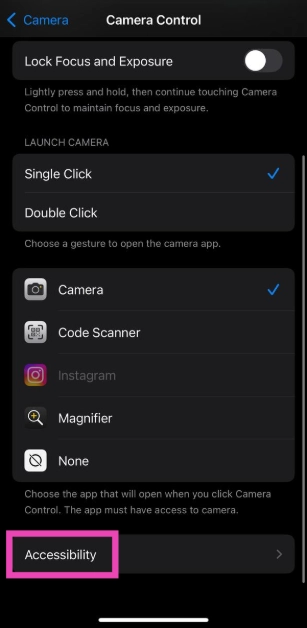
Step 4: Turn on the toggle switch next to Camera Control.
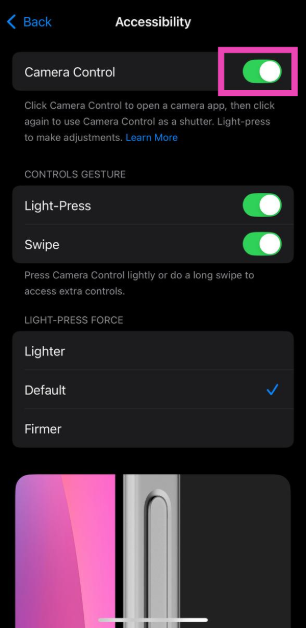
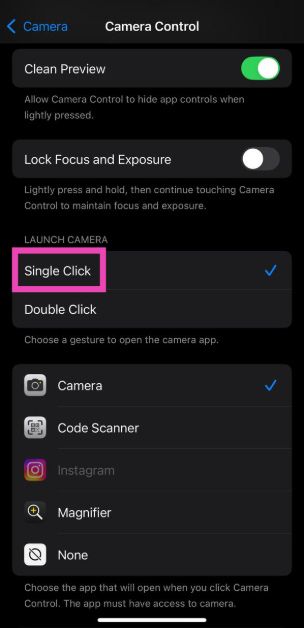
Make sure Camera Control is programmed to launch the Camera app with a single click
Step 1: Go to Settings and select Camera.
Step 2: Tap on Camera Control.
Step 3: Tap on Single Click under ‘Launch Camera’.
Unable to trigger the Camera app with a single click of the Camera Control button? Use this fix
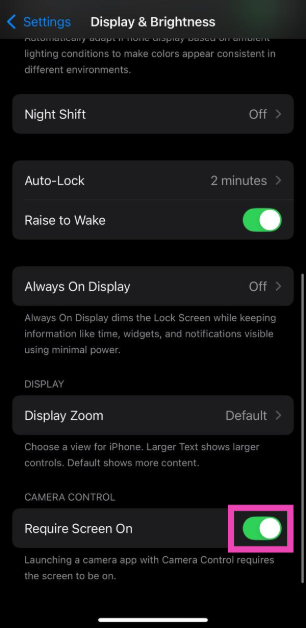
The Camera Control button launches the Camera app on your iPhone with a single press as long as the device is awake. If your iPhone is locked, it will take two presses to launch the Camera app. Here’s how you can fix that.
Step 1: Go to Settings and select Display & Brightness.
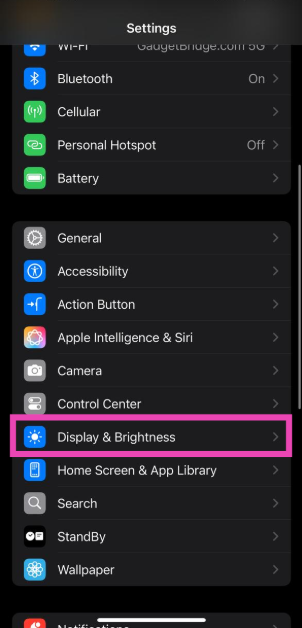
Step 2: Scroll down and turn off the toggle switch next to Require Screen On under Camera Control.
Assign a task to Camera Control
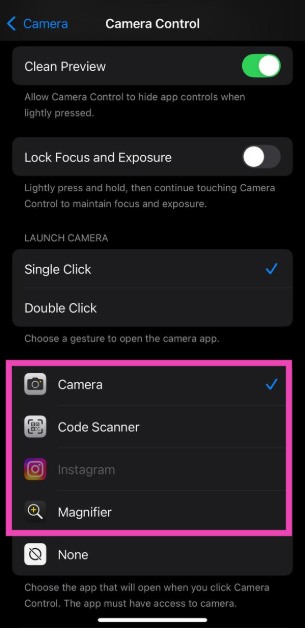
The Camera Control button acts as a shutter in the Camera app. When your phone is idle, it opens the Camera app or the camera functionality of another native or third-party app (like Instagram, Snapchat, Magnifier etc.). It is possible that you programmed the button to do nothing and forgot about it. Here’s how you can confirm if that’s the case.
Step 1: Go to Settings and select Camera.
Step 2: Tap on Camera Control.
Step 3: Assign a task to the Camera Control button.
Turn on Apple Intelligence
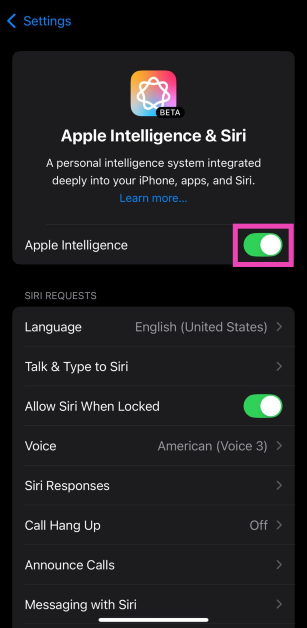
If you’re unable to access Visual Intelligence after long-pressing the Camera Control button, you need to make sure that Apple Intelligence is enabled on your iPhone.
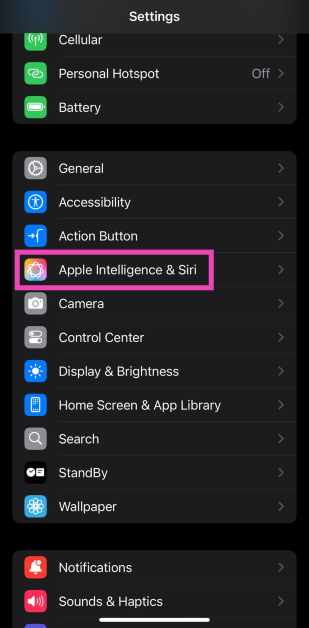
Step 1: Go to Settings and select Apple Intelligence & Siri.
Step 2: Turn on the toggle switch next to Apple Intelligence.
Remove the phone cover
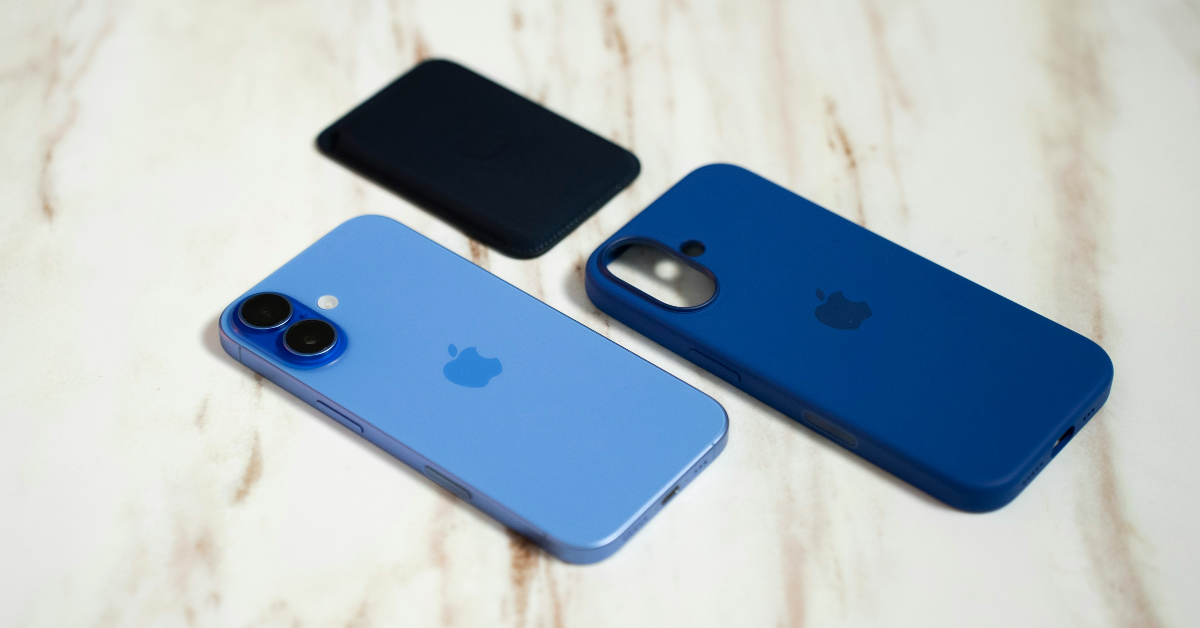
If you’re using a third-party cover for your iPhone, chances are that it is the reason why you can’t use the Camera Control button. If the cover is too thick, you may not be able to reach the Camera Control button or press it enough to trigger an action. Remove the cover or switch to a better one to regain the functionality of the Camera Control button.
Restart your iPhone

Background issues on your iPhone can cause the Camera Control button to malfunction. Luckily, a quick restart can fix that. Press and hold either volume button along with the side key to access the power menu. Drag the slider across the screen to turn off the device. Press and hold the side key to restart the device. If none of the physical buttons are working on your iPhone, read this article to learn how you can restart it without the buttons.
Clean the button
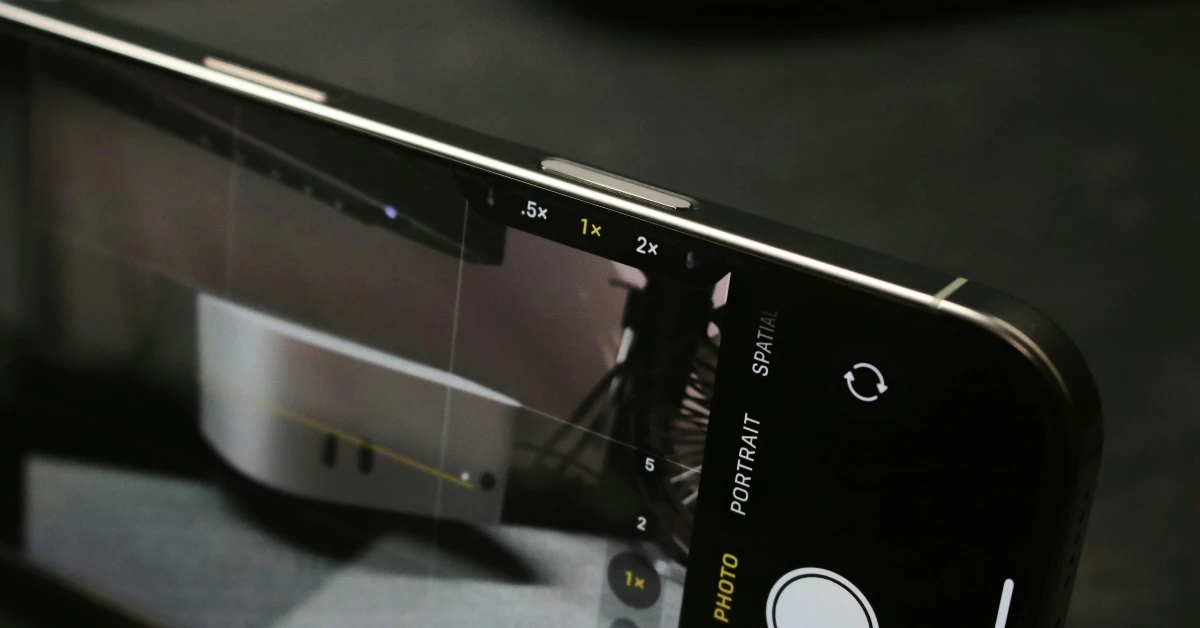
If you don’t clean your iPhone frequently, dust and grime can settle around its buttons over a period of time, rendering them useless. This holds true for the Camera Control button as well. The good news is that a quick cleanup can bring it back to life. Use a Q-tip dabbed in isopropyl alcohol to clean around the button. Use a thin needle to gently unsettle the grime. Once that’s done, use a clean, dry microfibre cloth to wipe everything off.
Update your iPhone
Step 1: Connect your iPhone to a WiFi network and plug in its charger.
Step 2: Go to Settings and tap on General.

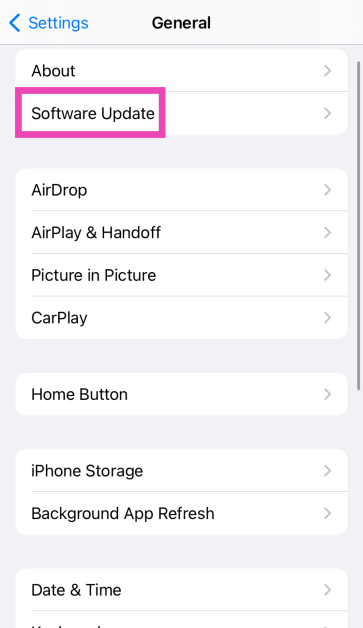
Step 3: Tap on Software Update.
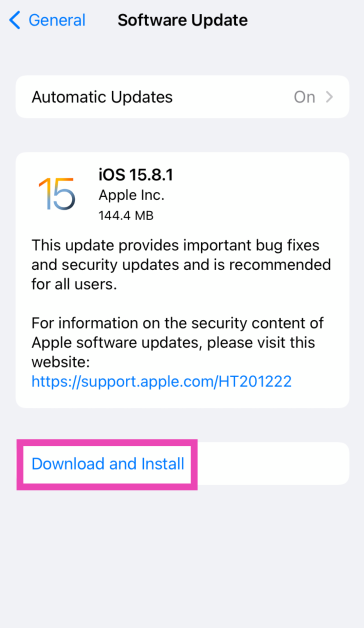
Step 4: Hit Download and Install.
Factory reset your iPhone
Step 1: Go to Settings and select General.
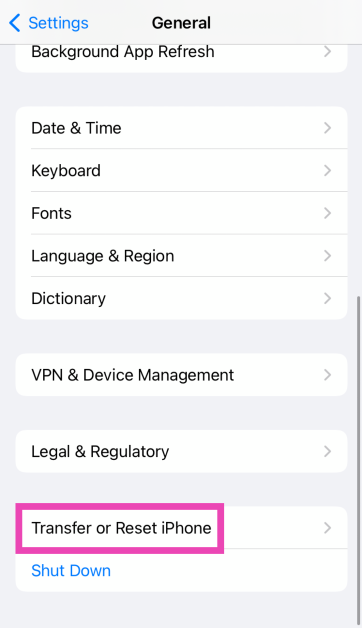
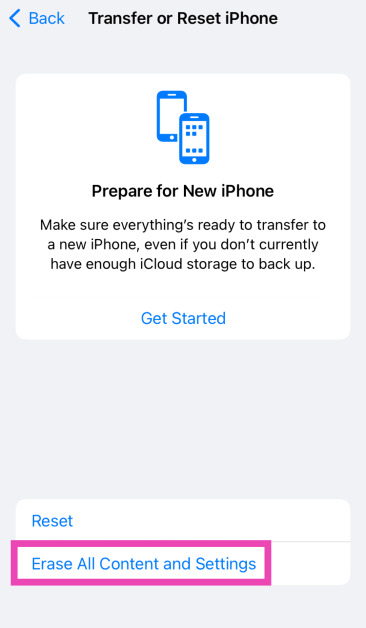
Step 2: Tap on Transfer or Reset iPhone.
Step 3: Hit Erase All Content And Settings.
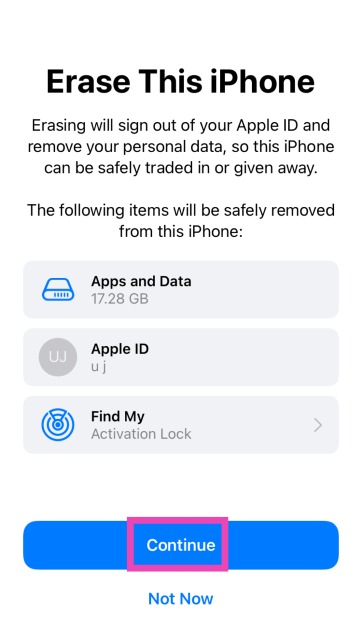
Step 4: Tap on Continue and enter the passcode to reset your iPhone to its factory settings.
Frequently Asked Questions (FAQs)
Why does my Camera Control button not work?
If you can’t get the Camera Control to work on your iPhone, make sure it is enabled by going to Settings>Camera>Camera Control>Accessibility and turning on the toggle switch. Additionally, make sure that your iPhone’s cover is not obstructing the button.
Why is the Camera Control button not launching the Camera app with a single click?
Go to Settings>Camera>Camera Control and tap on ‘Single Click’. Additionally, go to Settings>Brightness & Display and turn on the toggle switch next to ‘Require Screen On’ under Camera Control.
Which iPhones have the Camera Control button?
The Camera Control is present on all the variants in the iPhone 16 series.
What does the Camera Control button do when the iPhone is in idle mode?
Pressing the Camera Control button when your iPhone is idle can launch the Camera app or the camera functionality in another app.
How do I reset my iPhone camera’s settings?
While there is no direct way to reset the camera settings, you can reset all the settings on your iPhone. This will reset the camera settings as well. Go to Settings>General>Transfer and Reset iPhone, and tap on ‘Reset all Settings’.
Read Also: World Water Day 2025: Top 10 gadgets & apps to conserve, heat, and purify water
Final Thoughts
This is how you can fix the Camera Control button on your iPhone 16 if it isn’t working. If you don’t like the added features that come with the Camera Control button in the Camera app, you can limit its functionality to acting like a simple shutter button. If you have any questions, let us know in the comments!


