


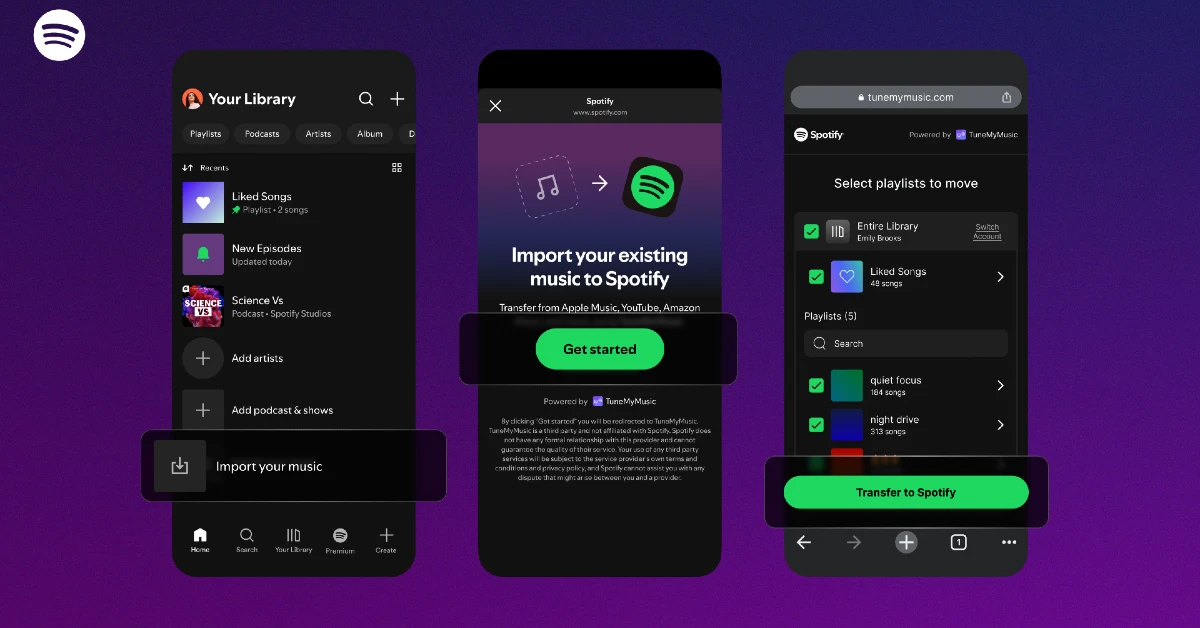
Playlist transfer biggest roadblock that users face while switching music streaming platforms. If you’ve spent multiple years building a large collection of playlists on a platform, it can be very challenging to recreate them manually on your new chosen service. Spotify has made this task easier for its users by partnering with TuneMyMusic, one of the leading online tools for playlist transfer. Let’s take a quick look at how you can import your existing playlists to Spotify.
Read Also: Google is now letting you remove ‘At a Glance’ on Pixel phones: Here’s how
In This Article
Before you begin
TuneMyMusic has been the leading playlist transfer tool for several years. It supports major platforms like Spotify, Apple Music, YouTube Music, Deezer, Soundcloud, Amazon Music, Qobuz, Yandex Music, Pandora, and more. Spotify’s partnership with this tool is limited to music imports only. Meaning, the Spotify app doesn’t let you export your playlists to another platform. If you want to go about that task, you will have to access TuneMyMusic independently.
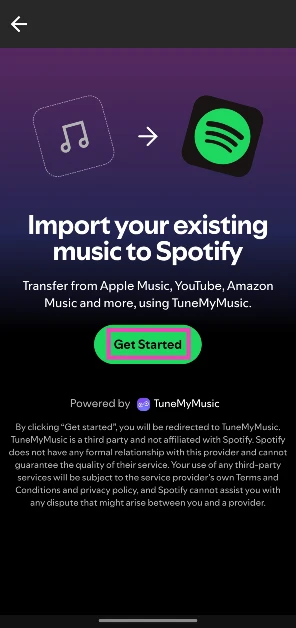
As of now, the playlist transfer tool is partially baked into the Spotify app. You can select the option to import music from within the app, but all it does is redirect you to the TuneMyMusic webpage using the default web browser on your phone. For the transfer to take place, TuneMyMusic will need access to your accounts on both platforms.
How to import your playlists to Spotify
Step 1: Launch the Spotify app on your phone.
Step 2: Go to Your Library.
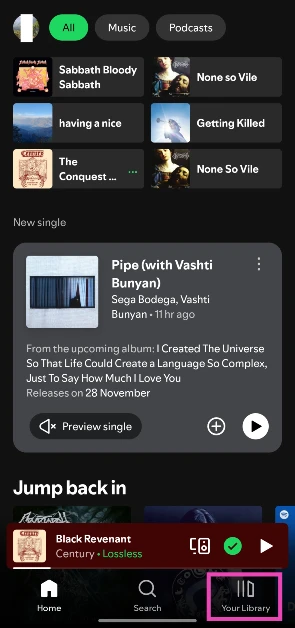
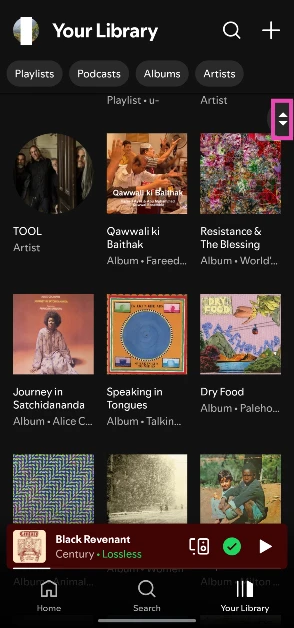
Step 3: Scroll to the bottom of the page. Use the scroll icon on the right to get there quickly.
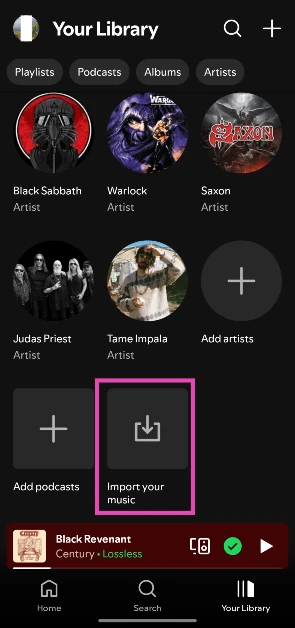
Step 4: Tap on Import your music.
Step 5: Tap on Get Started. You will be redirected to TuneMyMusic.
Step 6: Select the streaming platform currently hosting the playlist.

Step 7: Log in to the platform using your registered account.
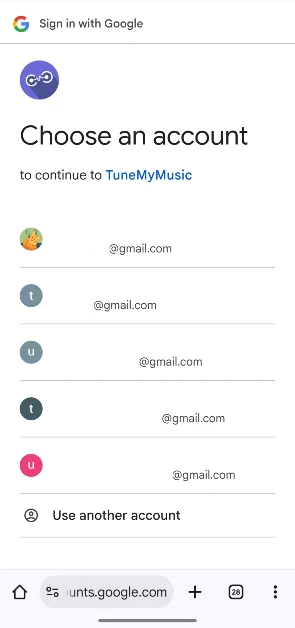
Step 8: Allow TuneMyMusic to access your account by hitting Continue.

Step 9: Enter a playlist URL in the text box or load all of your playlists from your account.

Step 10: Select the playlists you wish to transfer and hit Transfer to Spotify.

Step 11: Enter your Spotify login credentials and hit Continue.
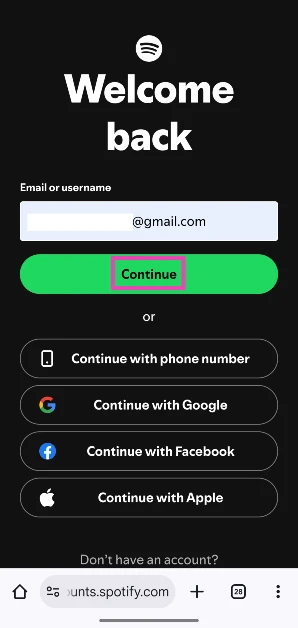
Step 12: Tap on Agree.

Step 13: Once the transfer process is over, tap on Open Your Library in Spotify.
Frequently Asked Questions (FAQs)
Does Spotify let you import playlists from other platforms?
Spotify has teamed up with TuneMyMusic to help you import your existing playlists from other streaming platforms like Apple Music, YouTube Music, Tidal, and more.
How do I import my playlists to Spotify?
Go to the Your Library section in Spotify, scroll to the bottom of the page, and tap on ‘Import your music’. Once that’s done, tap on Get Started, log into the platform hosting the playlists, and follow the onscreen instructions to transfer them.
Which websites can I use to transfer my playlists to another platform?
If you’re facing issues with TuneMyMusic, you can use websites like Soundiiz and Free Your Music to transfer your playlists.
When will Spotify Wrapped 2025 come out?
Spotify has not revealed the date for Wrapped 2025 yet. Traditionally, it comes out towards the end of November or the beginning of December.
How do I create a custom cover art for my Spotify playlist?
Go to the playlist, tap the three dots, select ‘Create cover art’, and use the native editor to create an artwork.
Read Also: LG Gaming Portal Brings Xbox Cloud Play to India
Final Thoughts
You can use TuneMyMusic to transfer your Spotify playlists to another platform, too. The process is seamless and does not take much time. Soundiiz and Free Your Music serve as great alternatives to TuneMyMusic. If you have any questions, let us know in the comments!


