In This Article
Before you begin
If your iPhone is still running iOS 18, you will have to update it to iOS 26 to get access to folder customisation options. You can do that by going to Settings>General>Software Update. Once you’re in the Software Update page, your iPhone will automatically check for new OS updates. If you see the iOS 26 update, hit ‘Download and Install’. Once you’ve updated your iPhone, you can change the appearance of the folders in the Files app. This entails changing their colour or adding a symbol to the icon. You can choose from a range of symbols or simply add an emoji. These customisation options do not apply to Downloads and Shortcuts folders. Any folder dedicated to a third-party app cannot be customised either.Change the colour and icon of a folder on your iPhone (iOS 26)
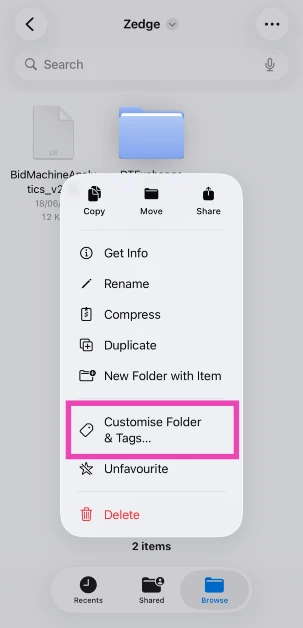
Step 1: Launch the Files app on your iPhone and switch to the Browse tab.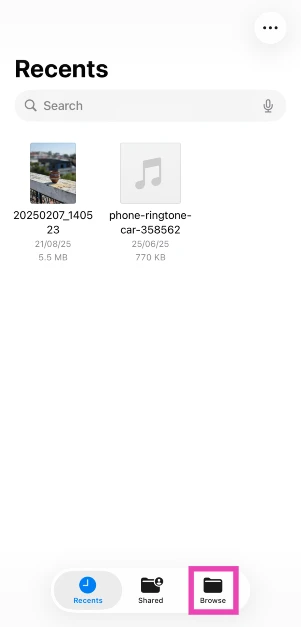 Step 2: Go to the folder you want to customise.
Step 3: Long-press the folder and tap on Customise Folder & Tags.
Step 2: Go to the folder you want to customise.
Step 3: Long-press the folder and tap on Customise Folder & Tags.
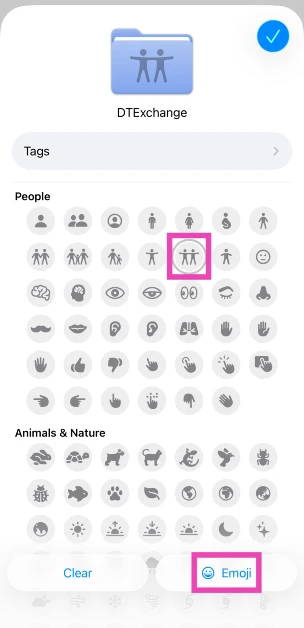
 Step 4: Choose an icon from the list or tap on Emoji and make a selection.
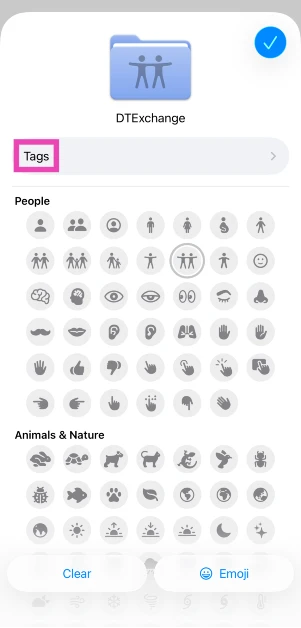
 Step 5: Tap on Tags to change the folder colour.
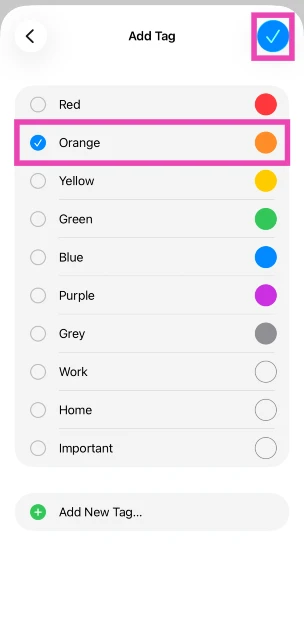
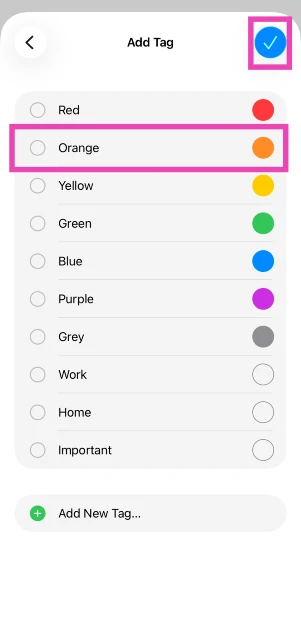
 Step 6: Select a colour and hit the tick icon.
Reset the folder icon and colour to the default settings
Step 1: Go to the Files app and long-press the folder.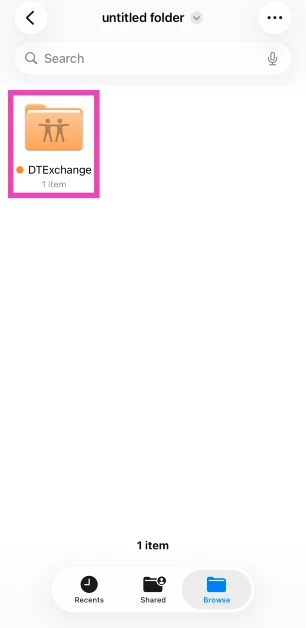 Step 2: Tap on Customise Folder & Tags.
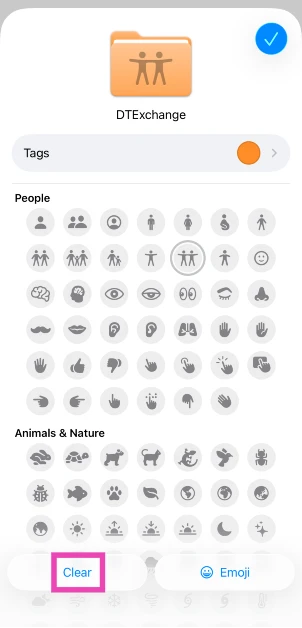
Step 3: Tap on Clear to remove the emoji.
Step 2: Tap on Customise Folder & Tags.
Step 3: Tap on Clear to remove the emoji.
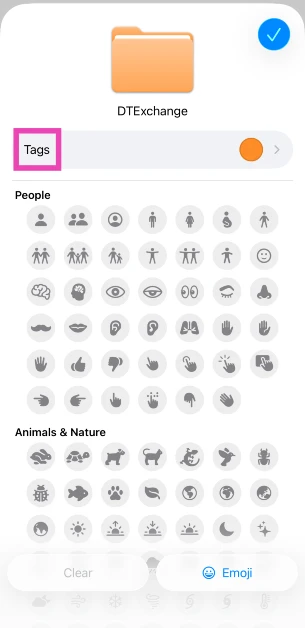
 Step 4: Go to Tags and deselect the colour.
 Step 5: Hit the tick icon.








 Step 2:
 Step 3:
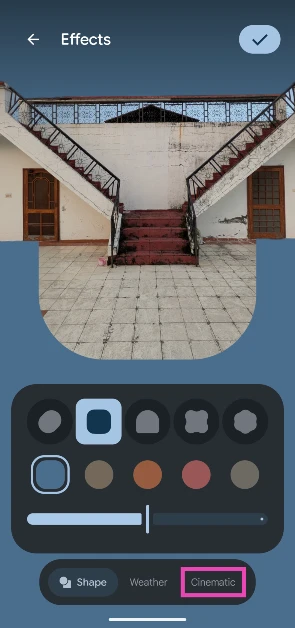 Step 4:
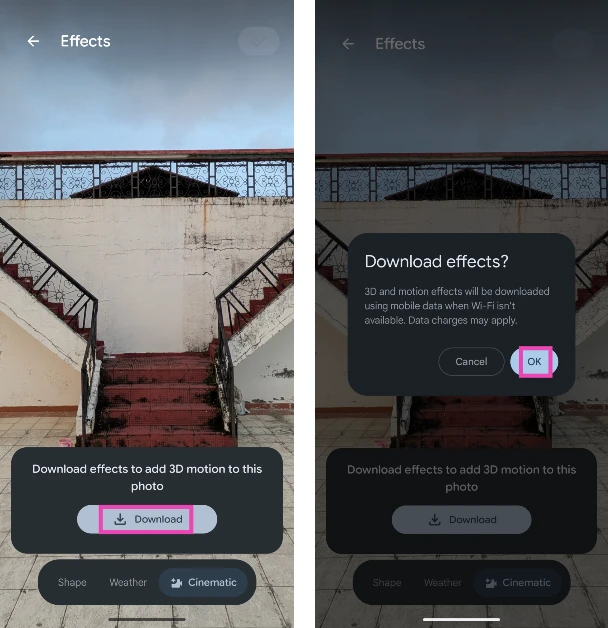 Step 5:
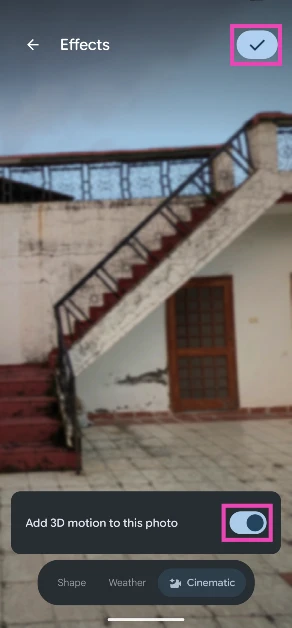 Step 6:
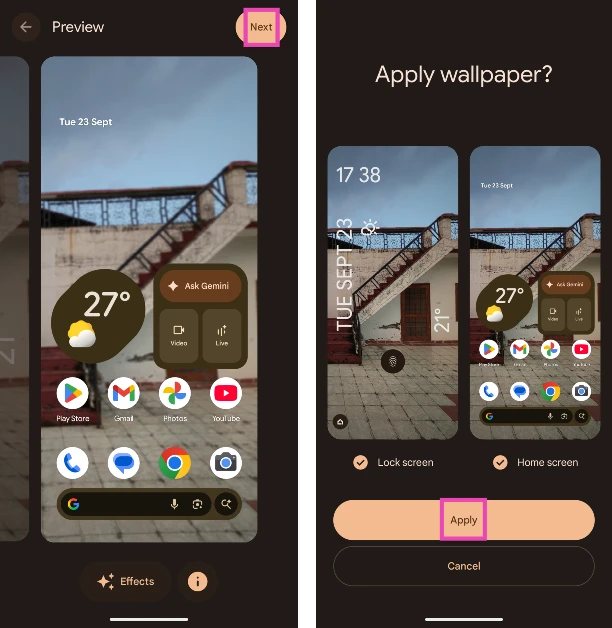 Step 7:













 Step 1: