



If you’re tired of receiving spam calls and texts, iOS 26 has a couple of features that you will find useful. Apple’s latest software version for the iPhone can put unknown callers on hold and ask them for their name and reason for calling. This information is then relayed to you. For messages, the process is more direct. Texts from numbers that aren’t saved on your phone are sent to a different folder. Here’s how you can screen text messages from unknown numbers on your iPhone.
Read Also: Realme 15 Pro 5G Game of Thrones Edition teased to launch in India soon
In This Article
Message filtering on iPhone
The new text message screening feature is exclusively available on iOS 26. You don’t need a newer iPhone model to use this feature. If you’re running the new software version on an older device, you can access this screening tool. Once it is enabled, the message screening feature redirects texts from unknown numbers to a different folder. This folder can be accessed by tapping the icon in the top-right corner of the Messages app and selecting ‘Unknown Senders’.
The new update has a separate folder for spam texts. This is where you’ll find the pesky marketing messages from retail outlets, network operators, and other commercial entities. Texts from unknown senders aren’t lumped in with spam. The spam inbox can also be accessed by tapping the menu icon in the top-right corner of the screen.
Screen text messages from unknown senders on iPhone
Step 1: Make sure your iPhone is updated to iOS 26.
Step 2: Go to Settings.
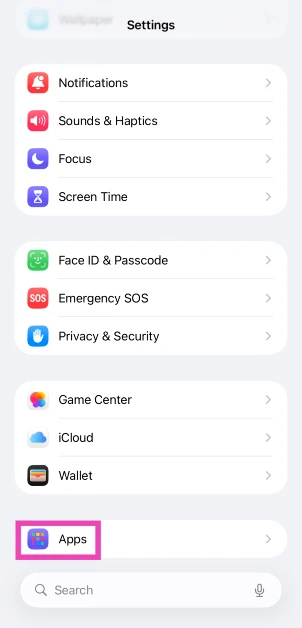
Step 3: Select Apps.
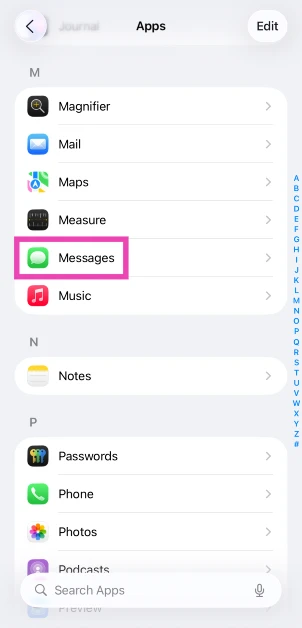
Step 4: Tap on Messages.
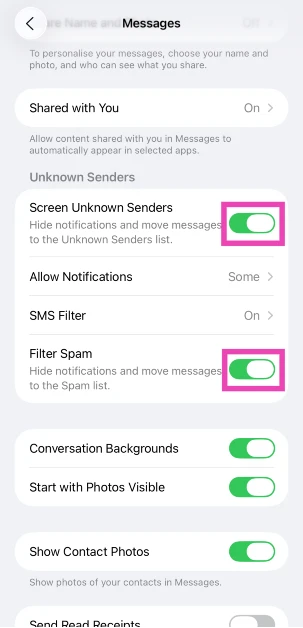
Step 5: Turn on the toggle switches next to Screen Unknown Senders and Filter Spam.
Frequently Asked Questions (FAQs)
How do I screen messages from unknown senders on my iPhone?
Go to Settings>Apps>Messages and turn on the toggle switches next to ‘Screen Unknown Senders’. This feature is available on iOS 26 only.
Is message screening an Apple Intelligence feature?
No, screening text messages does not require Apple Intelligence.
How do I screen unknown calls on iPhone?
Go to Settings>Apps>Phone and turn on the toggle switch next to ‘Screen Incoming Calls’.
How do I turn on call recording on iPhone?
Go to Settings>Apps>Phone>Call Recording and turn on the toggle switch.
How do I filter spam messages on my iPhone?
Go to Settings>Apps>Messages and turn on the toggle switch next to ‘Filter Spam’.
Read Also: How to enable lens cleaning hints on iPhone
Final Thoughts
Tap the icon in the top-right corner of the Messages app and select ‘Unknown Senders’ to view the screened messages. There is a separate folder for spam texts. It can be accessed by tapping the same icon. While you’re here, check out how you can screen calls from unknown numbers on your iPhone. If you have any questions, let us know in the comments!


