




The fingerprints of Microsoft’s AI assistant, Copilot, can be found everywhere in Windows 10 and 11. Recently, the ‘Ask Copilot’ tool was integrated into the right-click context menu. Selecting this option opens the file in Copilot and lets you find the answers to your queries. Users who aren’t fully on board with AI yet may not like this feature. Luckily, there is a way to undo it. Here are 2 ways to remove ‘Ask Copilot’ from the right-click menu on your Windows 11 PC.
Read Also: Christmas Gifting Guide 2025: Top 10 tech gifts for X-mas
In This Article
What happens when you ‘Ask Copilot’?
The Ask Copilot tool makes AI more accessible to users who don’t want to launch another app to get the answers to their queries. Its integration into the context menu lets users access it with a single right-click. As of now, this option is available only for images, documents, and text files.
When you click on ‘Ask Copilot’, the file opens up in the Copilot app. You can add your query in the text box before hitting Enter and uploading the file. Yes, using this option requires uploading the file to Microsoft’s servers, as Copilot does not run locally on your device. It requires cloud servers for computational tasks.
You can use ‘Ask Copilot’ to summarise documents and text files and ask questions about their contents. It is also capable of deriving information from images and answering related questions. The AI assistant can also conduct a quick web search to find the origins of the uploaded image.
Use Windows Registry
Step 1: Launch the Run box by pressing Windows + R.
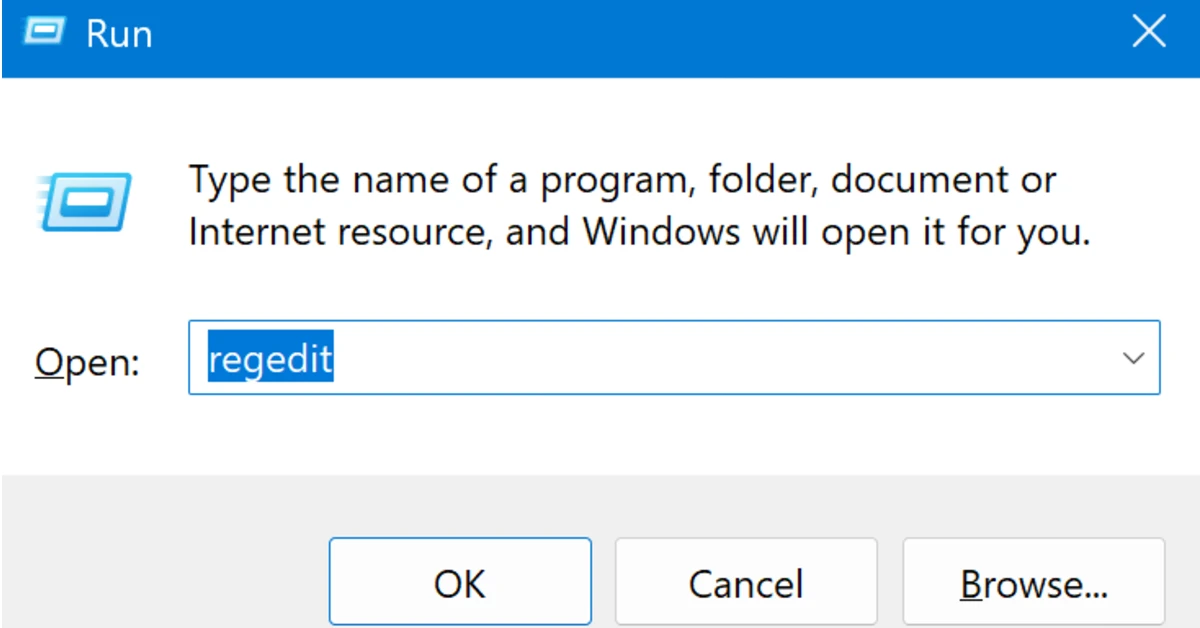
Step 2: Type regedit and run it as Admin (by pressing Ctrl + Shift + Enter).
Step 3: Paste the following into the address bar at the top of the screen:
HKEY_LOCAL_MACHINE\SOFTWARE\Microsoft\Windows\CurrentVersion\Shell Extensions\
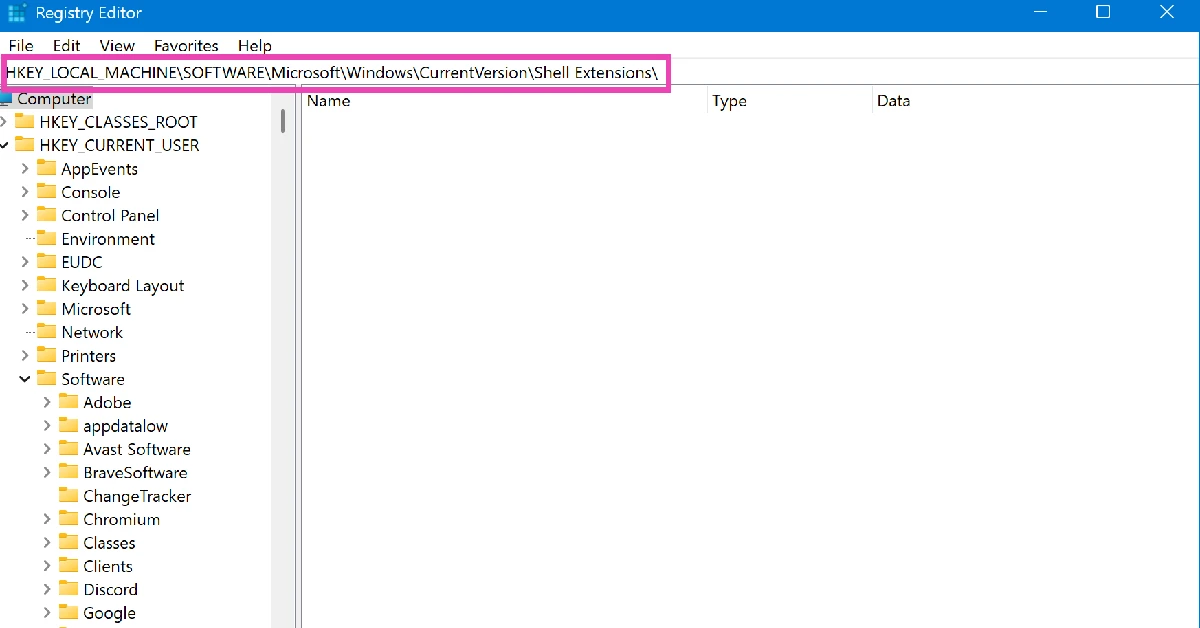
Step 4: Use the navigation panel on the left to go to the Blocked folder. If you can’t view the Blocked folder, right-click Shell Extensions and select New>Key.
Step 5: Right-click anywhere in the Blocked folder and select New>String value.
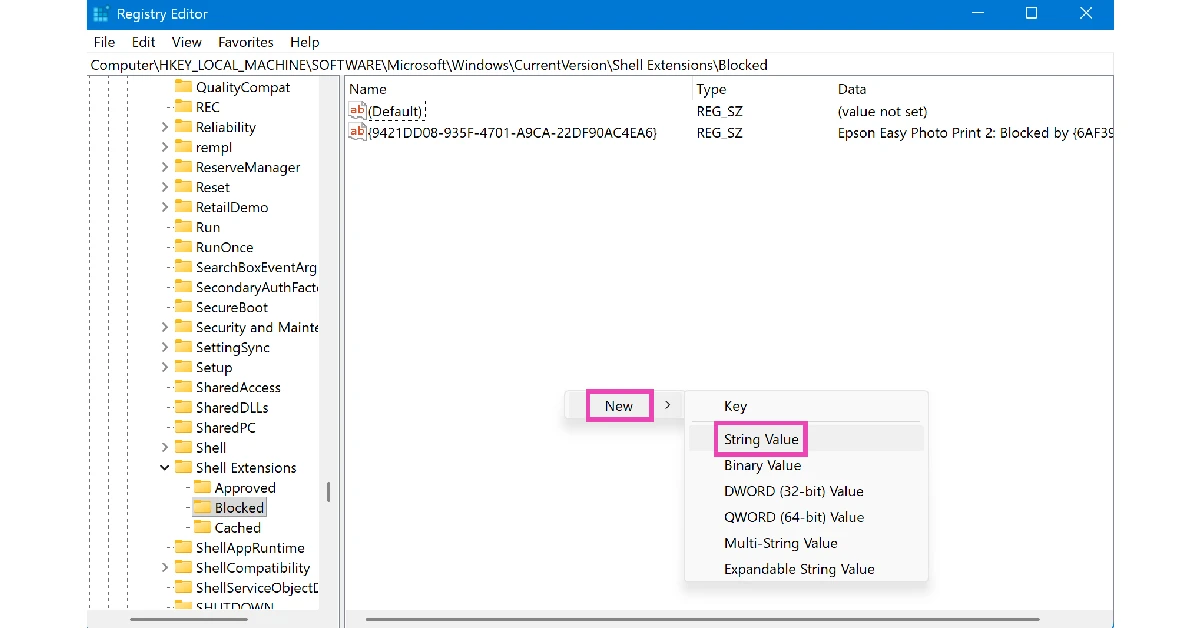
Step 6: Enter the following as the string name:
{CB3B0003-8088-4EDE-8769-8B354AB2FF8C}
Step 7: Hit Enter.
Step 8: Open the newly created string and enter Ask Copilot in the Value data field.
Step 9: Hit OK.
Step 10: Restart your PC.
Uninstall the Copilot app
If you don’t mind getting rid of the Copilot app altogether to remove the ‘Ask Copilot’ option in the right-click context menu, follow these steps.
Step 1: Go to Settings and select Apps from the side menu.
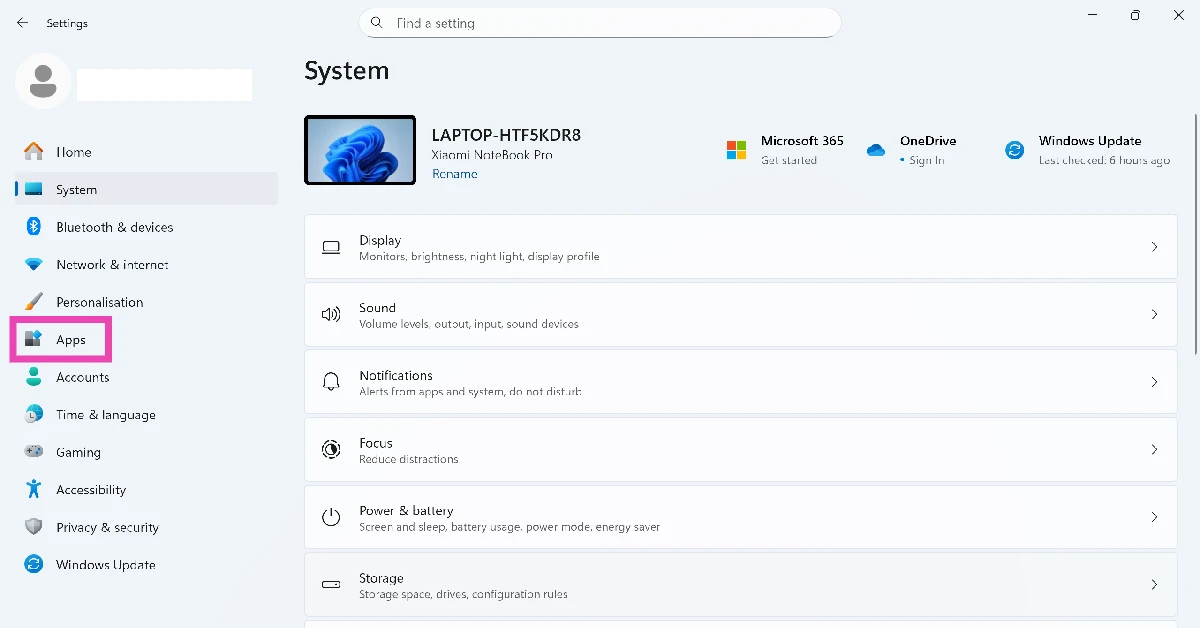
Step 2: Click on Installed apps.
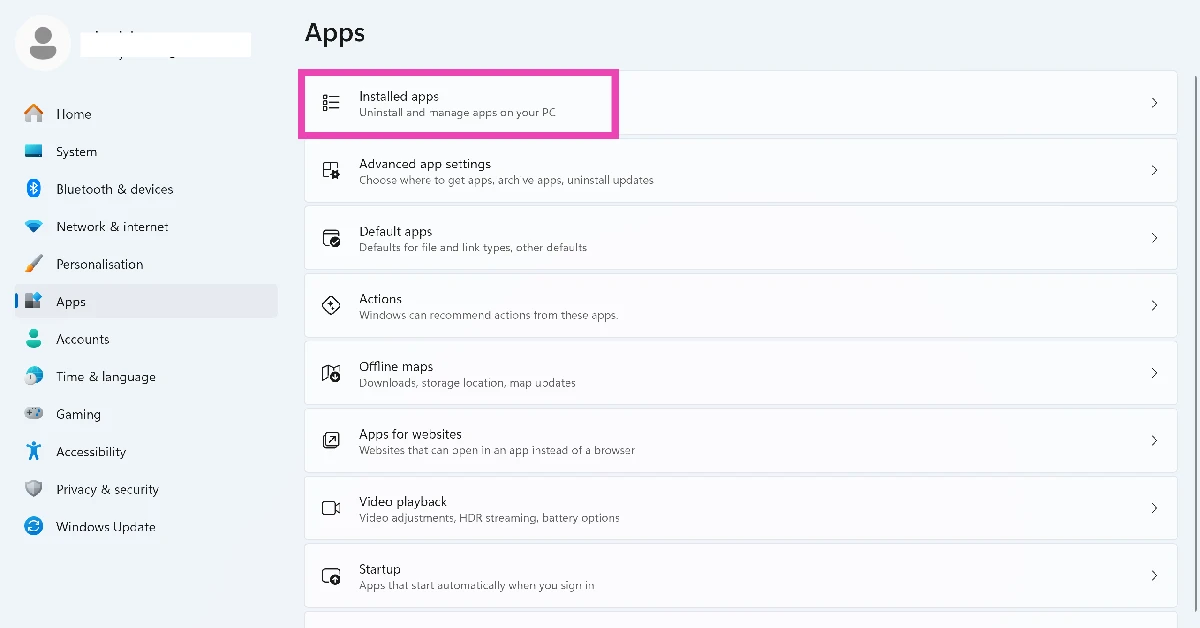
Step 3: Scroll down to Copilot and hit the ellipses next to its name.
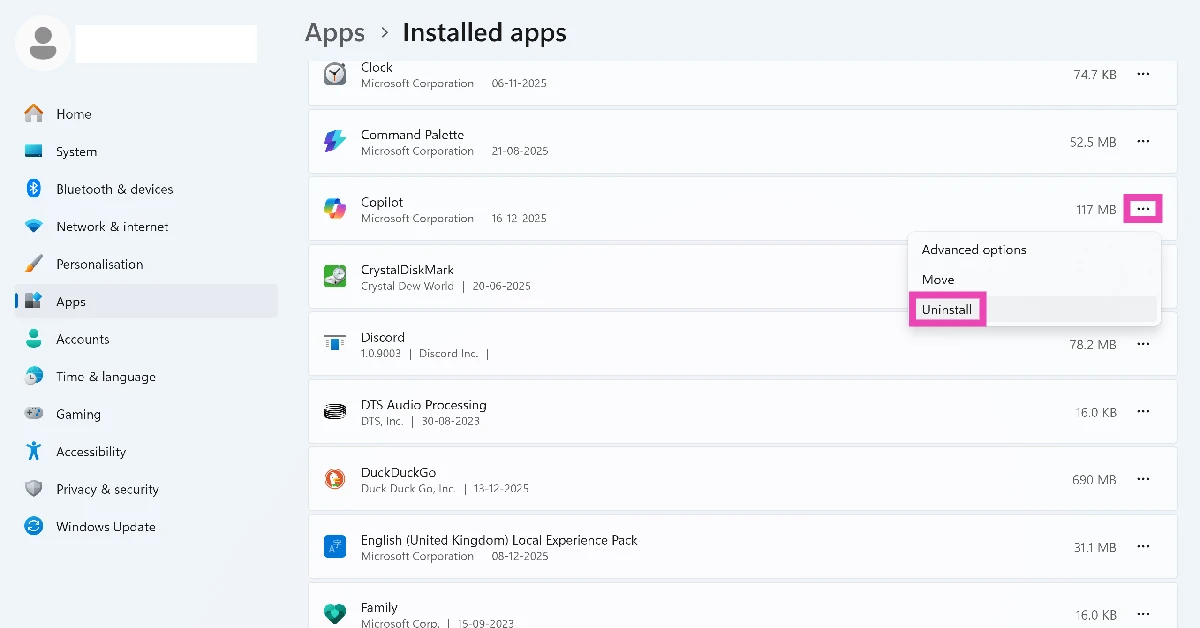
Step 4: Select Uninstall.
Frequently Asked Questions (FAQs)
What is the shortcut button for Copilot?
You can trigger the Copilot chatbot on your PC by pressing Windows + C on your keyboard.
Is there a way to remove Copilot from the taskbar?
You can remove the Copilot icon from the taskbar by right-clicking it and selecting ‘Unpin from taskbar’. Alternatively, you can go to Settings>Personalisation>Taskbar and turn off the toggle switch next to ‘Copilot in Windows’.
How do I remove Copilot from my Windows 11 PC?
Go to Settings>Apps>Installed apps, click the ellipses next to Copilot and select ‘Uninstall’.
Is there a way to disable Copilot in Microsoft Word?
Go to Files>Options>Copilot, uncheck the box next to ‘Enable Copilot’ and hit ‘OK’.
Can I customise the Copilot key on my Windows PC?
You can customise or remap the Copilot key on your PC by going to Settings>Personalisation>Text input and selecting ‘Custom’ after clicking the dropdown menu next to ‘Customise Copilot key on keyboard’.
Final Thoughts
Microsoft currently has an ‘Ask Copilot’ option for the taskbar in the works. It made its first appearance on the Windows 11 Insider Preview Build 26220.7051 last month. It will be added to the stable version in early 2026. If you have any questions related to Copilot, let us know in the comments!


