




Google has introduced sensitive content warnings in its Messages app to tackle the dissemination of content with nudity in it. These warnings detect and blur images that may contain nudity. A warning is also issued to the person sending or forwarding the content. The detection process takes place entirely on the device. No data is sent to Google’s servers. Here’s how you can enable this feature on your device.
Read Also: ChatGPT rolls out yearly recap: Here’s how you can view yours
In This Article
About sensitive content warnings
The Messages app uses Google’s SafetyCore system on your device for the classification of images. As mentioned earlier, this process takes place on the device, and no images are sent to Google’s servers. Here’s how content warnings work for different categories of users:
- Supervised users: Content warnings are enabled by default and cannot be disabled by the user. Parents supervising the device can control the tool using the Family Link app.
- Unsupervised teens (13-17 years of age): Content warnings are turned on by default but can be disabled from ‘Protection and safety’ settings.
- Adults (18+ years of age): Content warnings are turned off by default but can be enabled from ‘Protection and safety’ settings.
Enable sensitive content warnings in Google Messages
Step 1: Launch the Google Messages app on your phone.
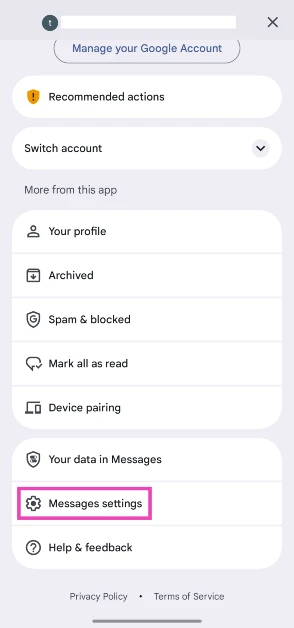
Step 2: Tap your profile icon in the top right corner of the screen.

Step 3: Go to Messages settings.
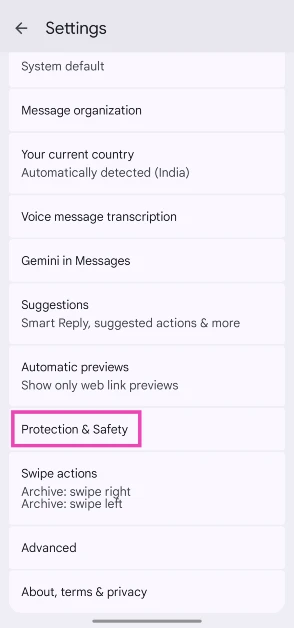
Step 4: Scroll down and tap on Protection and safety.
Step 5: Tap on Manage sensitive content warnings.
Step 6: Turn on the toggle switch next to Warnings in Google Messages.
Frequently Asked Questions (FAQs)
What do the sensitive content warnings do in Google Messages?
Enabling sensitive content warnings in the Messages app allows it to detect and blur images that may contain nudity. A warning is displayed to the user when they receive, send, or forward an image with nudity in it. On top of that, the app provides resources to get help when you receive such content.
Are sensitive content warnings turned on by default?
Sensitive content warnings are enabled by default for users under 18 years of age. Supervised users under the age of 13 cannot turn them off.
Why am I not able to disable sensitive content warnings in the Messages app?
Users under the age of 13 cannot disable sensitive content warnings in the Messages app. However, their parents can control it through the Family Link app.
How does the Google Messages app detect sensitive content?
The Messages app uses Google’s SafetyCore system on Android phones to detect nudity in images. The process takes place on the device, with no data sent to Google’s servers.
Do sensitive content warnings work for videos and GIFs?
As of now, sensitive content warnings in the Messages app only work for images. Videos and GIFs remain unaffected.
Read Also: Best of 2025: Top headphones of the year
Final Thoughts
When an image is labelled with a content warning, the Messages app presents an option to block the viewer. Users can also gain access to a helpful resource page by tapping ‘Learn why nude images can be harmful’. If you have any questions, let us know in the comments!


