



If you own a premium or flagship Android phone, chances are that it supports reverse wireless charging. This feature lets you share your phone’s battery with another device. This includes wireless earbuds (TWS), smartwatches, or another smartphone, as long as they support wireless charging. If your device needs a quick boost but you’re nowhere near a charger, this feature can come in quite handy. Here’s how you can enable reverse wireless charging on your Android phone.
Read Also: How to use the Google Pixel’s thermometer to measure temperature
In This Article
How to find out if your phone supports reverse wireless charging
As we mentioned earlier, this feature is commonly found in premium and flagship Android phones. iPhones do not have this feature yet, although they can share their power over a wired USB-C connection. Budget and midrange Android phones lack this feature as well. If your phone supports wireless charging, chances are that it can share its power the other way too. Here are some of the common ways to know for sure.
- Check your device settings: Dive into the battery settings and search for reverse wireless charging. If you can’t find this feature, it means that your phone doesn’t support it.
- Look up your phone’s spec sheet: If you want to confirm whether your phone has this feature or not, there is no better way than looking up its official spec sheet. Go to the manufacturer’s website and open your phone’s official listing. Scroll to the specifications section to look for this feature.
- Search your phone’s Amazon page: If your phone isn’t listed on its manufacturer’s website, go to its Amazon page to take a look at its spec sheet.
Enable reverse wireless charging from device settings
Step 1: Go to Settings.
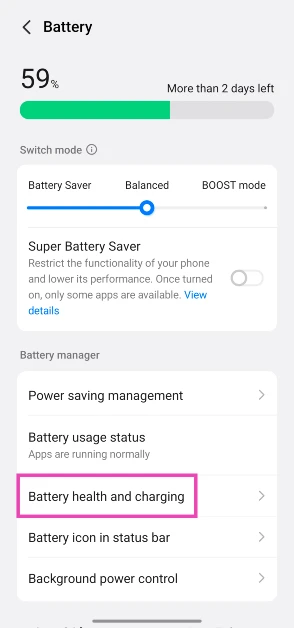
Step 2: Tap on Battery.

Step 3: Scroll down and tap on Battery health and charging.
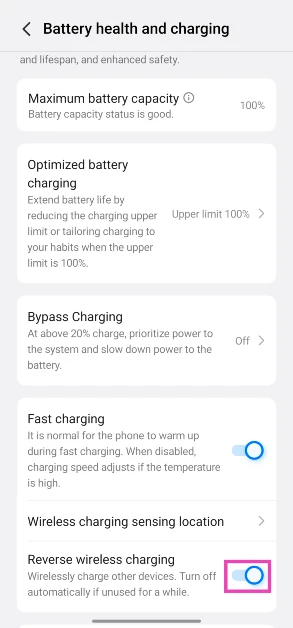
Step 4: Turn on the toggle switch next to Reverse wireless charging.
Enable reverse wireless charging from quick settings
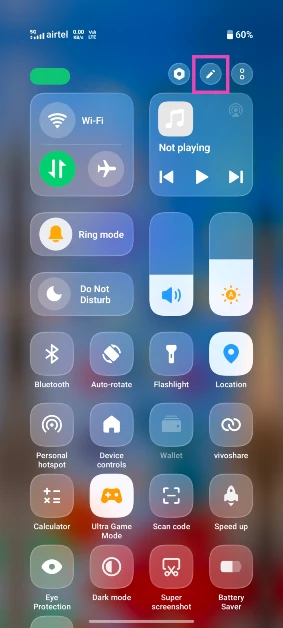
Step 1: Swipe down from the right side of the status bar to access the quick settings menu.
Step 2: Hit the pencil icon at the top of the screen.
Step 3: Find the Reverse wireless charging tile.
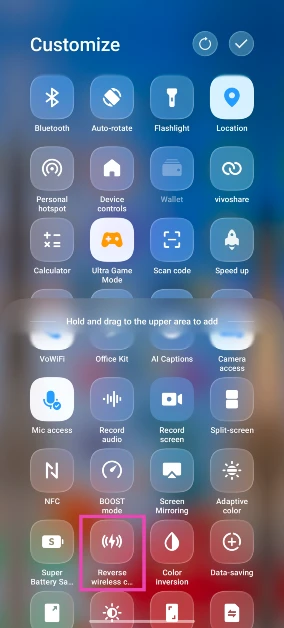
Step 4: Hold and drag the tile to the main section.
Step 5: Hit the tick icon in the top right corner of the screen.
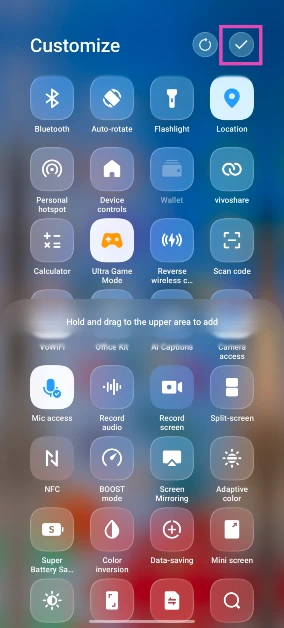
Step 6: Tap the tile to enable reverse wireless charging.

Frequently Asked Questions (FAQs)
What is reverse wireless charging?
Reverse wireless charging allows you to use your smartphone to wirelessly charge other devices. This feature can be enabled from device settings.
Do iPhones have reverse wireless charging?
No, iPhones do not support reverse wireless charging. However, you can use a USB-C cable to charge another device using your iPhone.
How do I enable reverse wireless charging on my phone?
Go to Settings>Battery> Battery health and charging, and turn on the toggle switch next to ‘Reverse wireless charging’.
How do I find the wireless charging location on my phone?
Go to Settings>Battery> Battery health and charging, and tap on ‘Wireless charging sensing location’ to find the location of the charging coil.
How do I find out whether my phone supports reverse wireless charging?
Check your smartphone’s listing and spec sheet on its manufacturer’s website to find out if it supports reverse wireless charging.
Read Also: Realme Pad 3 5G India launch date revealed
Final Thoughts
Reverse wireless charging gets automatically disabled when it is unused for more than a minute. For more efficient power sharing, use a USB-C cable to reverse charge your device. If you have any questions, let us know in the comments!


