



Older folks are the most common target of scam calls. Scammers and con artists often rely on scare tactics to entrap users into sending them money – something that older people are more susceptible to. If you’re worried that your parents may fall for such scams, you can enable an intelligent feature on their phones that will send them a warning when they’re in the middle of a scam call. Right now, this feature is only available on Pixel smartphones. Here’s how you can enable Scam Detection on a Google Pixel.
Read Also: Endzone Strike Codes (December 2025)
In This Article
How Scam Detection works
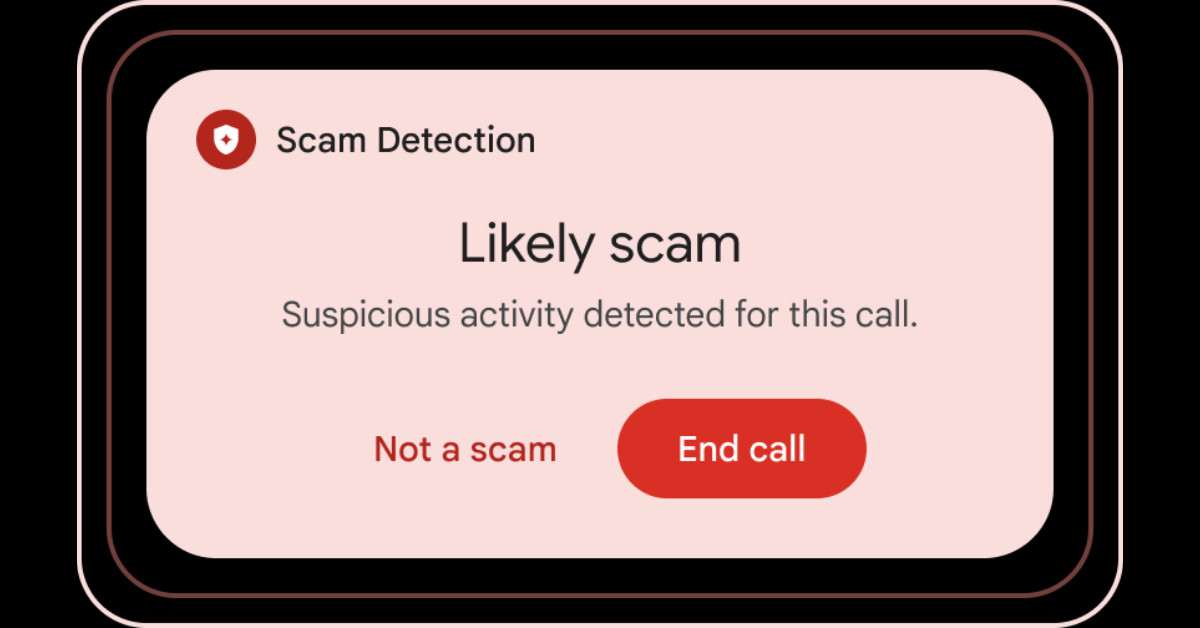
Scam Detection works quietly in the background, scanning your phone calls for potential suspicious activity. Google says this feature is based on “the corpus of knowledge about how scammers scam victims.” It displays a warning message when it comes across content that’s similar to how scammers operate. This could be anything from someone asking you for your credit card details to a line that is frequently used in call scripts. You can choose to dismiss the warning if you’re certain that the caller on the other end is not a scammer.
On Pixel 9 and later smartphones, Scam Detection uses Gemini Nano to function. All data is processed on the device. On older Pixels, it uses on-device machine learning models. No data is sent to Google’s servers at any point.
Scam Detection is available on the following devices:
- Google Pixel 6 and up: In the USA.
- Google Pixel 9 and up (excluding Pixel 9a): In Australia, India, Canada, Ireland, and the UK.
Enable Scam Detection
- Launch the Phone app on your Google Pixel.
- Hit the ellipses in the top-right corner of the screen.
- Go to Settings.
- Tap on Scam Detection.
- Turn on the toggle switch.
Turn off Scam Detection for an ongoing call
- Hit the ellipses on the call screen.
- Turn off Scam Detection.
To disable this feature for all calls, go to Phone>Settings>Scam Detection and turn off the toggle switch.
Frequently Asked Questions (FAQs)
Is Scam Detection an AI feature?
Scam Detection is powered by the Gemini Nano AI model on Pixel 9 and later devices. Older Pixels utilise on-device machine learning models for this feature.
Does Scam Detection send user data to Google’s servers?
Google maintains that the data processing for Scam Detection takes place entirely on the device. No conversation audio or transcript is sent to Google’s servers.
Is Scam Detection available on non-Pixel Android phones?
No, this feature is available exclusively on Google Pixel smartphones.
How do I turn on Scam Detection on my Pixel?
Go to Phone>Settings>Scam Detection and turn on the toggle switch.
How do I disable Scam Detection for an ongoing call?
Hit the ellipses on the call screen and tap on Scam Detection to disable it for that particular call.
Read Also: Best of 2025: Top 10 PC accessories of the year
Final Thoughts
As mentioned earlier, this feature is only available on Google Pixel smartphones. It remains to be seen whether it will be rolled out for wider Android devices. While you’re here, check out how you can block spam text messages on your smartphone. If you have any questions, let us know in the comments!


