



The Control Centre acts as the main hub for connectivity, convenience, media playback, and accessibility features on your iPhone. You can access it by swiping down from the status bar, no matter which page you’re on. This applies to the lock screen as well. You don’t need to unlock your iPhone to toggle the quick controls. However, this means that any person with physical access to your phone can carry out these changes, even if they don’t know the passcode. To prevent this from happening, you can disable the Control Centre on your iPhone’s lock screen.
Read Also: Best of 2025: Top home appliances and gadgets of the year
In This Article
Manage your iPhone’s lock screen
Your iPhone offers plenty of customisation options for the lock screen. You can change the size of the clock, apply depth effects to the wallpaper, set up quick shortcuts, control the media playback, and do a whole lot of other stuff on it. While setting up or customising the lock screen, you need to decide which content and features you’re comfortable letting other people see.
Giving access to the Control Centre on the lock screen lets you toggle the WiFi, Bluetooth, Airplane Mode, Focus Mode, and mobile data with just a couple of taps. Any option that displays or changes your personal data needs passcode access to come into effect.
We highly recommend enabling Medical ID access on the home screen. You can do it by going to the Health app>profile picture>Medical ID>Edit and turning on ‘Show When Locked and Emergency Call’. In case of an emergency, a first responder can access your important medical details by swiping up on the lock screen and tapping ‘Medical ID’.
Disable Control Centre on iPhone’s lock screen
- Go to Settings.
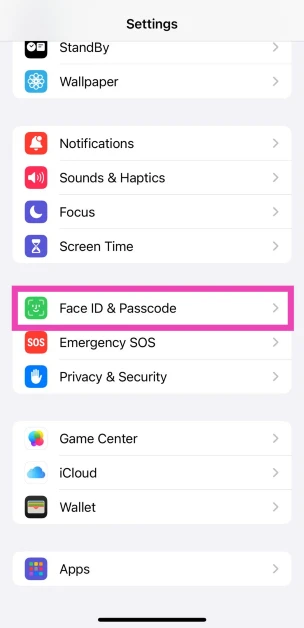
- Tap on Face ID and Passcode.

- Enter your iPhone’s passcode to enter.
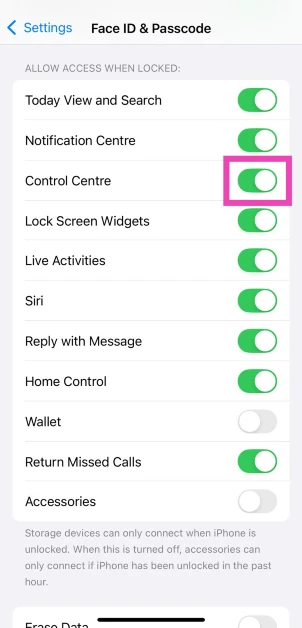
- In the Allow Access When Locked section, turn off the toggle switch next to Control Centre.

- Confirm your selection.
Frequently Asked Questions (FAQs)
How do I stop the Control Centre from showing up on the lock screen?
Go to Settings>Face ID and Passcode and turn off the toggle switch next to Control Centre.
How do I trigger the Control Centre with Back Tap?
Go to Settings>Accessibility>Touch>Back Tap>Double Tap and select Control Centre. Now, tap the back panel twice to access the Control Centre.
Can I access the Control Centre with the Action button?
Yes, but you will need to create a home screen shortcut for the Control Centre first. Once it is created, go to Settings>Action Button and swipe through the panels till you reach that shortcut.
How do I add a new control to the Control Centre?
Swipe down from the top right corner of the screen to go to the Control Centre, tap the plus icon, select ‘Add a Control’, and choose your preferred tile.
How do I add a new page to the Control Centre?
Go to the Control Centre, tap the plus sign, tap the dotted circle, and choose your preferred control page.
Read Also: WhatsApp brings New Year 2026 features celebrating the festive season
Final Thoughts
When you carry out these steps, no one will be able to access your iPhone’s control when it is locked. While you’re here, check out how you can find your lost Apple TV remote using your iPhone. If you have any questions, let us know in the comments!


