


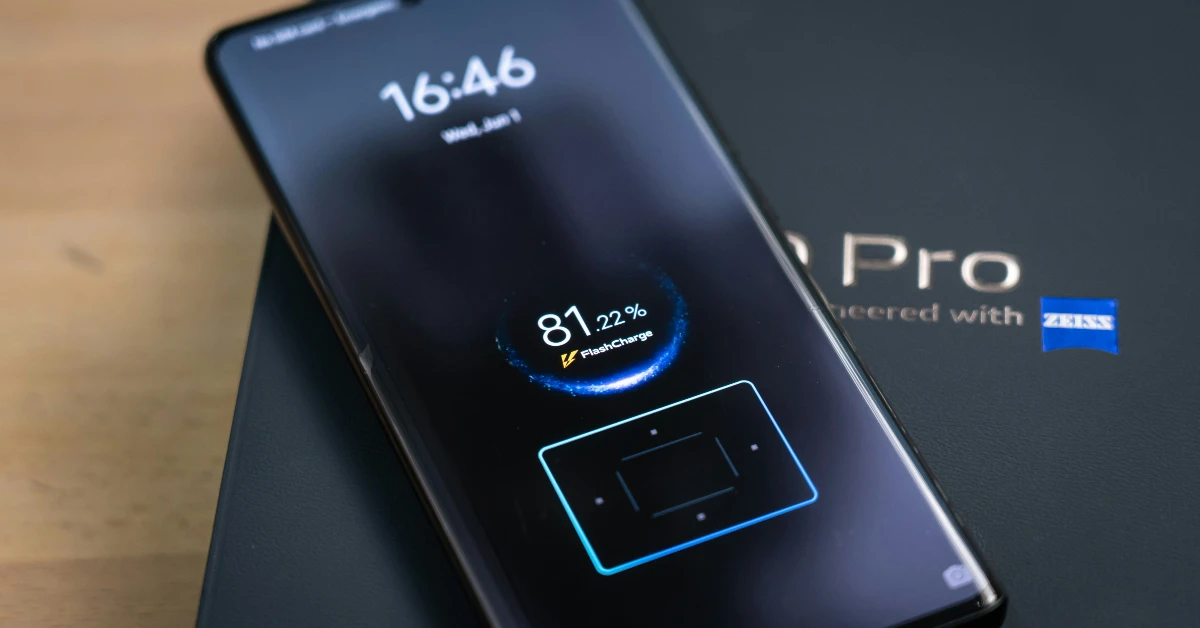
Fast charging is one of the biggest perks of buying an upper-midrange or flagship smartphone. Brands like Xiaomi, Oppo, OnePlus, and more have mastered fast charging tech that can replenish the battery pack to 100% in just a few minutes. If your phone is charging slowly, something weird must be afoot. Here are the top 7 ways to fix the ‘phone not charging at full speed’ issue.
Read Also: Microsoft Authenticator showing wrong location on your PC? Try these 5 fixes
In This Article
Before you begin, take a look at the common culprits
Here are some of the common factors that impede your phone’s charging speed
- Slow power adapter
- Damaged cable
- Fast charging is disabled in settings
- Low voltage
- Issues with the charging port
- Lots of apps running in the background
- Worn-out battery pack
Use the proper power adapter

Different smartphones support different charging speeds. If you own a device with fast-charging support, you’ll need to use an adapter that is able to deliver those speeds. Naturally, a 20W charger won’t be able to deliver the current at a rate that an 80W adapter can. For best results, use the charging brick that came with your smartphone.
Use a wall outlet
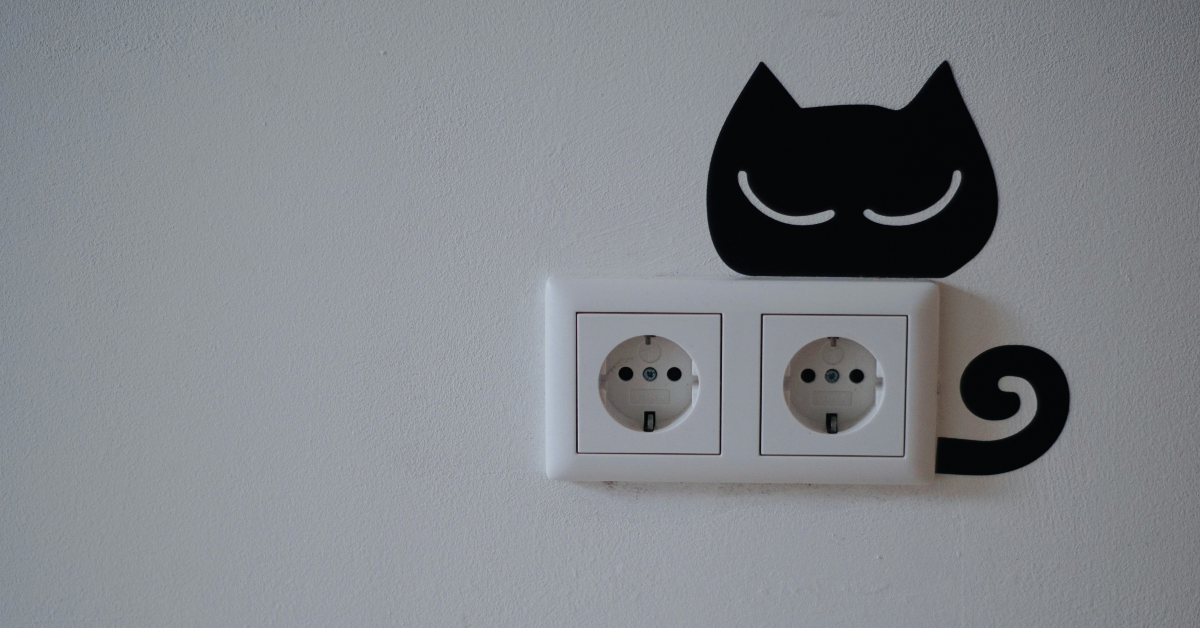
Your phone will hit its maximum charging speed only when its charger is connected to a wall outlet. If you’re charging it through a laptop, the speed will be throttled. This is the case with most power banks as well. This is why it is important to check the power delivery speed of a power bank before making the purchase.
Check the USB cable for damage
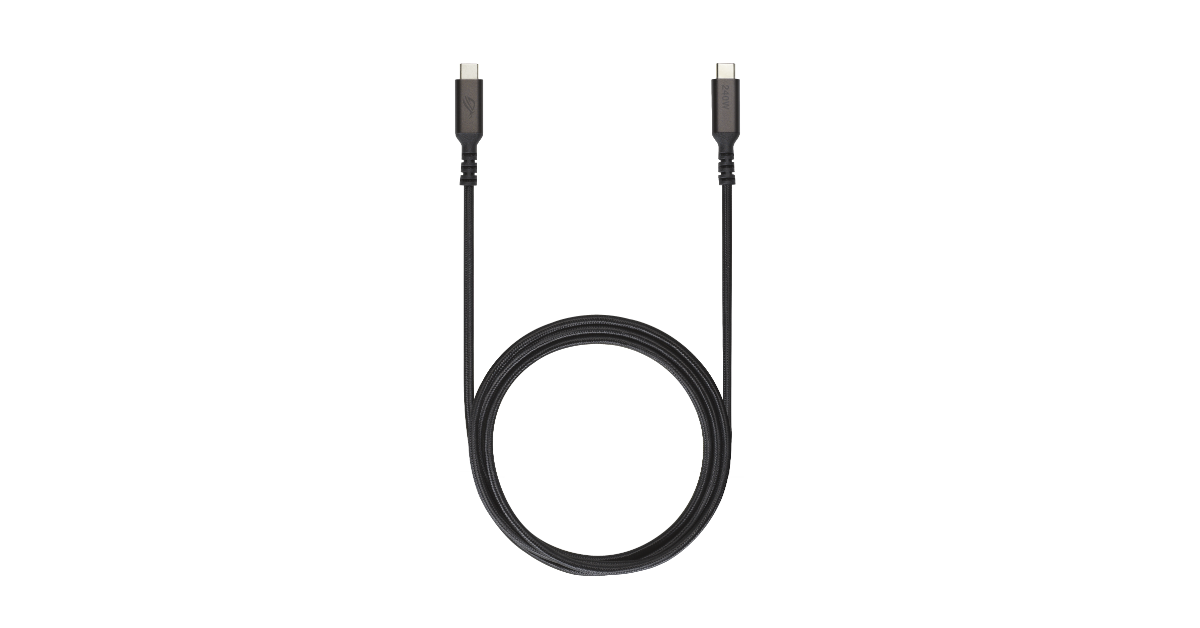
If the charging cable is damaged, it won’t be able to deliver the current at a fast speed. Check the cable for frayed ends. If you don’t notice any physical damage, the pins might be at fault. Charge another device using the cable to confirm whether it is at fault.
Clean your phone’s charging port
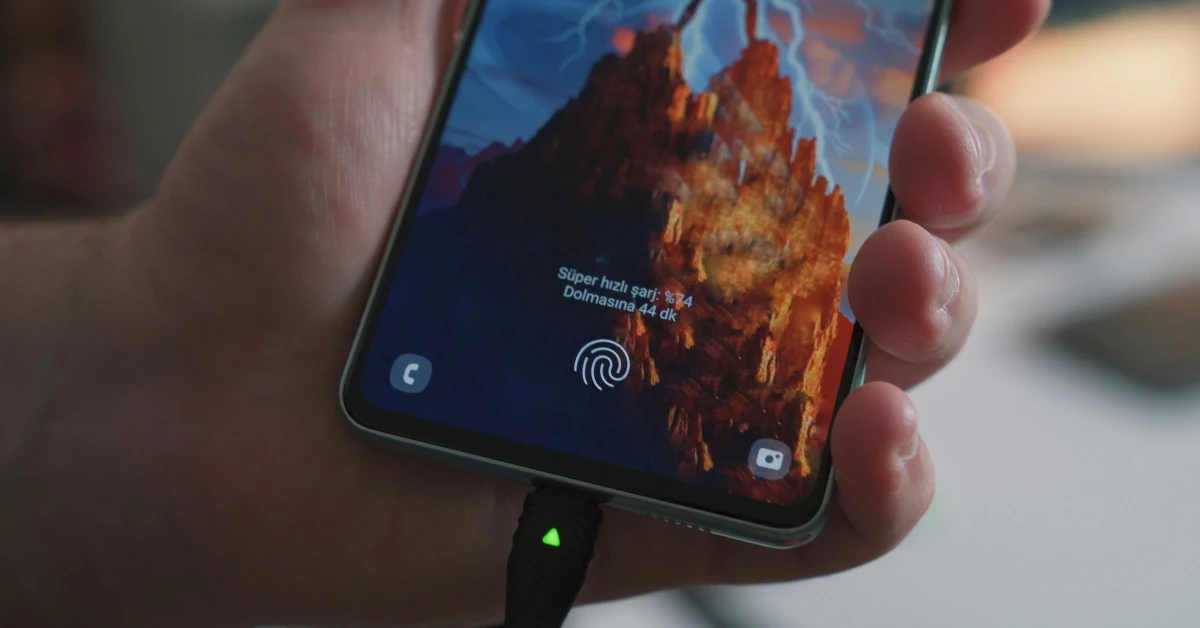
A dirty USB-C port is bound to throttle the charging speed. Over time, dust and grime can collect on the port and cause all sorts of issues. We recommend dipping a small Q-tip in isopropyl alcohol and scrubbing it around the affected area. Give your phone a few taps to dislodge the dirt particles.
Enable Airplane Mode

Old batteries discharge a lot quicker than new ones. If your phone’s battery has worn out, it can still discharge while it is plugged into the charger. This often results in a very low charge increment even after hours of charging. While there is no ‘fix’ to this situation (apart from buying a new phone or replacing the battery), turning on the Airplane Mode can give the charging speed a small boost.
Shut down background apps
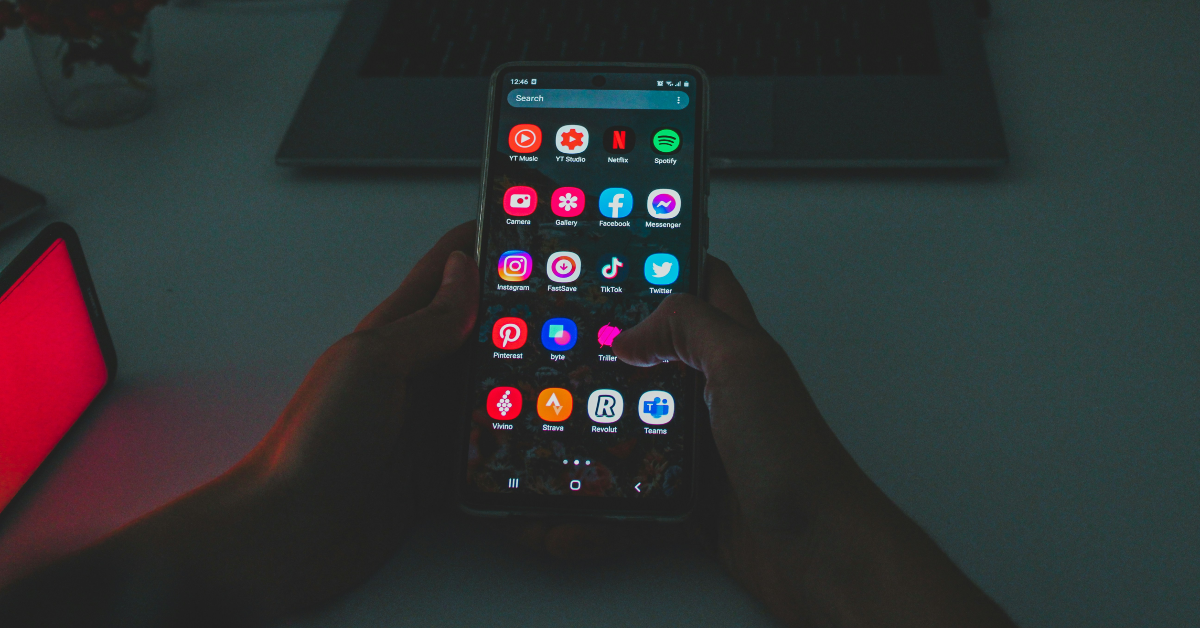
If your phone is running several apps in the background, it won’t charge as fast as you want it to. Go to the app switcher and clear all the apps before plugging in the charger. You will notice a visible rise in charging speed. You may also want to use device settings to check which app is draining the battery the most.
Turn off the phone
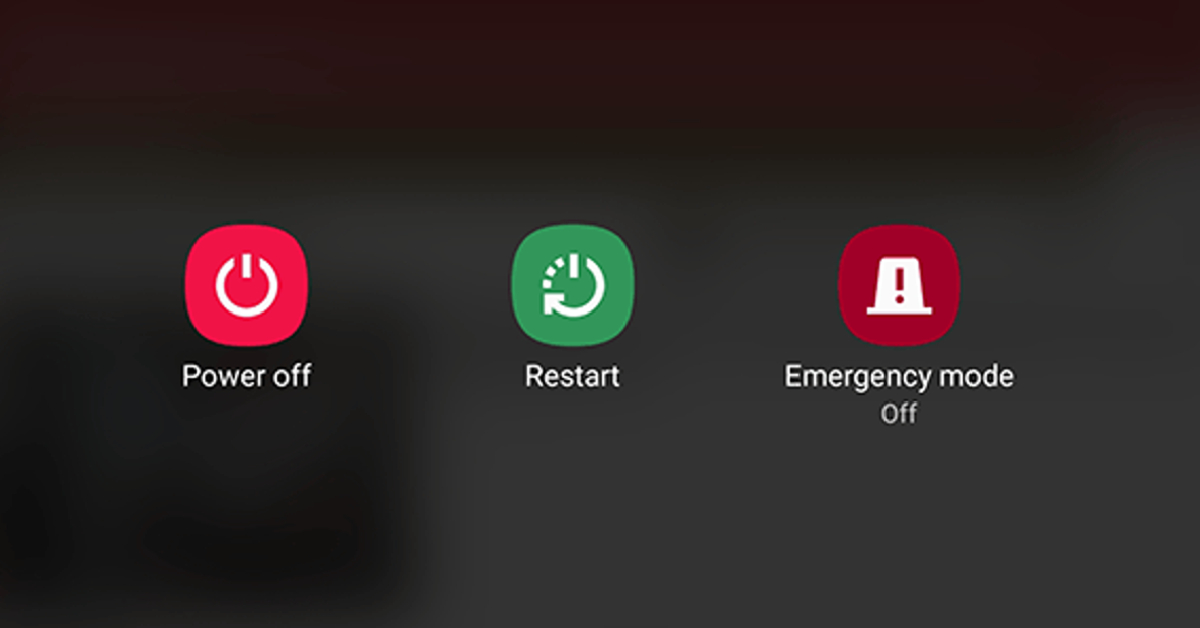
If you notice that your phone starts overheating when you put it on charge, you should consider turning it off. Sometimes, even the most basic background tasks, like network reception, can cause the internal temperature to rise while charging. This issue is more common on older phones. Turn off your phone before plugging in the charger to boost the speed and keep the heating issues in check.
Frequently Asked Questions (FAQs)
Why is my smartphone not charging faster?
Damaged cables, faulty adapters, low voltage, and worn-out batteries can cause your smartphone to charge at a slower pace.
How do I restore the charging speed of my phone?
Make sure the charger isn’t damaged and turn off your phone to charge it at a fast speed.
What is the 80/20 rule of charging?
The 80/20 rule applies to Li-ion smartphone batteries. It suggests that keeping the battery’s charge level between 20-80% is good for it in the long term. This means you need to plug out the charger when the phone hits an 80% charge and plug it back in when the battery level drops below 20%.
How do I check my phone’s charging speed?
Download the AccuBattery app, go to the Charging tab, and check the reading next to ‘Charge current’ to view the charging speed.
How do I enable fast charging on my phone?
Go to Settings>Battery and turn on the toggle switch next to ‘Fast charging’.
Read Also: Google Photos now lets you create memes of yourself: Here’s how
Final Thoughts
It is a good idea to check your battery’s health from device settings to accurately gauge the status of your device. If the health isn’t optimum, there isn’t much you can do to enhance the charging speed of your phone. If you have any questions, let us know in the comments!


