


Creating an image for an assignment or a presentation has never been easier. The integration of Copilot into Windows 11 allows you to summon the chatbot whenever you want and bring your ideas into reality. The image generation process is quick, taking no longer than a few seconds. If you don’t like what you see, you can always get Copilot to redo the image. So, without further ado, here’s how you can generate AI images using Copilot in Windows 11.
Read Also: Apple AirTag 2nd-gen tracker with Precision Finding and louder speaker launched
In This Article
Some tips to get the best out of Copilot
The images generated by Copilot can only be as good as your prompts. A well-defined prompt that addresses all the important aspects of image generation can lead to drastically different results than a simple one-line request. Here are some tips to keep in mind while coming up with a prompt.
- Focus on the subject: The subject of the image is the star of the show. For best results, you should clearly define its attributes, paying special attention to its positioning within the image, the movement you want to capture, and the general style.
- Fill up the image with context: Once you’ve taken care of the subject, you need to think about the context. This includes the background, the setting, the purpose of the subject in the image, and the general mood of the shot.
- Small details are important: The subject and the background form the basic structure of the prompt. If you want your image to stand out from the rest, supplement your prompt with as many details as you can. Remember, the little details matter. Visualise the image in your head and think about the minute stuff that would make it more realistic.
- Style: Last but not least, you need to decide the aesthetic you want for your image. You can choose to generate an oil painting, a hyperrealistic photograph, a popart image – the possibilities are endless.
Generate AI images using the Copilot app
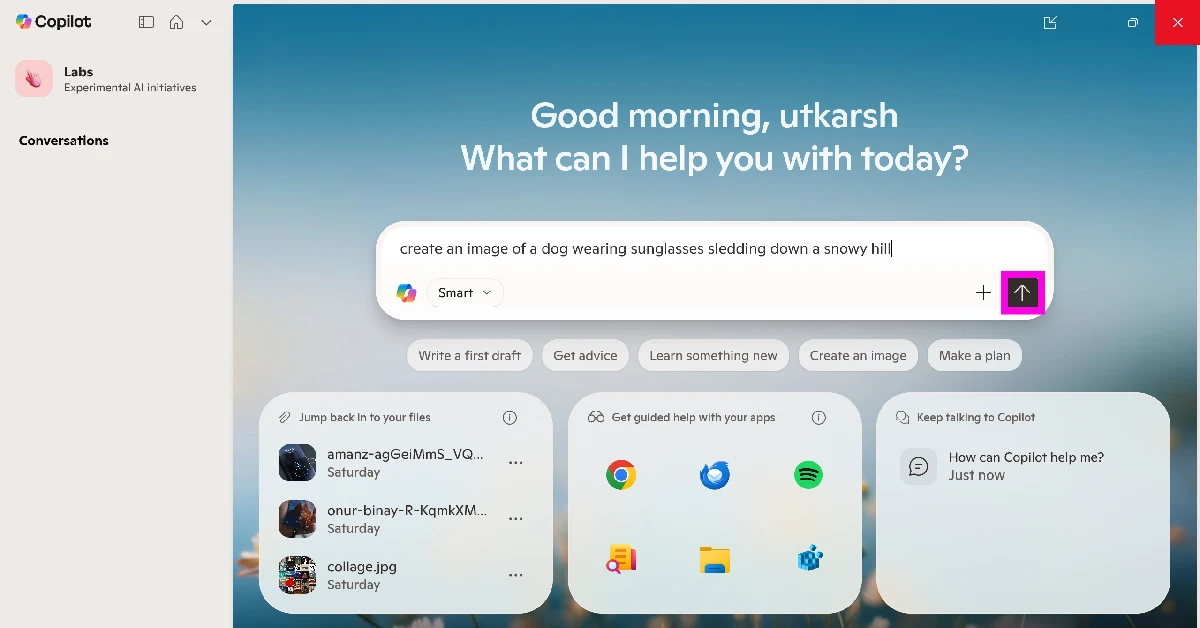
- Launch the Copilot app on your PC.
- Enter a prompt for your image in the text box. Make sure the prompt is prefixed with ‘Create an image’ or something similar.

- Hit the Send button.
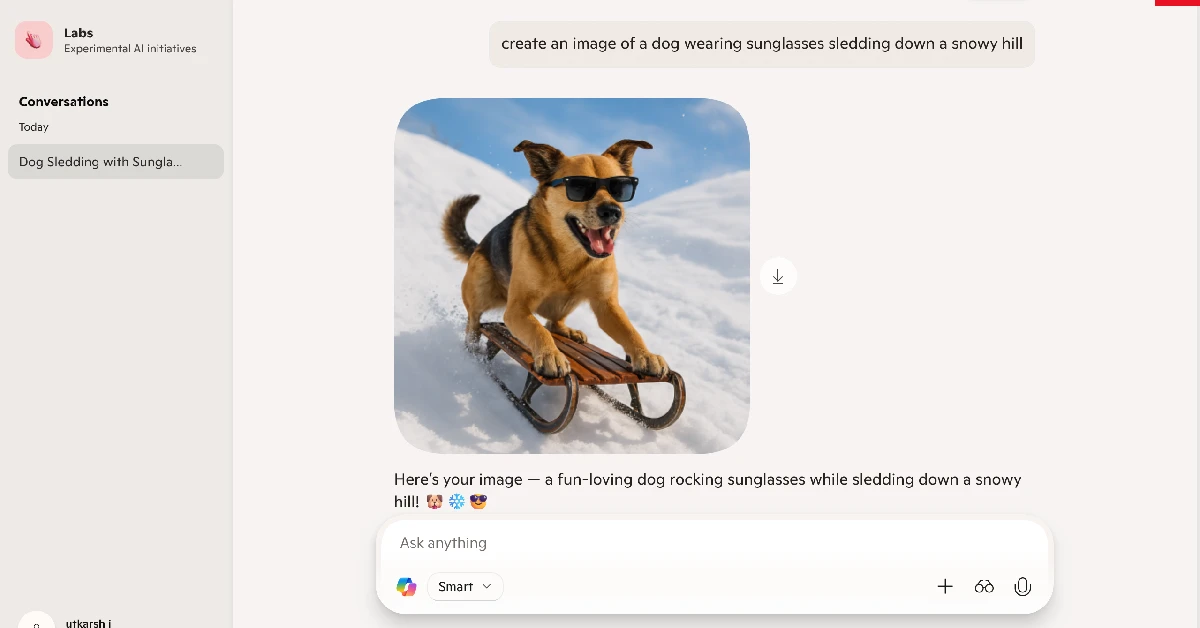
- Copilot will start creating an image based on your prompt. This process will take a few seconds.
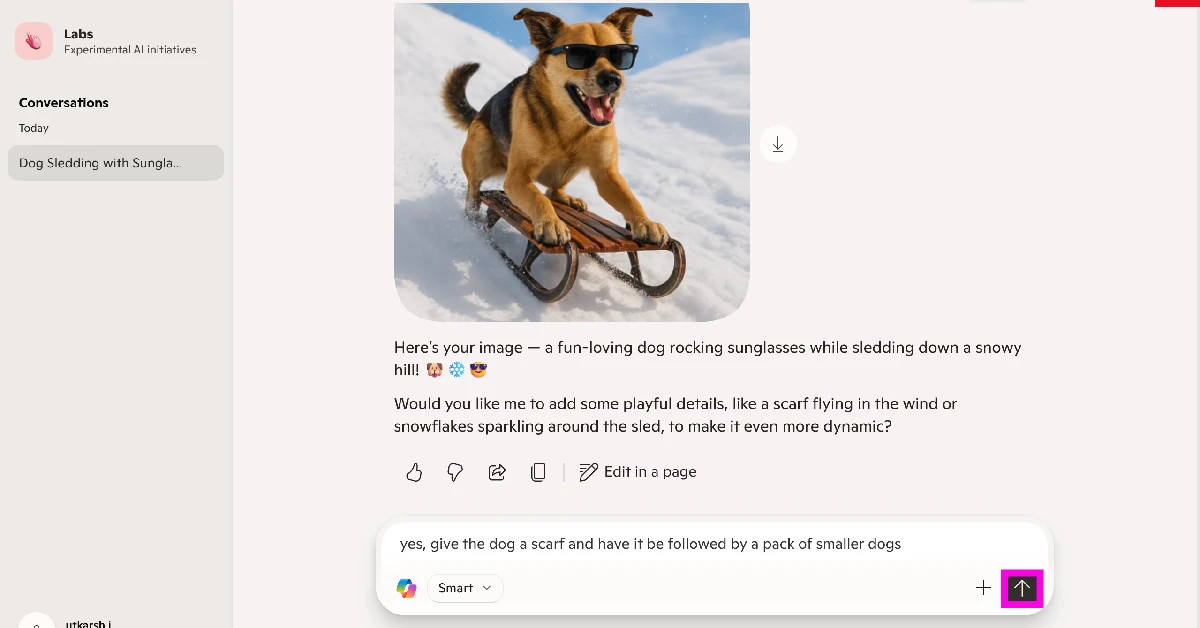
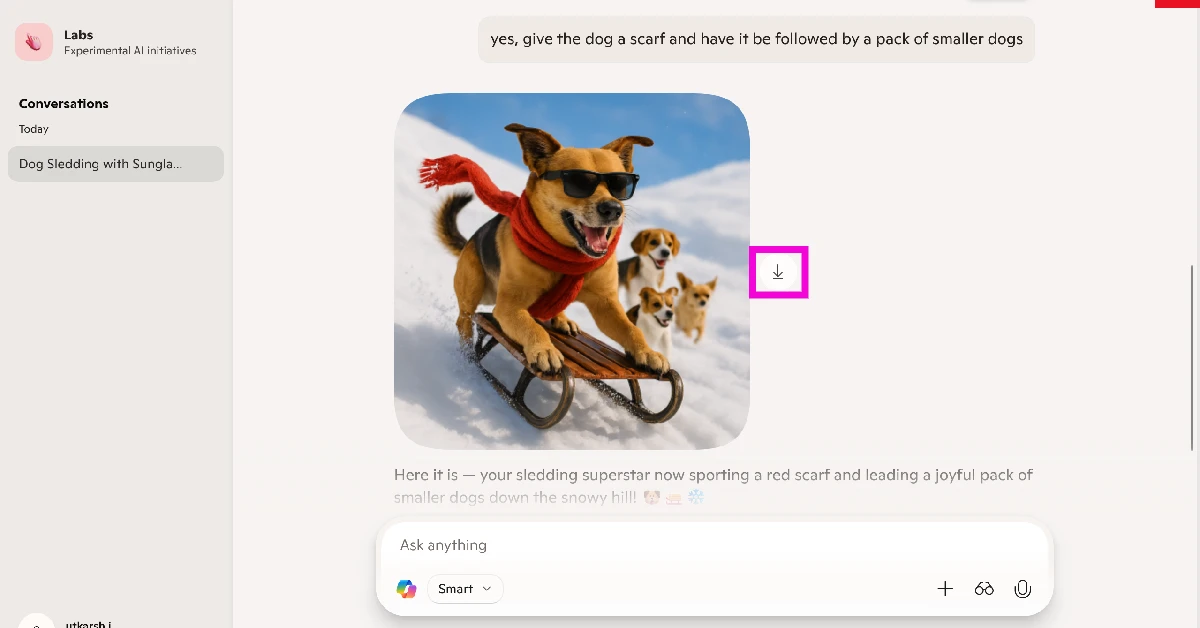
- Once the image has been generated, click on it to expand it. You can send a follow-up prompt to add more stuff or make changes to the image.
- Hit the arrow icon to download the image on your PC.
Generate AI images using Copilot in Microsoft Word
- Launch Microsoft Word on your PC.
- Open a document.
- Move your cursor to the place where you want to insert the image.
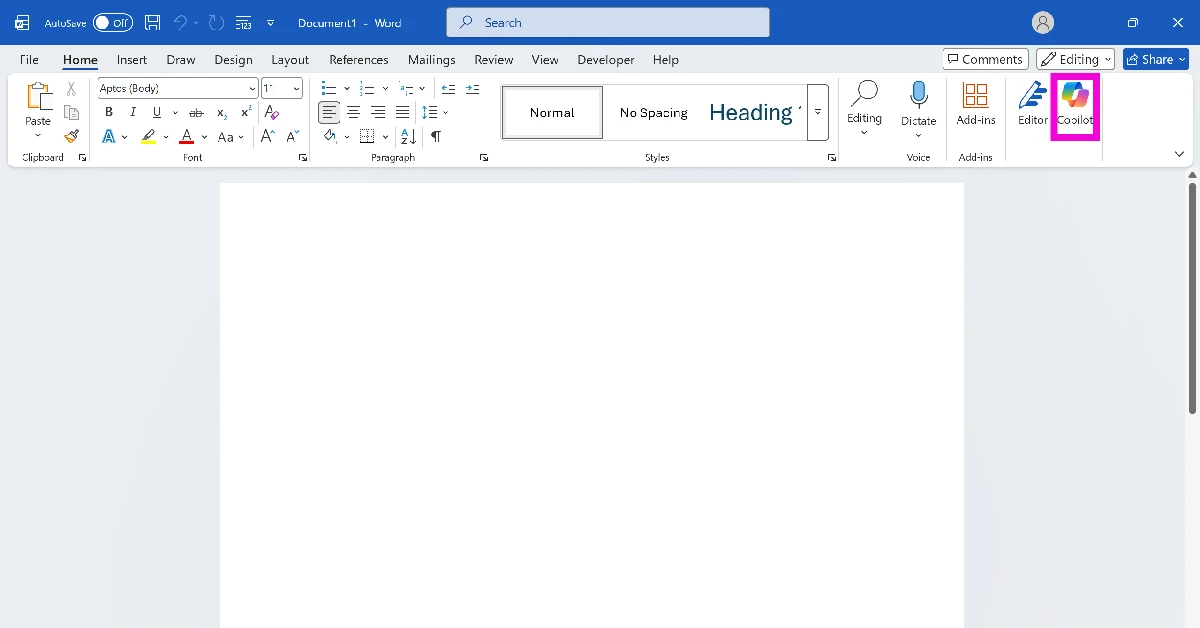
- Select Copilot from the toolbar at the top.
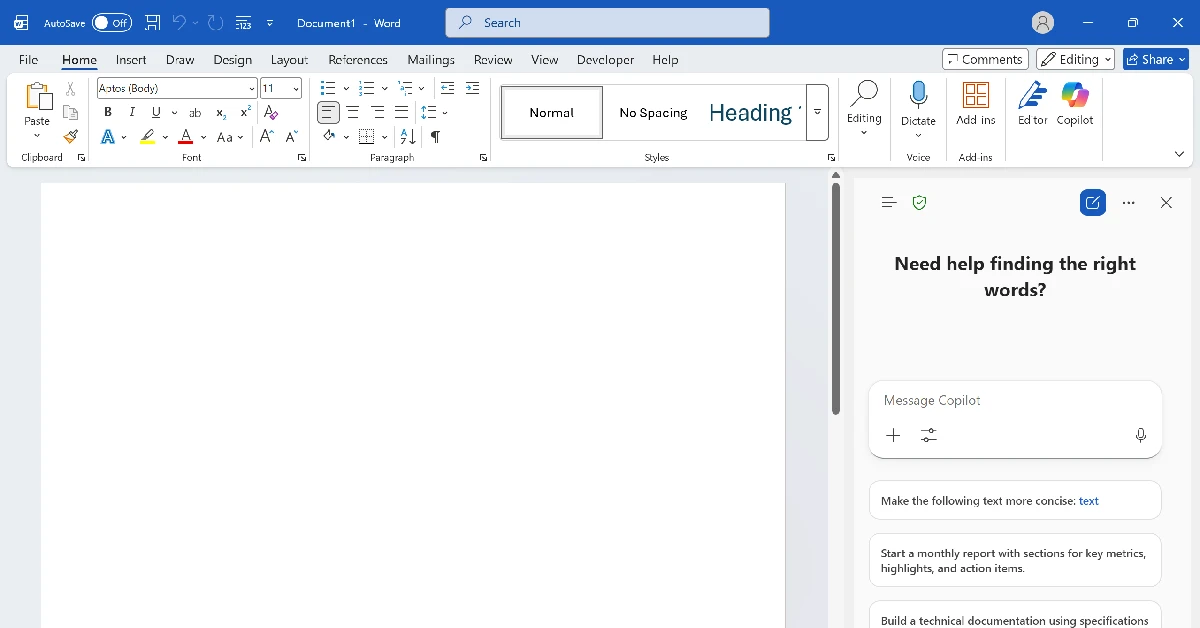
- Copilot will open in a pane on the right side of the screen.
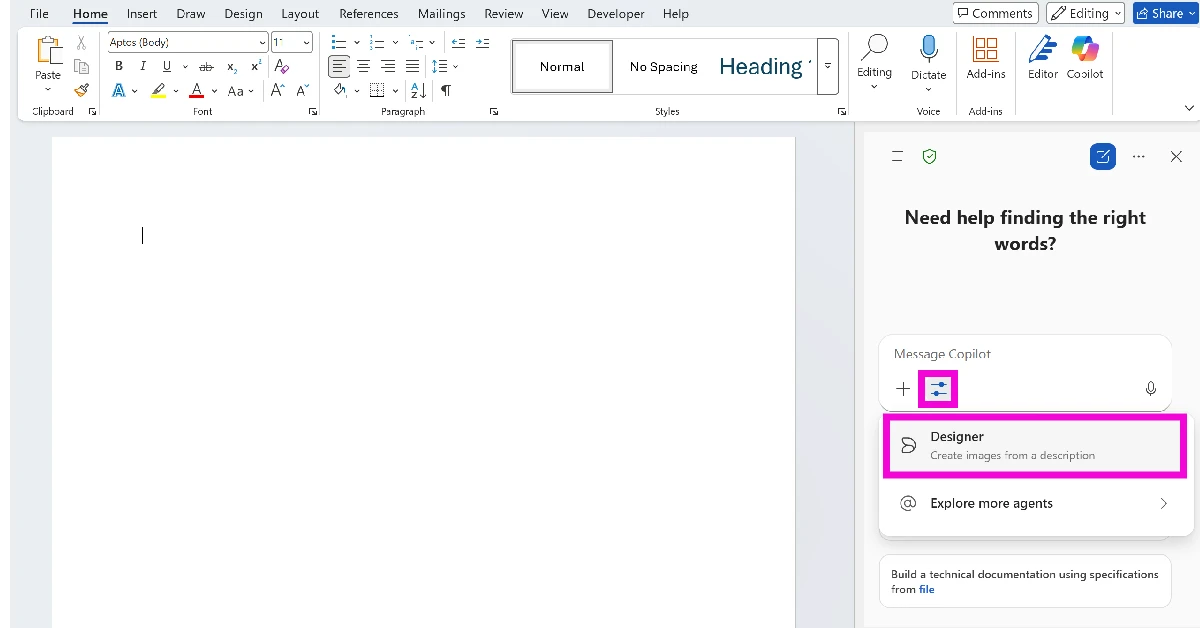
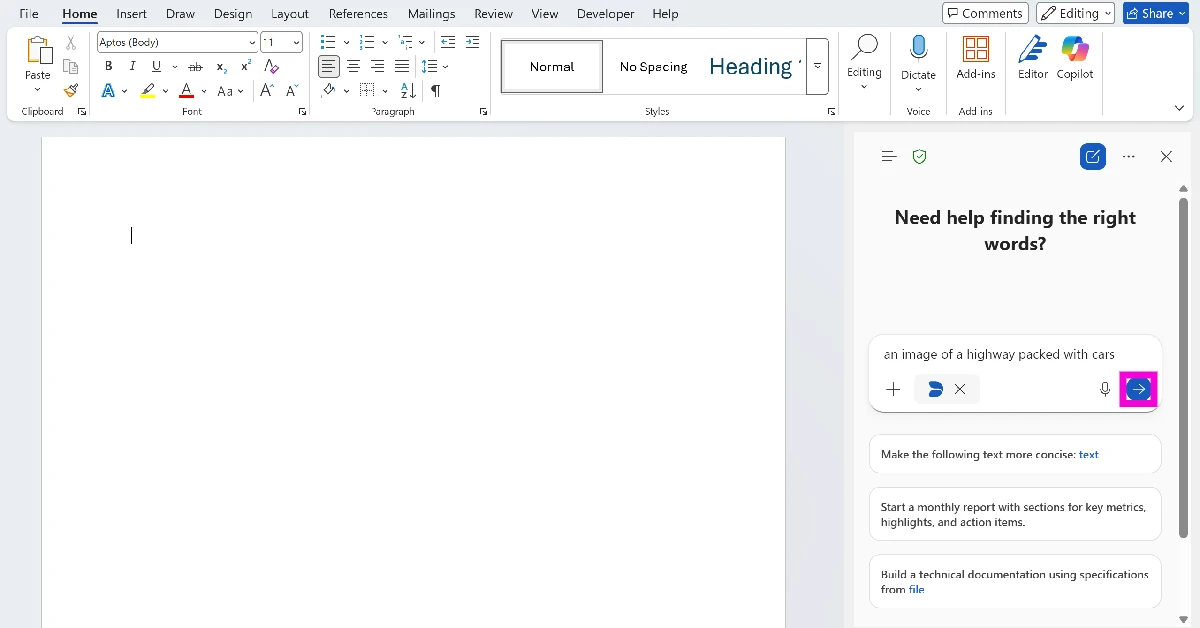
- Hit the filter icon below the text box and select Designer.
- Type a prompt for your image and hit Enter.
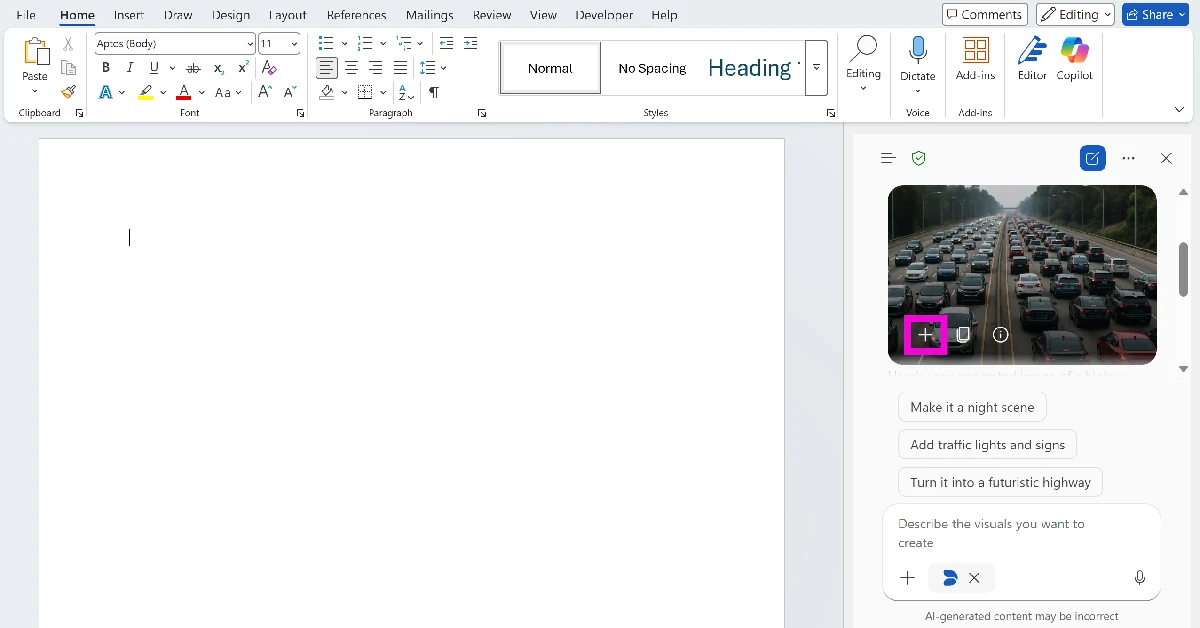
- Once the image has been generated, click the plus icon to insert it into the document.
Frequently Asked Questions (FAQs)
How do I generate an image in Copilot?
Launch the Copilot app, type ‘Create an image…’ followed by your prompt in the text box and hit Enter. Once the image is generated, you can add a follow-up prompt to tweak it or add new stuff to it. Hit the arrow icon to download it on your device.
Can Copilot create images in Word?
Yes, the Copilot plugin can generate images in Word. Select it from the toolbar at the top, then hit the filter icon and select ‘Designer’. Type the prompt for the image in the text box and hit Enter. Once the image has generated, click the plus icon to insert it into the document.
How do I enable the ‘Hey Copilot’ voice command on my PC?
Launch the Copilot app, open the sidebar, click your profile picture, and go to settings. Scroll down to Voice Mode and turn on the toggle switch next to ‘Listen for ‘Hey, Copilot’ to start a conversation’.
How do I get Copilot to summarise a document?
Launch the Copilot app, hit the plus icon, click on upload, and select the document. Once the document has been uploaded, type ‘Summarise this file’ in the text box and hit Enter.
How do I remove Copilot from my PC?
Go to Settings>Apps>Installed apps, scroll down to Copilot, hit the ellipses, and select ‘Uninstall’.
Read Also: Top 7 ways to fix ‘Phone not charging at full speed’
Final Thoughts
If you don’t like the images generated by Copilot, you can use other AI tools like Google’s Nano Banana Pro, Midjourney, and ChatGPT. Don’t like Copilot in Word? Check out how you can remove it. If you have any questions, let us know in the comments!


