




WhatsApp’s latest feature drop has added a couple of interesting tools to make groups more efficient. One of the new features is ‘member tag’, a quick and efficient way to display your role in the group. This feature is being rolled out in a phased manner, so it may take some time to reach all users. Here’s a quick tutorial explaining how you can create a member tag for yourself in a WhatsApp group.
Read Also: Samsung Galaxy S26 series launching soon: Here’s everything we know so far
In This Article
What are member tags?
Member tags help users distinguish themselves in a large group chat. While the screen name displays the actual name of the user, member tags are designed to signify their role in the group. For example, if you’re in a group chat of a football team, you can set up a member tag that reflects your field position in the team. Similarly, in a work chat, it can display your role or division in the office.
While your screen name remains the same across all groups, member tags are group-specific. You can be the ‘goalkeeper’ in your football team’s group and the ‘manager’ in your work group. Member tags can only be set up by a user for themselves. The admin or other members cannot assign you a tag.
Create a member tag for yourself in a WhatsApp group chat
- Launch the WhatsApp Messenger on your phone.
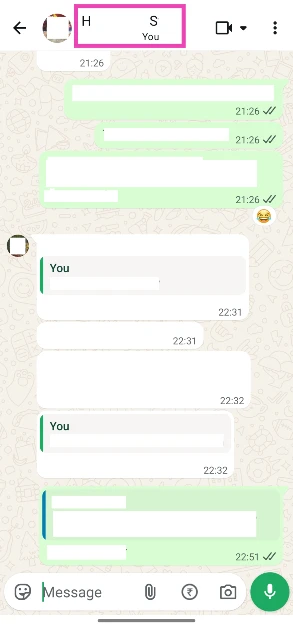
- Open a group.
- Tap the group name at the top of the screen.

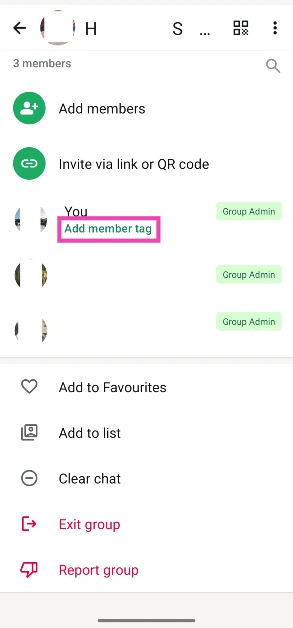
- Scroll down to your profile in the member list.
- Tap on Add a member tag.
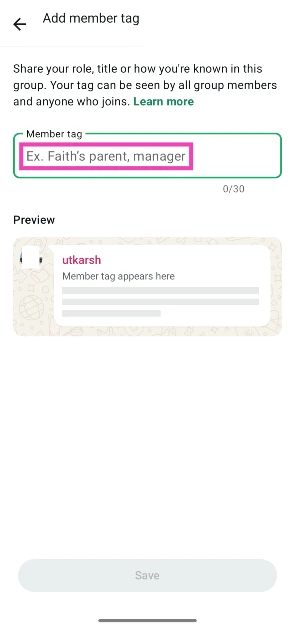
- Type a member tag for yourself.

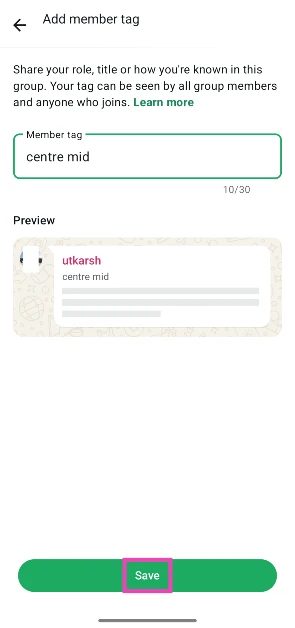
- Hit Save.
Frequently Asked Questions (FAQs)
What are member tags on WhatsApp?
Member tags let you assign a special screen name for yourself in a group. You can choose your member tag depending on your role in the group.
Can I set up different member tags for different groups?
Yes, you can create a different member tag for every group you’re in.
Does my member tag apply to all groups?
When you create a member tag in a group, it can only be seen by the members of that group. It does not carry over to other groups. You can set up identical tags in multiple group chats, but you will have to do that individually.
How do I create a member tag for myself in a WhatsApp group?
Go to the group, tap its name at the top of the screen, scroll down to your profile, tap on ‘Add a member tag’, type the name of the tag, and hit ‘Save’.
Can I create a member tag for other members of a group chat?
No, you can create a member tag only for yourself.
Read Also: Panasonic’s new 2026 Residential Air Conditioner launched in India
Final Thoughts
Apart from member tags, WhatsApp has also introduced sticker search and event reminders. If you aren’t able to see these features on your device, make sure that the messenger is updated to the latest version. If you have any questions, let us know in the comments!


