


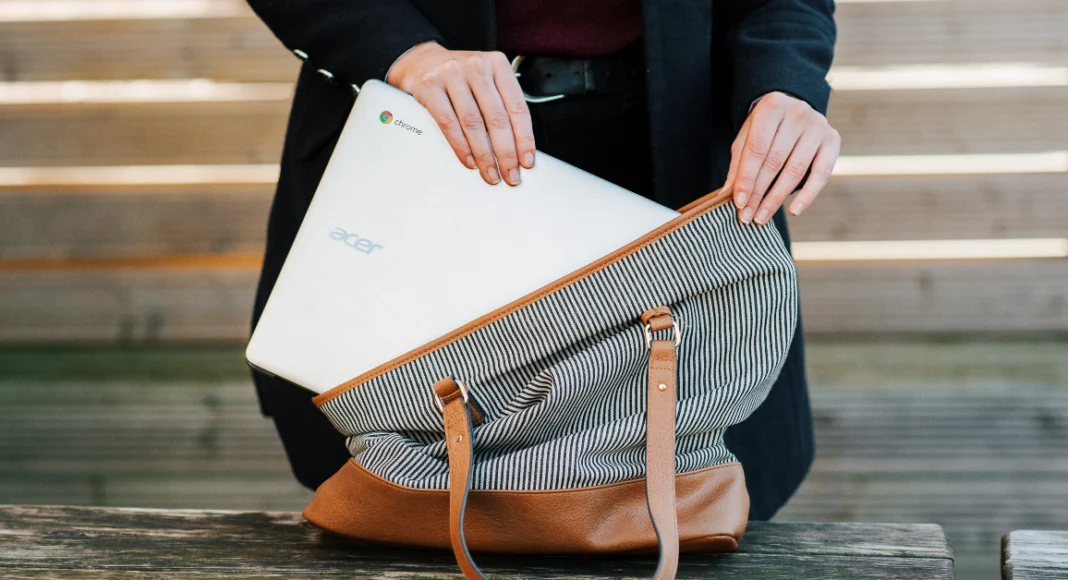
Chromebooks are compact, efficient, and affordable, which makes them very popular among students. However, an issue with an integral component of the device, like the touchpad, can bring your work to a halt. If you’re out of ideas on how to fix it, you’ve landed on the right page. Here are 8 quick ways to fix your Chromebook’s touchpad if it isn’t working.
Read Also: Last-minute surprise? Airtel wants your next top-up to come with a love note
In This Article
Why isn’t your Chromebook touchpad working?
Before you dive into the fixes, it is important to find out what’s causing the touchpad to malfunction. Here are some of the common culprits.
- Dirt collection on the touchpad
- Malfunctioning apps
- The touchpad was accidentally disabled
- The touchpad’s speed is too high
- Background software issues
- Outdated OS
- Hardware issues
Restart your Chromebook
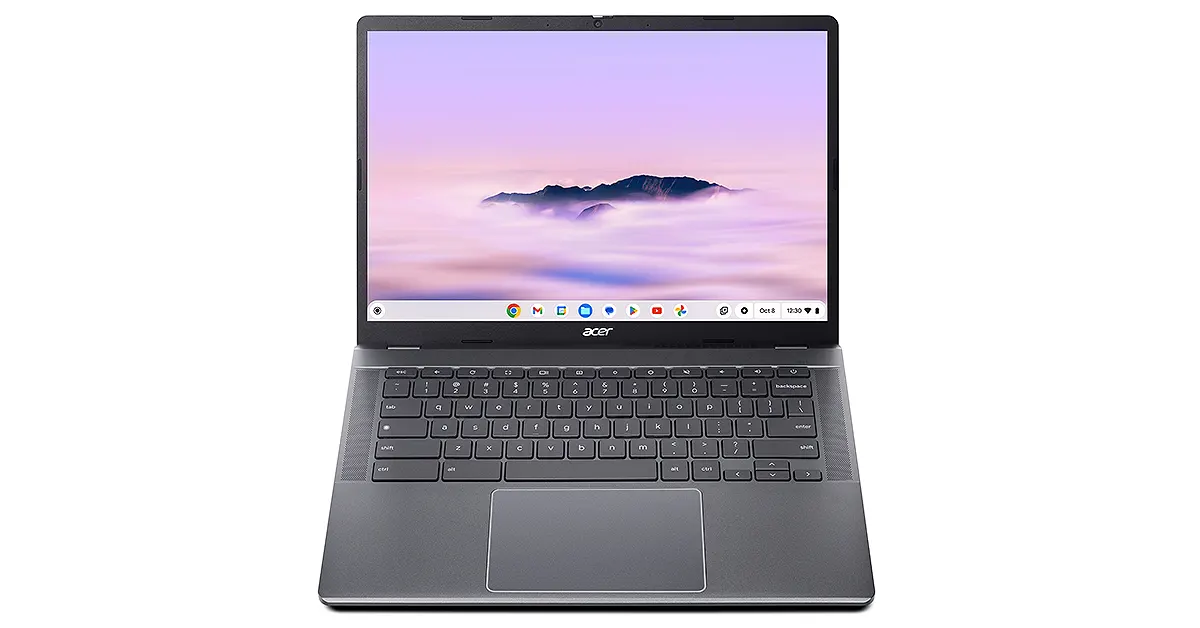
A quick restart can resolve the background issues that may be causing the touchpad on your Chromebook to malfunction. Here’s how you can go about it.
- Click the notification area in the bottom right corner of the screen.
- Hit the power icon next to ‘Sign out’.
- Wait for a few seconds.
- Press the power button on your Chromebook’s keyboard to restart it.
Clean the touchpad
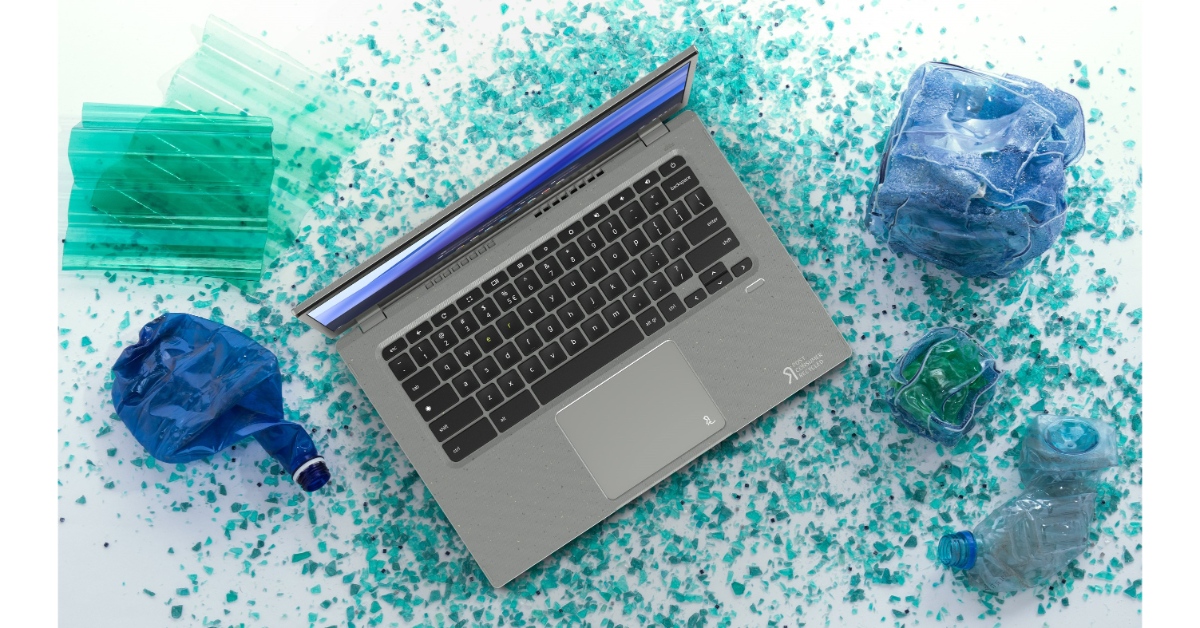
Over a period of time, dust and dirt can collect around the touchpad, rendering it unusable. Clean the touchpad using a clean cloth dipped in isopropyl alcohol. Make sure your Chromebook is turned off during the cleaning process. Blow air around the edges to release the dust that’s stuck under the trackpad. Tap it repeatedly to unsettle the stubborn dirt particles.
Enable the touchpad
It is possible that you may have accidentally disabled your Chromebook’s touchpad. Press Shift + Search + P to turn it back on. Alternatively, go to Settings>Device>Touchpad and turn on its toggle switch.
Press the Esc key several times
Pressing the Esc key several times pauses the current page from loading. If the page is causing the trackpad to malfunction, this method will let you confirm that that’s the case. If the trackpad remains unusable, move on to other fixes.
Change the touchpad’s speed
Setting the touchpad’s speed at its maximum level can cause it to stop working. Select a moderate speed level to return to normalcy. Go to Settings>Device>Touchpad and use the speed slider to dial down the level.
Enable tap-to-click
If you’re not able to select an item by double-tapping the touchpad, it means the tap-to-click feature is disabled on your Chromebook. Go to Settings>Device>Touchpad and turn on the toggle switch next to ‘Tap-to-click’.
Update your Chromebook to its latest software version

- Go to Settings.
- Click on About ChromeOS.
- Select Check for updates.
- The update will be downloaded automatically. Restart your device to finish the installation process.
Factory reset your Chromebook

If the methods mentioned above did not work, you can try factory-resetting your Chromebook as a last-ditch measure. This will clear the contents of the device, so make sure you create a backup in advance.
- Go to Settings.
- Select Advanced from the sidebar.
- Click on Reset settings.
- Hit Reset.
Frequently Asked Questions (FAQs)
How do I enable the touchpad on my Chromebook?
Press Shift + Search + P to enable your Chromebook’s touchpad.
How do I change the speed of my Chromebook touchpad?
Go to Settings>Device>Touchpad and use the slider to change the speed.
How do I clean my Chromebook’s touchpad?
Blow air through the edges of the touchpad to get out the dirt and clean it using a microfibre cloth dipped in isopropyl alcohol.
How do I delete an app on my Chromebook?
Go to the app launcher, right-click an app, and click on ‘Uninstall’ to remove it from your device.
How do I factory reset my Chromebook?
Go to Settings>Advanced>Reset settings and hit ‘Reset’.
Read Also: How to translate song lyrics on Spotify
Final Thoughts
You should only factory reset your Chromebook when you’ve exhausted all other methods and can’t resolve the issue at hand. If a factory reset doesn’t help either, take your device to an authorised service centre. If you have any questions, let us know in the comments!


