


Google has made it easier to move to Gemini from any other AI assistant. In its latest update, Gemini has been equipped with switching tools that can transfer your memories, context, and chat history from other AI apps. If the sheer volume of past conversations and personalised preferences has been keeping you from moving to Google’s AI assistant, now you can make the switch in just a few minutes. Here’s how you can import your ChatGPT memory and chat history to Gemini.
Read Also: TECNO Spark 50 5G with military grade durability, 120Hz display launched in India
In This Article
Before you begin
Starting over from scratch is the biggest hurdle when switching to a new AI assistant. If you’ve spent a significant amount of time with your current AI app, it is very likely versed with your preferences, relationships, interests, work projects, and other kinds of personal information. Priming a new AI assistant to suit your requirements can be a time-consuming task.
This is where Gemini’s new switching tool comes in. It gives you 2 import options – Memory and Chat history. The former simply extracts key information about you from your current AI assistant. This includes demographic information, interests and preferences, dated events, explicit rules and instructions, and more. Meanwhile, the latter imports all of your chat history in its entirety for a more comprehensive switch.
Import your ChatGPT memory to Gemini
- Go to Gemini’s web page and log in to your account.
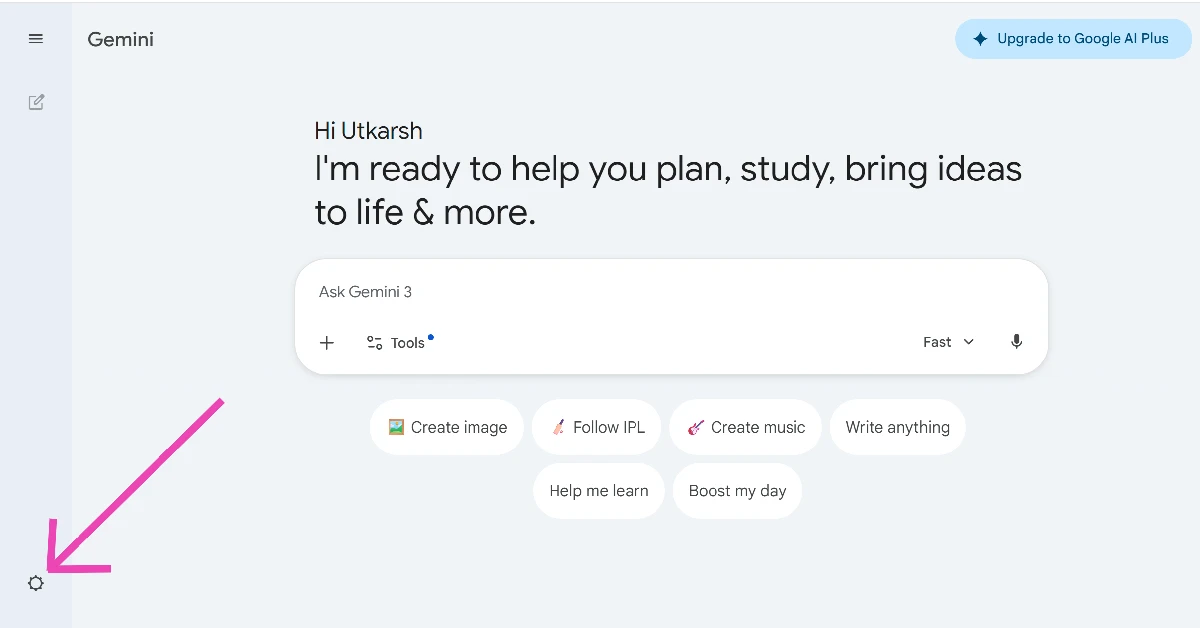
- Click the cog wheel icon in the bottom left corner of the screen.

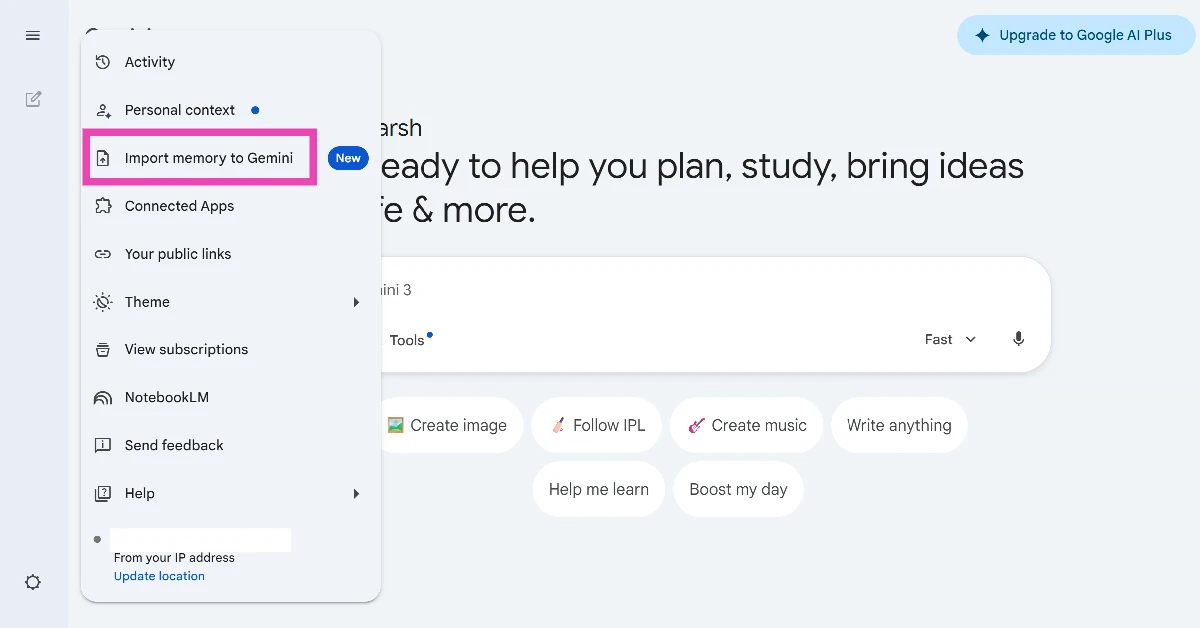
- Click on Import memory to Gemini.
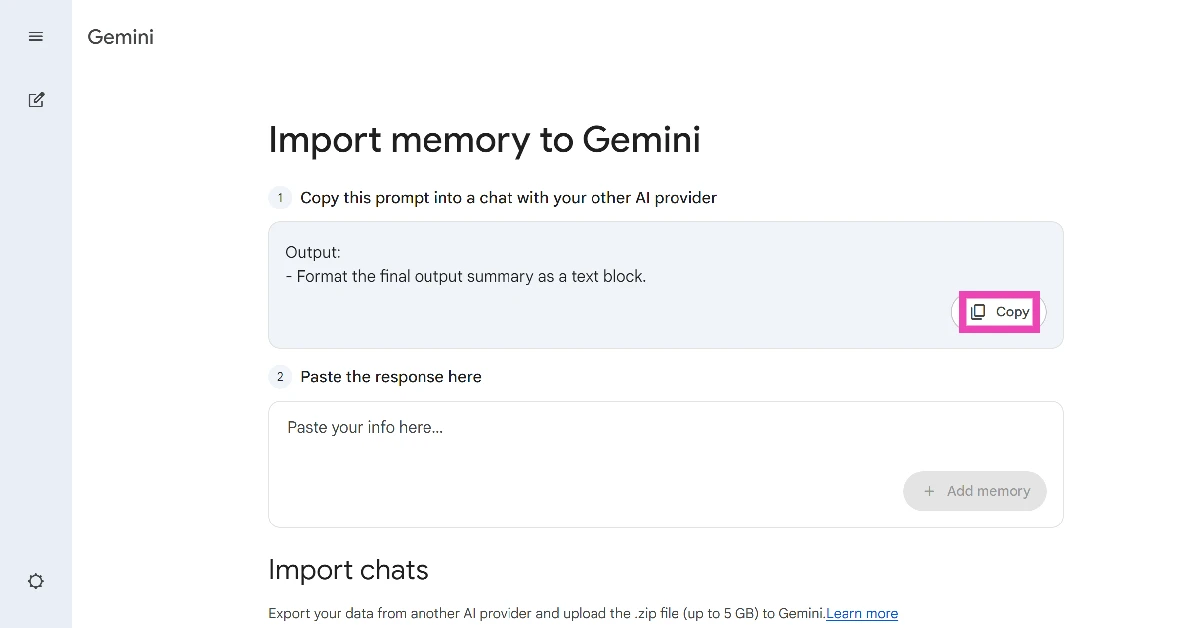
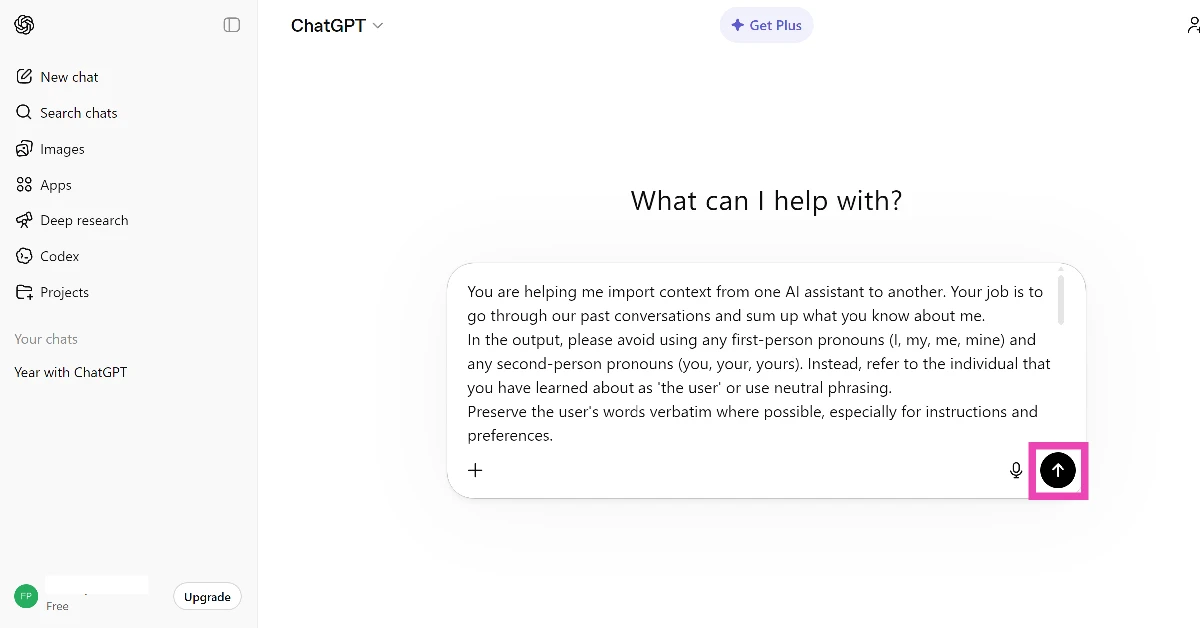
- Copy the prompt suggested by Gemini.
- Send the prompt to ChatGPT.
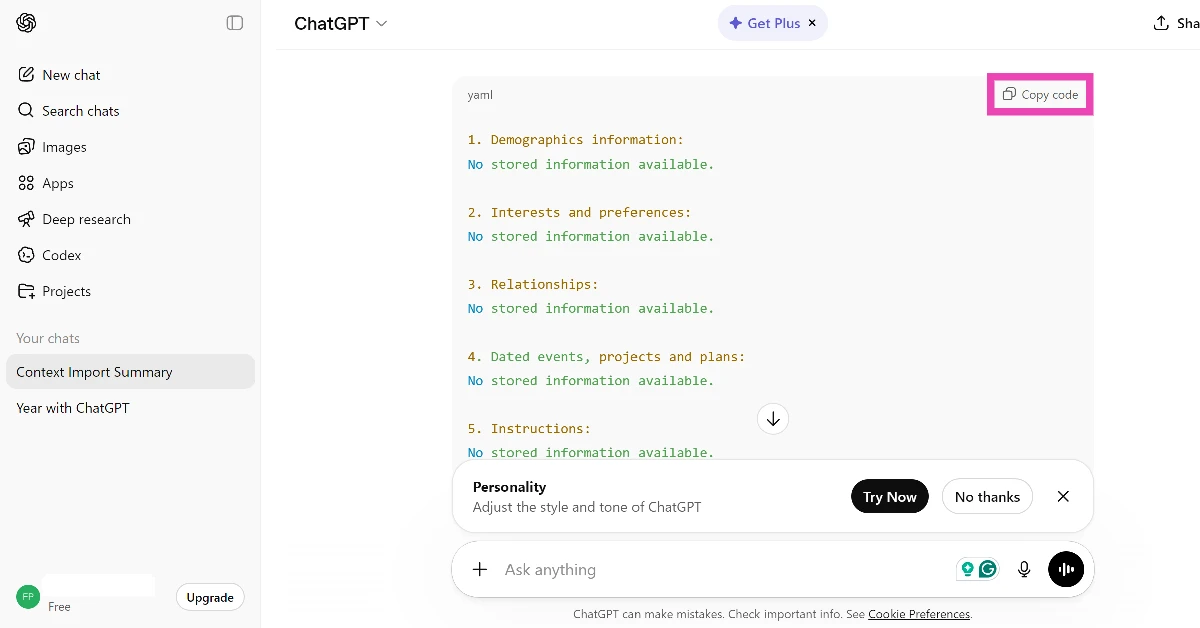
- Copy the response from the chatbot.
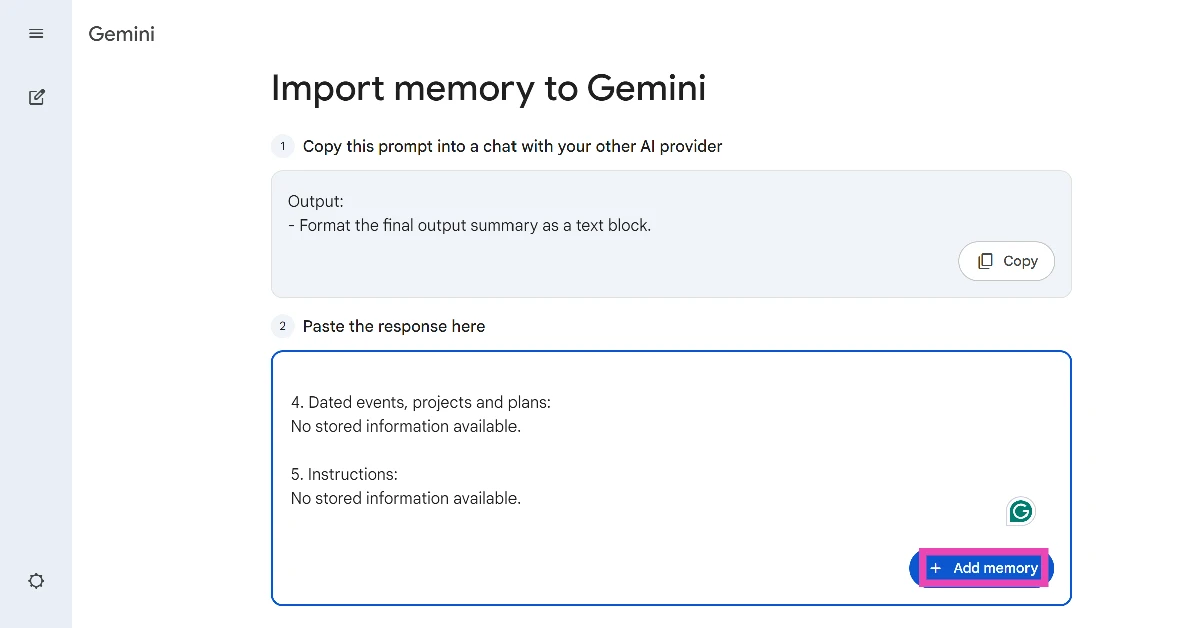
- Go back to Gemini and paste the response in the text field.
- Hit Add memory.
Import your ChatGPT chat history to Gemini
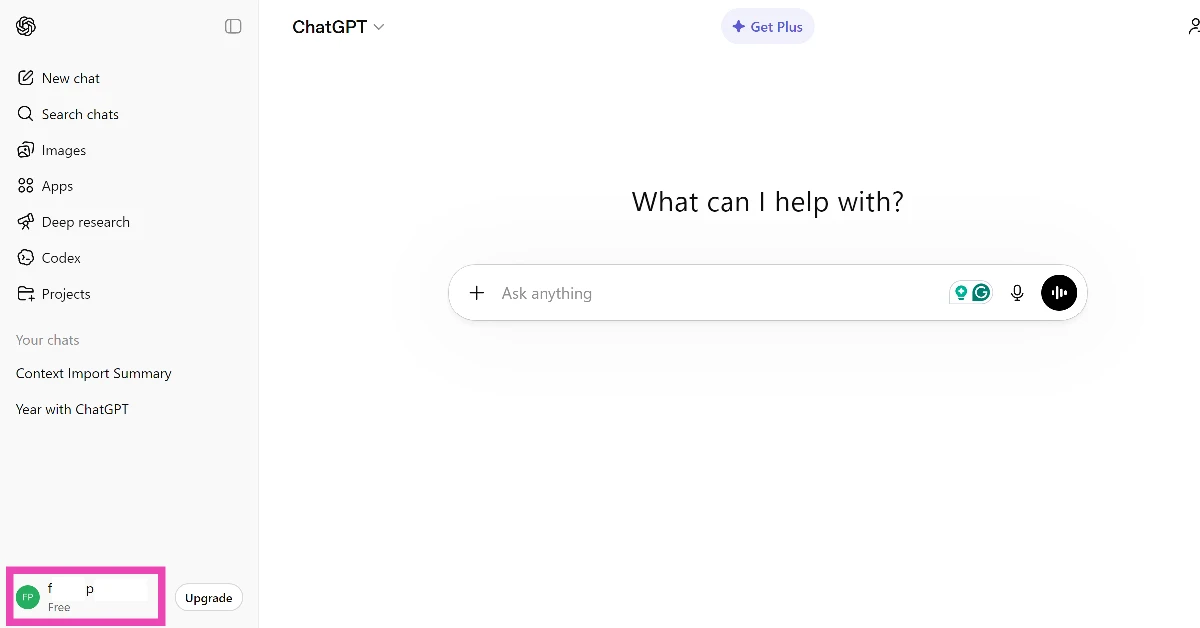
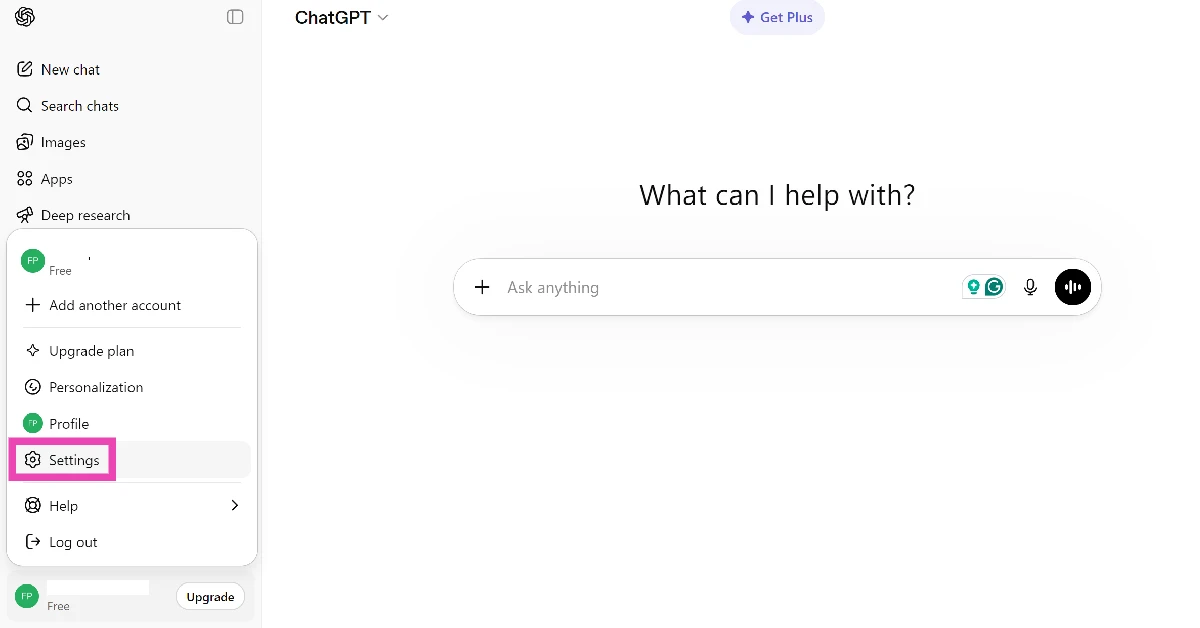
- Go to ChatGPT’s web page and click your screen name in the bottom left corner of the screen.
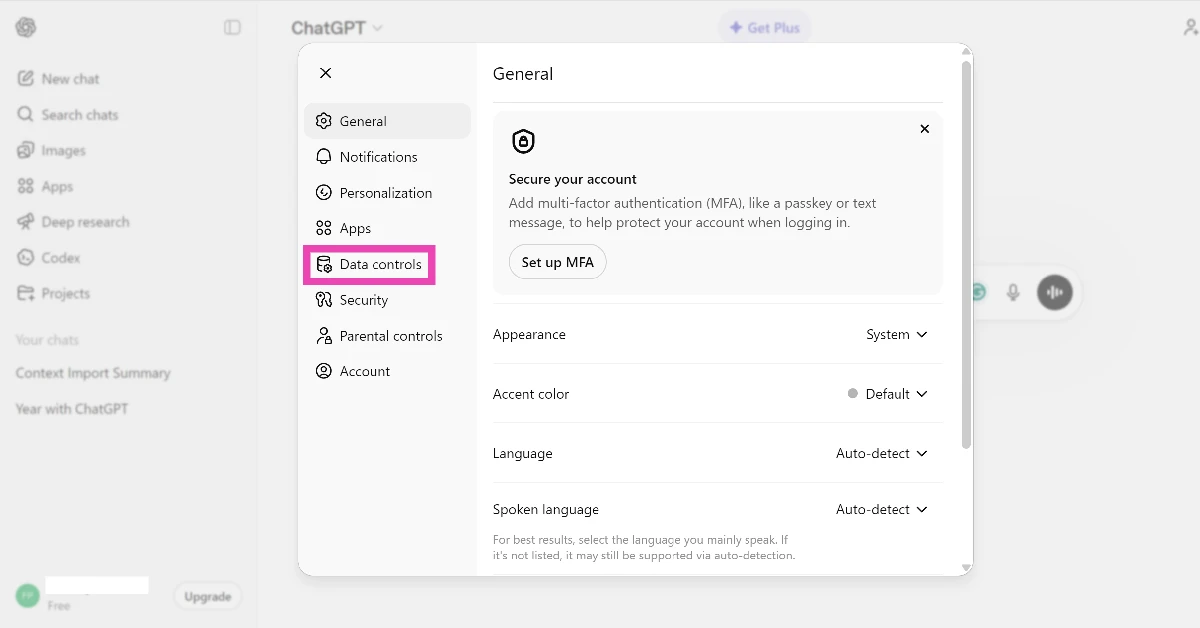
- Click on Settings.
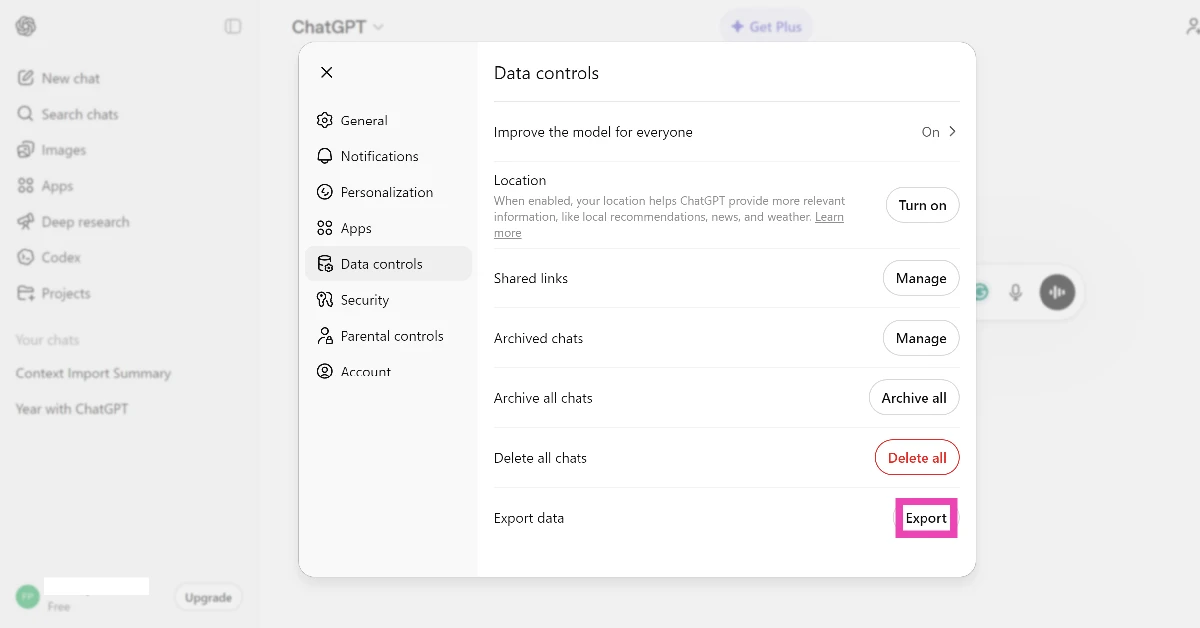
- Switch to the Data controls tab.
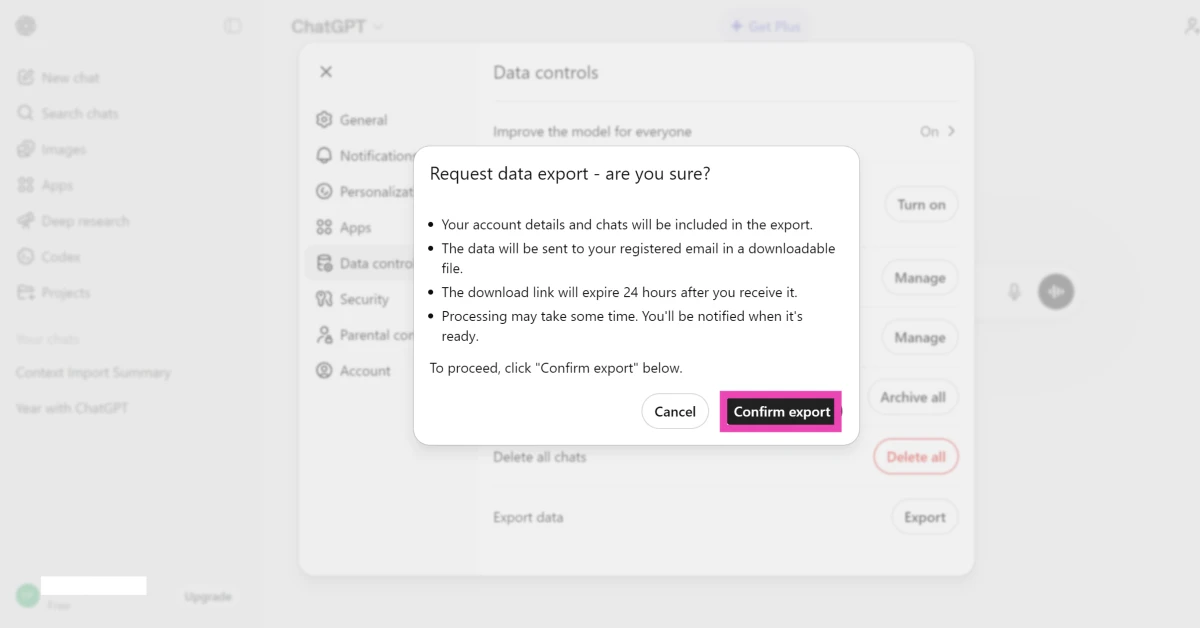
- Hit Export next to Export data.
- Click on Confirm export.
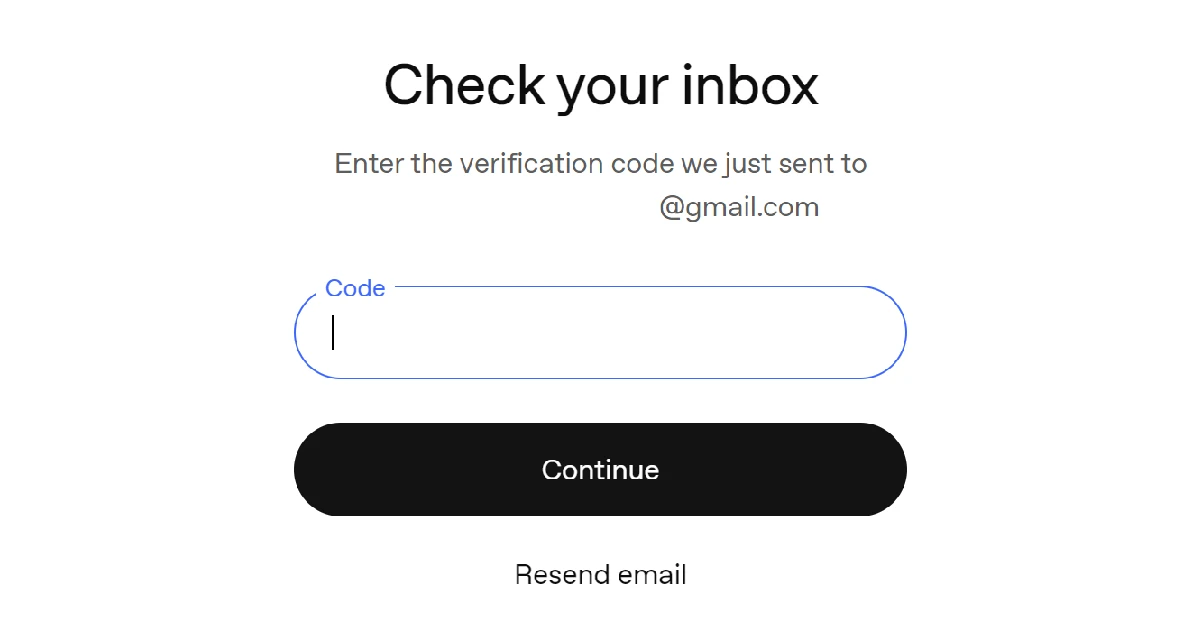
- Go to your registered email’s inbox and copy the verification code sent by ChatGPT.
- Enter the verification code in the text field and hit Continue.
- The data will be sent to your email in a downloadable ZIP file. Download the file.
- Go to Gemini’s web page and log in to your account.
- Click the cog wheel icon in the bottom left corner of the screen.
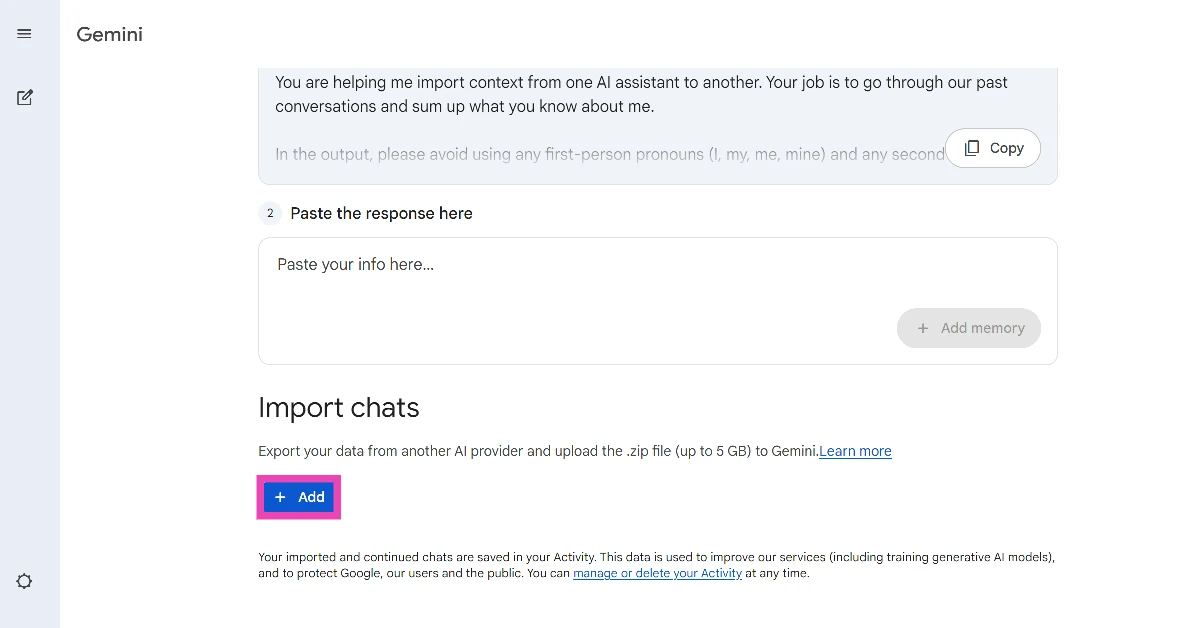
- Click on Import memory to Gemini.
- Hit the Add button under Import chats.
- Select the ZIP file sent by ChatGPT. The file size should not exceed 5GB.
- Once your chat history has been uploaded to Gemini, you can continue with your conversations.
Frequently Asked Questions (FAQs)
Can I move my ChatGPT data to Gemini?
Gemini allows you to import your memory and chat history from ChatGPT and other AI chatbots.
How do I move my ChatGPT memory to Gemini?
Go to Gemini>Settings>Import memory to Gemini, copy the prompt on the screen and send it to ChatGPT, then paste the response in Gemini. Hit ‘Add memory’.
How do I transfer my entire chat history from ChatGPT to Gemini?
Go to ChatGPT>Settings>Data control>Export and request your chat history file. Go to Gemini>Settings>Input memory to Gemini>Import Chats>Add and upload the file.
How do I open a temporary chat in Gemini?
Go to Gemini, expand the sidebar, and click the hollow chat bubble icon next to ‘New chat’ to open a temporary chat.
How do I switch to Google Assistant from Gemini on my phone?
Launch the Gemini app, tap your profile picture in the top right corner of the screen, and tap on ‘Switch to Google Assistant’.
Read Also: Nothing Phone (4a) Review: Smart design, smarter performance
Final Thoughts
In order to import your chat history from ChatGPT, you will need to turn on the ‘Past chats’ settings in Gemini. Once your history has been transferred, you can pick up where you left off on ChatGPT. If you have any questions, let us know in the comments!


