


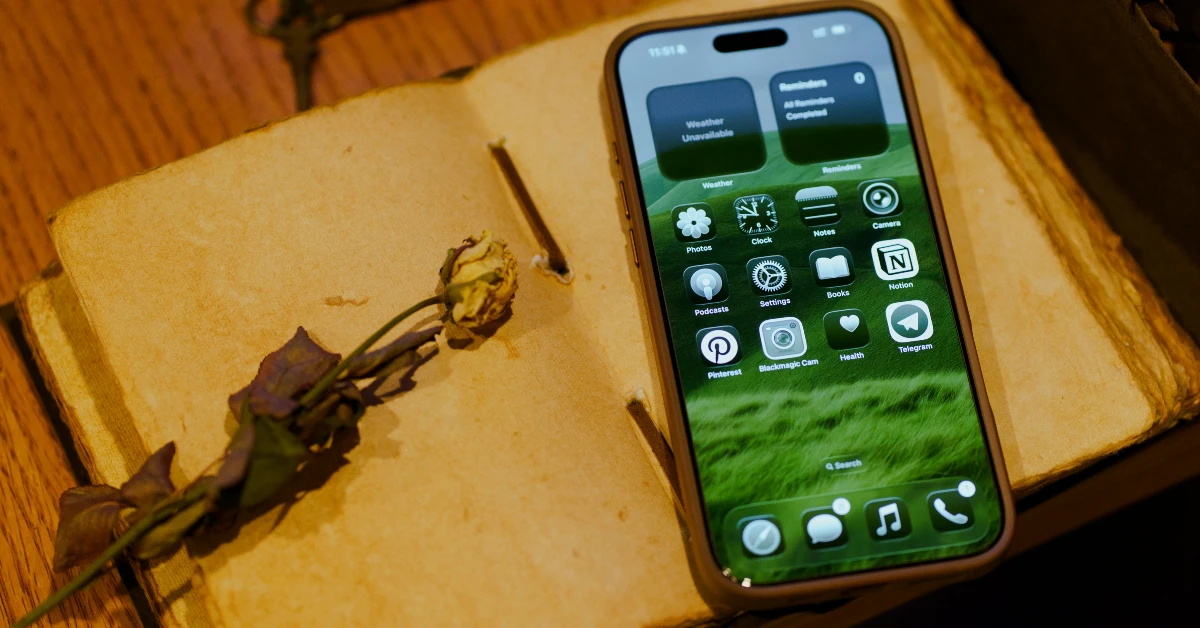
Last year, Apple built upon the ‘background sounds’ feature by adding Ambient Music tiles and widgets for the Control Centre and lock screen. This feature could also be accessed using the Action button. Ever since its introduction, users have been demanding home screen widgets as well. Apple has finally listened to the requests and added 2 new Ambient Music home page widgets on the latest iOS 26.4 update for the iPhone.
Read Also: How to Disable Audio Zoom on iPhone
In This Article
Before you begin
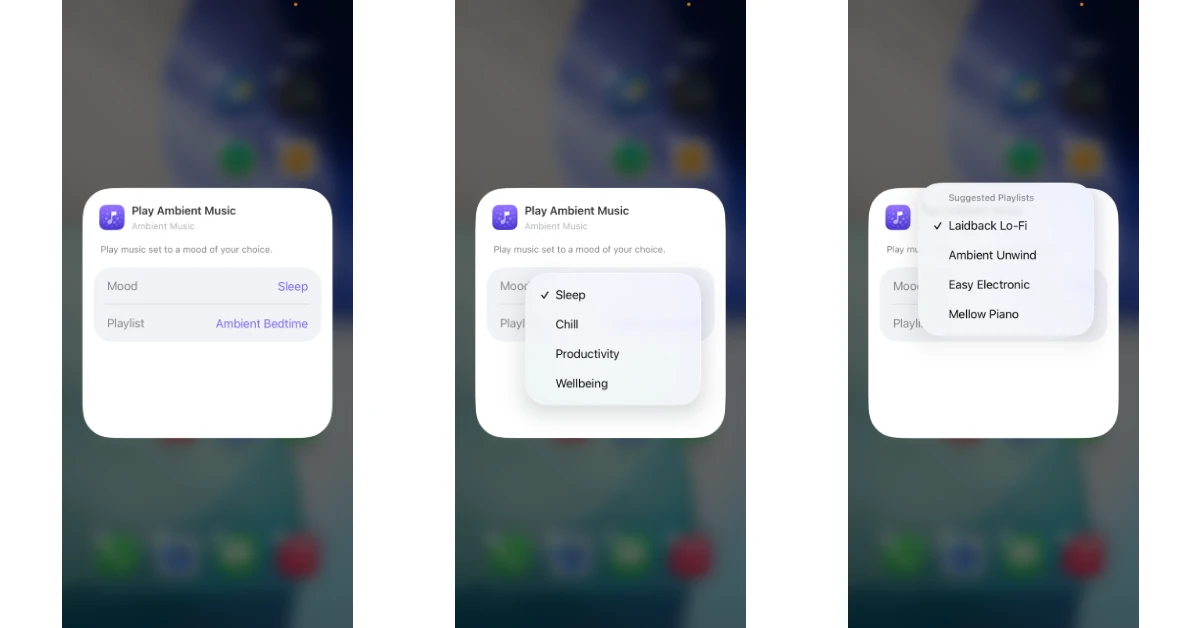
The Ambient Music widget uses Apple Music’s library for its audio content. However, you don’t need to be an Apple Music subscriber to use this widget. You can choose to play audio from 4 different moods, which in turn have 4 playlists each.
Sleep
- Ambient Bedtime
- Restful Notes
- Lo-Fi Shooze
- Dream Journey
Chill
- Laidback Lo-Fi
- Ambient Unwind
- Easy Electronic
- Mellow Piano
Productivity
- Momentum Beats
- Ambient Focus
- Lo-Fi Study
- Piano Flow
Wellbeing
- Calm Piano
- Ambient Meditation
- Rhythm & Breath
- Serenity Sounds
Add the Ambient Music widget to your iPhone’s home page
- Unlock your iPhone and long-press any empty spot on the home screen.
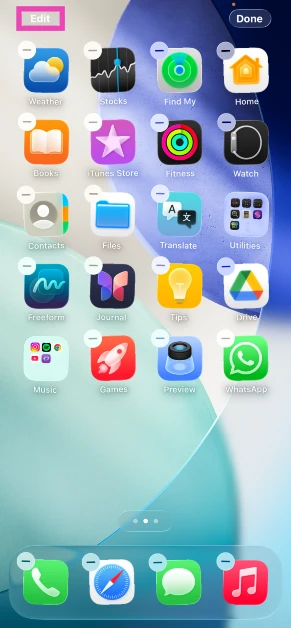
- Hit the Edit button in the top left corner of the screen.

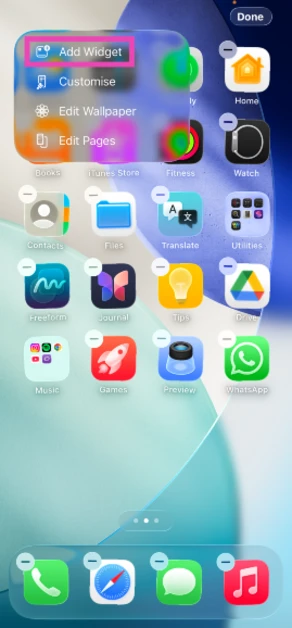
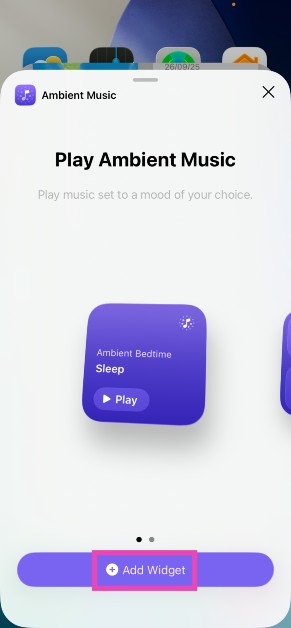
- Tap on Add Widget.

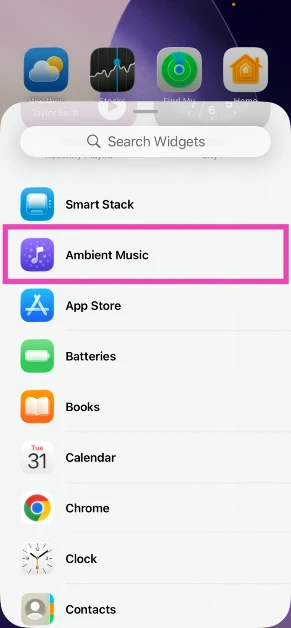
- Scroll down and tap on Ambient Music.
- Choose one of the two available widgets.
- Choose your preferred Mood and Playlist.

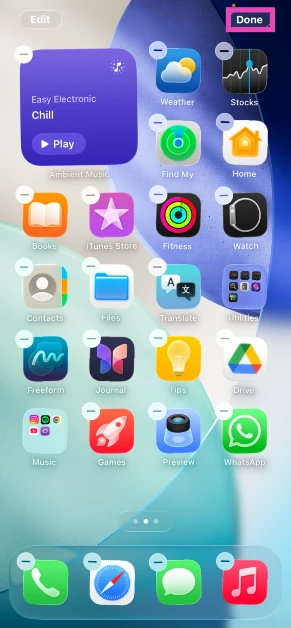
- Tap anywhere outside the widget.
- Hit Done.
Frequently Asked Questions (FAQs)
How do I add the Ambient Music tile to my iPhone’s Control Centre?
Long-press an empty spot on the Control Centre, tap on ‘Add a Control’ and select Ambient Music.
How do I add the Ambient Music widget to my iPhone’s lock screen?
Long-press the lock screen wallpaper, tap ‘Customise’, select ‘Lock Screen’, hit the minus icon on a control to remove it, tap the plus icon, and select an ambient music control. Tap the ambient music control to select a playlist, and hit ‘Done’.
Where does the Ambient Music widget get its playlists?
The Ambient Music widget relies on Apple Music for all of its tracks and playlists.
Do I need an Apple Music subscription to use the Ambient Music widget on my iPhone?
No, you don’t need an Apple Music subscription to use the Ambient Music widget.
How do I add the Ambient Music widget to the iPhone’s home page?
Tap and hold an empty spot on your iPhone’s home page, hit the Edit button in the top left corner of the screen, tap on ‘Add Widget’, choose ‘Ambient Music’, select a widget type, set your preferred mood and playlist, and hit ‘Done’.
Read Also: YouTube adds media controls to Android Auto: Details
Final Thoughts
If you can’t view this widget in the home screen editor, make sure your iPhone is updated to iOS 26.4. Go to Settings>General>Software Update to install the new update. Got any questions? Let us know in the comments!


