



Key Takeaways
- OpenAI introduced a new feature allowing users to lock private chats in a separate folder across Free, Plus, Pro, Business, Enterprise, and Edu subscriptions.
- The feature requires setting up a 4-digit PIN and also supports phone biometric authentication services for accessing locked chats.
- Locking chats removes them from the sidebar, but does not provide end-to-end encryption or affect current memory and data privacy regulations.
OpenAI has added a feature for ChatGPT that lets you lock your private chats in a separate folder. This feature is available across Free, Plus, Pro, Business, Enterprise, and Edu subscriptions. It requires setting up a 4-digit PIN for the secure folder. You can also use your phone’s biometric authentication services to gain access to the locked chats. Here’s how you can lock a chat in ChatGPT.
Read Also: Google Gemini introduced new tools for small businesses
In This Article
Before you begin
Locking a chat on ChatGPT takes it out of the sidebar, but it does not circumvent any of the regulations regarding data privacy. Your locked chats are not end-to-end encrypted. Moving a conversation to the locked folder does not have any effect on the current memory either.
You can use this feature as a free user, but it does not work for local work chats. Cloud-based discussions that use Codex cannot be locked either. The feature is also unavailable in ChatGPT for healthcare. We recommend locking the ChatGPT app altogether if you want to secure your conversations.
Lock a chat in ChatGPT
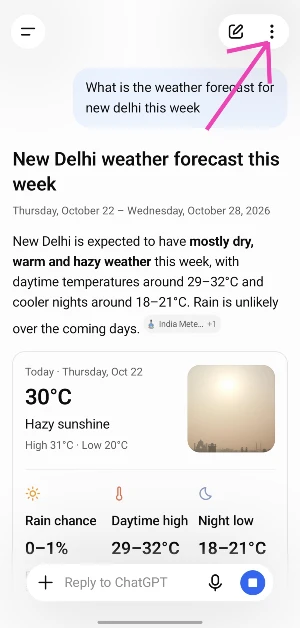
- Launch the ChatGPT app on your phone and go to the chat you wish to lock.
- Hit the ellipses in the top-right corner of the screen.

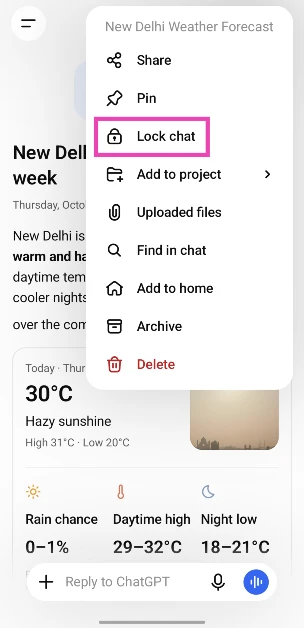
- Tap on Lock chat.

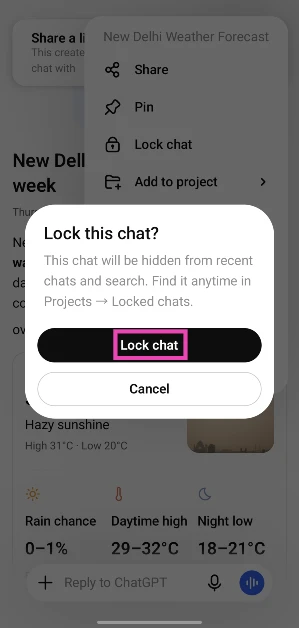
- Confirm your decision in the pop-up box.

- Tap on Create a PIN.
- Create a 4-digit PIN.
- Choose whether you want to use device unlock to access your locked chats.
Lock a chat from the sidebar
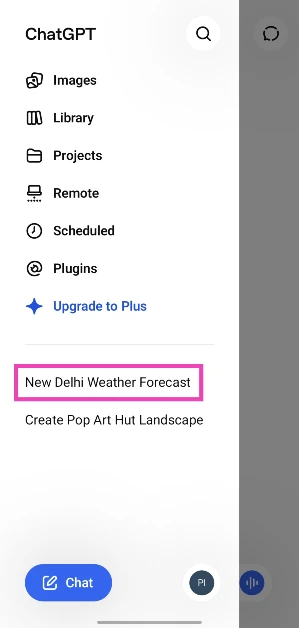
- Launch the ChatGPT app on your phone.
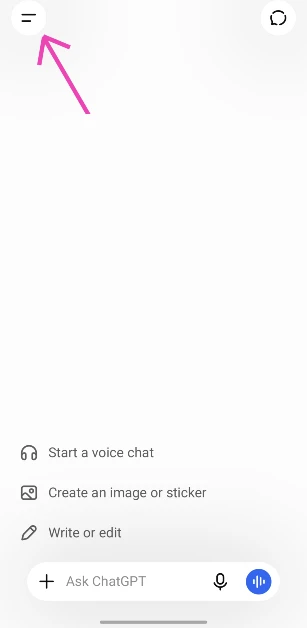
- Tap the menu icon in the top-left corner of the screen.

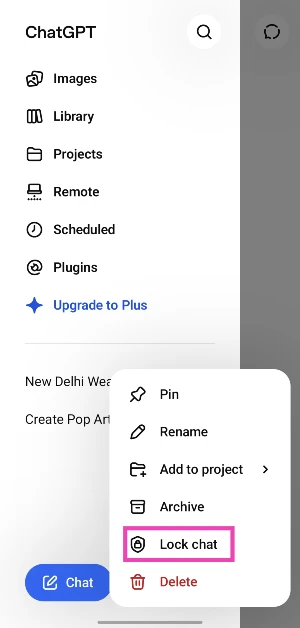
- Long-press the chat you want to lock.
- Tap on Lock chat.
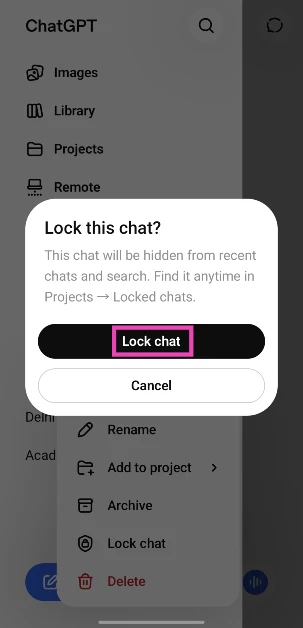
- Confirm your selection in the pop-up box.

Find a locked chat
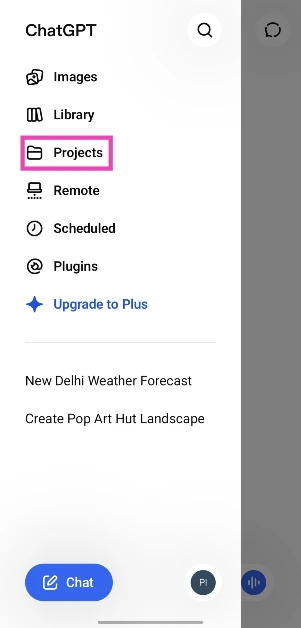
- Launch the ChatGPT app on your phone and hit the menu icon in the top-left corner of the screen.
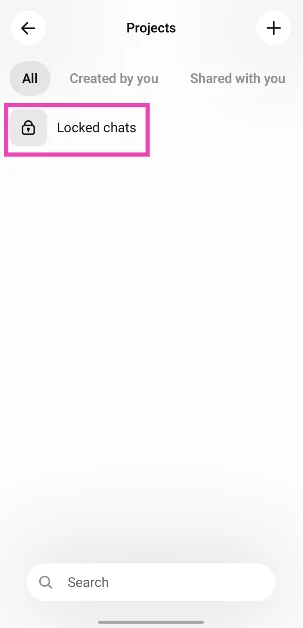
- Go to Projects.

- Tap on Locked chats.
- Enter the PIN.
- Once you’re in the folder, tap the chat you want to access.
Frequently Asked Questions (FAQs)
Can I lock my chats on ChatGPT?
Yes, you can lock a chat in ChatGPT by long-pressing its title in the sidebar and tapping on ‘Lock chat’.
Where can I find my locked chats on ChatGPT?
Go to Menu>Projects>Locked chats and enter your PIN to find your locked chats.
Can I reset my PIN for locked chats?
You can reset your PIN for the locked folder, but it will delete all the locked chats.
Is there a way to hide a chat on ChatGPT?
While there is no dedicated option to hide chats on ChatGPT, you can remove them from the sidebar by archiving them. To archive a chat, long-press its entry in the sidebar and hit ‘Archive’.
Where can I find my archived chats on ChatGPT?
To find an archived chat, go to Menu>Settings>History and data>View archived chats.
Read Also: How to enable Picture-in-Picture (PiP) mode on Spotify
Final Thoughts
If you forget your 4-digit PIN for the locked folder, you can reset it. However, this comes with the caveat of losing all your locked chats. We recommend enabling your phone’s biometric authentication system to gain access to the secured chats.


