


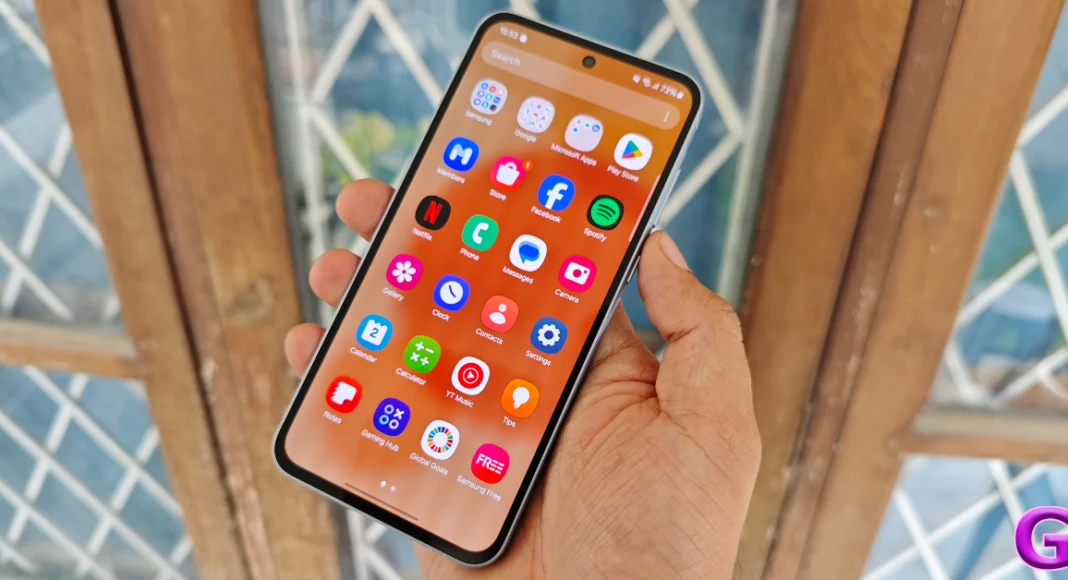

In a bid to push Google’s voice assistant, the function of the side key on Android smartphones has been changed from launching the power menu to triggering the voice assistant. In Samsung’s case, long-pressing the side key triggers Bixby. Considering a large section of users do not use Google Assistant, this move has not gone down well. Luckily, this change can be reversed. Here’s how you can set the side key as the power button on your Android smartphone.
Read Also: iQOO Z9x 5G Review: The budget beast
In This Article
Customisation options for the side key
By default, you can trigger the power menu on your Android smartphone by long-pressing the side key and the volume up button together. This requires using two hands if you want a secure grip on the phone. For a lot of users, this is an unintuitive process.
Luckily, Android offers a range of options for the side button. You can decide what it does when it is long-pressed and double-pressed. If you rely on UPI to make daily payments, you can trigger the UPI app of your choice by double-pressing the side button. For those who often use their smartphone’s flashlight to navigate their way in the dark can set this gesture to trigger the flash.
Set the side key as the power button
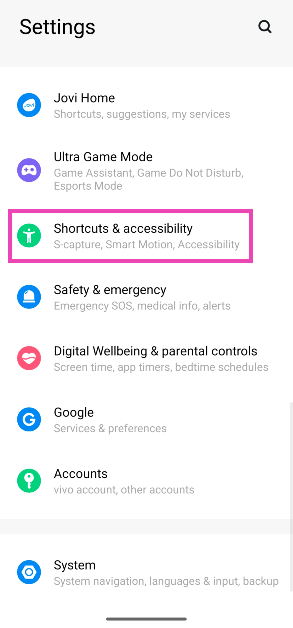
Step 1: Go to Settings and select Shortcuts & accessibility.
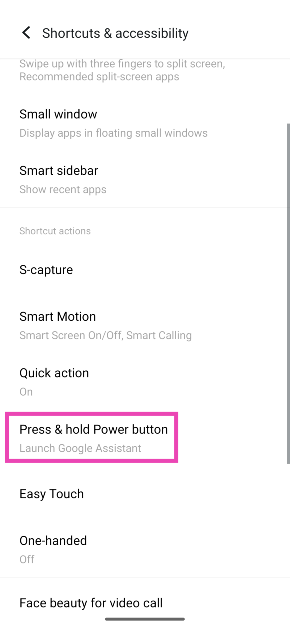
Step 2: Select Press & hold power button.
Step 3: Tap on Press & hold power button.
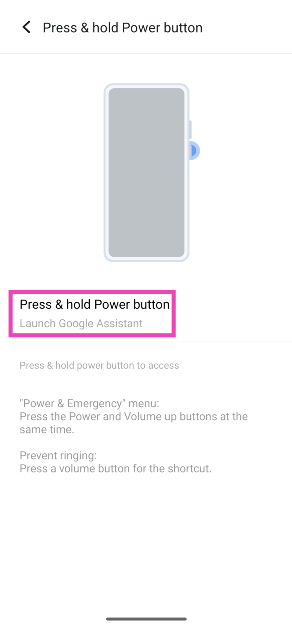
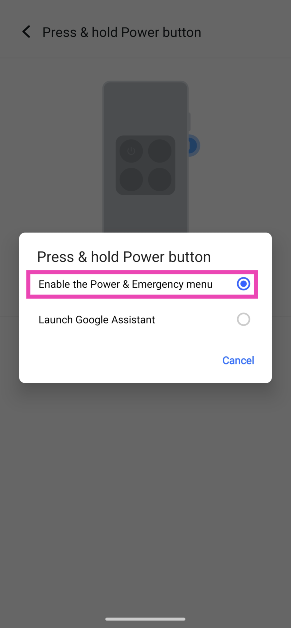
Step 4: Select Enable the Power & emergency menu.
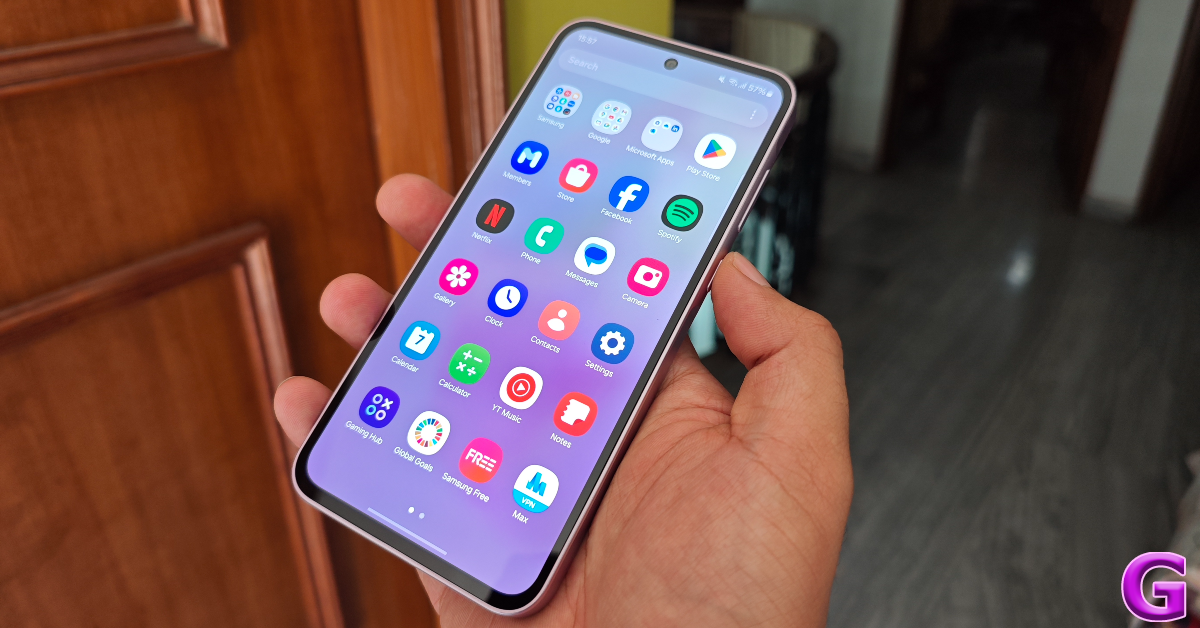
Customise the side button on a Samsung phone
Step 1: Go to Settings and select Advanced features.
Step 2: Tap on Side button.
Step 3: For Press and hold, select Displaying the Power off menu.
Frequently Asked Questions (FAQs)
How do I turn off my Android smartphone?
Press and hold the side button and volume up key simultaneously to access the power menu and select ‘Turn off’.
How do I turn off my phone by only using the side key?
Go to Settings>Shortcuts & accessibility>Press & hold power button and select ‘Enable the Power & emergency menu’.
How do I turn off my phone without using physical buttons?
Swipe down from the status bar, tap the power icon, and select ‘Power off’.
Read Also: Sony unveiled ULT POWER SOUND series in India
Conclusion
This is how you can set the side key as the power button on your Android smartphone. You can customise the side button to trigger the flashlight upon being pressed twice. Read this article to learn how to go about it. The side button can also be customised to launch any app after a double-press.


