



Screenshots make it easy to quickly save and easily access important information on your phone. Instead of manually copying the information on a page, you can take a screenshot and access it anytime you want. But what if you want to save an entire webpage to read later? There are a bunch of apps that can do that for you, but if you don’t want to install a third-party app on your phone, long screenshots can accomplish the same task. Today, we show you how to take a long screenshot of an entire webpage on your iPhone.
Read Also: Kitchen Gadgets: Must have appliances for your kitchen (2024)
In This Article
Where can you find full screenshots on your iPhone?
As you will see later, taking a full screenshot is not a tricky task at all. However, finding it on your iPhone can get confusing if you don’t pay attention while saving it. Contrary to a regular screenshot, full-page screenshots are saved in the ‘Files’ app on your iPhone. You can choose to create a new folder for the screenshot or save it in iCloud.
Long screenshots get saved as PDFs. This is the reason why they aren’t saved in the Photos app on your iPhone. Regular screenshots can be saved in the Files app too. Once saved, you can convert them to PDFs through the pop-up menu. If you want your screenshot to show up in the Photos app, save it as an image.
Take a screenshot of an entire webpage on an iPhone
Step 1: Go to the webpage and press the side button and volume up button at the same time.
Step 2: Tap the screenshot preview icon at the bottom right corner of the screen.
Step 3: Tap on Full Page.
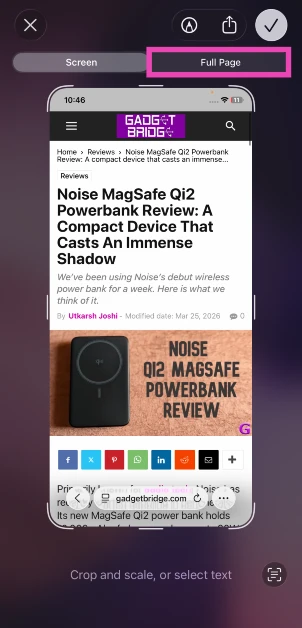
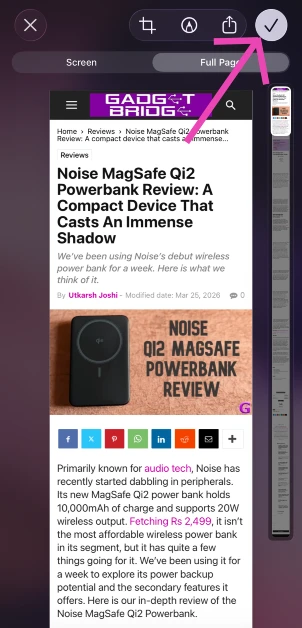
Step 4: Hit the tick icon.
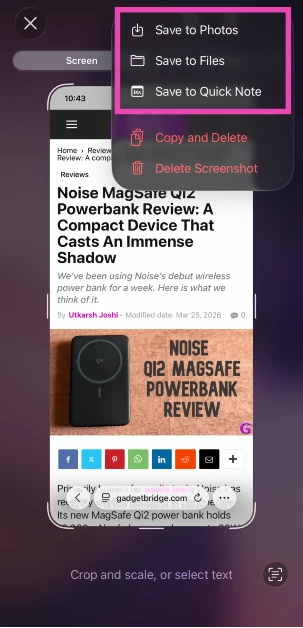
Step 5: Choose how you want to save the screenshot.
Bonus Tip: Take a screenshot of an entire webpage on Android
Step 1: Go to the webpage and press the side button along with the volume down button to take a screenshot.
Step 2: Tap on the Long screenshot option below the screenshot preview.
Step 3: Your phone will automatically start scrolling down the webpage to take a screenshot. Hit Save whenever you want to end the screenshot.

Frequently Asked Questions (FAQs)
How do I take a full-page screenshot on an iPhone?
Press the side button and the volume up key to take a screenshot, tap on the preview, select ‘Full Page’, and hit ‘Done’. All full-page screenshots get saved as PDFs.
How do I save a screenshot as a PDF on my iPhone?
Press the side button and the volume up key to take a screenshot, tap on the preview, hit ‘Done’, and select ‘Save to Files’. Go to Files, long-press the screenshot, and select ‘Create PDF’.
How do I take a long screenshot on an Android phone?
Press the side button with the volume down key to take a screenshot, then tap on the ‘Long screenshot’ option below the screenshot preview.
Read Also: TCL Google QLED, 4K QLED & 4K UHD TVs range introduced in India
Conclusion
This is how you can take a long screenshot of an entire webpage on your iPhone. Full-page screenshots get saved as PDFs in the Files folder by default. You can choose to convert a regular screenshot into a PDF by saving it in Files and selecting ‘Create PDF’ in its pop-up menu.


