


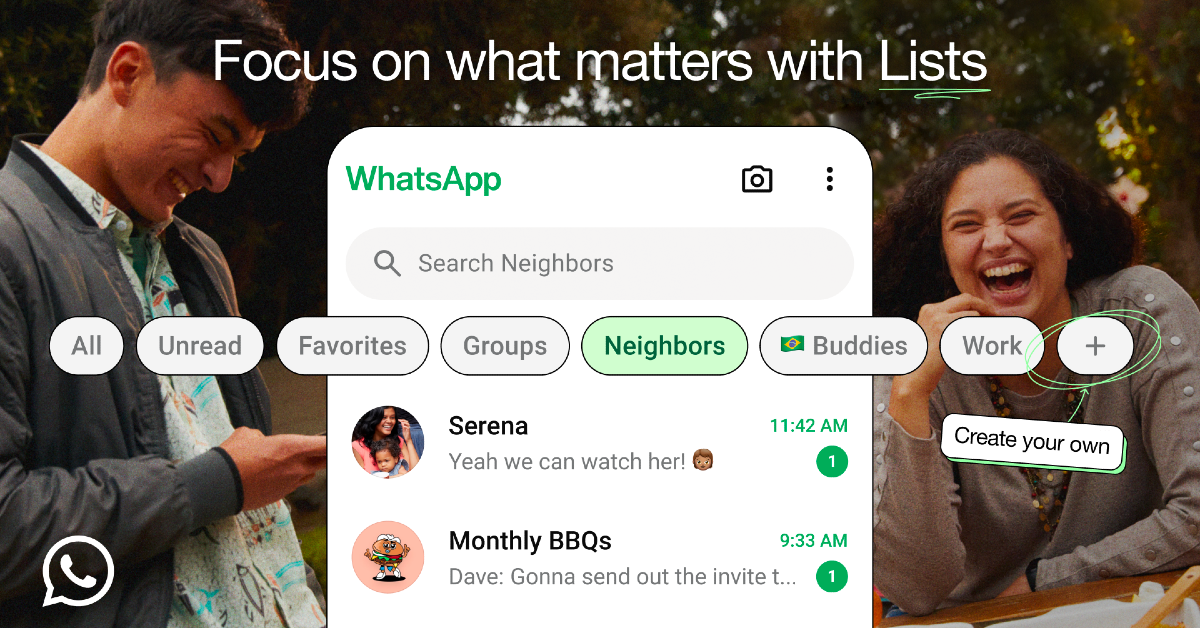

After introducing filters in April, Meta has added a new chat organisation tool to WhatsApp. Dubbed ‘Lists’, this new feature works the same way as a filter. Think of it as a customised filter for contacts of your choosing. If used correctly, it can help overcome the cluttered experience for users with a huge number of unread messages and active chats. So, without further ado, here is how you can use ‘Lists’ on WhatsApp to organise your chats.
Read Also: Apple’s Next AirTag Will Release In 2025 With A Lot Of Improvements
In This Article
What is a chat list?
Simply put, a chat list is a filter which displays conversations from a chosen collection of contacts on the screen. You can group your contacts into different categories of lists and tune into them whenever necessary. For example, you can create a list of neighbours, friends, cousins, colleagues, and more. WhatsApp offers 4 native filters:
All: Displays your primary inbox. This is the default chat filter. When selected, it displays all of your conversations, regardless of whether they’re read or unread.
Unread: Tap this filter if you want to quickly all of your unread messages in one place. You cannot add more members to this list manually.
Favourites: Your favourite contacts will show up in this category. You can go to a contacts page on WhatsApp and tap the heart icon at the bottom to ‘favourite’ them. Alternatively, you can manually add contacts to this list.
Groups: All your group conversations show up in this category. You cannot add or remove the groups in this list.
Create a List on WhatsApp
Step 1: Launch WhatsApp on your phone and switch to the Chats tab.
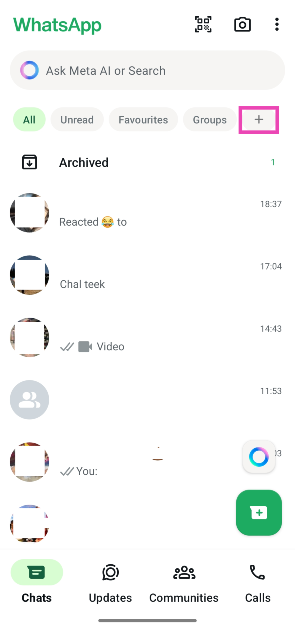
Step 2: Tap the plus sign next to the filters at the top of the screen.
Step 3: Enter a name for the list.
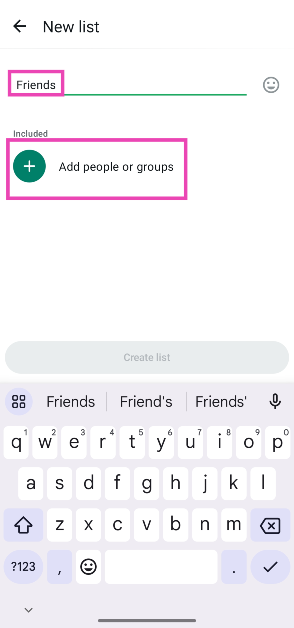
Step 4: Tap on Add people or groups to add contacts to your list.
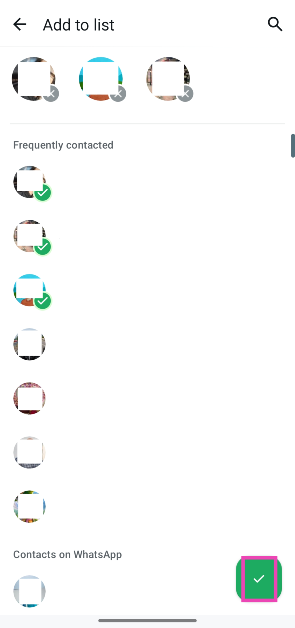
Step 5: Hit Create list.
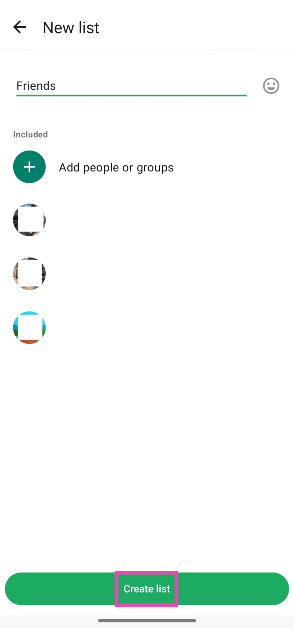
Create a WhatsApp List from settings
Step 1: Launch the WhatsApp Messenger on your phone and switch to the Chats tab.
Step 2: Hit the ellipses in the top right corner of the screen.
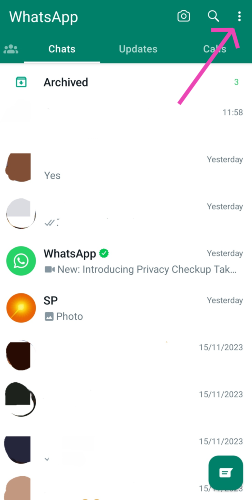
Step 3: Tap on Settings.
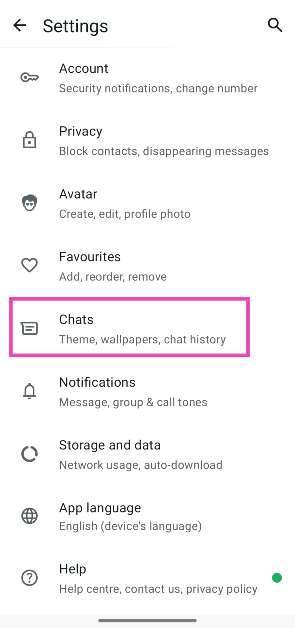
Step 4: Select Lists.
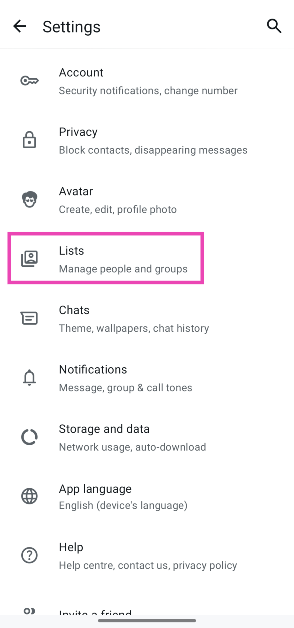
Step 5: Tap on New list.
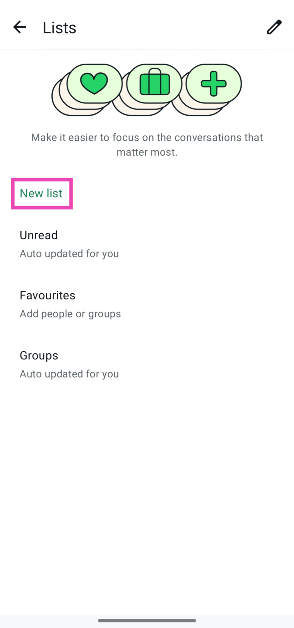
Step 6: Enter a name for the list.
Step 7: Tap on Add people or groups to add contacts to your list.
Step 8: Hit Create list.
Delete a List on WhatsApp
Step 1: Launch the WhatsApp Messenger on your phone and switch to the Chats tab.
Step 2: Tap on the list you wish to delete.
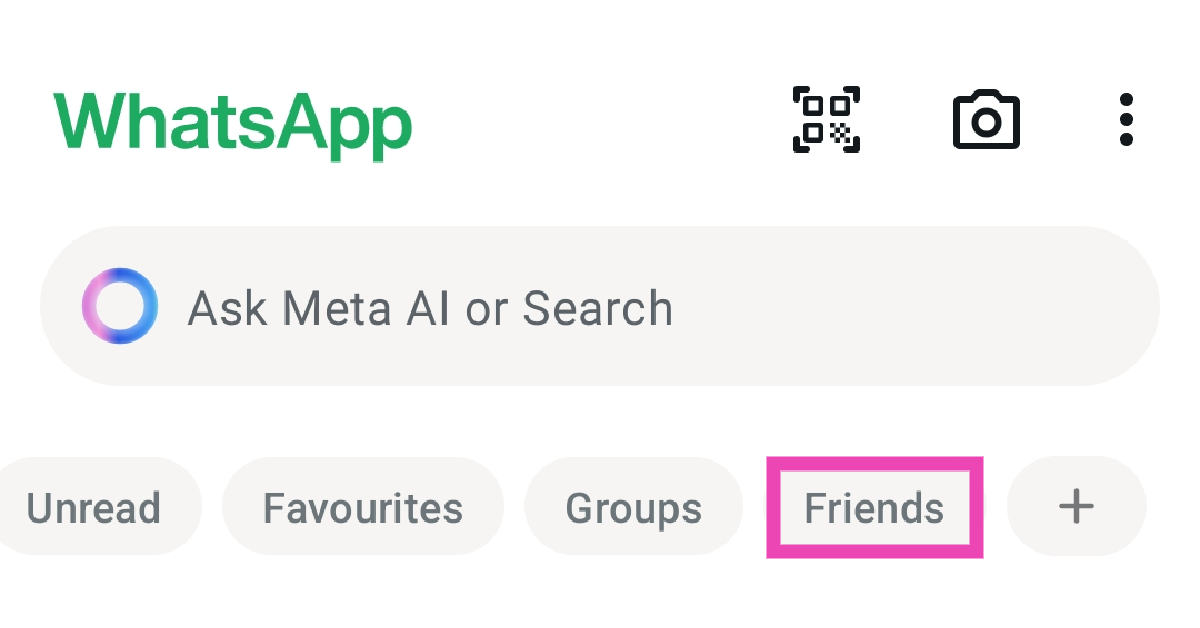
Step 3: Scroll down to the bottom of the list and tap on Manage [List Name].
![Step 3: Scroll down to the bottom of the list and tap on Manage [List Name].](https://www.gadgetbridge.com/wp-content/uploads/2024/11/clt6.webp)
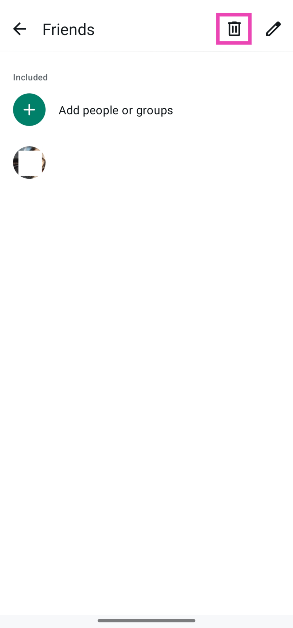
Step 4: Hit the bin icon in the top right corner of the screen.
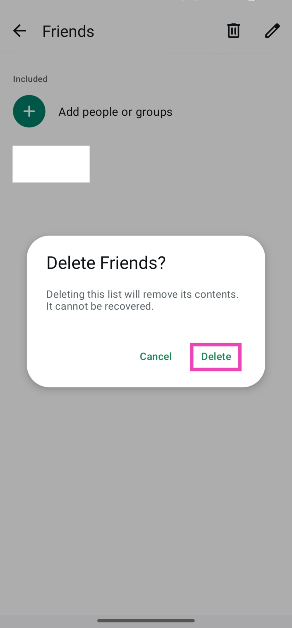
Step 5: Confirm your selection in the popup box.
Frequently Asked Questions (FAQs)
How do I create a list on WhatsApp?
Tap the plus icon in the chat filter row or go to Settings>Lists>New list to create a chat list. Add the people or groups from your contacts and hit ‘Create’.
What is a chat list in WhatsApp?
A chat list on WhatsApp acts like a filter that displays your conversations with a pre-selected collection of friends or groups.
How do I put someone on my WhatsApp list?
Open a list, tap on ‘Manage list’, select ‘Add people or groups’, and select the person you wish to add to the list.
How do broadcast lists work?
Broadcast members receive your texts as individual messages in their inboxes. Their responses show up in the broadcast list but cannot be viewed by other members.
How do I organise my WhatsApp chats?
You can organise your WhatsApp chats by moving inactive conversations to the Archived folder and using the chat filters.
Read Also: Best Air Purifiers under Rs 25,000
Final Thoughts
This is how you can use the new ‘Lists’ feature on WhatsApp to create and delete new chat filters. WhatsApp does not notify users when they are added to a list. Your lists are only visible to you. If you have any other questions, let us know in the comments!


