


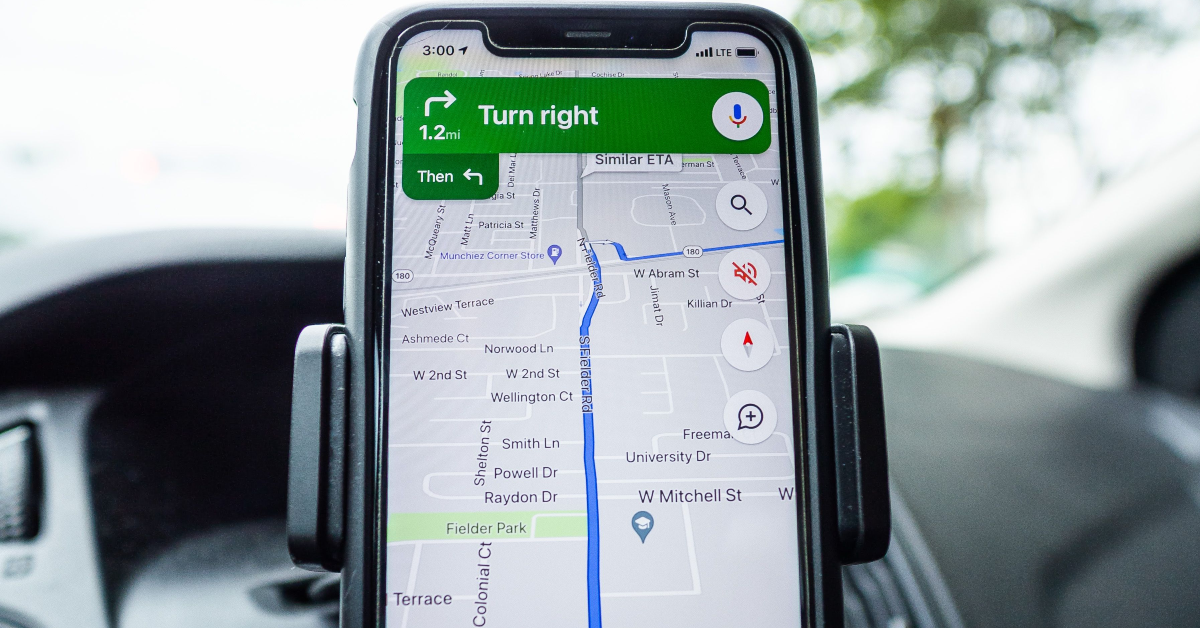
On June 28, 2026, at approximately 7:10 p.m. EDT, users reported a significant outage of Apple Maps. Users were faced with the error message “Directions Not Available” and blank displays, affecting a large number of vehicles and drivers during the hectic evening peak hours. The service has already been restored, but the outage on Sunday evening has created a lot of frustration for users.
In This Article
Why did your Apple Maps navigation stop working last night?
Around 7:10 p.m. EDT, Apple Maps went down for several users, with some seeing a blank screen and others seeing the “Directions Not Available” message. This outage, seemingly caused by a server-side failure rather than user-side issues, impacted users on iOS, macOS, and CarPlay.
Downdetector detected a substantial surge in over 1,500 user complaints. Users flooded social media sites like X with complaints about their inability to use the platform for navigation.
Also read: Amazon Quiz Answers Today 29 June 2026: Here are all the answers
Map graphics loaded in spots, but the critical routing engine, which is supposed to provide turn-by-turn instructions, was completely dead. Many drivers and travellers were left without important route information during a busy evening when systems began to stabilise for many users around 8:00 p.m. EDT, after an outage that lasted about one hour.
Current Status: The service seems to be back to normal again. Apple has yet to make an official comment about the root cause. If you’re still having map issues today, it’s probably not an outage on the server, but rather a stuck process on your specific device.
Also Read: Garena Free Fire MAX Redeem Codes Today (June 29): A new batch of codes is out now
Troubleshooting: What to Do If Maps Are Still Glitchy
If you are still having constant map issues, don’t worry too much. You can fix most map issues by following a few easy steps. Follow this guide; it will help you to get back your navigation function efficiently.
Toggle Your Connection
If you’re having difficulty loading maps on your device, try fixing the connection between your phone and Apple’s servers first. A frequent fix is to reset this connection by turning on Airplane Mode for around 10 seconds, then turning it back off. This will reset and restore your data connection. Additionally, ensure that your mobile data or Wi-Fi is enabled and that you have a strong signal. Weak connections are often the main culprit for errors in loading maps. For best performance, ensure the connection is strong and consistent.
Check Location Permissions
For the best experience with location-based services, users should go to Settings, tap Privacy & Security, then choose Location Services. In this part, it is important to check that the Location Services toggle is turned ON. Furthermore, users should confirm that the Maps app is set to “While Using the App” and that Precise Location is enabled to get accurate positioning.
Automate Date & Time
Ensure your device’s time and date are accurate for effective GPS syncing. You can do this by going to Settings, then General, and then Date & Time. Here you need to activate the Set Automatically function so that your device can change time settings depending on the current location and time zone. Incorrect time settings may disrupt GPS, affecting navigation and location services.
Force-close the App
To force-close the Apple Maps app, slide up from the bottom of your screen or hit the Home button twice to bring up the App Switcher. Then swipe up and off the screen on the Apple Maps app to close it altogether. After completing the process, you can relaunch the app and begin anew.
Force Restart
To force restart Apple Maps, simply swipe it up to close it from the app switcher, then open it again. Then if that doesn’t work, go ahead and prompt a standard restart of the iPhone.
A heavier fix
If you’re having persistent connectivity issues and nothing else works, resetting network settings on your iPhone is a nuclear option. To do this, go to Settings > General > Transfer or Reset iPhone, tap Reset, and then choose Reset Network Settings. Be aware that this action will wipe any stored Wi-Fi passwords, but it’s usually the best course of action to take when you’re having constant connectivity issues.


