


Apple’s iOS 26.4 update for the iPhone is finally here. It adds nifty features like Playlist Playground for Apple Music, Offline Music Recognition, Purchase Sharing, a new set of emojis, and more. While Audio Zoom is not a new feature, it was previously enabled by default, with no option to turn it off. The new update has added a toggle switch for this tool. Here’s how you can disable Audio Zoom on your iPhone.
Read Also: Xiaomi 17 Review: A zero-compromise phone for everyday users
In This Article
What is Audio Zoom?
When you’re recording videos with your iPhone in outdoor settings, the background sounds have a big role to play in the audio mix. Apple’s smart algorithms for the Camera app do a great job of limiting the unwanted noises in the video while making sure the audio from the subject is picked up clearly.
Audio Zoom kicks in when you use the zoom function while shooting a video. Once you zoom into the subject, your iPhone focuses the audio on it. The result is a clear, legible audio track which keeps the subject as the central figure. If you want to give more representation to the background sounds, you can turn this feature off.
Disable Audio Zoom on iPhone
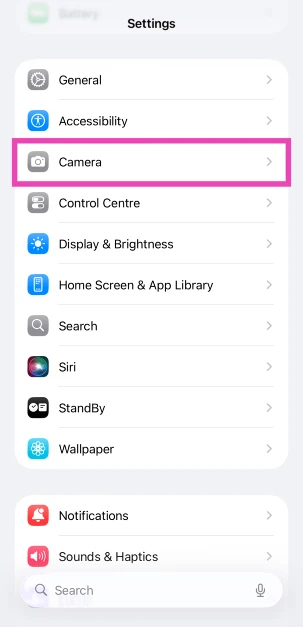
- Go to Settings.
- Scroll down and select Camera.

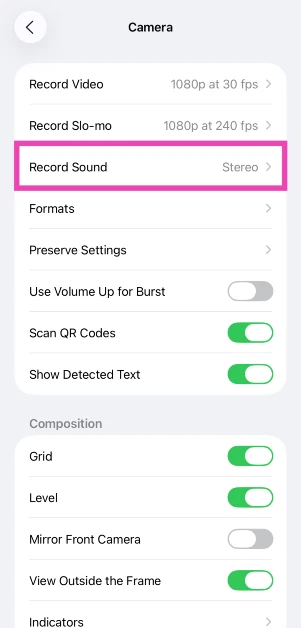
- Tap on Record Sound.

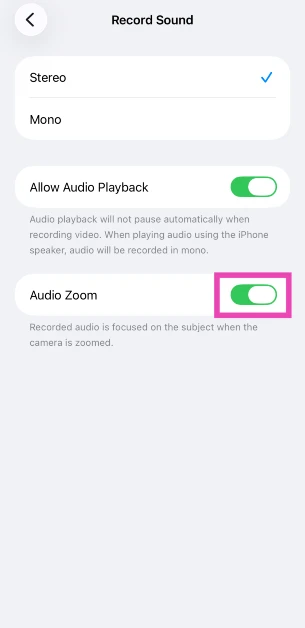
- Turn off the toggle switch next to Audio Zoom.

Frequently Asked Questions (FAQs)
What does Audio Zoom do on iPhone?
Audio Zoom gets triggered when you zoom in while recording a video. It recognises the subject that you’re zooming into and focuses the audio on it.
How do I turn off Audio Zoom?
Go to Settings>Camera>Record Sound and turn off the toggle switch next to Audio Zoom.
Why can’t I access Audio Zoom on iPhone?
Audio Zoom is only available with Spatial and Stereo audio formats. If you’re using the Mono format for your video recordings, you won’t be able to use this feature.
Why can’t I disable Audio Zoom on my iPhone?
Your iPhone needs to be updated to iOS 26.4 to get the option to disable Audio Zoom.
How do I update my iPhone to iOS 26.4?
Go to Settings>General>Software Update to install iOS 26.4 on your iPhone.
Read Also: YouTube adds media controls to Android Auto: Details
Final Thoughts
As mentioned earlier, Audio Zoom is only available with the Spatial and Stereo audio formats. Once you turn it off, you’ll get a more balanced sound on your recordings. If you have any questions, let us know in the comments!


Finally getting around to making that Audio Zoom toggle option available on the new iOS 26.4 is much appreciated, rather than making it an automatic setting. It’s going to make things much easier for those people who want a more natural sounding recording. Great work, breaking it down into easy-to-follow steps!