



Key Takeaways
- Google Maps is widely regarded as the top navigation app for both Android and iOS devices, largely due to its popular live traffic feature.
- Users can enable the traffic feature by ensuring the 'Show traffic on map' toggle is on and by selecting the 'Traffic' layer from the layers menu.
- Troubleshooting steps include clearing the app cache, restarting the phone, updating the Google Maps app to the latest version, and uninstalling and reinstalling the app.
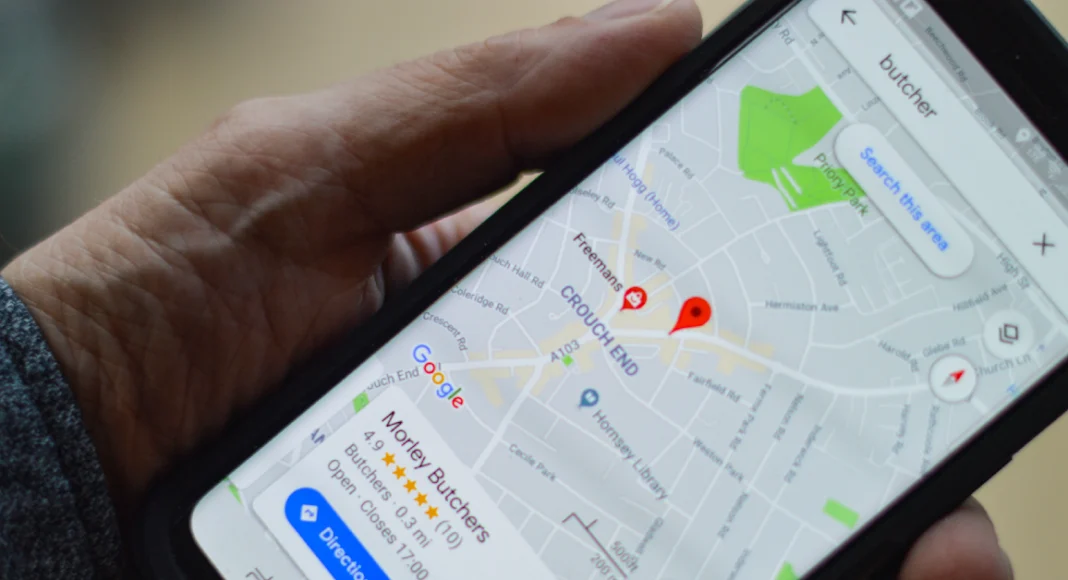
Google Maps is unanimously considered to be the best navigation app for Android and iOS devices. Its live traffic feature is one of the reasons why the app is preferred by millions of users across the world. You can take a look at the traffic while you’re in navigation mode or remotely monitor what it’s like in any part of the world. If you can’t get the live traffic feature to work on Google Maps, here are 7 methods that will help fix the problem.
Read Also: World Food Day 2024: Best gadgets for your kitchen to spin a delicious meal
In This Article
Can’t see the traffic on the Google Maps app?
If you can’t see the traffic on the Google Maps app, it could be due to the following reasons. Make sure these issues are taken care of before moving on to the fixes.
- Your smartphone is not connected to the internet
- Google Maps is in offline mode
- The traffic feature is not available in your region
- Google Maps’ servers are down
- You are using a downloaded map
Turn on the ‘Show traffic on map’ toggle
Step 1: Swipe up from the ETA panel while you’re in navigation mode to view more options.
 Step 2: Turn on the toggle switch next to Show traffic on map.
Turn on the traffic layer
 Step 2: Turn on the toggle switch next to Show traffic on map.
 Turn on the traffic layer
Step 1: Launch the Google Maps app on your phone.
Step 2: Hit the layers icon in the top right section of the screen.
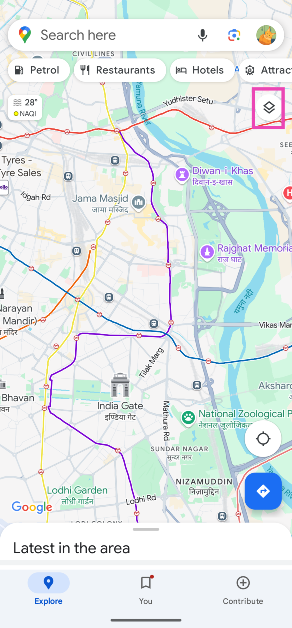
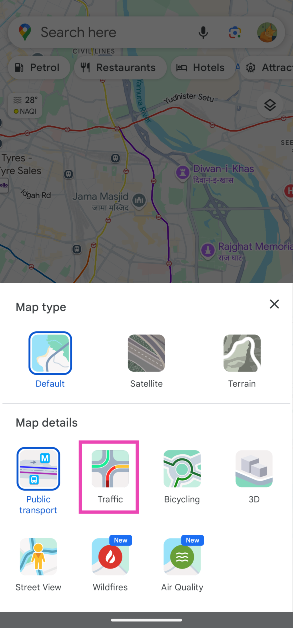
Step 3: Select the Traffic layer.
Clear the app cache
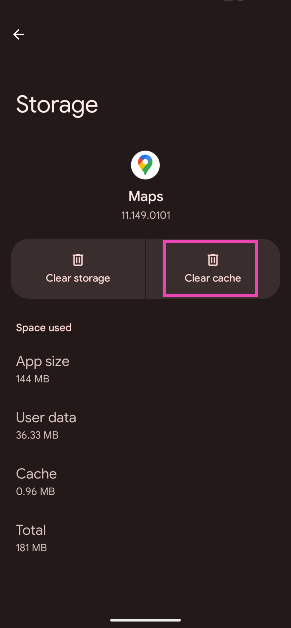
Step 1: Go to Settings and select Apps.
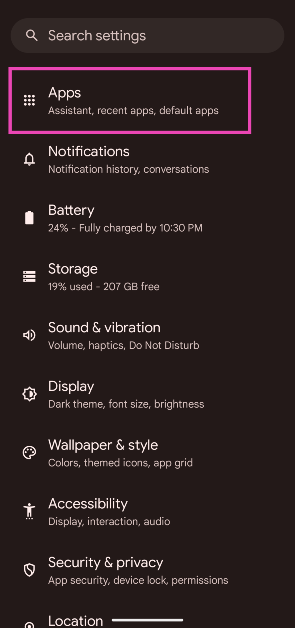
Step 2: Select Google Maps.

Step 3: Tap on Storage & cache.
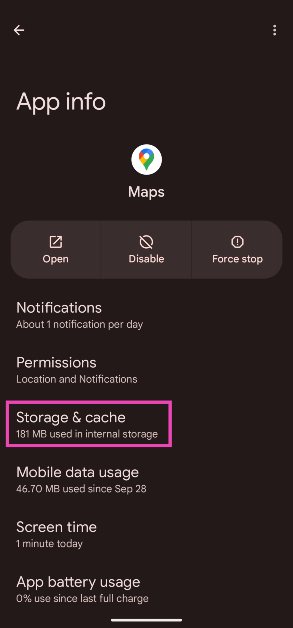
Step 4: Hit Clear cache.
Restart your phone
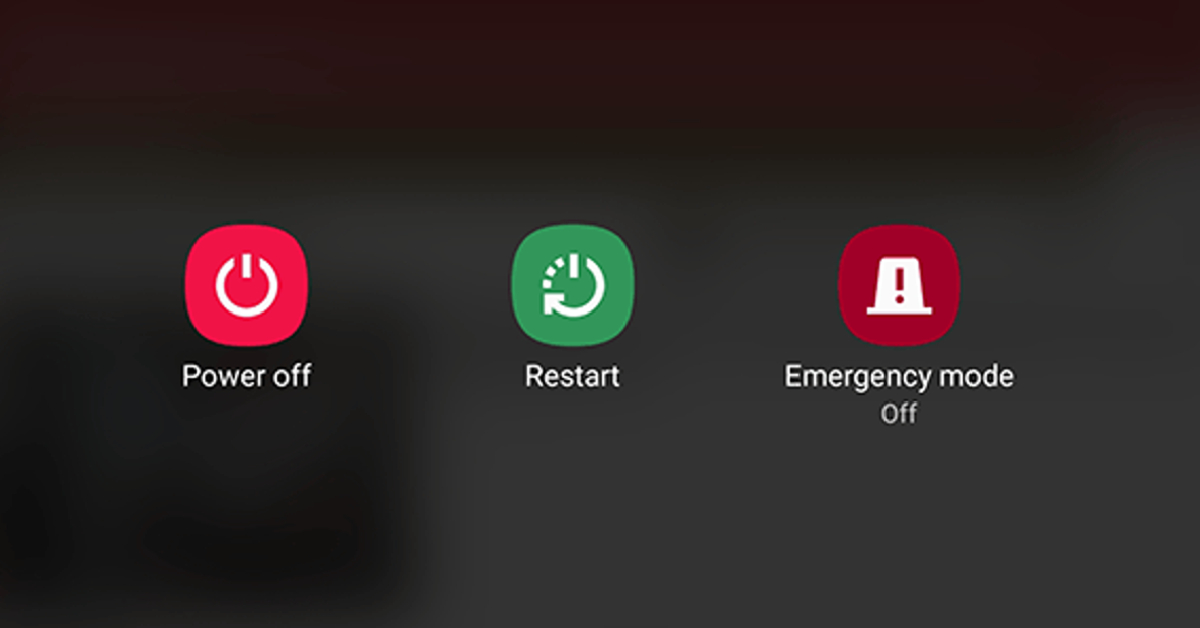
If a background issue is causing the Google Maps app to malfunction, a simple restart will take care of it. Long-press the side button and hit ‘Restart’ in the power menu. If the side button triggers the voice assistant, press it along with the volume-up key to access the power menu.
Update the Google Maps app

If you’re using an old version of the Google Maps app, the issue at hand could be the result of a bug that has been resolved in a future update. Go to the Google Play Store, search for Google Maps, and hit the ‘Update’ button. Once the update has been installed, restart the app and check if the issue is resolved.
Uninstall and reinstall Google Maps
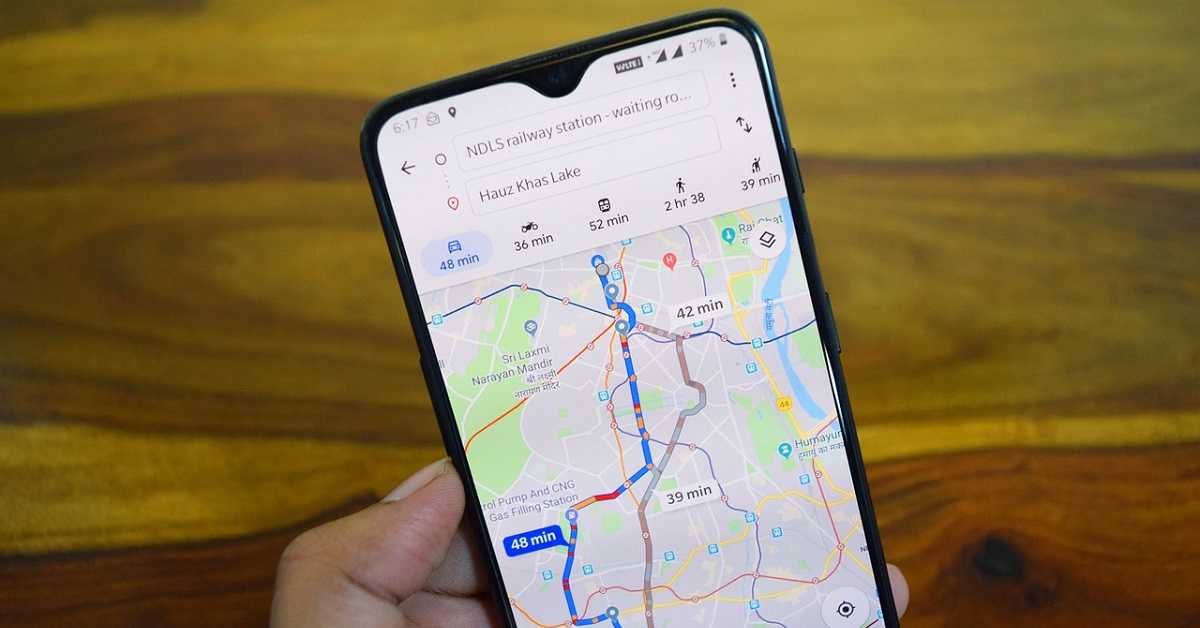
If you recently updated the Google Maps app on your phone, there is a good chance that the traffic layer issue popped up due to poor installation of the update. Uninstall the app and reinstall it using the Play Store to restore it to its normal condition. Long-press the Google Maps icon in the app drawer and hit ‘Uninstall’. Once the app has been removed from your device, go to its page in the Google Play Store and hit ‘Install’.
Update your phone’s OS
Step 1: Go to Settings and select Software update.
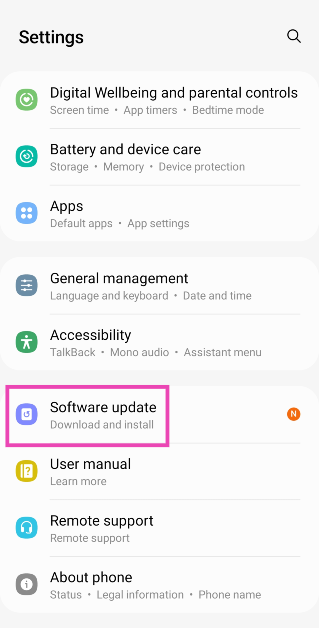
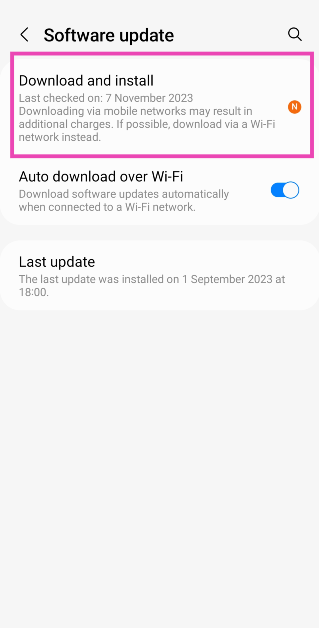
Step 2: Tap on Download and install.
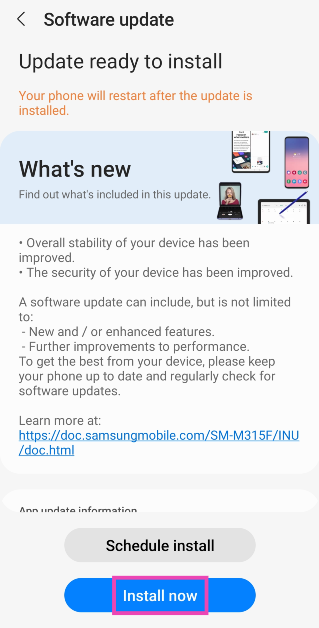
Step 3: Select Install now.
Read Also: HyperX Cloud Mini Headphones Review: Tiny Titans
Frequently Asked Questions (FAQs)
Why can't I see the traffic in the Google Maps app?
If you're unable to view the traffic in the Google Maps app, it could be because the app's cache is corrupted or the traffic layer is disabled.
How do I check the traffic in Google Maps?
Enter the destination in Google Maps, hit the 'Directions' button, and select your mode of transportation. Tap the layers icon and select 'Traffic'.
How do I fix the 'Google Maps not showing traffic' issue?
To get back the traffic interface in Google Maps, enable the 'Traffic' layer in the app, clear its cache, and make sure it is updated to the latest version.
How do I enable traffic in Google Maps?
Launch the Maps app on your phone, hit the 'Layers' icon, and select the 'Traffic' layer.
Does Google Maps show traffic problems?
When you enter navigation mode in Google Maps, the alerts related to your journey pop up on the screen. You can add the Maps to the home page to get live alerts.
Read Also: Sony has expanded its BRAVIA Theatre audio lineup in India: Price, specifications
Final Thoughts
This is how you can fix the ‘Google Maps not showing traffic’ issue on your Android phone. Google recently added the incident reporting feature to the Maps app on Android Auto. Here is a brief explainer that walks you through the process. If you have any questions, let us know in the comments!


