


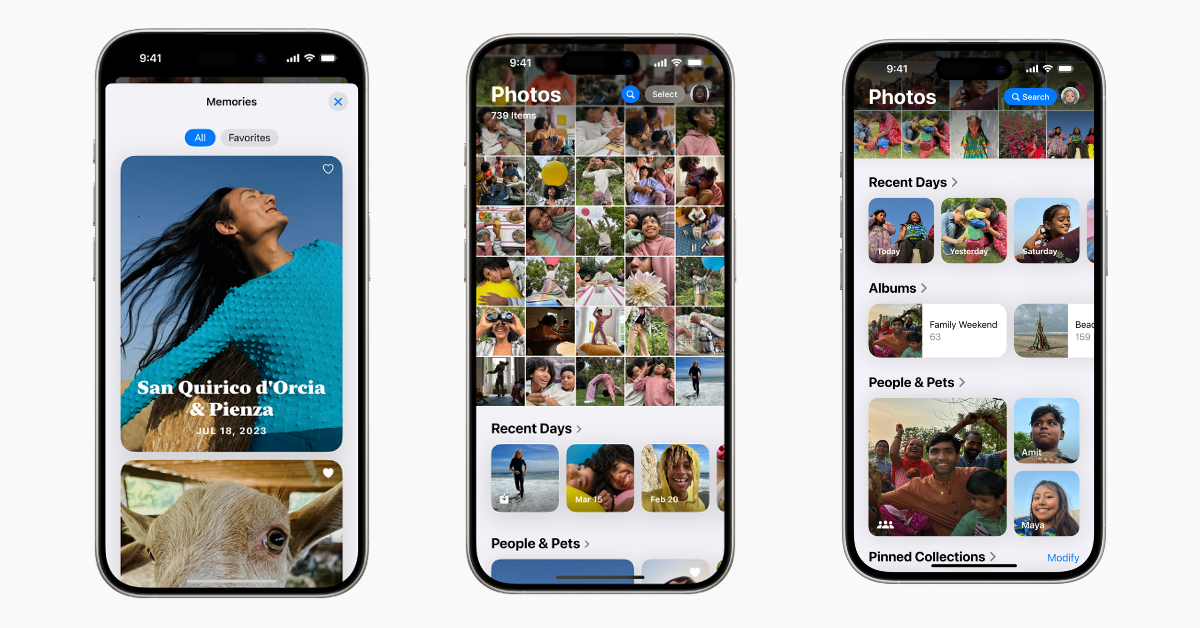
After showcasing the new iOS 18 at WWDC24 in June, Apple finally launched the mobile operating system for all eligible iPhone users on Monday. iOS 18 brings a lot of customisation options for the home screen, lock screen, Control Centre, and more. The Photos app has been redesigned and features a new layout for the library. Users get more control over the content that is featured within the app. So let’s take a close look at how you can customise the Photos app on iOS 18.
Read Also: Lava Blaze X Review: Does it bring the X factor?
In This Article
What’s new on the Photos app?
If you just made the switch to iOS 18, the Photos app may seem a little confusing. This is because Apple has changed some of the key design elements of the app to make it more dynamic and interactive. For starters, the bottom third section of the app contains ‘Collections’, which thematically organise the photos in your library. Your holiday photos can be found in the ‘Trips’ collection while pictures of your family, friends, and pets are grouped together in a collection of their own.
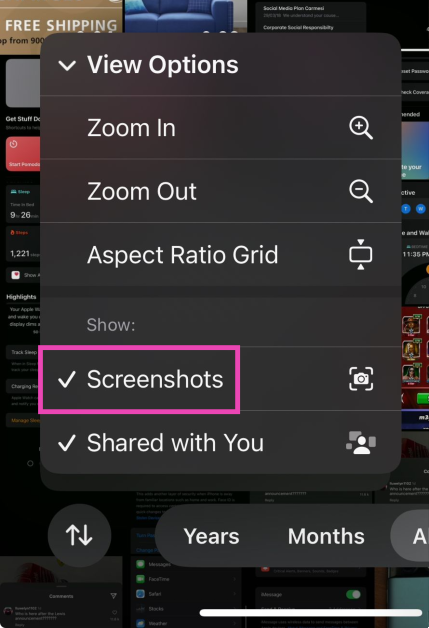
Apart from collections, the aesthetic of the Photos app has been further refined by giving users the option to hide screenshots from the photo grid. You can access these screenshots from their dedicated folder, but if you don’t like the cluttered look that they bring to the app, you can hide them with just a few taps.
Customise the layout of the Photos app
Step 1: Launch the Photos app on your iPhone.
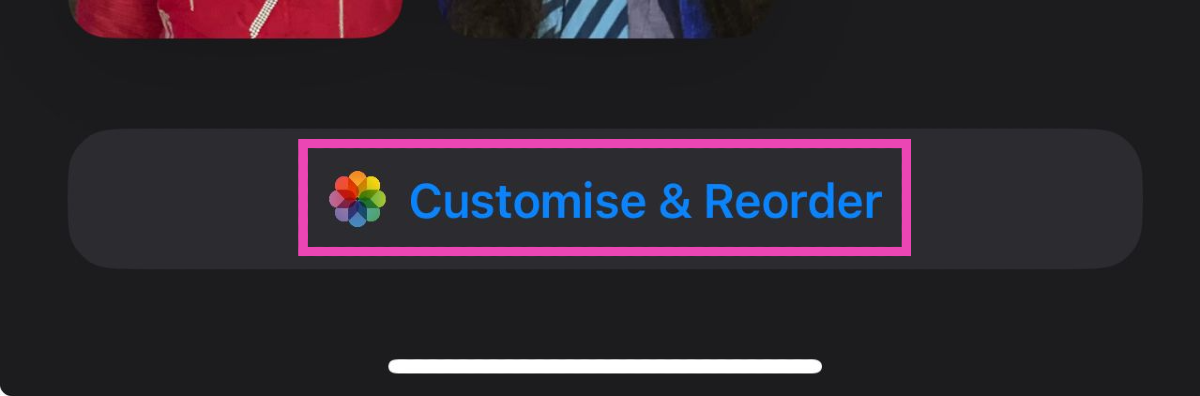
Step 2: Scroll down and select Customise and Reorder.
Step 3: Drag a collection to change its order in the library.
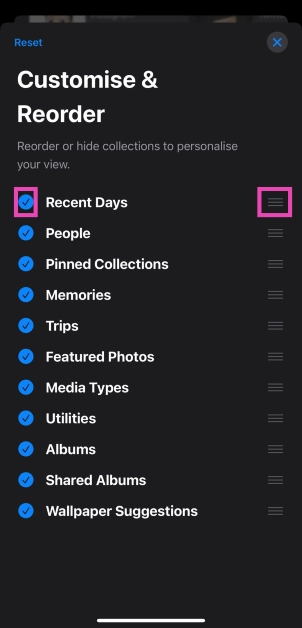
Step 4: Uncheck the collection that you want to hide.
Hide screenshots from the photo library
Step 1: Launch the Photos app on your iPhone.
Step 2: Scroll down and tap the two arrows icon at the bottom of the screen.
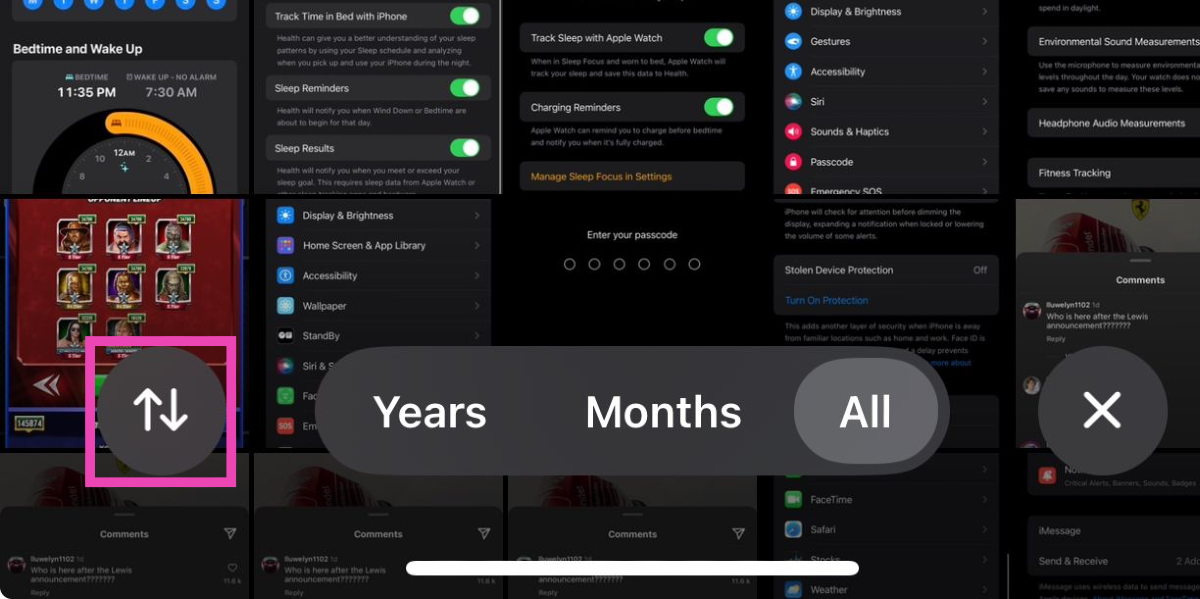
Step 3: Select View Options.
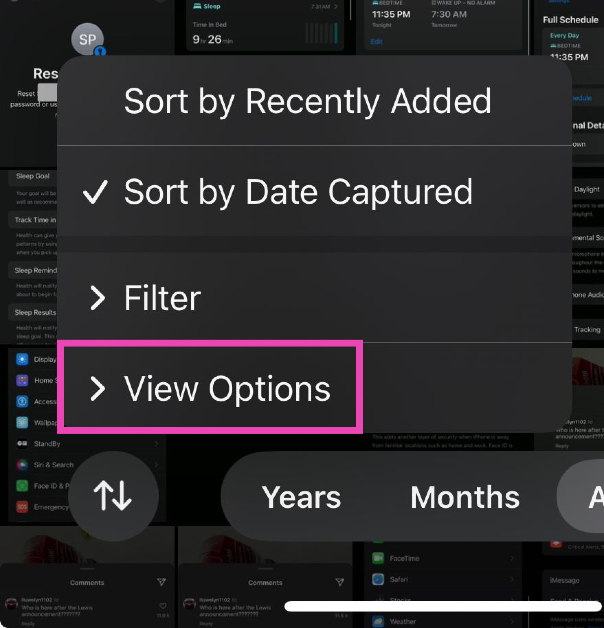
Step 4: Uncheck the Show Screenshots option.
Reset suggestions and hide featured content
Step 1: Launch the Photos app on your iPhone.
Step 2: Tap the profile icon in the top right corner of the screen.
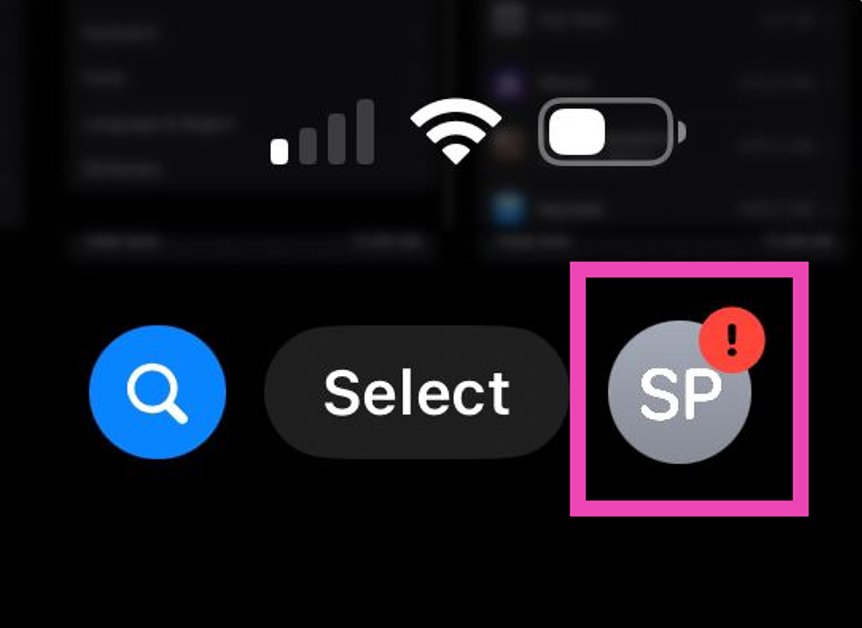
Step 3: Select Reset Suggested Memories or Reset People & Pets Suggestions.
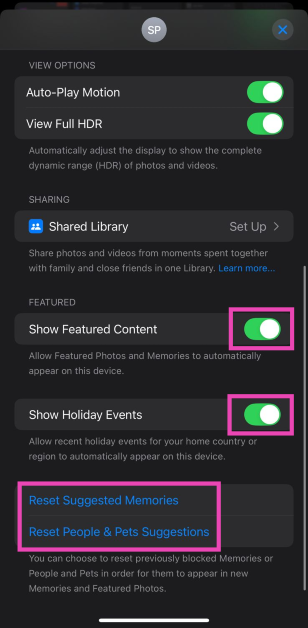
Step 4: Hide the featured content you don’t want to see in the library by turning off Show Featured Content or Show Holiday Events.
Frequently Asked Questions (FAQs)
How do I update my iPhone to iOS 18?
Go to Settings>General>Software Update and tap on ‘Download and Install’.
How do I hide screenshots from my iPhone’s photo library?
Go to the Photos app, scroll down, and tap the icon with the two arrows. Uncheck the ‘Show Screenshots’ option from the pop menu.
How do I reset suggested memories in the Photos app?
Launch the Photos app on your iPhone, tap on the profile icon, and select ‘Reset Suggested Memories’.
Read Also: Our Top 7 Favourite iOS 18 Features: Try Them On Your iPhone Now!
Conclusion
This is how you can customise the Photos app in iOS 18. The AI-based Clean Up tool will be added to the Photos as a part of the iOS 18.1 update next month. At first, the Apple Intelligence features will only be available to iPhone users in the US. They will be rolled out to users in the UK, Canada, South Africa, New Zealand, and Australia by the end of the year.


