



To cut down on battery drain in navigation mode, Google has added a new ‘Power Saving Mode’ to its native Maps app. This feature gives a boost to the battery life by getting rid of non-essential information and turning the interface black & white. It can be triggered by simply pressing the power button. Since this feature is enabled by default, it may leave some users confused. Here’s how you can disable the Power Saving Mode in Google Maps.
Read Also: Oppo introduced new Velvet Red colour options for Find X9
In This Article
What happens in Power Saving Mode?
The low-power map shows up on your lockscreen when you press the power button in navigation mode. The simple black & white layout contains the turn directions at the top of the page and the ETA and remaining distance at the bottom. You cannot pinch in and out to explore the map in this mode. There are no layers to use, either. You won’t get traffic or accident alerts in the low-power map.
Swiping down from the status bar gives you access to the notification and quick settings panel. Swiping up from the navigation bar takes you back to the lock screen, where you can use your password, PIN, fingerprint, or face to unlock the phone. If you wish to exit the Power Saving Mode, simply tap on the screen or press the power button.
This feature only works in Portrait orientation. It supports driving mode only. It cannot be accessed in walking and biking modes. As of now, this feature is only available in the Google Pixel 10 series smartphones. Google plans on bringing it to other Android devices in the coming months.
Disable Power Saving Mode from settings
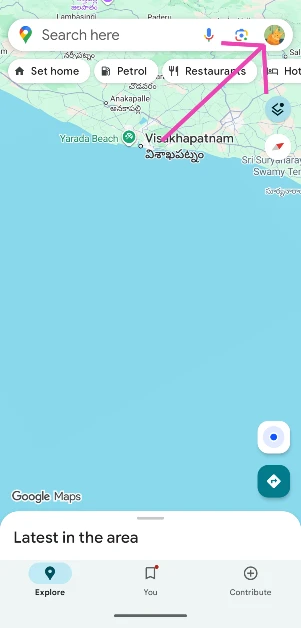
Step 1: Launch Google Maps on your phone and tap your profile picture in the top-right corner of the screen.
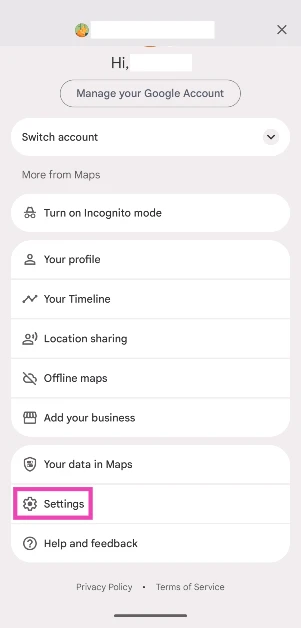
Step 2: Go to Settings.
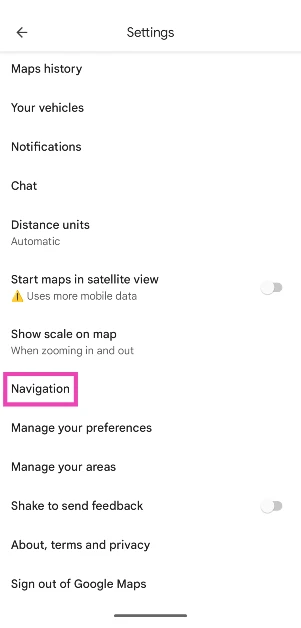
Step 3: Tap on Navigation.
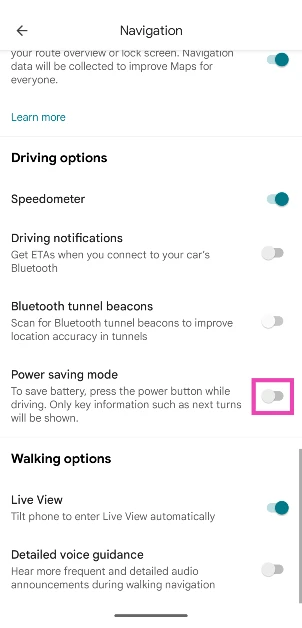
Step 4: Scroll down and hit the toggle switch next to Power Saving Mode.
Disable Power Saving Mode while navigating
Step 1: Launch Google Maps on your phone and search for your destination.
Step 2: Make sure you’re in the car tab. Hit Start.
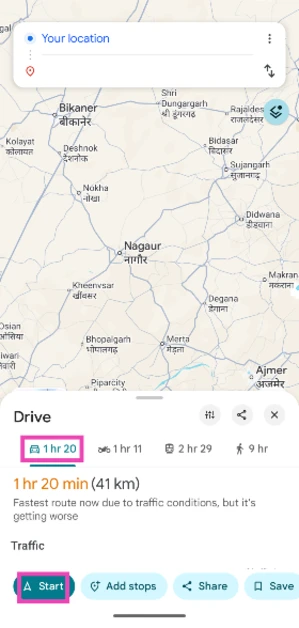
Step 3: Pull up the menu from the bottom of the screen and select Settings.
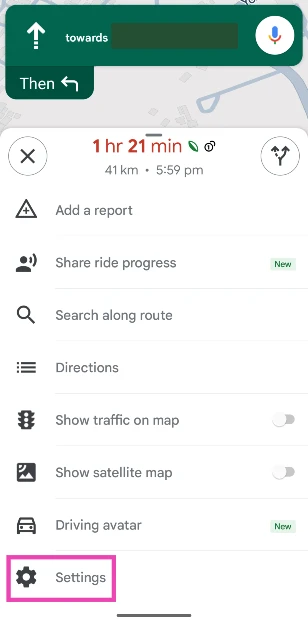
Step 4: Turn off the toggle switch next to Power saving mode.
Frequently Asked Questions (FAQs)
What is Power Saving Mode in Google Maps?
Power Savings Mode kicks in when you press the power button in navigation mode. It strips the navigation interface down to its bare bones and makes sure it consumes minimal power.
How do I disable Power Saving Mode in Maps?
Launch Google Maps, tap your profile picture, and go to Settings>Navigation. Scroll down and turn off the toggle switch next to Power Saving Mode.
Can I use Power Saving Mode in landscape orientation?
Google currently limits the use of Power Saving Mode to Portrait orientation only. It is not available in Landscape orientation.
How do I exit Power Saving Mode in Maps?
To exit Power Saving Mode, tap the power button again or swipe up from the bottom of the screen and unlock your phone using a password, PIN, fingerprint, or face unlock.
Read Also: What is Advanced Protection in Android 16? How to enable it?
Final Thoughts
As mentioned earlier, this feature is currently available in the Google Pixel 10 series smartphones only. Google will roll it out on other Android devices in a phased manner. If you have any questions, let us know in the comments!


